Device Manager Error Codes on Windows 11 in Pakistan: Code 43, 10, 28 and Every Fix (Full List)
Device Manager error codes explained: Code 43, 10, 28, 22, 45 and more, with Microsoft's fix for each, and the steps to update or reinstall a Windows 11 driver.
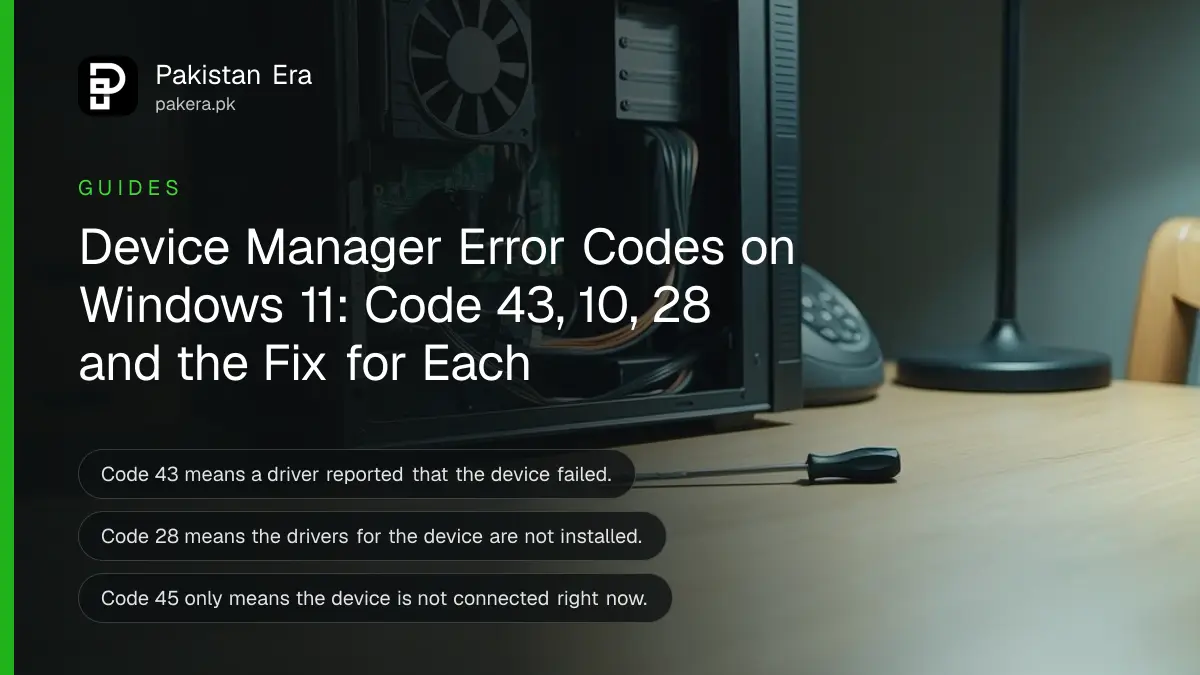
Device Manager error codes tell you why a device is not working on Windows 11. Code 43 means a driver reported that the device failed, Code 10 means the device cannot start, Code 28 means its driver is not installed and Code 22 means it was disabled. For most codes, Microsoft's fix is to update the driver or uninstall the device and choose Scan for hardware changes. The table below lists 27 codes with what each one means and what to do.
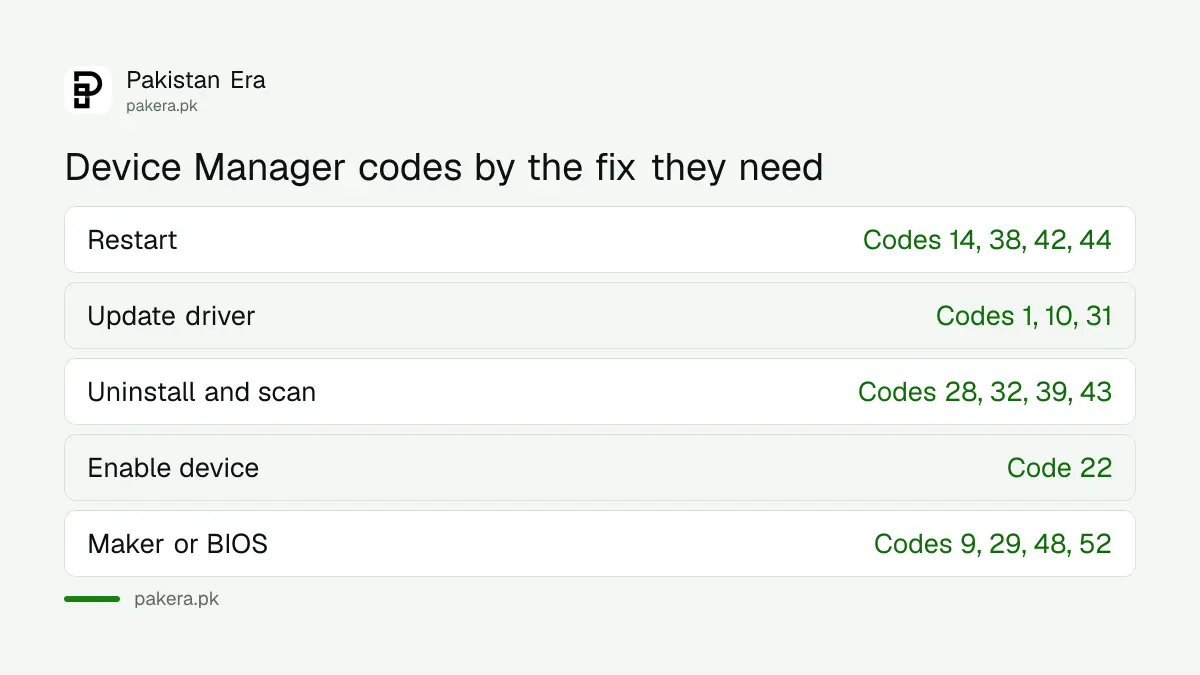
We read Microsoft's support page "Error codes in Device Manager in Windows" on 1 November 2026 and grouped its fixes into five actions, so you can see at a glance whether your code needs a restart, a driver update, a reinstall, an enable click or a call to the maker. Microsoft notes its page does not list every code Device Manager can show.
Find the code under Device status
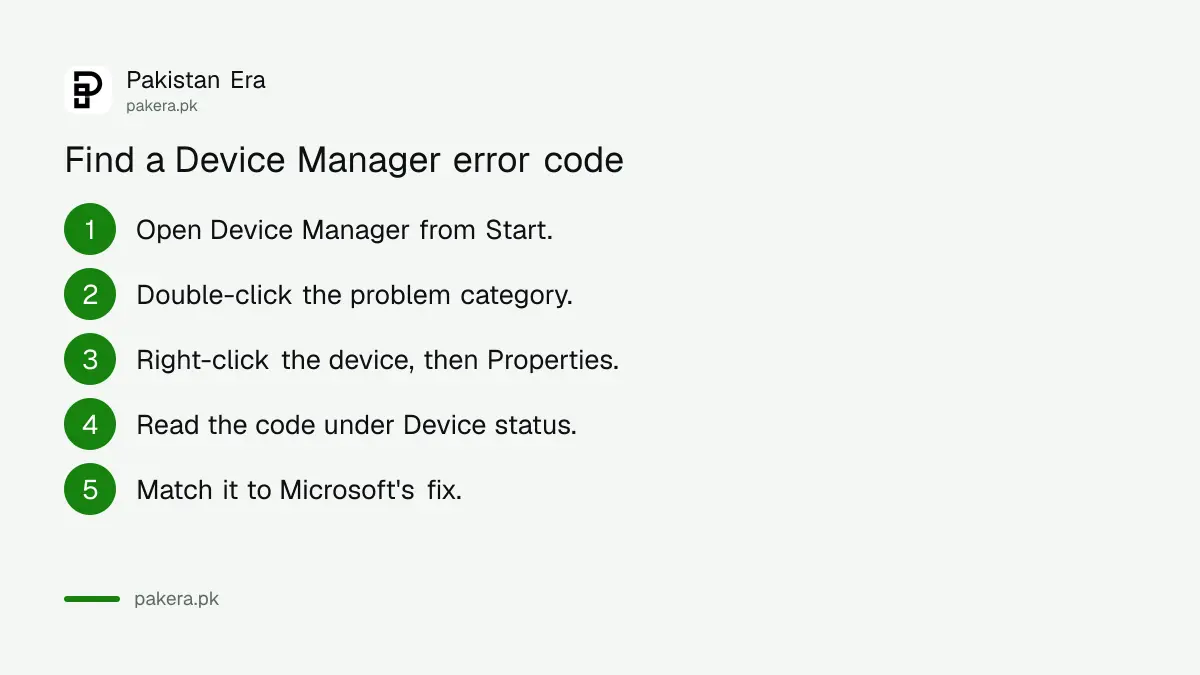
Open Device Manager, double-click the category with the problem device, right-click the device and select Properties. The error code appears in the Device status box of the Properties window, such as "This device cannot start. (Code 10)".
- From Start, search for device manager and open it.
- Look for a device with a yellow exclamation mark, and double-click its category.
- Right-click the device and select Properties.
- Read the code in the Device status area.
- Find the code in the table below and follow the fix.
Write the full message down, not just the number. Microsoft says some devices, for Code 10 in particular, show a message written by the hardware maker instead of the standard text.
Every common code, what it means and Microsoft's fix
Most codes need one of five actions: restart, update the driver, reinstall the driver, enable the device, or contact the maker or check the BIOS. The table matches each code from Microsoft's page to its cause and the action Microsoft recommends.
| Code | What it means | Microsoft's fix |
|---|---|---|
| 1 | No driver, or driver set up wrongly | Update the driver |
| 3 | Driver may be corrupt, or memory is low | Close apps; reinstall the driver; add RAM |
| 9 | Invalid hardware ID | Contact the maker; hardware or driver is defective |
| 10 | Device cannot start | Update the driver |
| 12 | Not enough free resources | Resolve the conflict; BIOS may not have allocated resources |
| 14 | Needs a restart | Restart |
| 18 | Drivers need reinstalling | Update the driver, or uninstall and scan |
| 19 | Registry settings incomplete or damaged | Uninstall and scan; or a restore point |
| 21 | Windows is removing the device | Wait, press F5, or restart |
| 22 | Disabled in Device Manager | Action, Enable Device |
| 24 | Not present, or prepared for removal | Remove the device |
| 28 | Drivers not installed | Uninstall and scan for hardware changes |
| 29 | Firmware gave it no resources | Enable it in the BIOS |
| 31 | Windows cannot load its drivers | Update the driver |
| 32 | Driver service disabled | Uninstall and scan |
| 37, 39, 40, 41 | Driver failed to start, is corrupt or its registry entry is wrong | Uninstall and scan |
| 38, 42, 44 | Old driver still in memory, duplicate device, or shut down by an app | Restart |
| 43 | A driver reported the device failed | Uninstall and scan; then the maker |
| 45 | Device not connected now | Nothing; reconnect it |
| 48 | Driver blocked for known problems | New driver from the maker |
| 52 | Driver signature cannot be verified | Latest driver from the maker's website |
| 53 | Reserved for the kernel debugger | Turn off kernel debugging |
The wording in the middle column is our short version of Microsoft's longer messages. For a code not in this table, Microsoft says to contact the device maker or Microsoft Support.
Reinstall the driver for Codes 28, 43 and most others
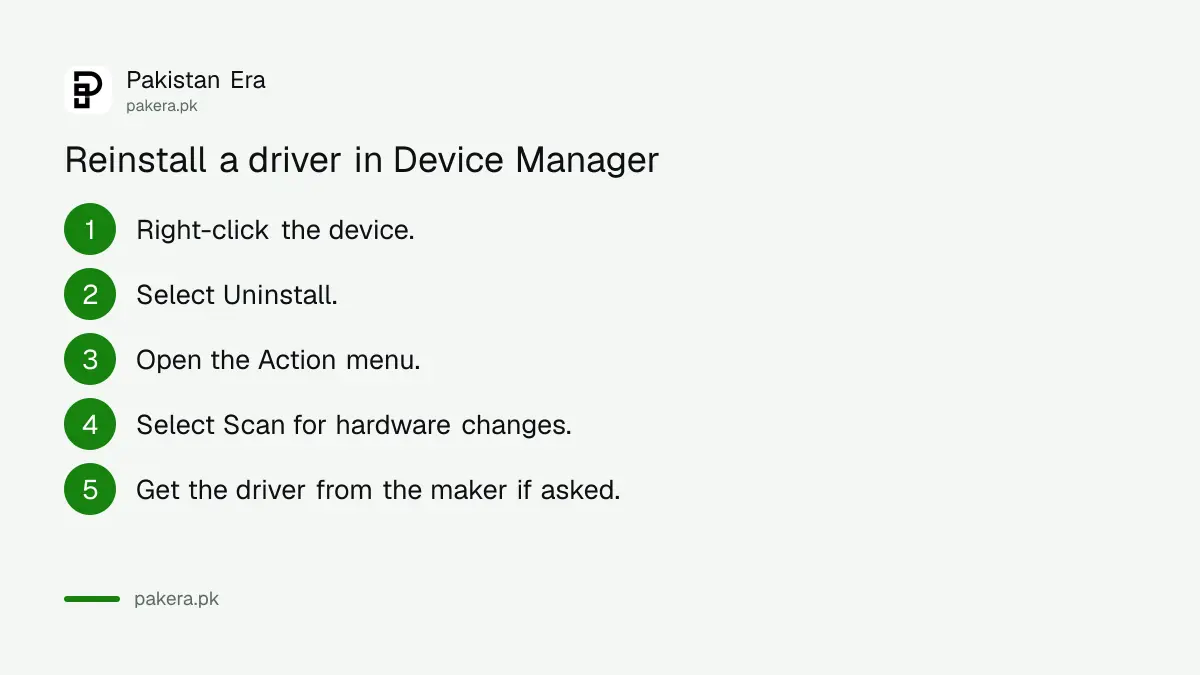
Microsoft's manual reinstall is the same for more than ten codes: right-click the device in Device Manager, select Uninstall, then open the Action menu and select Scan for hardware changes. Windows finds the device again and installs a driver for it.
- From Start, search for device manager and open it.
- Right-click the device and select Uninstall.
- When it disappears, open the Action menu at the top.
- Select Scan for hardware changes.
- If Windows asks where the driver is and you have none saved, download the latest one from the hardware maker's website.
Download drivers only from the maker's own website, such as the laptop or graphics card maker, not from third-party driver sites. Code 52 is Windows refusing a driver whose signature it cannot verify, which is a good reason to stick to official files.
Update the driver for Codes 1, 10 and 31
For Codes 1, 10 and 31, Microsoft's first fix is an update. Open the device's Properties, go to the Driver tab and select Update Driver, then follow the wizard. Windows may already have a driver built in or saved from before.
Start with Windows Update, which often carries the right driver. If Update Driver finds nothing, the maker's website is the next place. When a driver update itself caused the error, the same Driver tab often has Roll Back Driver, which returns the previous version. That option is in Microsoft's camera and display pages rather than its error codes page.
If Windows Update keeps failing while fetching drivers, the Windows Update troubleshooter comes first. And if driver errors arrive with a crash screen, the stop code fixes for a blue screen in Windows 11 are the place to start.
Restart, enable or call the maker for the rest
Codes 14, 38, 42 and 44 need only a restart. Code 22 needs Action, then Enable Device. Code 45 needs nothing, since it clears when you reconnect. Codes 9 and 48 point to the maker, and Code 29 to the BIOS.
Code 43 needs the most care. Microsoft's view is that a driver told Windows the device failed. Reinstall first. If Code 43 comes straight back, treat it as a possible hardware fault and take it to the maker, especially on a laptop still under warranty.
Codes 12, 29 and 33 involve the BIOS, the firmware settings screen that opens before Windows. Changing BIOS settings is a job for someone confident with them, and Microsoft points to the computer maker's documentation for it.
Common questions
What is Code 43 in Device Manager?
Microsoft says one of the device's drivers told Windows the device failed. Uninstall it, scan for hardware changes, and contact the maker if it returns.
How do I fix Code 10?
Update the driver from the Driver tab in the device's Properties. If Windows finds none, get the latest from the maker's website.
What does Code 28 mean?
The device's drivers are not installed. Uninstall the device and choose Scan for hardware changes.
Is it safe to uninstall a device in Device Manager?
Yes. Windows finds it again on Scan for hardware changes or on restart. Keep the maker's driver handy in case Windows asks for it.
Code 45 keeps showing. Is my device broken?
No. Microsoft says Code 45 only means the device is not connected now, and it clears when you plug it back in.
How we verified this
What we checked, where we read it, and what we could not confirm.
Last checked 1 November 2026. Every code, cause and fix comes from Microsoft's page Error codes in Device Manager in Windows, which we read on 1 November 2026. The Roll Back Driver note comes from Microsoft's external monitor troubleshooting page. The grouping into five actions, the short wording in the table and the advice to avoid third-party driver sites are ours. We did not reproduce each code on a device.
About the author

Technology Journalist & Multimedia Producer
Ahmad Ali is a technology journalist and multimedia producer at Pakistan Era, joining the team in October 2026. He covers consumer technology and digital life for Pakistani readers, combining research with hands-on product testing.