How to Share a Printer Between Two Computers on Windows 11 in Pakistan: Every Step and Fix
Share a printer between two computers on Windows 11: set the network to Private, tick Share this printer, add it by name or IP, plus Microsoft's six fixes.
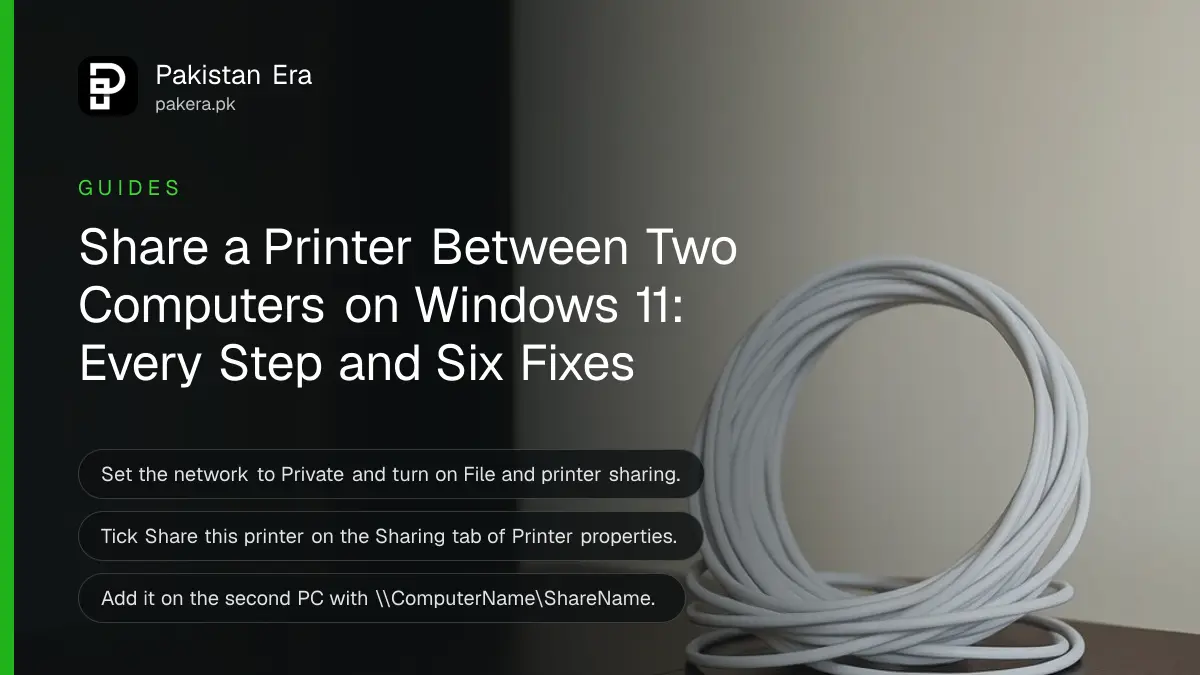
To share a printer between two computers on Windows 11, set your home or office network to Private, turn on Network discovery and File and printer sharing, then open the printer's Printer properties, Sharing tab, and tick Share this printer. On the second PC, add it with the path \\ComputerName\ShareName. The PC the printer is plugged into must stay switched on for anyone else to print.
Below are Microsoft's steps in order for the main PC and the second PC, every path format Windows accepts, and the six fixes Microsoft gives when the second PC cannot connect. It suits a small office, a shop counter or a family with one printer and two laptops. We read Microsoft's pages on sharing a network printer and fixing shared printer connections on 1 November 2026.
The main PC and the network have to be ready first
Microsoft says a shared printer must be installed and working on one main Windows PC, that PC must be on and connected, and printer sharing must be turned on. Both computers also need to be on the same network, set as Private.
Print a test page on the main PC before you start. If the printer will not print there, sharing will not help, and the fixes for a printer showing offline on Windows come first.
Then set the network to Private. Microsoft warns to do this only on a trusted network, such as your own home or office Wi-Fi, never a cafe or hotel network.
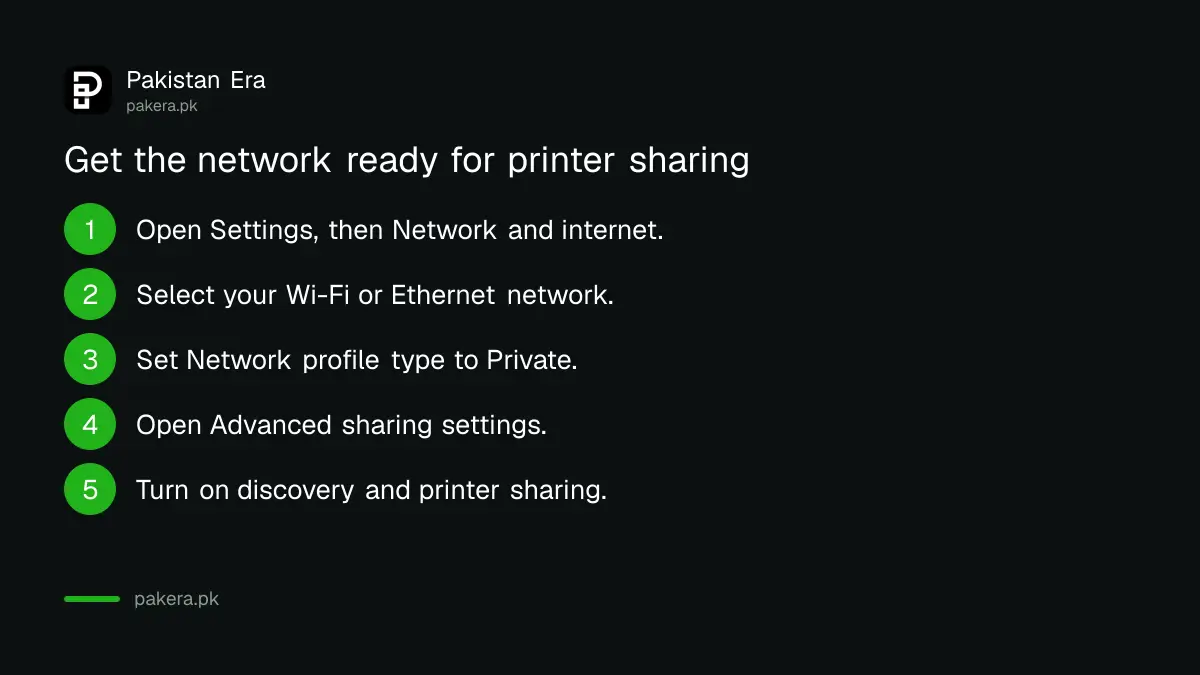
- Select Start, then Settings, then Network & internet.
- Select Wi-Fi or Ethernet, then select your network.
- Under Network profile type, select Private network.
- Go back to Network & internet, select Advanced network settings, then Advanced sharing settings.
- Under Private networks, make sure Network discovery and File and printer sharing are both On.
Microsoft says these sharing settings are normally on by default for Private networks, so you may only need to check them. If User Account Control appears, enter an administrator's name and password.
Share the printer and note its share name
On the main PC, open Settings, Bluetooth & devices, Printers & scanners, select the printer, then Printer properties. On the Sharing tab, select Change Sharing Options, tick Share this printer, note the Share name and select OK.
The share name is what the second PC types later, so keep it short and without spaces if you can. Microsoft says you can change it on the same tab.
You also need the main PC's name or its IP address. For the name, go to Settings, System, About, and read Device name under Device specifications. For the IP address, go to Settings, Network & internet, Wi-Fi or Ethernet, select your network and read the IPv4 address. Write both down.
Add the shared printer on the second PC
On the second PC, open Settings, Bluetooth & devices, Printers & scanners and select Add device. If the printer appears, select Add device next to it. If not, choose Add a new device manually, then Select a shared printer by name.
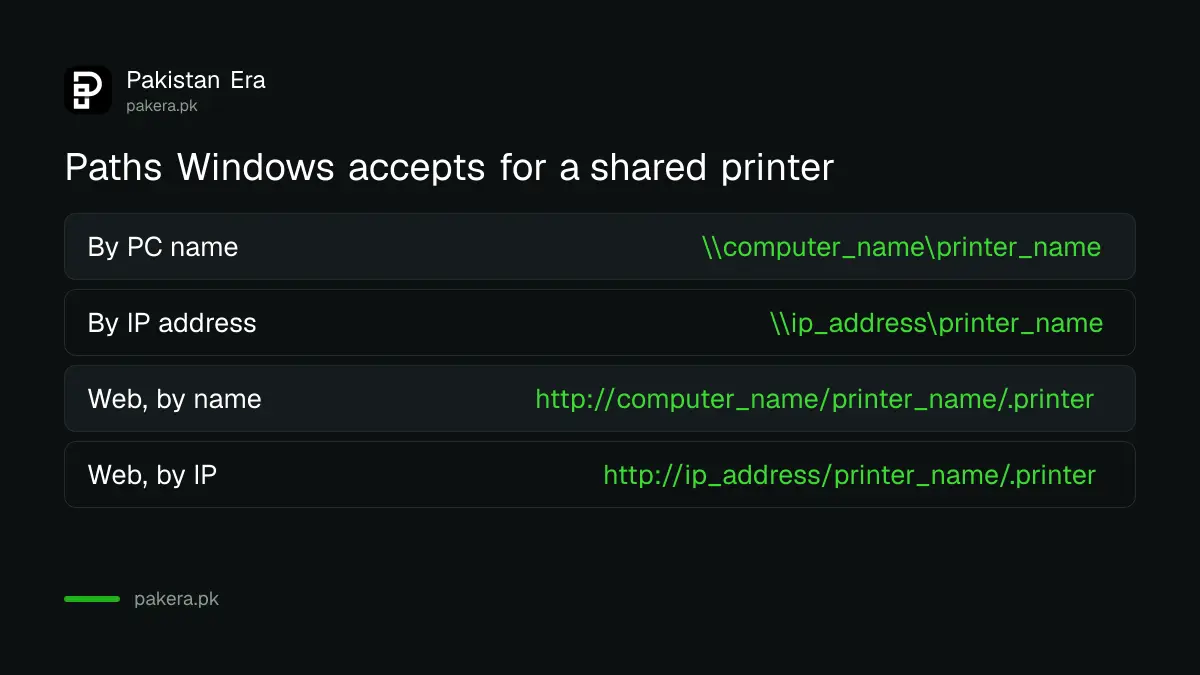
Microsoft says the list can take a few minutes to fill, so wait before giving up on it. When you add by name, type one of these formats, using the main PC's name or IP address and the printer's share name:
| Format | Example |
|---|---|
| \\computer_name\printer_name | \\OFFICE-PC\HPLaser |
| \\ip_address\printer_name | \\192.168.1.10\HPLaser |
| http://computer_name/printer_name/.printer | http://OFFICE-PC/HPLaser/.printer |
| http://ip_address/printer_name/.printer | http://192.168.1.10/HPLaser/.printer |
The examples are ours; put in your own PC name, IP address and share name. Microsoft's tip is simple: if adding by name fails, try the IP address, and the other way round. Enter the main PC's sign-in details if Windows asks, then select Next and Finish.
Six fixes when the second PC cannot connect
Microsoft's fixes are: confirm the printer is shared, check both PCs reach each other by typing \\ComputerName in File Explorer, use the right sign-in details, turn on discovery and sharing, add the printer manually, then remove and add it again.
- On the main PC, open Printer properties, Sharing tab, tick Share this printer, select Apply and OK.
- On the second PC, open File Explorer and type \\ComputerName in the address bar. If the main PC does not open, fix the network first.
- Use the same Microsoft account or local account on both PCs, or enter the main PC's username and password when asked.
- Turn on Network discovery and File and printer sharing under Advanced sharing settings.
- Add the printer manually with \\ComputerName\PrinterShareName.
- Remove the shared printer on the second PC, restart, and add it again manually.
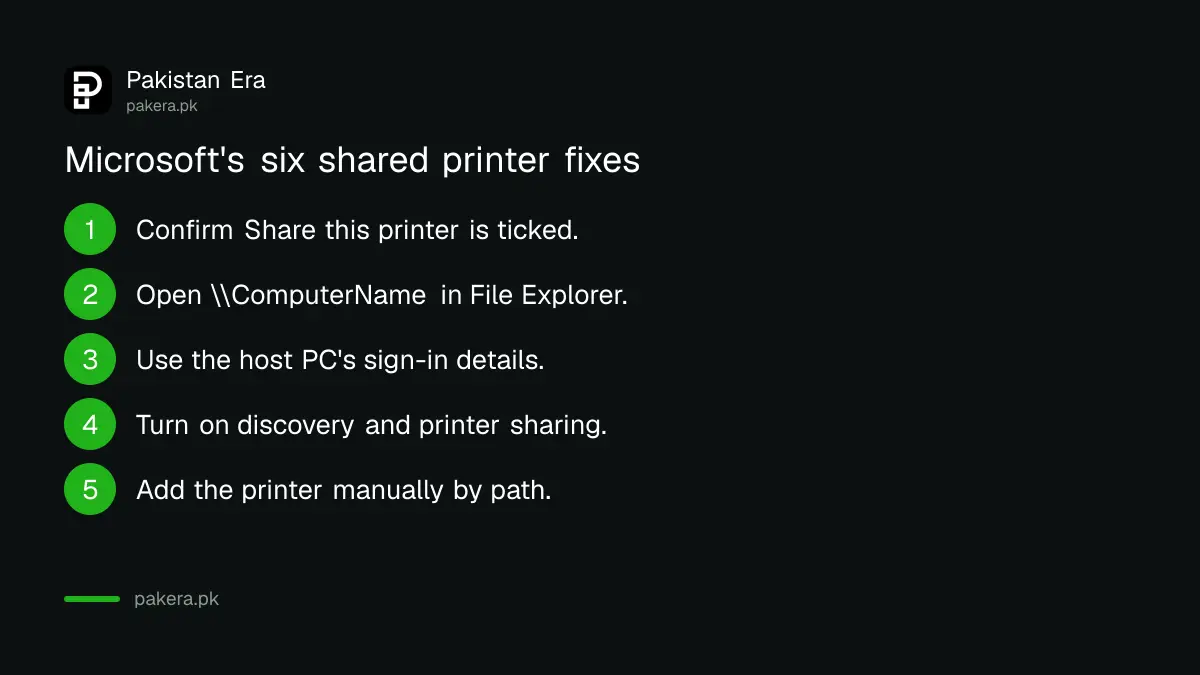
Step 2 is the quickest test of all. If File Explorer cannot open the main PC, no printer setting will help. Check that both machines are on the same router, not one on the main Wi-Fi and one on a guest network.
Windows 10 PCs use slightly different menus
A Windows 10 PC can share or use the same printer, but its menus differ. Printers are under Settings, Devices, Printers & scanners, with a Manage button, and sharing settings sit under Network and Sharing Center, Change advanced sharing settings.
On Windows 10, the Private setting is under the network's Properties button, and the add path starts with Add a printer or scanner, then The printer that I want isn't listed. Microsoft notes that free support for Windows 10 ended on 14 October 2025, which matters for an old office PC acting as the printer host. The options for Windows 10 security updates are worth a look before you make one the main PC.
And if the printer has its own Wi-Fi, it may not need a host PC at all. Each laptop can add it directly, which saves leaving one computer running all day during load shedding.
Common questions
Does the main PC have to stay on?
Yes. Microsoft says the main PC must be powered on and connected to the network for others to print.
Why can't my second PC find the shared printer?
Check both PCs are on the same Private network, Network discovery and File and printer sharing are on, and that \\ComputerName opens in File Explorer.
Should I add the printer by name or IP address?
Either. Microsoft says if one fails, try the other.
Is it safe to set my network to Private?
Only on a trusted network such as your own home or office Wi-Fi. Microsoft warns against it on networks you do not trust.
Can a Windows 10 PC use a printer shared from Windows 11?
Yes, both are on Microsoft's page. Only the menu names differ.
How we verified this
What we checked, where we read it, and what we could not confirm.
Last checked 1 November 2026. We read Microsoft's pages Share a printer as a network printer and Fix shared printer connection problems in Windows on 1 November 2026. The example names and IP address in the table are made up for illustration. The guest network and Wi-Fi printer remarks are our own reading, not Microsoft's. We did not set up a shared printer ourselves for this page.
About the author

Technology Journalist & Multimedia Producer
Ahmad Ali is a technology journalist and multimedia producer at Pakistan Era, joining the team in October 2026. He covers consumer technology and digital life for Pakistani readers, combining research with hands-on product testing.