Printer Offline Fix on Windows 11 and 10 in Pakistan: 7 Microsoft Steps for HP, Canon and Epson
Printer showing Offline in Windows 11 or 10? Follow Microsoft's 7 steps: restart, Wi-Fi check, default printer, clear queue, restart spooler, reinstall, reboot.
To fix a printer that shows "Offline" in Windows 11 or 10, run the printer troubleshooter in the Get Help app, restart the printer, check it is on the same Wi-Fi as your PC, set it as default, clear the print queue, restart the Print Spooler service, and reinstall it if that fails. These are Microsoft's own steps, and they work the same for HP, Canon, Epson and Brother printers. Below is each step with the exact clicks, plus what to do when the printer is not found at all.
We read Microsoft's guide to offline printer problems and its main printer troubleshooting guide on 28 October 2026. Microsoft treats "Offline" as a connection problem first, so start there before you blame the printer.
Run the printer troubleshooter in Get Help first
On Windows 11, Microsoft's first step is the automated printer troubleshooter in the Get Help app. It runs checks and tries to fix most printer problems by itself. If it fails, move to the manual steps below in order, because each one rules out a cause.
Open Start, type Get Help, and search for the printer troubleshooter. You can also go to Settings, then System, then Troubleshoot, then Other troubleshooters. Let it finish before you unplug anything.
Microsoft's seven steps for an offline printer
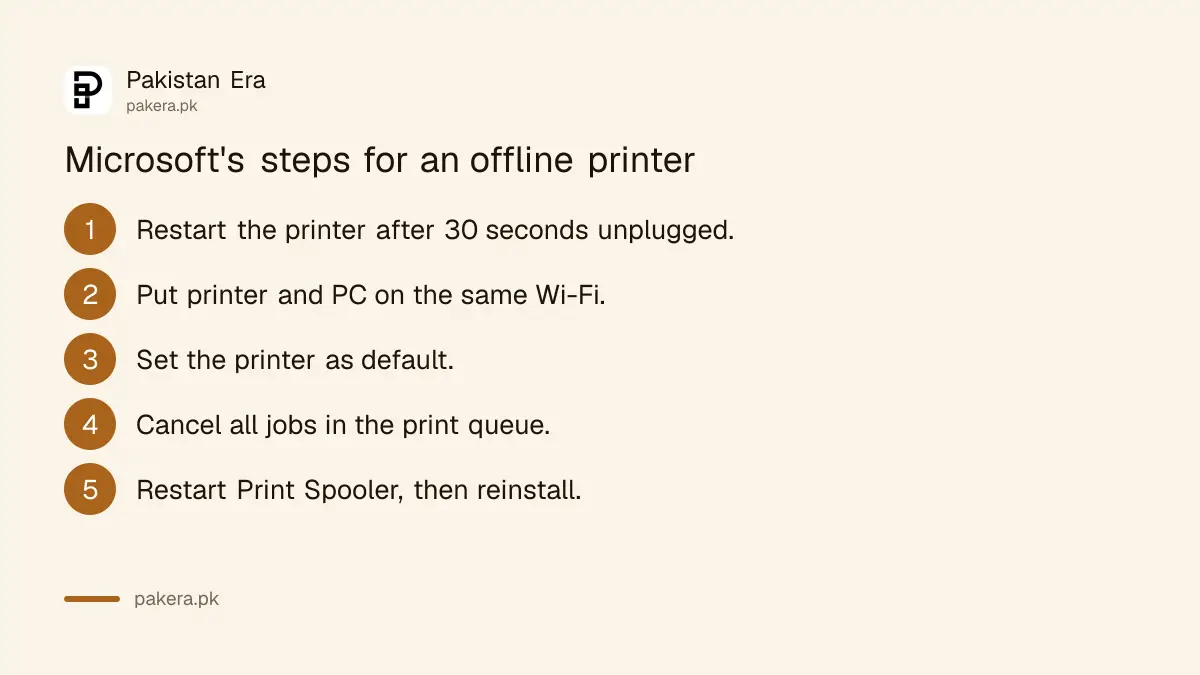
Microsoft lists seven steps: restart the printer, check the Wi-Fi, set it as default, clear the queue, restart the Print Spooler, reinstall the printer and restart the PC. Do them in order and test a print after each one.
- Turn the printer off, unplug it, wait 30 seconds, plug it back in and turn it on.
- Make sure the printer and the PC are on the same Wi-Fi network.
- Go to Settings, Bluetooth and devices, Printers and scanners, pick the printer and select Set as default.
- On the same printer page, select Open print queue, then the three dots, then Cancel all.
- Search for services, open Services, find Print Spooler, right-click it and select Restart.
- Remove the printer from Printers and scanners, then select Add device to add it again.
- Restart the PC.
Step 3 has a catch. If Set as default is missing, Windows is choosing the printer for you. Turn off "Let Windows manage my default printer" first, and the option appears.
Wi-Fi printers go offline when the network changes
A wireless printer shows Offline when it and the PC are on different networks. Microsoft warns that extenders, access points or a second router with its own Wi-Fi name can split them. Connect both to the same network name, then run the printer's own wireless test.
Microsoft suggests these checks for a wireless printer:
- Look for the blue wireless light or button on the printer and make sure it is on.
- Run the printer's wireless connectivity test from its own menu.
- Check that the PC itself is online.
- For a Bluetooth printer, use Windows' Bluetooth troubleshooting instead.
A practical point for Pakistani homes and offices: after load shedding, the router and printer restart at different speeds, and the printer can fail to rejoin. Restart the router, wait for the internet to return, then restart the printer. If the PC shows Wi-Fi connected but no internet, fix that first with a Windows network reset.
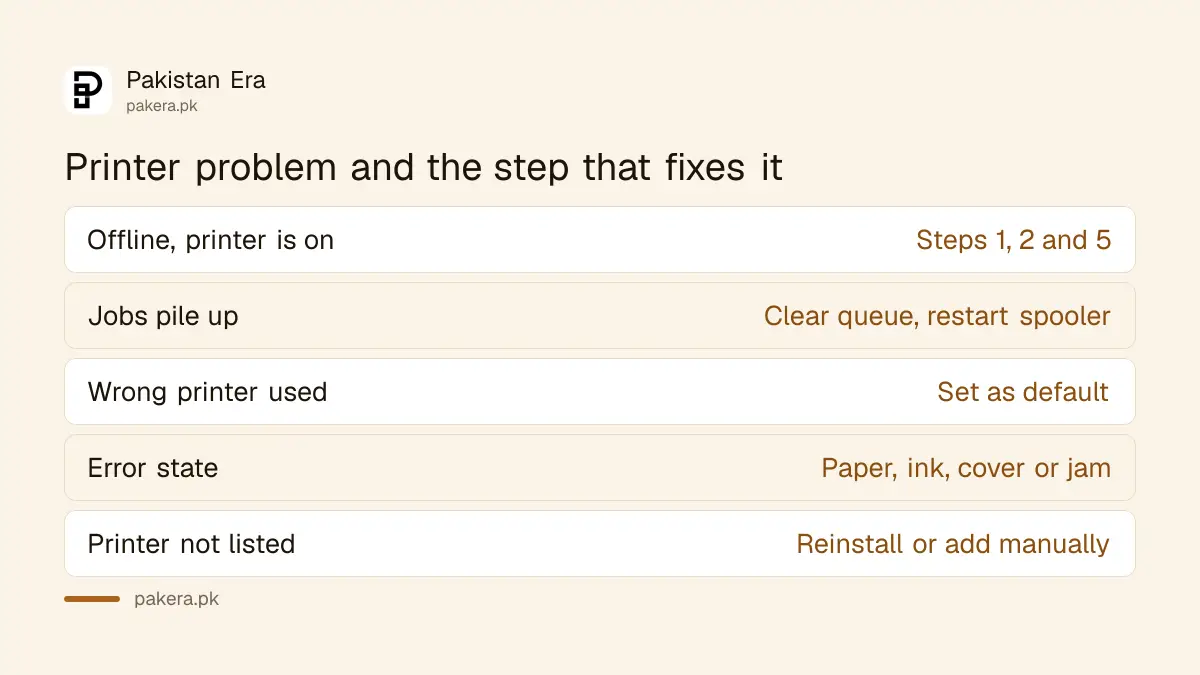
| What you see | Likely cause | Step to try |
|---|---|---|
| Offline, printer is on | Lost Wi-Fi link or stuck service | Steps 1, 2 and 5 |
| Jobs pile up and nothing prints | A stuck print job | Step 4, then step 5 |
| Prints go to the wrong printer | Windows changed the default | Step 3 |
| Printer in error state | Paper, ink, open cover or jam | Check the printer itself |
| Printer not in the list | Not installed or wrong network | Step 6, or manual install |
Reinstall a USB printer manually when Windows cannot find it
If Add device does not show your printer, select Add manually, then "Add a local printer or network printer with manual settings". Choose the port the printer uses, pick the driver from Windows Update or the disc, name the printer and print a test page.
Microsoft's full path, for a printer plugged in by USB:
- Select Use an existing port, then the USB port the printer is on.
- Select Windows Update to load the driver list, or Have Disk if you have the printer's disc.
- Pick the maker on the left and your model on the right, then Next.
- Choose Replace the current driver if asked.
- Name the printer, choose whether to share it, then print a test page.
Microsoft says the best source for printer drivers is Windows Update. Only if that fails should you download from the maker's website, and then only from the maker's own site, not a driver download portal.
ARM laptops and old Windows 10 PCs need extra care
Microsoft says some ARM PCs, such as Copilot+ laptops, cannot install a printer with the maker's own installer. On those, add the printer through Windows Settings instead. Check your PC type under Settings, System, About, where an ARM PC shows "ARM based processor".
Microsoft also reminds readers that Windows 10 support ended on 14 October 2025. Older PCs still print, but free updates from Microsoft have stopped. The options are in the steps to keep getting Windows 10 security updates. A Windows update that will not install can also break printing, and the fixes for a stuck Windows update help there.
Common questions
Why does my printer keep going offline?
Usually because it loses the Wi-Fi link, the print queue is stuck, or the Print Spooler service has stopped. Restart the printer and the spooler first.
How do I restart the Print Spooler?
Search for services, open Services, find Print Spooler, right-click it and select Restart.
Do these steps work for HP, Canon and Epson?
Yes. They are Windows steps, so they apply to any brand. For a hardware fault, contact the maker's service center.
My printer says "error state". Is that the same as offline?
No. Microsoft says an error state points to the printer itself: low paper or ink, an open cover or a paper jam.
Should I download drivers from a driver website?
No. Use Windows Update first, then the printer maker's own website if needed.
How we verified this
What we checked, where we read it, and what we could not confirm.
Last checked 28 October 2026. We read Microsoft Support's "Troubleshooting offline printer problems in Windows", "Fix printer connection and printing problems in Windows" and "Add or install a printer in Windows" on that date. The steps, menu paths and the ARM and Windows 10 notes come from those pages. We did not test a printer on a Windows PC ourselves. The load shedding advice is our own practical suggestion, not Microsoft's.
About the author

Global Affairs & Political Economy Writer
Muhammad Hatim is a book lover who started writing because he enjoys it. At Pakistan Era he writes about international relations, geopolitics and the global economy, with a particular interest in South Asia and the forces behind current events.