Fix Windows Wi-Fi That Is Connected but Has No Internet in Pakistan
Windows says connected but no pages open? Follow Microsoft's order: forget the network, restart the router, run 5 commands, then use Network reset last. Free.
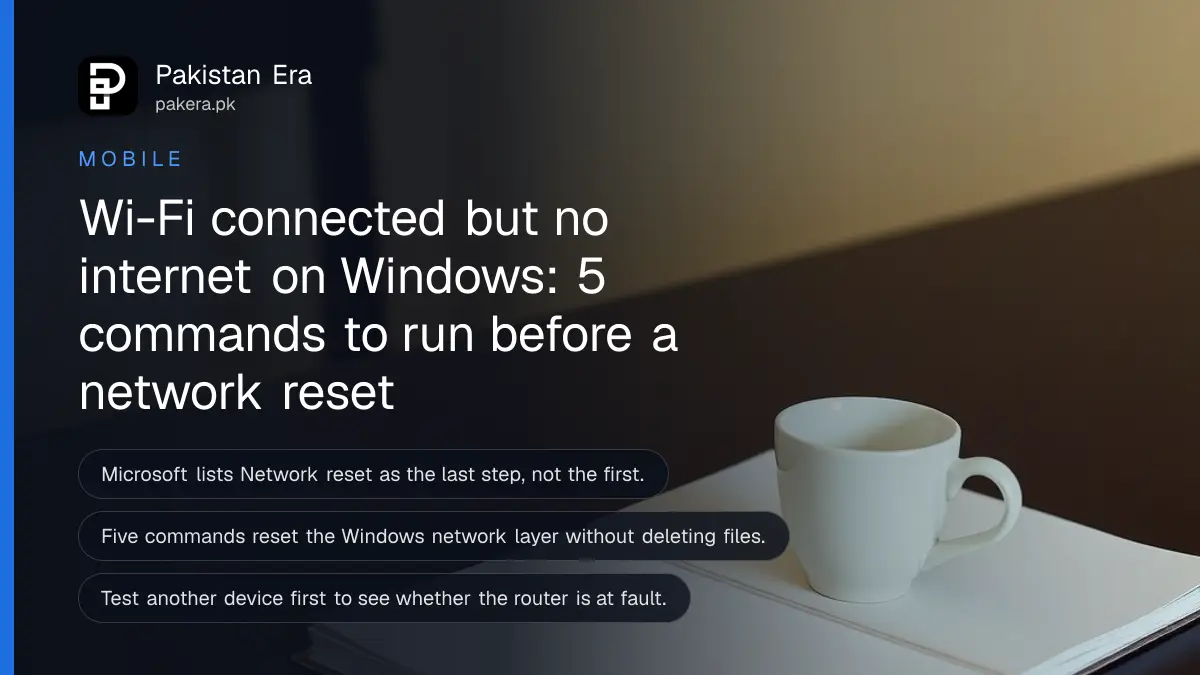
Short answer: Check that Airplane mode is off, forget the Wi-Fi network and join it again, then restart your router and modem. If the laptop still has no internet, run five network commands in Command Prompt. Use Network reset only as the last step, because it removes all your network adapters and settings.
The Wi-Fi icon shows full bars, but no page opens. In Pakistan this often happens after load shedding or a power cut, when the router restarts and the laptop keeps old settings. The fix usually takes ten minutes and costs nothing.
We read Microsoft's support page on fixing Wi-Fi connection problems in Windows on 13 October 2026. The steps below follow its order, from the easy fixes to the last resort. We have not tested them on your laptop, so go step by step and stop when the internet returns.
Check the basics before you change any setting
Most Wi-Fi faults come from a switch that was turned off or a router that needs a restart. Check Airplane mode, the Wi-Fi toggle and a second device first. This takes two minutes and tells you whether the laptop or the router is at fault.
Microsoft's page starts with these checks:
- Click the network icon on the taskbar and make sure Wi-Fi is on and shows Connected.
- Open Settings, then Network and internet, then Airplane mode. Make sure it is off.
- Try the same Wi-Fi on a phone or another laptop. If that device also has no internet, the problem is the router or the internet line, not your laptop.
- Some laptops have a physical Wi-Fi switch or a function key with an antenna symbol. Check that it is not off.
If the second device works, keep reading. If it does not, go to the router step below and, if needed, to the guide on complaining to PTA about slow or dead internet.
Forget the network and restart the router
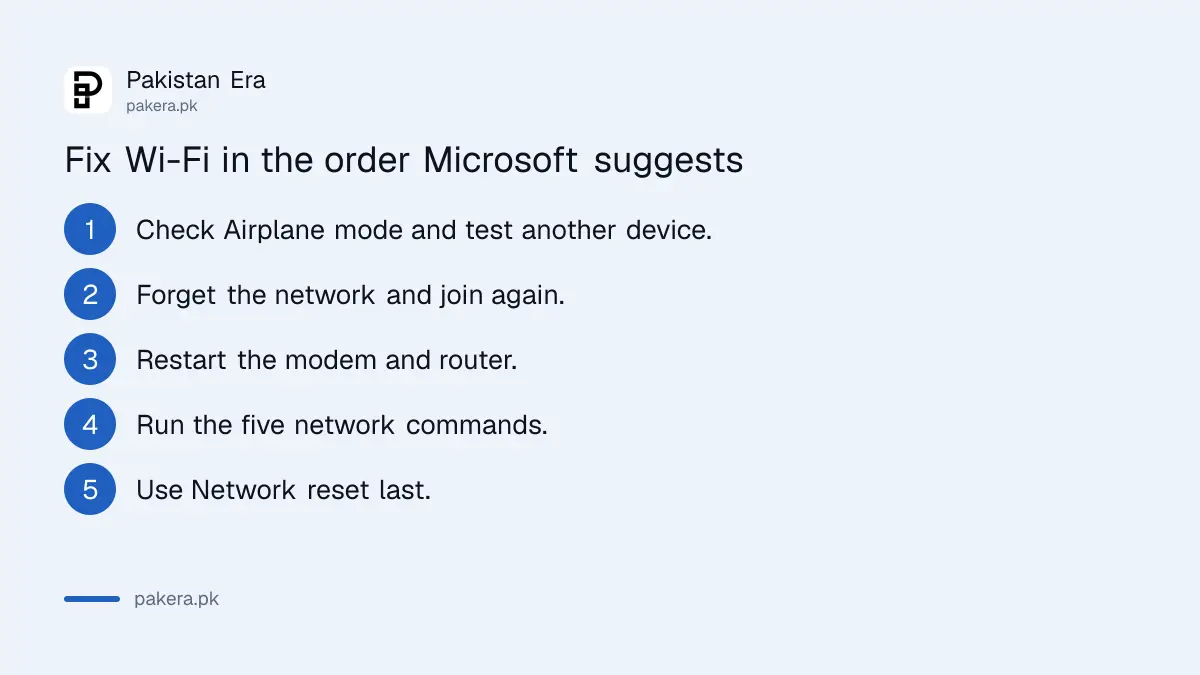
Forgetting a network deletes the saved settings for it, and joining again creates fresh ones. Restarting the router clears its own memory. Together these two steps fix most cases of connected Wi-Fi with no internet, and they should come before any command.
To forget the network, open Settings, then Network and internet, then Wi-Fi, then Manage known networks. Select your network and click Forget. Join it again and type the password.
To restart the router the way Microsoft describes it:
- Unplug the router's power cable. Unplug the modem's power cable too. If the modem has a backup battery, take the battery out.
- Wait at least 30 seconds.
- Put the modem battery back. Plug in the modem and wait until its lights stop blinking.
- Plug in the router and wait several minutes for it to start fully.
If your Wi-Fi has both a 2.4 GHz and a 5 GHz name, try the other one. The steps to do this are in the guide on switching between 5 GHz and 2.4 GHz. Placement matters too, as covered in the page on where to put your router at home.
Five network commands reset the connection layer
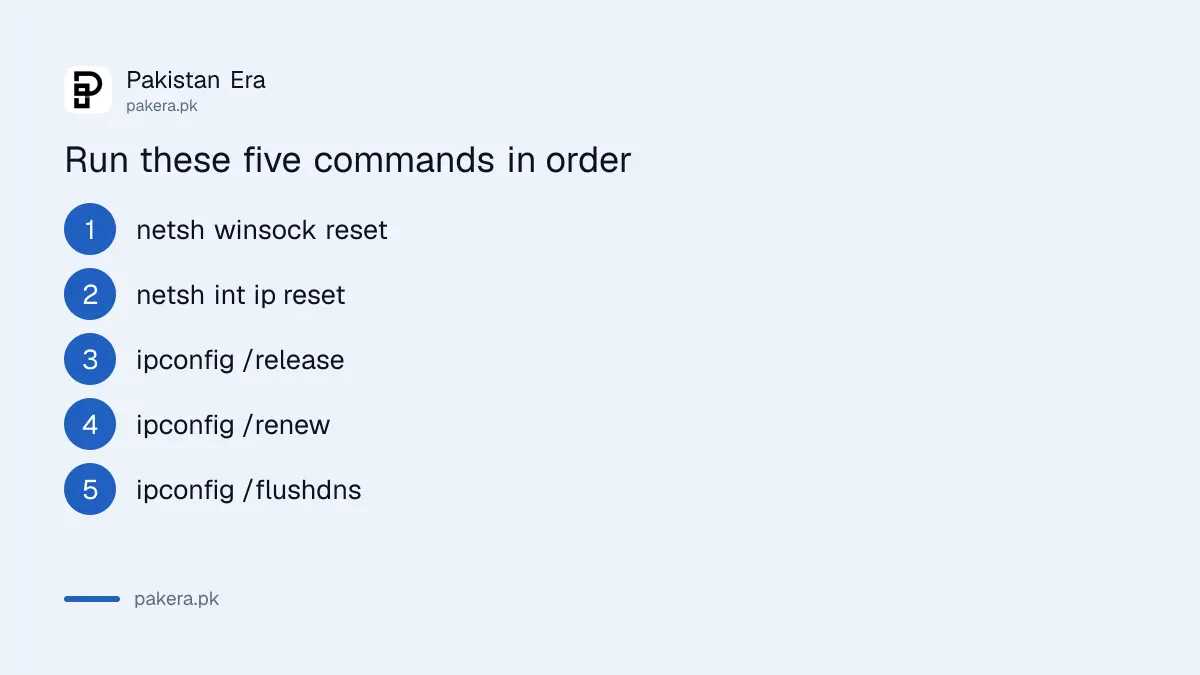
When the simple steps fail, Microsoft lists five commands that reset how Windows talks to the network. They need Command Prompt opened as Administrator. They do not delete files. They clear stored network addresses and names and build them again.
Search for cmd, right-click Command Prompt and choose Run as administrator. Type these one at a time and press Enter after each:
- netsh winsock reset
- netsh int ip reset
- ipconfig /release
- ipconfig /renew
- ipconfig /flushdns
Restart the laptop after the last command. Microsoft also suggests a ping test to see where the break is. Type ipconfig, find the Default gateway number, then type ping followed by that number. Replies mean the laptop reaches the router, so the fault is the modem or the internet company. No replies mean the fault is between the laptop and the router.
Check one more setting. Microsoft says a limited connection can come from a proxy. Open Settings, then Network and internet, then Proxy, and turn off any manual proxy that you did not set yourself.
Driver, power saving and updates fix repeated drops
If Wi-Fi drops again and again, the Wi-Fi driver or a power saving setting may be the cause. Microsoft suggests turning off the option that lets Windows switch the adapter off to save power, and reinstalling the adapter driver.
| Problem | What Microsoft suggests |
|---|---|
| Wi-Fi drops often | Device Manager, Network adapters, adapter Properties, Power Management, untick "Allow the computer to turn off this device to save power" |
| Wi-Fi option is missing | Check the physical switch, enable the adapter in Device Manager, restart the WLAN AutoConfig service |
| Connected, no internet | Run the five commands, check for a manual proxy, check the IP address does not start with 169.254 |
| Nothing else works | Reinstall the adapter driver, then Network reset |
| Fault started after an update | Open Windows Update and install pending updates, then restart |
To reinstall the driver, download the latest one from your laptop maker first and keep it on a USB drive, because you may have no internet afterward. Open Device Manager, expand Network adapters, right-click the Wi-Fi adapter and choose Uninstall device. Tick the option to remove the driver, restart, and Windows installs it again. If a Windows update is stuck, see the guide to fixing a Windows update that is stuck or failing.
Use Network reset only as the last step
Network reset removes every network adapter and puts all network settings back to default. Microsoft marks it as a last resort. You will need to enter your Wi-Fi passwords again, and you may need to reinstall a VPN or virtual machine software afterward.
In Windows 11, open Settings, then Network and internet, then Advanced network settings, then Network reset. Click Reset now and confirm. The laptop restarts. Write down your Wi-Fi password before you start, or check the label on your router.
Once you are back online, set a strong router password and keep its firmware updated, as explained in the guide to securing your home Wi-Fi router. If your internet company keeps giving a slow or dead line, you can also check what speed it must give under PTA's rules.
Common questions
Why does my laptop say connected but there is no internet?
The laptop has joined the router, but the router is not passing traffic to the internet. The cause is usually the router, the modem or the internet company. Test another device first. If it also fails, restart the router and modem.
Will the network commands delete my files?
No. The five commands reset network settings only. They do not touch your documents, photos or apps. Run them in Command Prompt as Administrator and restart the laptop afterward.
Is Network reset safe?
It is safe for your files but it removes all saved Wi-Fi networks and adapters. Microsoft lists it as the last step. Keep your Wi-Fi password ready, and reinstall any VPN software afterward.
How long should I wait after restarting the router?
Wait at least 30 seconds before plugging it back in, then wait several minutes for it to start fully. Microsoft says to let the modem lights stop blinking before you plug in the router.
What if only my laptop cannot connect and phones can?
Then the fault is on the laptop. Forget the network, run the five commands, update or reinstall the Wi-Fi driver and check the power saving setting on the adapter.
How we verified this
What we checked, where we read it, and what we could not confirm.
Last checked on 13 October 2026, Pakistan time. We read Microsoft's page on fixing Wi-Fi connection issues in Windows. We did not run the steps on a laptop for this page, and menu names can change between Windows 11 versions. Fault-finding for your internet company's line is outside what Microsoft's page covers.
About the author

Technology Journalist & Multimedia Producer
Ahmad Ali is a technology journalist and multimedia producer at Pakistan Era, joining the team in October 2026. He covers consumer technology and digital life for Pakistani readers, combining research with hands-on product testing.