App Keeps Stopping on Android in Pakistan: Force Stop, Clear Cache and Every Fix Google Lists
App keeps stopping on Android? Restart and update, force stop, clear cache, and know what Clear storage deletes. Plus built-in apps and the safe mode test.
If an app keeps stopping or crashing on your Android phone, restart the phone, update the app from the Play Store, then go to Settings > Apps > See all apps, pick the app and tap Force stop. If it still crashes, open Storage & cache and tap Clear cache, and only then Clear storage, which erases the app's data. Safe mode tells you if a different app is the real cause.
Below are Google's steps in its own order, a table of what each fix deletes so you do not lose chats or logins by accident, and what to do when the app is a built-in one you cannot uninstall. We read Google's help pages on fixing an installed app that isn't working and on safe mode on 1 November 2026. Google writes them for Pixel phones; Samsung, Infinix, Tecno, Xiaomi, Oppo, Vivo and Realme menus use similar names but may differ.
Restart the phone and update the app first
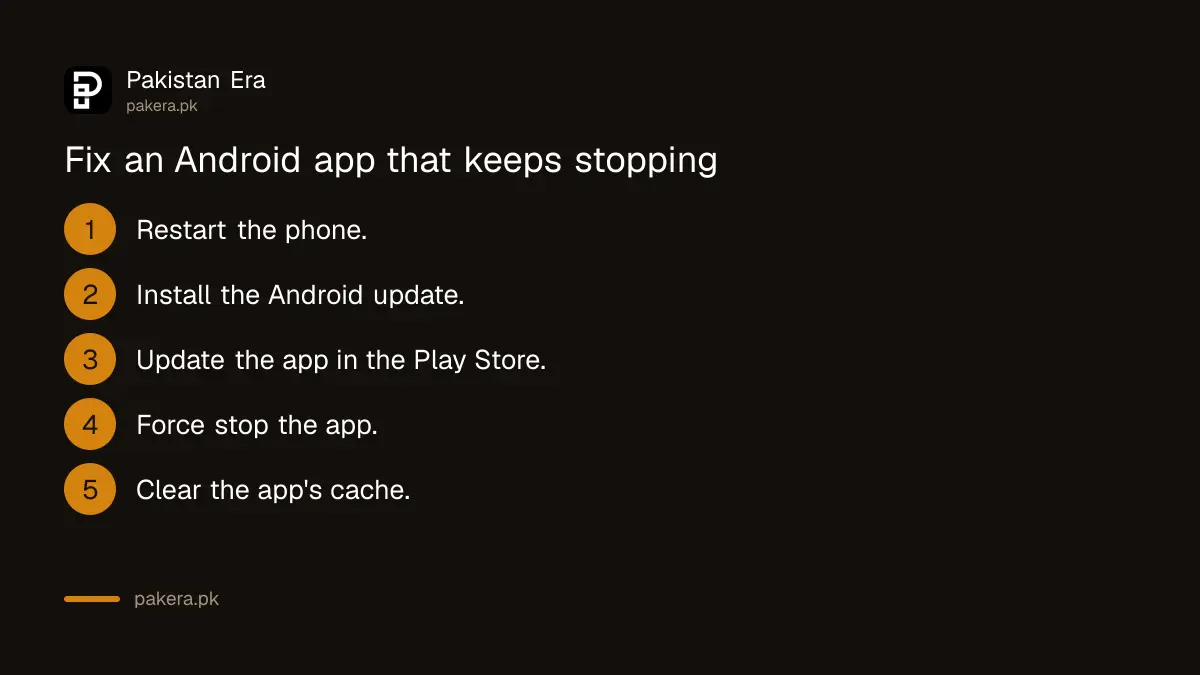
Google's first step for an app that crashes, will not open or will not respond is a restart, then an Android update, then an app update. Open the Play Store, tap your profile icon, then Manage apps and devices, and update the app.
- Restart the phone. On most phones, hold the Power button and tap Restart. Google's force restart on a Pixel 6 or later is Power plus Volume up for a few seconds, then Restart.
- Check for an Android update: Settings, System, Software update. The menu name differs by brand.
- Open the Google Play Store, tap the profile icon at the top right, then Manage apps and devices.
- Under Updates available, update the crashing app, or all apps.
For apps that need the internet, such as Google Maps, Google says to make sure the connection is stable. A banking app that "keeps stopping" on a weak signal may only be timing out.
Force stop, then clear the cache
If the app still crashes, force stop it: Settings, Apps, See all apps, the app, Force stop, OK. Next, clear its cache under Storage and cache. Google calls clearing cache a short-term fix, because cached files build up again.
Force stop closes the app completely, including anything it was doing in the background. Clearing the cache removes temporary files only. Your account, saved settings and downloads in the app stay, which makes it the safe step to try before anything heavier.
Google adds a tip at each of these steps: if problems continue after a force stop, you may need to contact the app's developer. Every Play Store listing has developer contact details.
Know what each fix deletes before you tap it
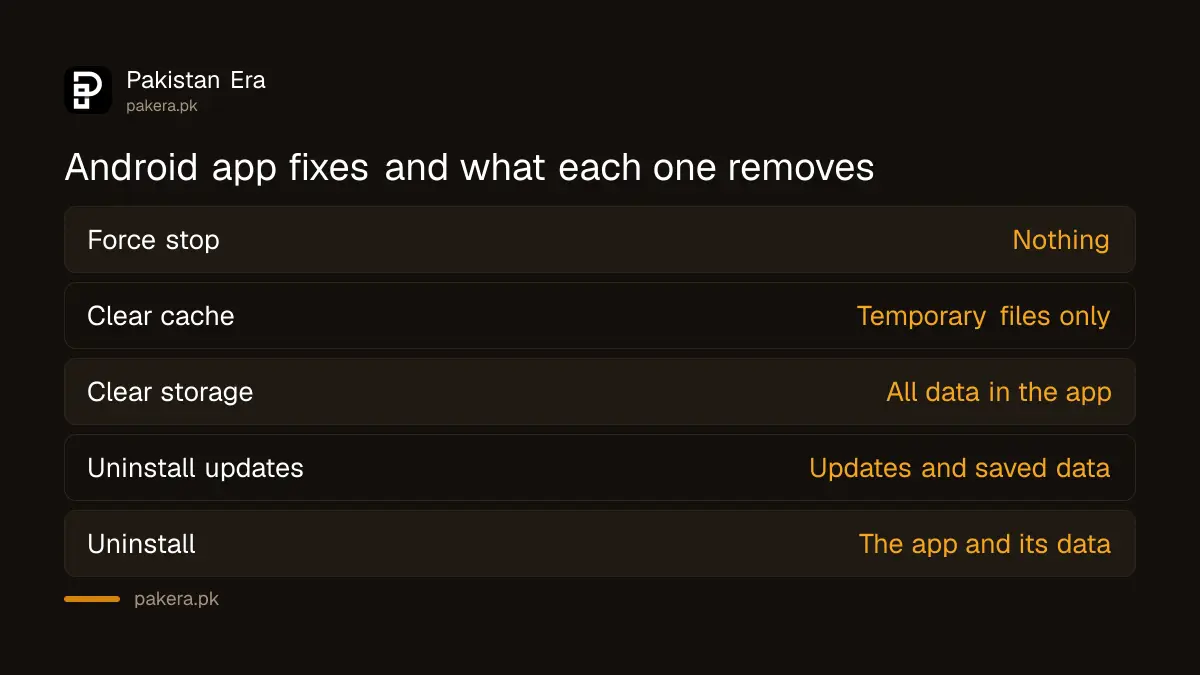
Force stop and Clear cache keep your data. Clear storage, also called Clear data, erases everything saved in that app. Uninstall removes the app and its data. Uninstall updates puts a built-in app back to its factory version and also erases its data.
| Fix | Where | What it removes |
|---|---|---|
| Force stop | Settings, Apps, the app | Nothing; closes the app |
| Clear cache | Storage and cache | Temporary files only |
| Clear storage or Clear data | Storage and cache | All data saved in the app |
| Uninstall updates | App info, More | Updates and saved data of a built-in app |
| Uninstall | Touch and hold the app icon | The app and its data |
This is where people lose things. Clearing storage on WhatsApp, for example, means signing in again and restoring from a backup, so check the WhatsApp backup is recent first. For a banking or wallet app, have your login and the SIM in the phone ready, as you will likely need to verify again.
Built-in apps need Uninstall updates instead
Apps that came with the phone often cannot be uninstalled. Google's step for those is to touch and hold the app, tap App info, tap More, then Uninstall updates and OK. That returns it to the factory version, which you can update again later.
Google warns that any data saved in the app is erased this way too. Test the app straight after. Google says you can get the latest update again from Google Play once you have tested it.
When the crashing app is a Google app, or when no app on the phone will update at all, Google says to contact Google Play rather than an app developer. A Play Store that sits on "pending" belongs to a different fix for Play Store downloads stuck on pending.
Safe mode shows whether another app is to blame
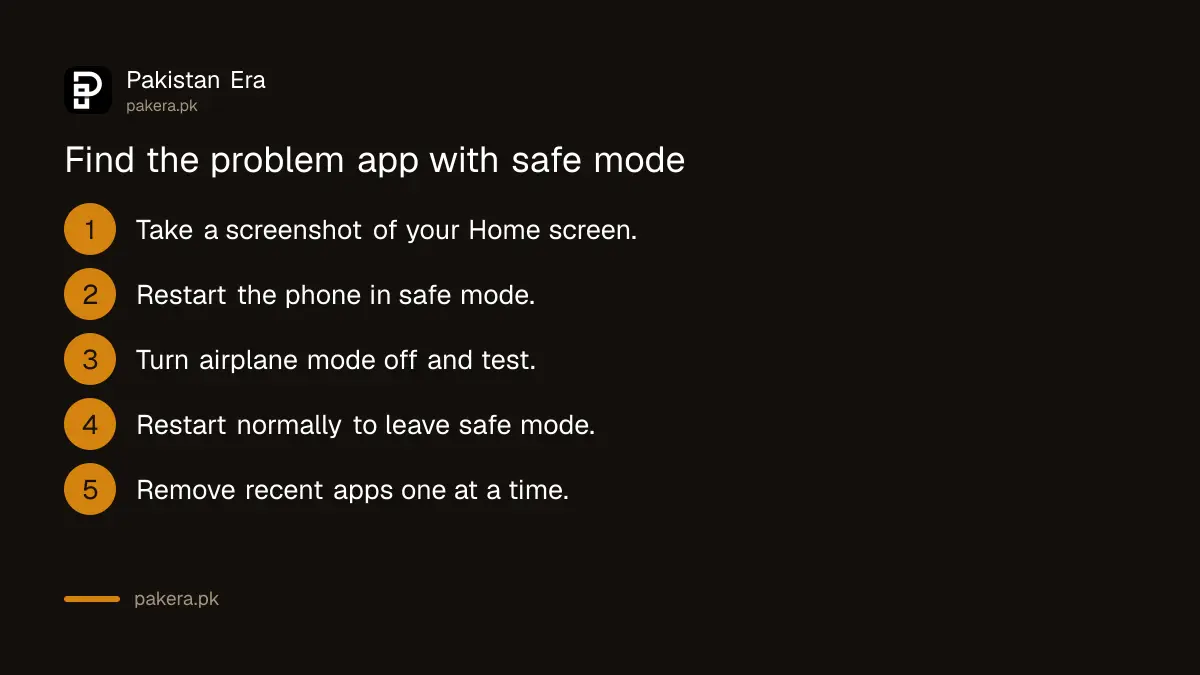
If many apps crash, or the phone freezes and restarts, one downloaded app may be the cause. Safe mode turns off downloaded apps. If the problem stops in safe mode, remove recent apps one by one, restarting after each, until it stops.
Google's method on a Pixel is to hold Power, then touch and hold Power off and tap OK. On a phone that is off, press Power, then hold Volume down while the start animation plays. "Safe mode" appears at the bottom of the screen. Google warns that safe mode removes some Home screen widgets and turns on airplane mode, so take a screenshot of your Home screen first and switch airplane mode off to test calls and Wi-Fi.
The buttons differ on other brands, so check your phone maker's support site. Safe mode is also the key step for a phone that keeps hanging or freezing. To leave safe mode, restart normally.
Low storage also makes apps crash, because they cannot write their own files. If the phone shows less than a few gigabytes free, clear space before you blame the app.
Common questions
Why does my app keep stopping on Android?
An old version, a stuck background task or corrupt temporary files are the usual causes. Update the app, force stop it and clear its cache.
Will clearing cache delete my data?
No. Clear cache removes temporary files only. Clear storage or Clear data erases the app's saved data.
What does Force stop do?
It closes the app completely. Nothing is deleted, and the app starts fresh the next time you open it.
How do I fix an app I cannot uninstall?
Use Uninstall updates under App info, More. Google says this erases the app's data and returns it to the factory version.
Who do I contact if Google Play services keeps stopping?
Google says to contact Google Play when you have trouble with Google apps or cannot update any apps.
How we verified this
What we checked, where we read it, and what we could not confirm.
Last checked 1 November 2026. We read Google's Pixel Phone Help pages Fix an installed app that isn't working on a Pixel phone and Find problem apps by rebooting to safe mode on 1 November 2026. Menu names on Samsung, Infinix, Tecno, Xiaomi, Oppo, Vivo and Realme phones differ, and we could not check each brand. The banking app and WhatsApp warnings, the low storage remark and the "usual causes" answer are our own reading of Google's steps.
About the author

Technology Journalist & Multimedia Producer
Ahmad Ali is a technology journalist and multimedia producer at Pakistan Era, joining the team in October 2026. He covers consumer technology and digital life for Pakistani readers, combining research with hands-on product testing.