How to Check Google Play Protect and App Permissions on Your Android Phone in Pakistan
Check Google Play Protect and app permissions on your Android phone in Pakistan. See where the switches are, what each choice means and which apps to remove.
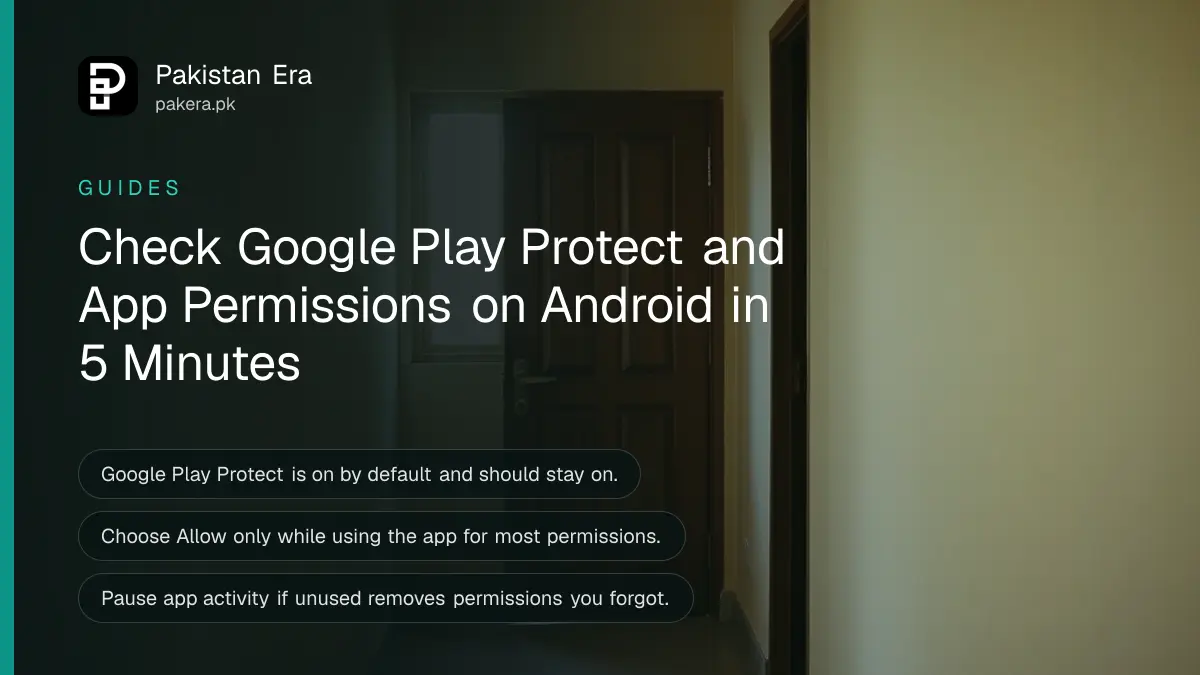
To check your Android phone for risky apps, open the Play Store, tap your profile icon, tap Play Protect, then Settings, and make sure Scan apps with Play Protect is on. Then open Settings, Apps, pick an app and tap Permissions to remove access it does not need.
In Pakistan, fake loan apps and copied games have taken contacts and photos from phones and used them to threaten people. Two quick checks reduce that risk. One is Google Play Protect, which scans apps. The other is the permission list, which shows what each app can reach. Both take about five minutes.
Make sure Google Play Protect is on
Google says Play Protect is on by default and recommends keeping it on. Open the Play Store, tap the profile icon at the top right, tap Play Protect, then Settings. The switch to look for is Scan apps with Play Protect.
Google lists what it does: it runs a safety check on apps from the Play Store before you download them, checks your phone for harmful apps from other sources, warns you, and may deactivate or remove a harmful app. It cannot catch everything, so it is a first layer, not a guarantee.
You can also switch on Improve harmful app detection in the same Settings screen. It lets your phone send unknown apps to Google for analysis. Whether you turn that on is your choice.
Review what each app is allowed to do
Go through your app permissions. Google's page gives two routes. For one app, open Settings, tap Apps, choose the app and tap Permissions. For one kind of access, go to Settings, Security and Privacy, Privacy, Permission manager, and pick a type such as Location or Contacts.
For location, camera and microphone, Google gives these choices:
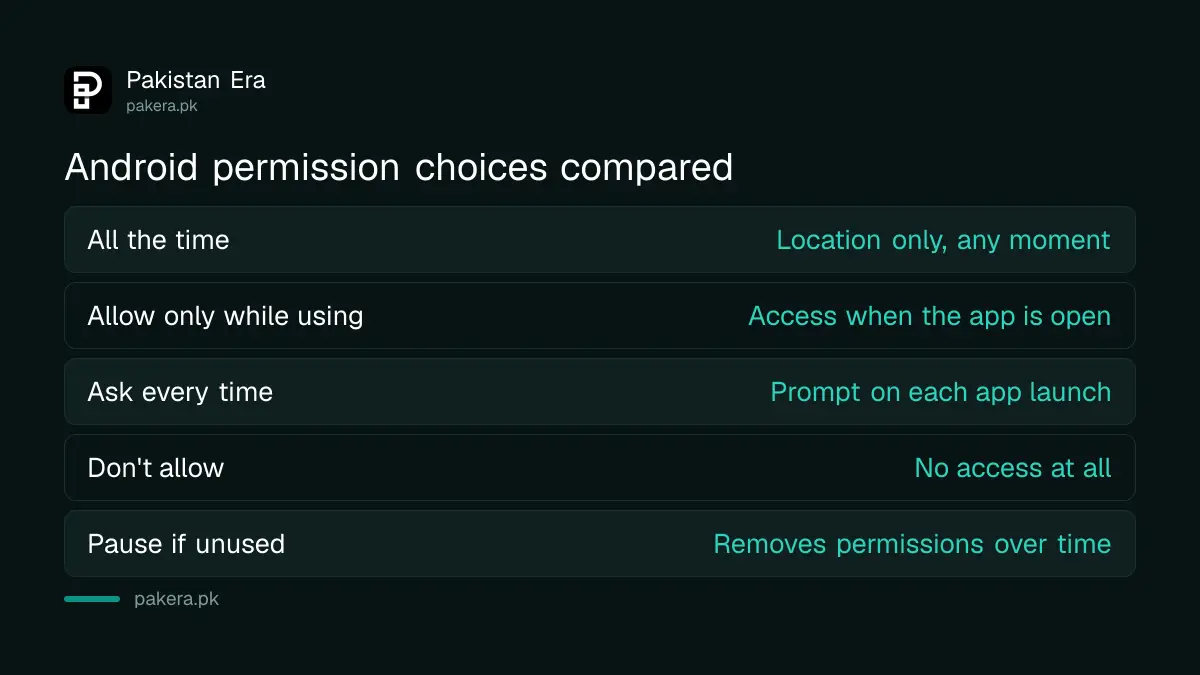
| Choice | What it means |
|---|---|
| All the time | Location only. The app can use it at any moment |
| Allow only while using the app | Access only when the app is open |
| Ask every time | The app asks each time you open it |
| Don't allow | The app gets no access |
Pick Allow only while using the app for most things. A torch app does not need your contacts, and a calculator does not need your microphone. If an app stops working without a permission it should not need, that tells you something about the app.
Let Android pause permissions on apps you do not use
Google says that under an app's Unused app settings you can turn on Pause app activity if unused. Android then removes permissions from apps you have not opened for a while. It is a quiet way to clean up without checking every app yourself.
Menu names can vary by brand and Android version. If you cannot find an option, use the search bar in Settings and type the name. Our guide to fixing a full phone also helps you find apps you forgot, which are often the ones with old permissions.
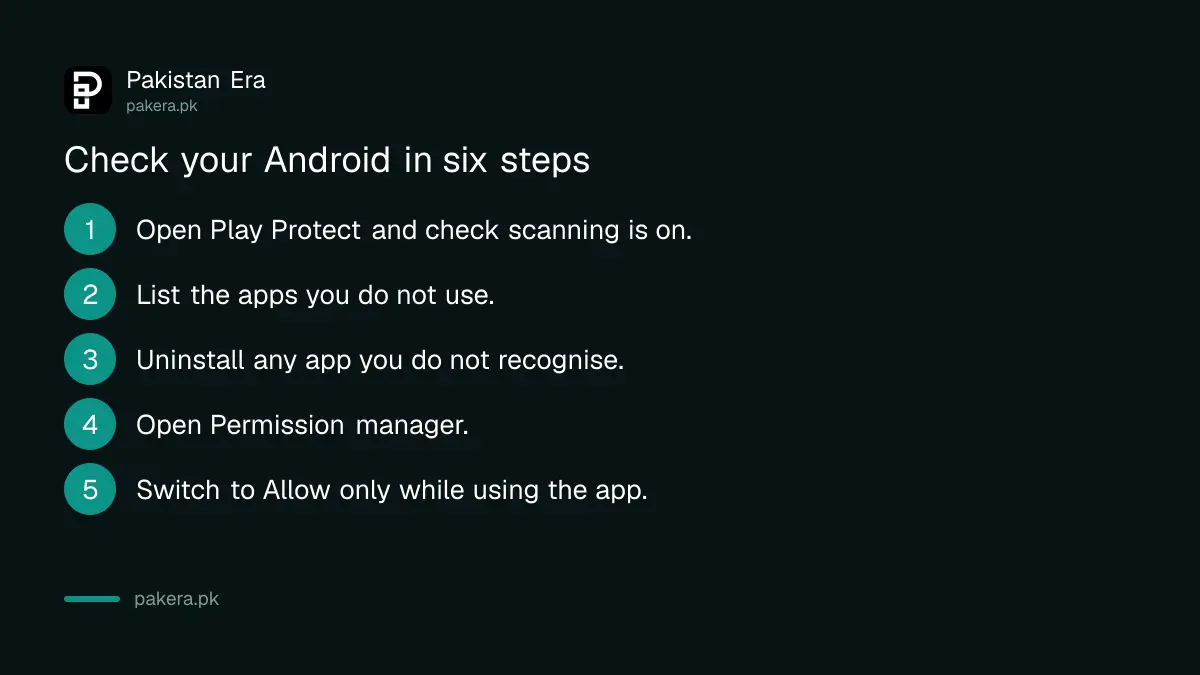
- Open the Play Store and check that Scan apps with Play Protect is on.
- Open Settings, Apps and list the apps you do not use.
- Uninstall anything you do not recognise.
- Open Permission manager and check Contacts, Location, Camera and Microphone.
- Switch to Allow only while using the app where you can.
- Turn on Pause app activity if unused.
Be careful with apps from outside the Play Store
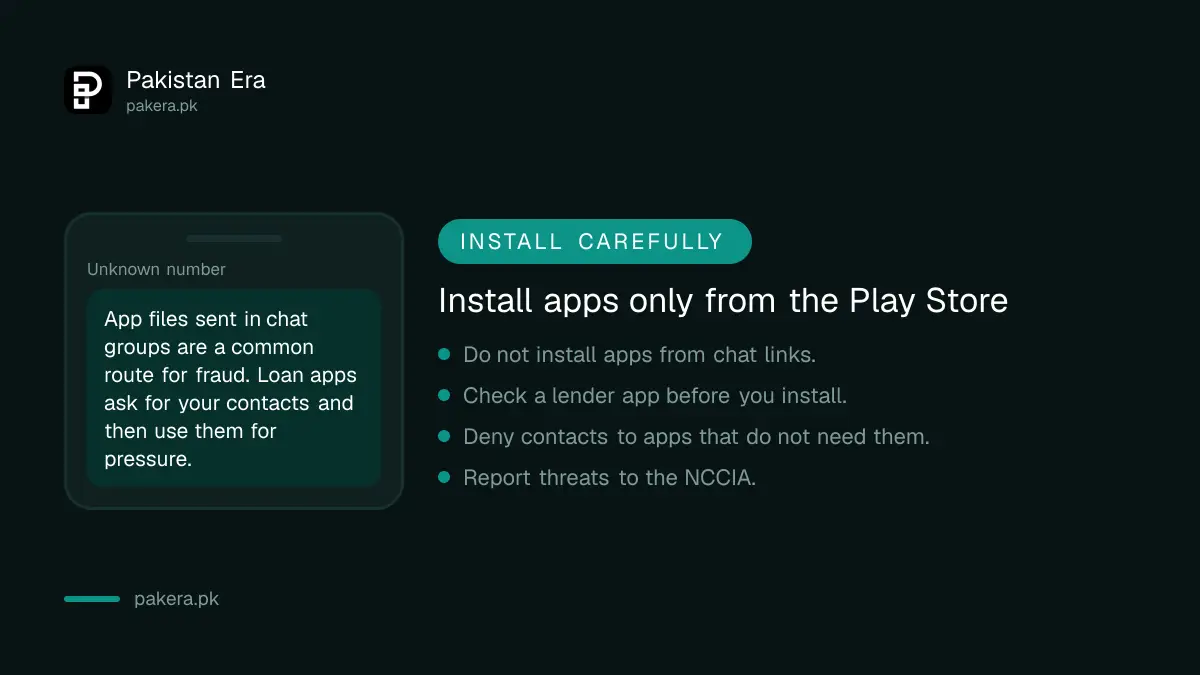
Play Protect also checks apps from other sources, but the safest rule is to install only from the Play Store. A copied app file sent in a chat group is a common route for fraud. Loan apps are the worst case, because they ask for contacts and then use them for pressure.
Before you install any lender app, read how to check if a lending app is SECP licensed. If an app has already harassed you or contacted your family, follow the steps to report loan app harassment. For threats or fraud, report cybercrime to the NCCIA.
Protect your Google account as well
Permissions guard what an app can see. Your Google account guards what an attacker can reach if they get in. Turn on two step sign in using our guide to turning on two step verification, so a stolen password alone is not enough.
Common questions about Play Protect and permissions
Is Google Play Protect on by default?
Yes. Google says the feature is enabled by default and recommends keeping it on. You can check the switch under Play Protect, Settings in the Play Store.
Does Play Protect remove viruses?
It can warn you about harmful apps and may deactivate or remove them, according to Google. It is not a full security suite, so avoid risky apps too.
Which permissions should I be most careful with?
Contacts, location, camera, microphone and SMS. These give an app the most reach into your life. Allow them only to apps that clearly need them.
What does Ask every time mean?
The app must ask for the permission each time you open it. It is a middle option when you want control but still use the feature.
Where is the Permission manager?
Google lists it at Settings, Security and Privacy, Privacy, Permission manager. On some phones the path differs, so search for it in Settings.
How we verified this
What we checked, where we read it, and what we could not confirm.
Last checked 8 October 2026. The Play Protect steps come from Google Play's help page on Google Play Protect. The permission steps come from Google's Android help page on changing app permissions. We did not test these menus on every phone brand sold in Pakistan, and names can differ by brand and Android version.
About the author

Tax, Bills and Technology Writer
Ali Akhtar is a young and curious voice here at Pakistan Era. He is currently pursuing his A-Levels and has a growing interest in Pakistan’s changing industrial landscape and educational trends. Ali likes to write in a way that helps him explain and explore the world around him. His writing reflects the perspective of the new generation navigating the evolving trends of Pakistan where technology, youth innovation, and shifting opportunities are reshaping the country’s future.