How to Turn On Two-Step Verification on WhatsApp, Facebook and Gmail in Pakistan
Turn on two-step verification on WhatsApp, Facebook and Gmail in Pakistan. The exact menu path for each app, the strongest option, and backup codes to keep.
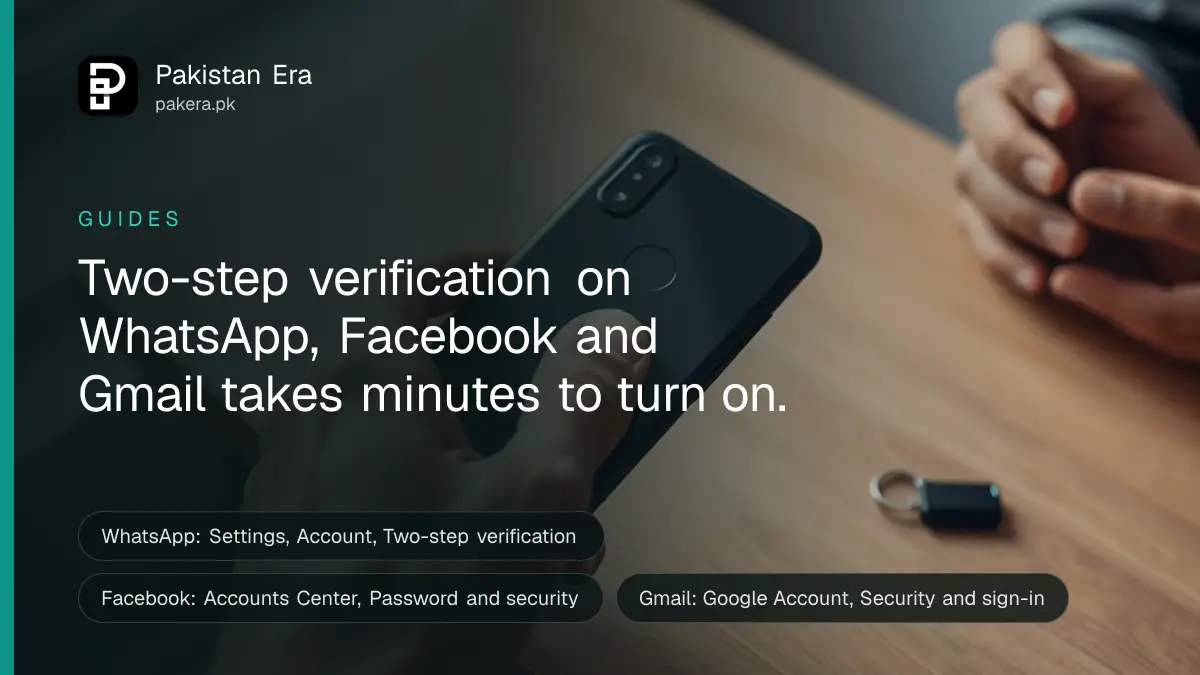
Turn on two-step verification in three places: in WhatsApp under Settings, Account, Two-step verification; in Facebook under Accounts Center, Password and security, Two-factor authentication; and in Gmail under your Google Account, Security and sign-in. Each takes a few minutes and needs only your phone.
Without a second step, a password or a six-digit code is all a thief needs to take an account. Two-step verification adds that second lock. We read the official help pages of WhatsApp, Facebook and Google on 1 October 2026 and wrote down the exact menu path for each. The paths below are theirs, not guesses.
Two-step verification adds a second lock to your account
Two-step verification, also called two-factor authentication, asks for something extra after your password or SMS code. That can be a second password, a code from an app, a tap on a trusted phone or a passkey. A thief with one of them cannot get in.
Google puts it simply: the feature protects you "in case your password is stolen". WhatsApp calls it an optional feature that guards against unauthorised access. Optional means you have to switch it on yourself.
One warning before you start. These features protect an account you still control. WhatsApp says plainly that a password will not remove someone who has already taken over your account. If that has happened, recover the account first, then come back here.
Turn on two-step verification on WhatsApp
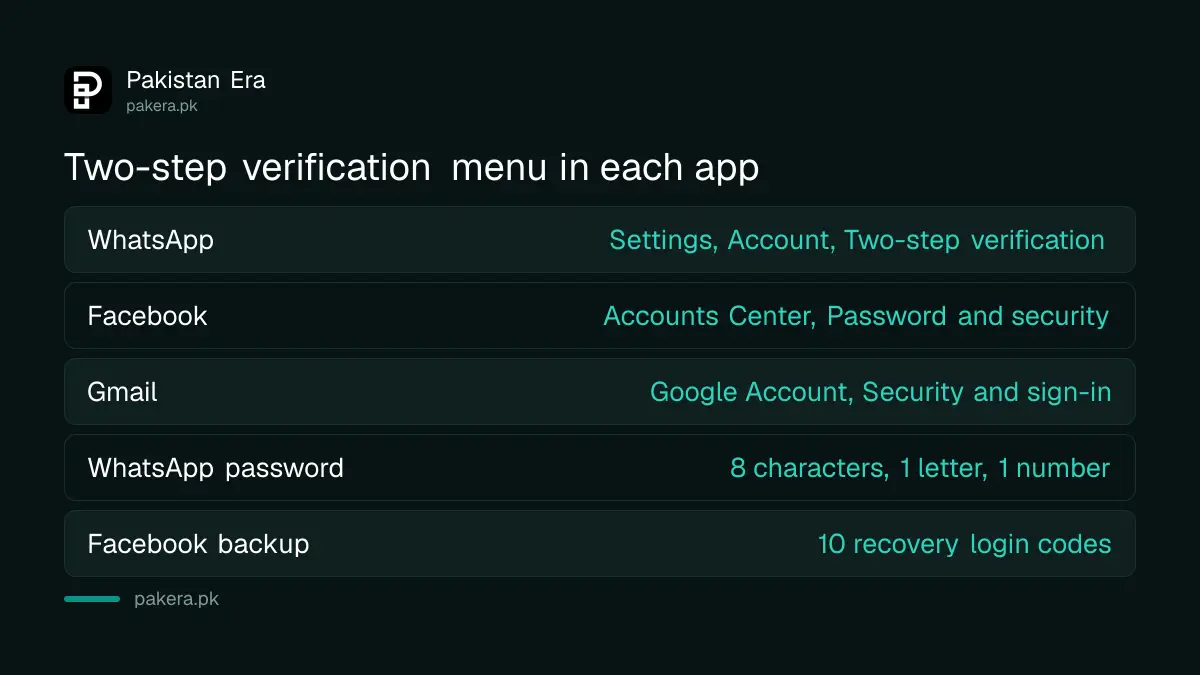
Open WhatsApp, go to Settings, then Account, then Two-step verification, and switch it on. Create a password, add an email address you can open, and choose whether to trust the phone. WhatsApp is replacing the old 6-digit PIN with a password.
- On Android, tap the three dots at the top right.
- Go to Settings, then Account, then Two-step verification. On iPhone, the same Settings and Account menus are in the app.
- Switch on Turn on two-step verification.
- Create a password and type it again. WhatsApp requires at least 8 characters, with at least 1 letter and 1 number.
- Add an email address you can open and tap Next, or tap Skip.
- Tap Trust this device on your own phone, or Skip.
Add the email. It is how you get back in if you forget the password. Under Account, then Email address, WhatsApp sends a six-digit code to confirm it. If you already use the old PIN, WhatsApp lets you swap it for a password from the same screen.
A trusted device is not the same as a linked device. Trusted devices are phones you log in from often, so WhatsApp lets you in faster. Linked devices are WhatsApp Web and Desktop sessions that mirror your chats. Check the linked list every few weeks, as explained on our page about using WhatsApp on a PC and logging out safely.
Turn on two-factor authentication on Facebook
On Facebook, click your profile picture, then Settings and privacy, then Settings, then Accounts Center, then Password and security, then Two-factor authentication. Pick your account and choose a method. Facebook offers a security key, an authentication app or SMS codes.
- Click your profile picture in the top right.
- Click Settings and privacy, then Settings.
- Click Accounts Center, then Password and security.
- Click Two-factor authentication and choose the account.
- Pick a method and follow the steps on screen.
Facebook also gives you 10 recovery login codes for days when your phone is not with you. Write them down and keep the paper at home, not in your phone's gallery. And if you set this up on a shared or office computer, do not click Save this browser. Facebook warns against it on public computers.
Some people now see Meta Accounts instead of Accounts Center. Facebook says both are the same place for these settings.
Turn on 2-Step Verification on Gmail
Open your Google Account, tap Security and sign-in, then choose Turn on 2-Step Verification under "How you sign in to Google". Follow the steps. Google recommends Google prompts or a passkey over SMS codes, because both resist SIM swap attacks.
- Open your Google Account security page.
- Tap Security and sign-in.
- Under "How you sign in to Google", select Turn on 2-Step Verification.
- Follow the on-screen steps.
- Download or print your 8-digit backup codes and keep them somewhere safe.
Two details catch people out. First, Google says a new phone number for 2-Step Verification may take up to 7 days to be trusted. Second, if you sign in with a passkey, Google skips the second step, because the passkey already proves you hold the device. Work and school accounts may block these steps, so ask the administrator.
If you are already locked out of Gmail, follow the steps to recover a Gmail or Google account in Pakistan before you change anything here.
Choose the strongest second step you can use
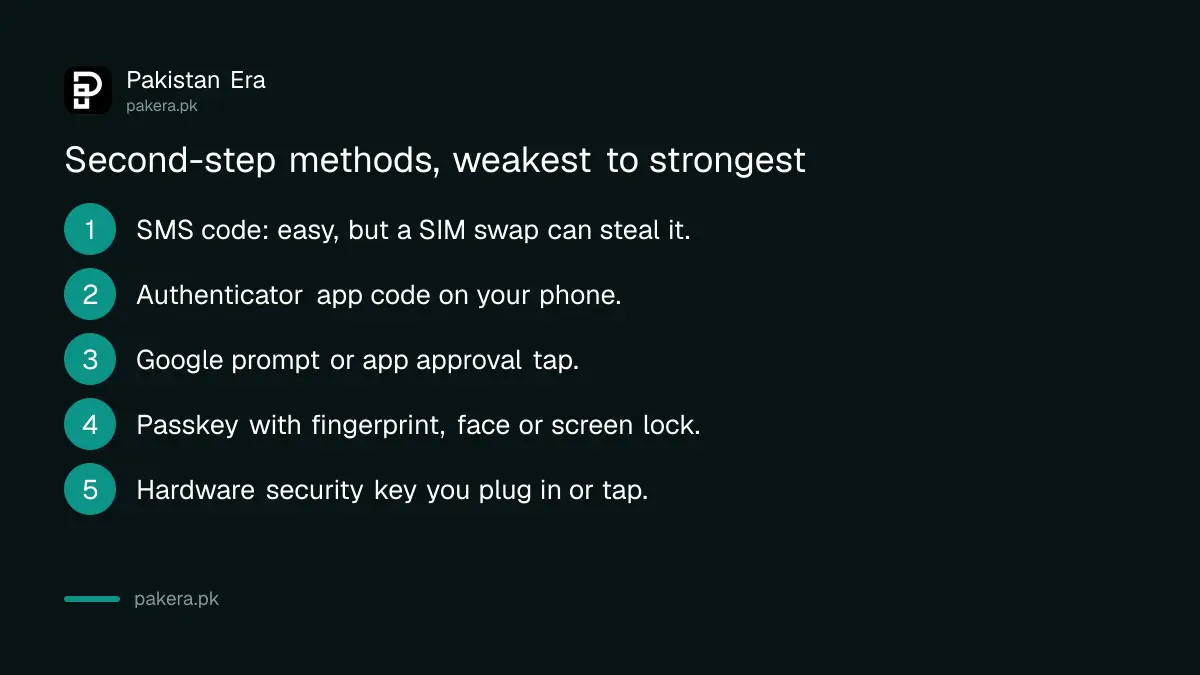
SMS codes are better than nothing, but they are the weakest option. Google says codes by text or call "can be vulnerable to phone number-based hacks". A passkey, a security key or an app prompt is stronger, because a SIM swap cannot steal it.
| App | Second-step options it offers | Backup if you lose your phone |
|---|---|---|
| Password, phone number or email; passkey for faster login | Email address on the account | |
| Security key, authentication app or SMS codes; passkey | 10 recovery login codes | |
| Gmail | Google prompts, passkey, security key, authenticator app or SMS codes | 8-digit backup codes |
A SIM swap is when someone gets a new SIM issued on your number, then receives your codes. In Pakistan, that needs a SIM sold or replaced against a CNIC. It is worth a minute to check the SIMs registered on your CNIC and block any you did not buy.
Never share a code, whoever asks
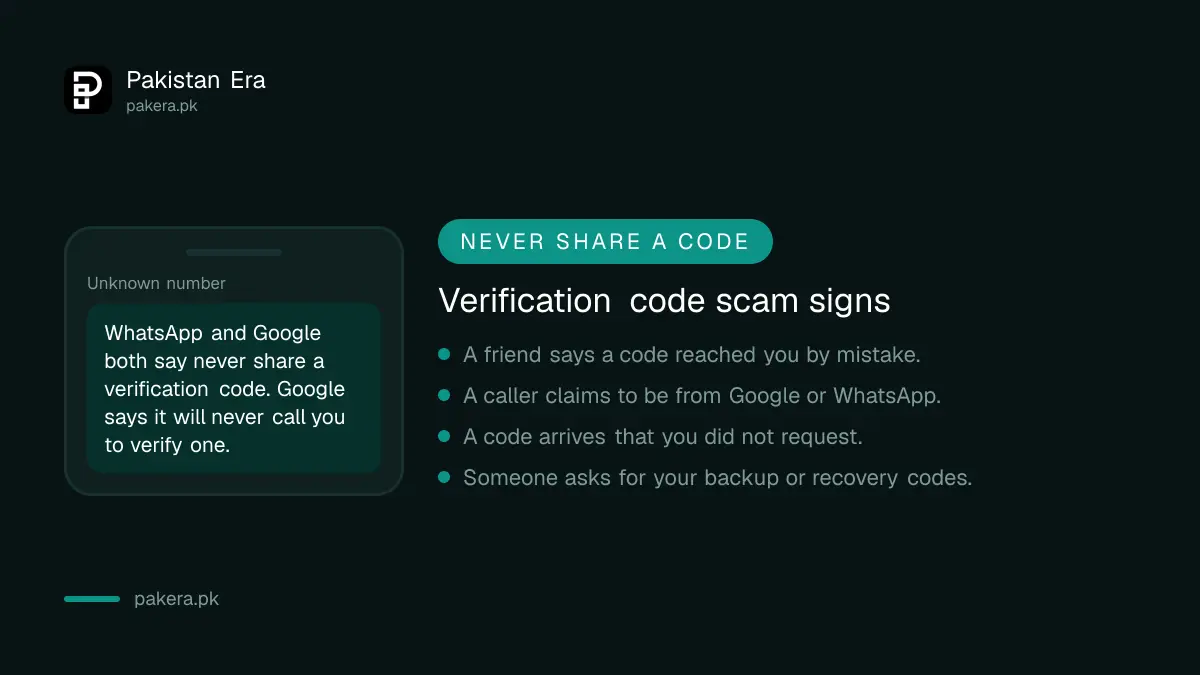
WhatsApp and Google say the same thing: never share a verification code. Google says it will never call you to verify one. A message from a friend asking for "a code sent by mistake" is a common trick.
The same rule covers backup codes and recovery codes. They are spare keys. Anyone holding one can walk past your second lock. If a code arrives that you did not request, someone typed your number somewhere. Do nothing and share nothing.
Common questions
Is two-step verification free on WhatsApp, Facebook and Gmail?
Yes. It is a setting inside each app, and none of the three help pages we read mentions any fee. SMS codes arrive on your normal mobile service.
What happens if I forget my WhatsApp two-step password?
Tap Verify another way and choose email, SMS or voice call. If none works, WhatsApp unlocks a Reset account option after a few days, but it can delete messages received since your last login.
Can I use two-step verification without a mobile number?
Yes, on Gmail and Facebook. Google accepts a passkey, security key or authenticator app, and Facebook accepts a security key or an authentication app instead of SMS.
Will I need a code every time I open the app?
No. WhatsApp trusts devices you mark, Facebook remembers saved browsers, and Google lets you tick "Don't ask again on this device" on a phone or computer only you use.
Does two-step verification stop someone who already hacked my account?
No. WhatsApp says passwords and two-step verification protect an account you still control. Recover the account first, then turn the feature on.
Is SMS two-step verification safe enough?
It is much better than none, but it is the weakest choice. Google says SMS codes can be caught through phone number attacks. Use a passkey or app prompt where you can.
How we verified this
What we checked, where we read it, and what we could not confirm.
Last checked on 1 October 2026. We read WhatsApp Help Center articles on managing two-step verification, two-step verification and trusted devices, adding a password, and recovering a compromised account, all on faq.whatsapp.com. We read Facebook's Help Center page on setting up two-factor authentication, and Google Account Help on 2-Step Verification. We did not test each app on every phone, so menu names may differ slightly on older app versions. Each company can change these screens without notice.
About the author

Tax, Bills and Technology Writer
Ali Akhtar is a young and curious voice here at Pakistan Era. He is currently pursuing his A-Levels and has a growing interest in Pakistan’s changing industrial landscape and educational trends. Ali likes to write in a way that helps him explain and explore the world around him. His writing reflects the perspective of the new generation navigating the evolving trends of Pakistan where technology, youth innovation, and shifting opportunities are reshaping the country’s future.