How to Use WhatsApp on Your PC in Pakistan and Log Out Safely
Link WhatsApp to a PC with a QR code or your +92 number, see the four device and 14 day rules, and log out of a shared or shop computer.
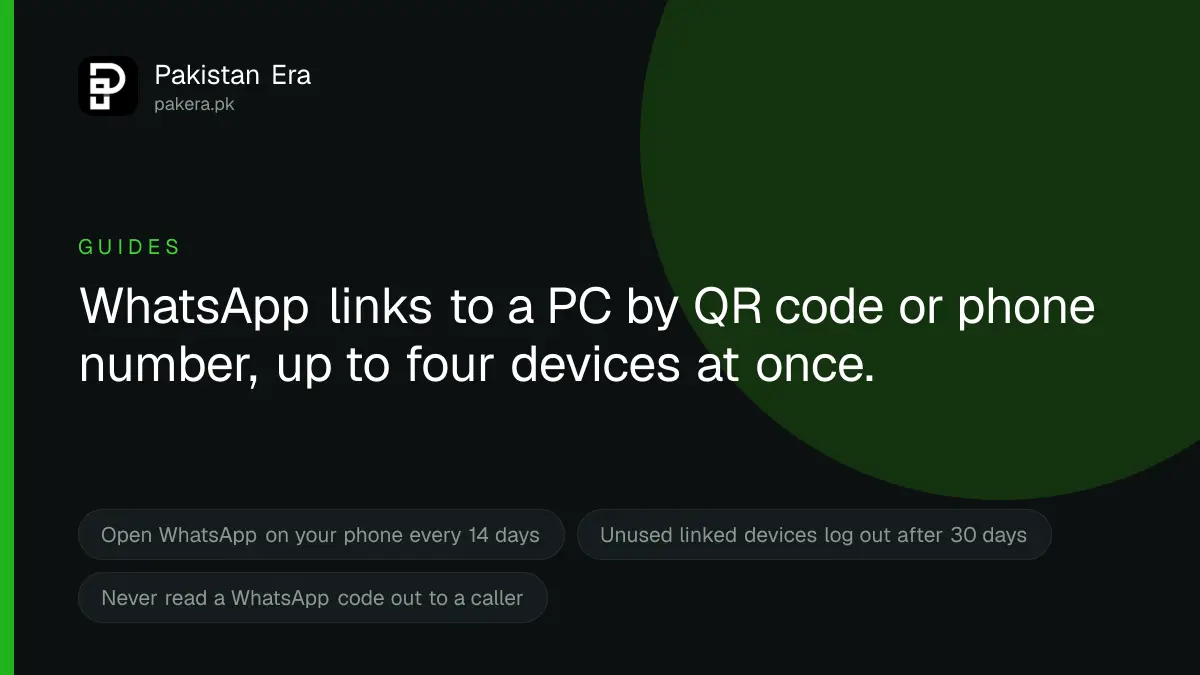
To use WhatsApp on a PC, open WhatsApp Web in your browser or the WhatsApp app for Windows or Mac. Then, on your phone, go to Linked devices, tap Link a device and scan the QR code on the screen. You can also link with your phone number and an eight character code. One account can link up to four devices. On a shared, office or shop computer, always log out when you finish.
Update, 11 October 2026: You can check linked devices on WhatsApp and remove unknown ones.
We read WhatsApp's own Help Center on 22 September 2026, and every step and limit below is taken from it. WhatsApp's help does not spell out two things readers in Pakistan need: how to enter a +92 number, and how to stay safe on a computer that is not yours.
How to link WhatsApp to your PC with a QR code
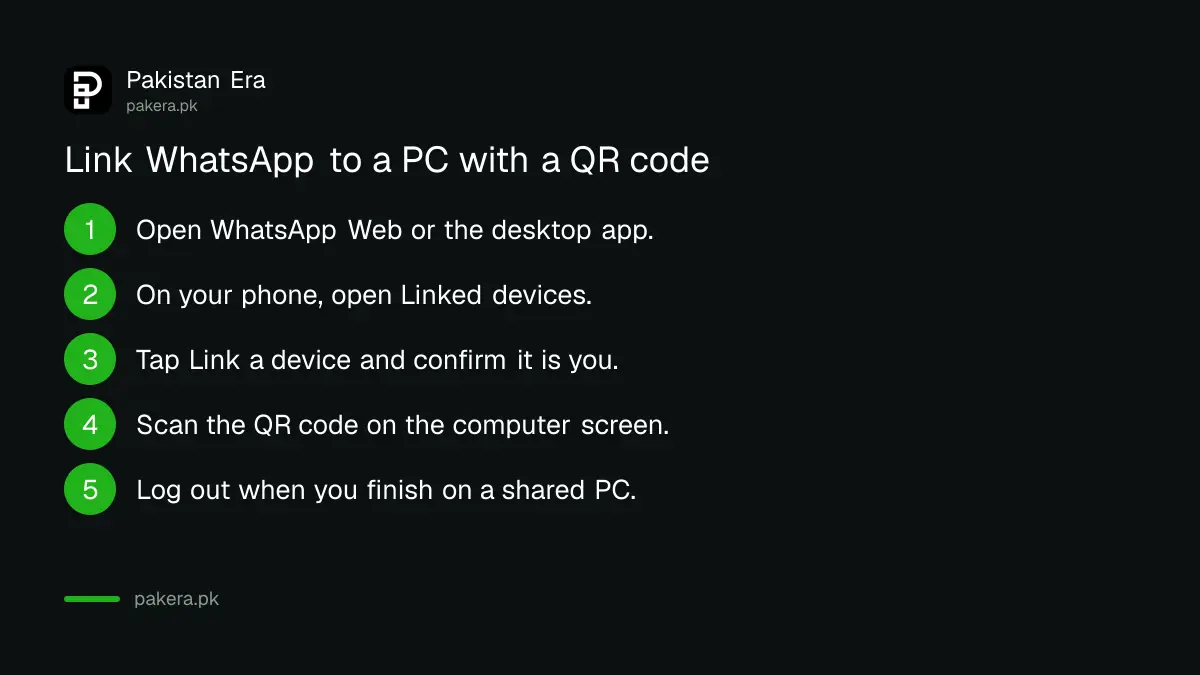
- Open WhatsApp on the computer. Use WhatsApp Web in the browser, or the WhatsApp app for Windows or Mac. A QR code appears on the screen.
- Open WhatsApp on your phone. On Android, tap the three dots at the top right. On iPhone, tap Settings or your profile picture.
- Tap Linked devices, then Link a device.
- Confirm it is you. Use your fingerprint or face, or the PIN you use to unlock your phone.
- Point your phone at the computer screen and scan the QR code. Your chats open on the computer after a few seconds.
If WhatsApp does not recognise the computer, it asks you to confirm that you want to link it. Only say yes if you are the one linking it, right now.
How to link with your phone number instead
This helps if your phone camera is broken or will not focus on the screen. WhatsApp says the phone number method works only on WhatsApp for Windows and WhatsApp Web.
- On the computer, click Link with phone number or Log in with phone number.
- Choose Pakistan (+92) as the country. Type your number without the first zero, so 0300 1234567 becomes 300 1234567. If you are not sure of it, check your own mobile number before you start.
- An eight character code appears on the computer screen.
- On your phone, tap the WhatsApp notification about linking a new device. Check the device name and location it shows, then confirm.
- Confirm your identity and type the eight character code into your phone.
You can also start from the phone: Linked devices, then Link a device, then Link with phone number instead.
This code is only ever typed into your own phone. Nobody genuine will phone or message you to ask for it. If someone asks you to read out a WhatsApp code, they are trying to link your account to their computer.
WhatsApp Web or the desktop app
Both use the same linked device system. The difference is mostly about where you use them.
| Question | WhatsApp Web | WhatsApp for Windows or Mac |
|---|---|---|
| Needs installing? | No, runs in the browser | Yes, an app on the computer |
| Link with phone number? | Yes | Windows yes; WhatsApp only lists Windows and Web for this |
| Group voice and video calls | Not listed by WhatsApp | Up to 32 people, per WhatsApp |
| Best for | A quick session, or a computer that is not yours | Your own laptop or office PC used every day |
| Log out when done? | Always, on a shared computer | Yes, if others use the computer |
Some things do not work on any linked device. WhatsApp lists viewing a live location, creating and viewing broadcast lists, and business WhatsApp Flows. A linked computer also cannot become the main device for your account. Your phone stays the main device.
How long a PC stays linked
WhatsApp gives three rules on its Help Center:
- You can link up to four devices to one phone at a time.
- Linked devices keep working when your phone is off or has no internet. But you must open WhatsApp on your phone at least once every 14 days, or the linked devices are logged out.
- A linked device that is not used for 30 days is disconnected automatically.
WhatsApp also says some linked devices may not show up to one year of old chats. It calls this a known issue. Your full history is still on your phone.
Using WhatsApp on a shared, office or shop computer
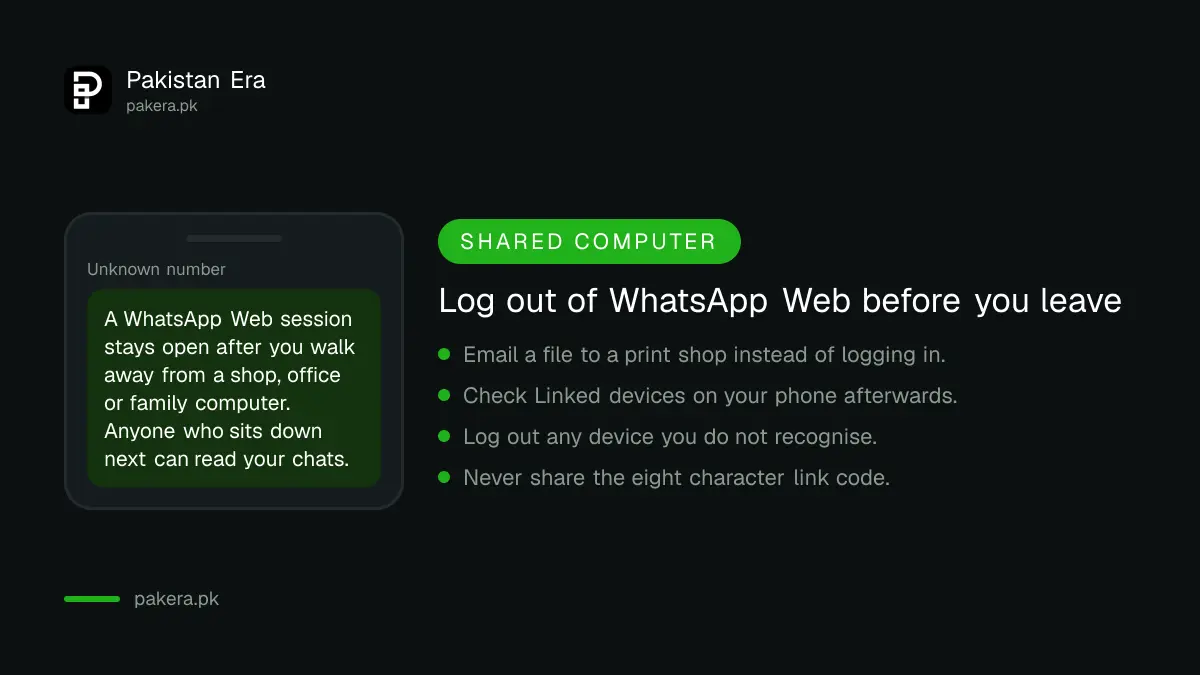
Many people open WhatsApp Web on a computer that is not theirs. A print shop, to print a CNIC copy or a form. An office PC. A cousin's laptop. This is the risky case, because the session stays open after you walk away.
- Prefer sending the file another way. If you only need to print one document, email it to the shop instead of logging in.
- If you must log in, use WhatsApp Web, not an app installed on someone else's computer.
- Log out before you leave. Do not just close the browser tab.
- Check from your phone. Open Linked devices. If the computer is still there, tap it and tap Log out.
- Turn on WhatsApp notifications on your phone. WhatsApp says the notification about a new linked device lets you review and remove one you do not recognise.
On an office PC, remember that your company's IT staff may be able to see what is on the screen. Keep personal chats on your phone if that worries you.
What to do if someone else is using your WhatsApp
If you see a device in Linked devices that you did not add, act at once.
- On your phone, open Linked devices, tap the unknown device, and tap Log out.
- Turn on two step verification in WhatsApp's Account settings. WhatsApp says it is moving this from a six digit PIN to a password, and asks for an email address you can reach.
- Warn your contacts not to send money to anyone using your name.
- If money was taken or you are being blackmailed, report it as a cybercrime.
Do not use unofficial versions such as GB WhatsApp to get around these limits. WhatsApp says linking an account to an unofficial app or website can lead to a temporary or permanent ban, and could let your account be used to send spam and scams. Using one can also get your account put under review.
Common questions
Can I use WhatsApp on a PC without my phone?
Yes, once it is linked. The PC keeps working when your phone is off. But you must open WhatsApp on your phone at least every 14 days.
How many computers can I link to one WhatsApp account?
Up to four linked devices at a time.
How do I log out of WhatsApp Web from my phone?
Open WhatsApp on your phone, go to Linked devices, tap the computer and tap Log out.
Why can I not scan the QR code?
Clean the camera, raise the screen brightness, and move the phone closer. If it still fails, use Link with phone number on WhatsApp Web or WhatsApp for Windows.
Is WhatsApp on a PC as private as on my phone?
WhatsApp says personal messages, media and calls are end to end encrypted on each linked device. The risk on a shared computer is somebody else using the open session, so always log out.
Where do I type a +92 number to link?
On the computer, choose Pakistan as the country and type your number without the first zero.
How we verified this
What we checked, where we read it, and what we could not confirm.
Last checked 22 September 2026. The QR code steps are from WhatsApp's Help Center article "How to link a device". The phone number steps, the eight character code and the Windows and Web only limit are from "How to link a device with phone number". The four device limit, the 14 day and 30 day rules, the unsupported features, the 32 person calls, the encryption statement and the warning on unofficial apps are from "About linked devices". The log out steps are from "How to unlink a device". WhatsApp does not publish Pakistan specific advice. We wrote the shared computer and +92 advice from those rules.
About the author

Senior Writer, Public Services and Technology
Shahid joined us in 2024 as an author. He is a senior contributor to Pakistan's leading technology websites. He writes detailed articles, mostly covering his expertise in the latest tech, mobiles, apps, gadgets, and step-by-step guides. His ideology is to help people understand the latest trends and explain complex methods through very easy-to-understand guides.