How to Turn On a WhatsApp Passkey in Pakistan and Stop Code Scams
Set up a WhatsApp passkey in Pakistan so your fingerprint or screen lock replaces the SMS code. What you need, the 4 steps, and why scammers cannot steal it.
To turn on a WhatsApp passkey, open WhatsApp, go to Settings, then Account, then Passkeys, and tap Create passkey. Confirm with your fingerprint, face or screen lock. After that, WhatsApp can check it is you with that lock instead of an SMS code. It takes under a minute and costs nothing.
Most WhatsApp thefts in Pakistan start the same way. Somebody calls, pretends to be from a courier, a bank or a prize scheme, and asks you to read out the six digit code that just arrived by SMS. Once they have it, they own your account. A passkey takes that code out of the picture.
WhatsApp said on 25 August 2026 that more than one billion people already use a passkey on WhatsApp. It also said you can now add more than one passkey if you use both Android and iPhone. Here is what you need, how to set it up, and what it does not protect.
What a WhatsApp passkey does
A passkey lets WhatsApp confirm it is you with your phone's own lock, your fingerprint, face or screen PIN, instead of an SMS code. WhatsApp says you can use it when you register your number again or restore your account, and your fingerprint or face never leaves your phone.
WhatsApp's help page "About passkeys" says passkeys use cryptography, a kind of maths lock, tied to your physical device. Only you, holding that phone and able to unlock it, can use it. That is the point. A code can be read out over the phone. A fingerprint cannot.
| Login method | How it proves it is you | Can a caller trick you out of it? |
|---|---|---|
| SMS code | Six digits sent to your number | Yes, if you read it out |
| Passkey | Your phone's fingerprint, face or screen lock | No, it never leaves the phone |
| Two-step verification | A password you set | Only if you share it |
What you need before you create one
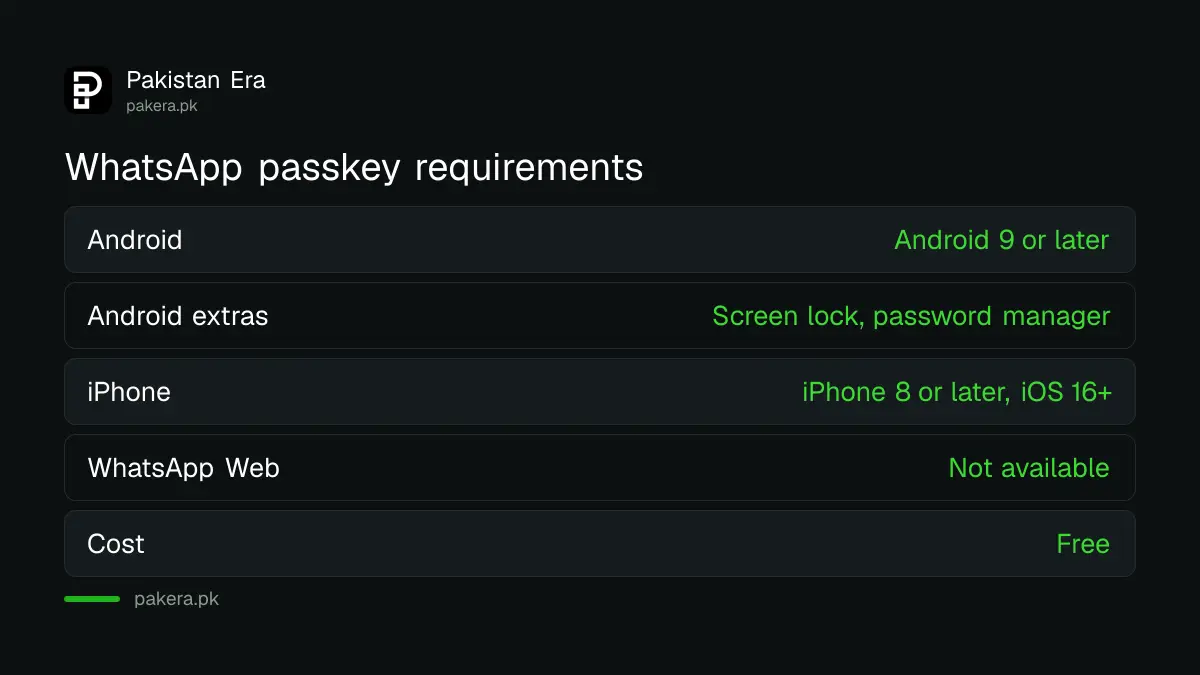
On Android you need Android 9 or later, a screen lock, and a password manager such as Google Password Manager or Samsung Password Manager linked to the phone. On iPhone you need an iPhone 8 or later running iOS 16 or higher. WhatsApp says passkeys are not available on the web.
On Android, WhatsApp tells you to check the password manager under your phone's Settings, then Passwords, then Passkeys and accounts. Most phones sold in Pakistan with a Google account already have Google Password Manager. If you have never added a Google account to the phone, add one first.
Set a screen lock if you do not have one. A passkey depends on it. A phone with no lock is also a phone anybody can open at a tea stall while you look away.
Create a WhatsApp passkey in four steps
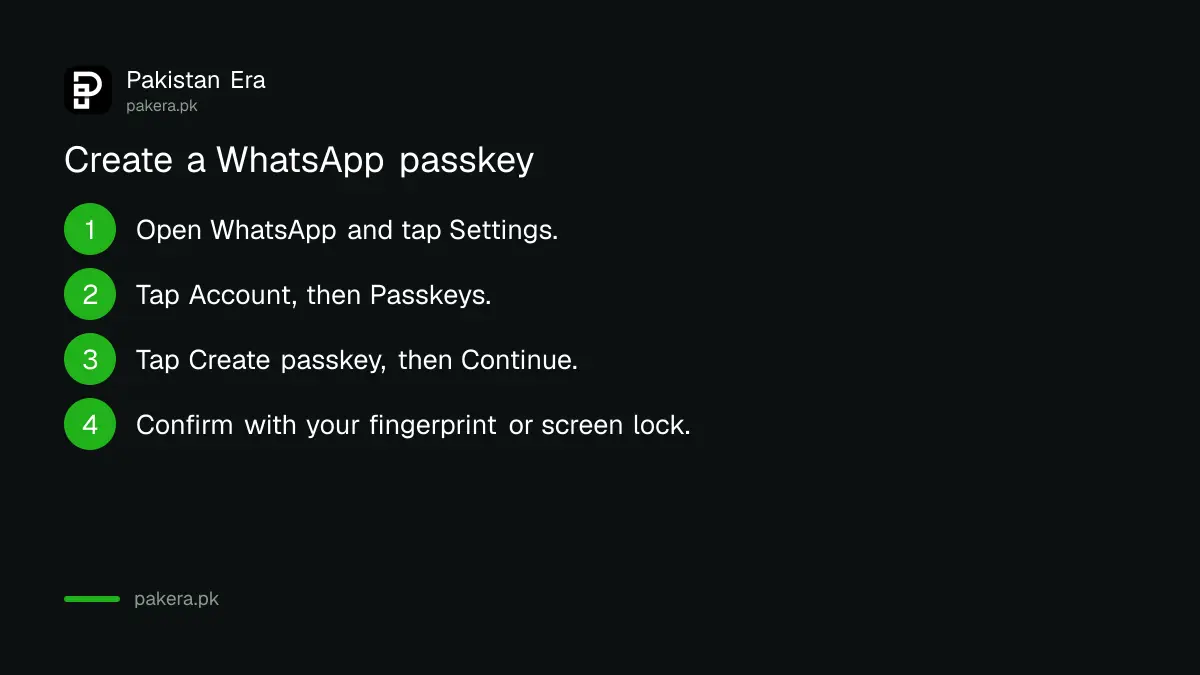
Open WhatsApp Settings, tap Account, tap Passkeys, then follow the prompts and confirm with your screen lock. On Android the button is Create passkey, then Continue. On iPhone, WhatsApp's help page lists Account, then Passkeys, then Continue.
- Open WhatsApp and tap Settings. On iPhone you can also tap your profile tab.
- Tap Account, then Passkeys.
- On Android, tap Create passkey, then Continue. On iPhone, tap Continue.
- Tap Continue again and confirm with your fingerprint, face or screen lock if asked.
Those steps are from WhatsApp's help page "Create a passkey", which we read for Android and iPhone on 9 October 2026. We did not run them on a handset for this page. If you do not see Passkeys under Account, update WhatsApp from the Play Store or App Store and look again.
WhatsApp also has a direct link that opens the passkey screen on your phone: wa.me/settings/account/passkeys. Only open it on your own phone, and only from here or from WhatsApp's help page, never from a link somebody sends you.
Change or delete a passkey
You cannot edit a passkey. To change it, delete the old one and create a new one. Go to Settings, then Account, then Passkeys, tap Delete, and tap Delete again to confirm. Then create a fresh one with the four steps above.
WhatsApp's August 2026 post says you can now have more than one passkey on your account if you use both Android and iPhone. That suits people who switch between a work iPhone and a personal Android, or who are moving from one to the other.
If you reinstall WhatsApp later, WhatsApp says it may ask whether you want to use your existing passkey at registration. Say yes. That is the moment it saves you from waiting for an SMS code, or from a stranger who has your code.
Add two-step verification as a second lock
A passkey and two-step verification do different jobs, so turn on both. WhatsApp's two-step verification is now a full password rather than a six digit PIN, with letters, numbers and special characters allowed. It stops a takeover even if someone gets your SMS code.
WhatsApp announced the stronger password in the same August 2026 post. You can turn on two-step verification under Settings, then Account, then Two-step verification. Add a recovery email while you are there, because it is how you get back in if you forget the password.
WhatsApp's help pages we read do not say what happens if you lose the only phone that holds your passkey. So keep your SIM in your own name, keep two-step verification on, and keep a chat backup. If someone does get in, follow the steps to recover a hacked WhatsApp account at once.
The same post adds one more scam guard on Android: a call from a number not in your contacts now shows more about the caller, such as whether it is from another country and whether you share any groups. The settings for silencing unknown callers on WhatsApp go well with it.
Common questions
How do I turn on a passkey on WhatsApp?
Open WhatsApp Settings, tap Account, then Passkeys. On Android tap Create passkey and Continue. Confirm with your fingerprint, face or screen lock.
Which phones support a WhatsApp passkey?
WhatsApp says Android 9 or later with a screen lock and a password manager, or an iPhone 8 or later on iOS 16 or higher. It is not available on WhatsApp Web.
Is a passkey better than an SMS code?
Yes, for stopping scams. A passkey uses your phone's own lock and cannot be read out to a caller. An SMS code can be stolen by anyone who talks you into sharing it.
Can I have a WhatsApp passkey on Android and iPhone?
Yes. WhatsApp said on 25 August 2026 that you can add more than one passkey if you use both Android and iOS devices.
Do I still need two-step verification with a passkey?
Yes. They protect different steps. Keep two-step verification on with a strong password and a recovery email.
Does WhatsApp see my fingerprint or face?
No. WhatsApp's help page says your fingerprint or face data never leaves your device.
How we verified this
What we checked, where we read it, and what we could not confirm.
Last checked on 9 October 2026. Sources: WhatsApp's own post One billion people are now protected with passkeys on WhatsApp, dated 25 August 2026, and WhatsApp Help Center pages "Create a passkey" (Android and iOS) and "About passkeys". WhatsApp does not publish Pakistan specific figures or a recovery route for a lost passkey phone in the pages we read.
About the author

Technology Journalist & Multimedia Producer
Ahmad Ali is a technology journalist and multimedia producer at Pakistan Era, joining the team in October 2026. He covers consumer technology and digital life for Pakistani readers, combining research with hands-on product testing.