How to Make WhatsApp Calls From Your Computer Browser in Pakistan
Make free WhatsApp voice and video calls from a laptop browser in Pakistan, no app needed. The 5 steps, what to allow, and how to fix a call that won't connect.
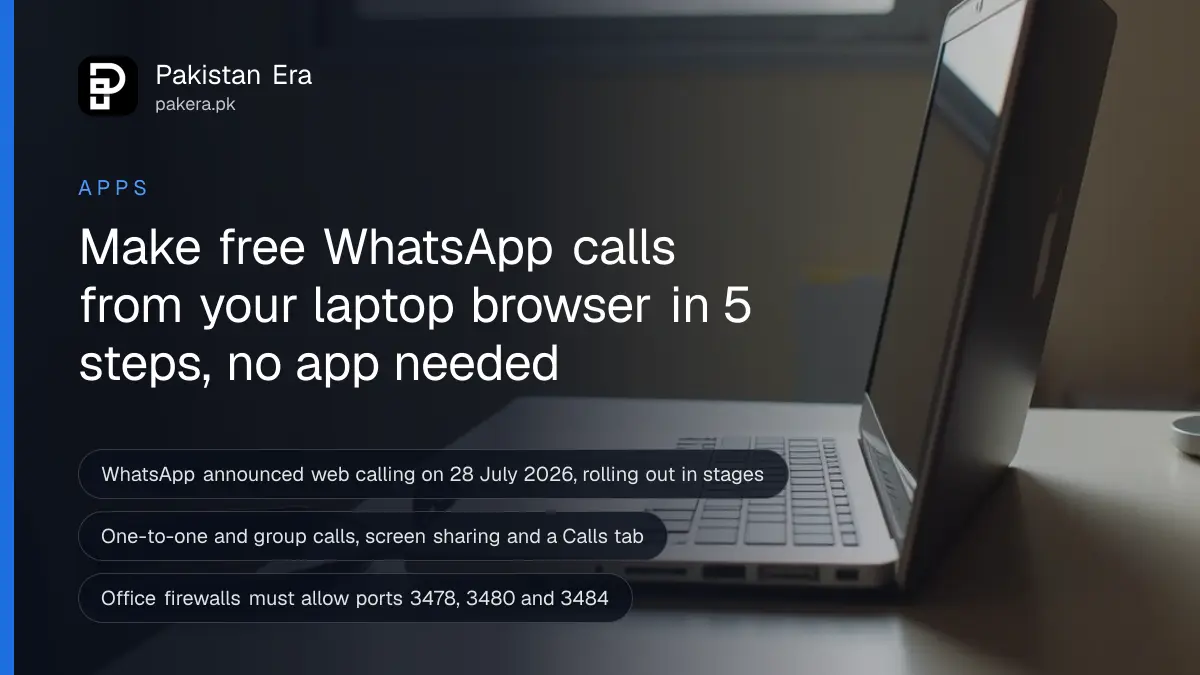
You can now make WhatsApp voice and video calls from a computer browser, with no app to install. Go to web.whatsapp.com, link it by scanning the QR code with your phone, open a chat, and click the call button. WhatsApp says web calls are free, end-to-end encrypted and have no time limit. Group calls and screen sharing work too.
Plenty of people in Pakistan work on office laptops where nobody can install software, or use a computer at a university lab or an internet cafe. Until this year, WhatsApp Web was for messages only. Calls meant reaching for the phone. WhatsApp announced web calling on 28 July 2026 and said it is rolling out gradually.
Here is how to make the call, what to allow in the browser, how to fix a call that will not connect, and how to stay safe on a shared computer.
What WhatsApp web calling includes
WhatsApp says you can make and receive audio and video calls on WhatsApp Web, both one-to-one and group, without downloading an app. You also get screen sharing, reactions and a Calls tab with your call history and favourites. Calls are end-to-end encrypted, free and have no time limit.
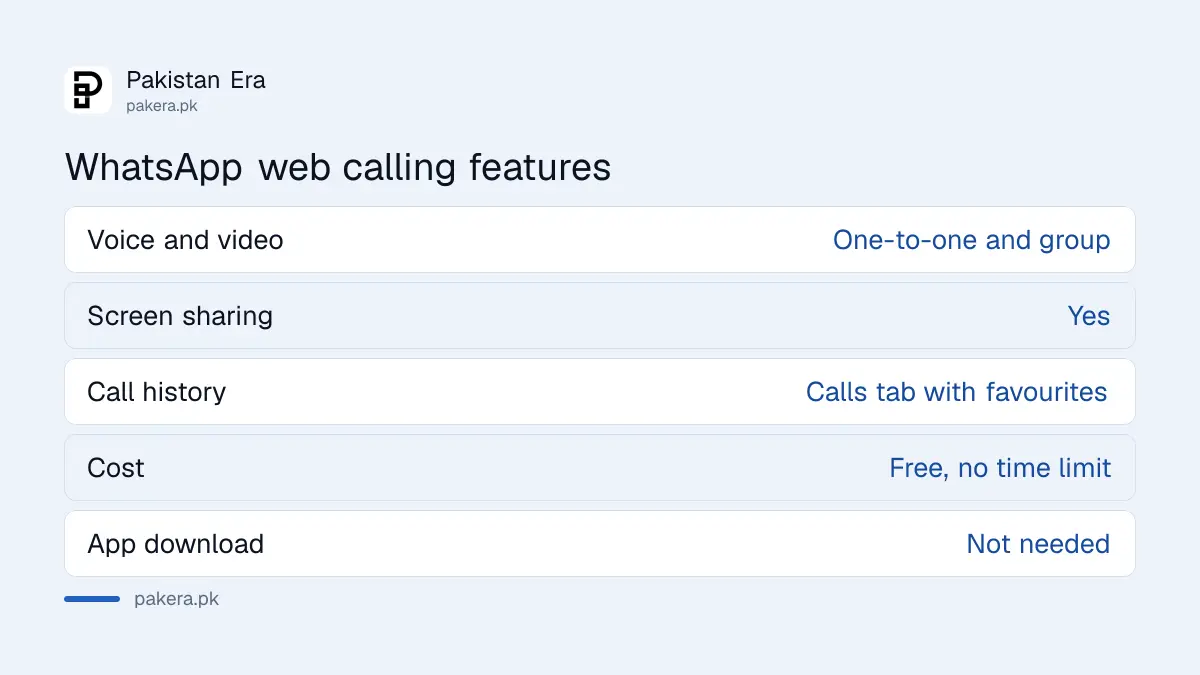
| Feature | On WhatsApp Web | Source |
|---|---|---|
| Voice and video calls | Yes, one-to-one and group | WhatsApp post, 28 July 2026 |
| Screen sharing | Yes | WhatsApp post |
| Calls tab with history | Yes, with favourites | WhatsApp post |
| Cost and time limit | Free, no time limit | WhatsApp post |
| Encryption | End-to-end encrypted | WhatsApp post |
"End-to-end encrypted" means only you and the person you call can hear the call. WhatsApp cannot. The call uses your internet connection, so it does not use phone call minutes. WhatsApp's help page "About WhatsApp Web" says the same thing: calls are free, even to another country.
The same July post added a few calling extras. You can move an active group call from your phone to WhatsApp Web without hanging up. A call link can have a waiting room, so people wait until you let them in. And noise suppression cuts background sound, which helps in a busy office or a house with a pressure cooker going.
Make a WhatsApp call from your computer in five steps
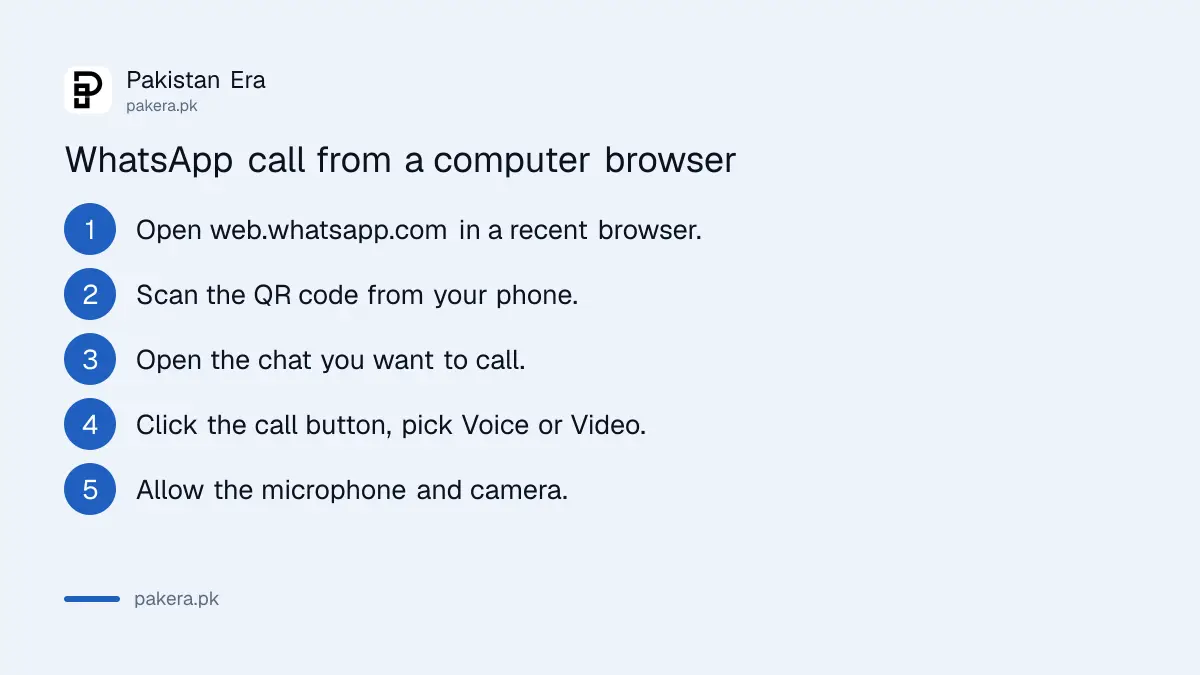
Open web.whatsapp.com in a recent browser, scan the QR code with WhatsApp on your phone, then open the chat with the person you want to call. Click the call button and choose voice or video. Allow the browser to use your microphone and camera when it asks.
- Open web.whatsapp.com in Chrome, Edge, Firefox, Safari or Opera.
- On your phone, open WhatsApp, go to Linked devices, tap Link a device and scan the QR code on the computer.
- On the computer, open the chat with the person or group you want to call.
- Click the call button at the top of the chat and choose Voice or Video.
- When the browser asks, click Allow for the microphone and camera.
The log in steps come from WhatsApp's help page "About WhatsApp Web". The call button steps match WhatsApp's help article on making a voice call on the web, which we could only read in a search summary, not in full. We did not place a test call for this page. If you do not see a call button, your account may not have the feature yet, because WhatsApp is rolling it out in stages.
If the QR code will not scan, you can link WhatsApp to your PC with your phone number instead.
What you need on the computer
You need a recent browser, a working microphone and speakers or a headset, and a camera for video calls. WhatsApp says a video call is not possible on a device without a camera. Your phone and computer both need a working internet connection.
- Browser: WhatsApp lists recent Chrome, Firefox, Microsoft Edge, Opera and Safari. Internet Explorer and other old browsers will not work.
- Headset: WhatsApp recommends a headset for the best sound. Separate speakers and a separate microphone can cause echo.
- Power: WhatsApp suggests plugging in the laptop during calls when you can. That is also handy during load-shedding, when a laptop on battery may cut out mid call.
- Internet: a steady Wi-Fi line works better than a weak hotspot. Video uses much more data than voice.
Fix a WhatsApp web call that will not connect
Refresh the WhatsApp Web tab, update the browser, and check that the browser is allowed to use the microphone, camera and notifications. On an office network, ask IT to open UDP and TCP ports 3478, 3480 and 3484, which WhatsApp says its calls use.
| Problem | What WhatsApp says to try |
|---|---|
| Call stuck on reconnecting | Refresh the tab, try a different Wi-Fi network |
| Call drops at once | Update the browser, check your connection |
| Nobody can hear you | Allow the microphone for web.whatsapp.com, check sound settings |
| Camera does not start | Close other apps using the camera, avoid virtual cameras |
| Works at home, not at the office | Firewall must allow ports 3478, 3480 and 3484 |
Those fixes are from WhatsApp's help page "Can't make WhatsApp video calls", web version. The firewall point matters in Pakistan, because many company and university networks block calling apps by default. If your call works on mobile data from a hotspot but not on the office Wi-Fi, the firewall is the likely reason.
One more check: another program may already be using the microphone. Close Zoom, Teams or Meet first, then try again.
Stay safe when you call from a shared computer
Log out of WhatsApp Web when you finish on any computer that is not yours. An open WhatsApp Web tab gives the next person your chats and lets them call your contacts in your name. You can also log out from your phone under Linked devices.
On your phone, open WhatsApp, go to Linked devices, and look at the list. Tap any computer you do not recognise and log it out. Do this every few weeks even if you only use your own laptop.
Then add a second lock. Turn on two-step verification so a stolen code is not enough to take your account. If someone already has, the steps to recover a hacked WhatsApp account start with your phone, not the computer.
Common questions
Can I make WhatsApp calls on a laptop without installing the app?
Yes. WhatsApp said on 28 July 2026 that you can make and receive voice and video calls directly from WhatsApp Web, with no app download.
Are WhatsApp Web calls free?
Yes. WhatsApp says web calls cost nothing and have no time limit. They use your internet connection, so data charges from your network may apply.
Can I make group calls on WhatsApp Web?
Yes. WhatsApp says both one-to-one and group calls work on the web, with screen sharing and reactions.
Why can't I see the call button on WhatsApp Web?
WhatsApp says the feature is rolling out gradually. Refresh the page and update your browser. If it is still missing, your account may not have it yet.
Which ports does WhatsApp calling need on an office network?
WhatsApp says to allow UDP and TCP ports 3478, 3480 and 3484 in the firewall. Ask your IT team, since only they can change it.
Are WhatsApp Web calls private?
WhatsApp says web calls are end-to-end encrypted, like calls on the phone. The bigger risk is a shared computer left logged in.
How we verified this
What we checked, where we read it, and what we could not confirm.
Last checked on 9 October 2026. Sources: WhatsApp's own post Introducing Web Calling on WhatsApp, dated 28 July 2026, and WhatsApp Help Center pages "About WhatsApp Web" and "Can't make WhatsApp video calls" (web). WhatsApp's help article on making a voice call on the web did not load in full for us, so the call button steps are attributed to it with care. WhatsApp has not said when the rollout will reach every account in Pakistan.
About the author

Technology Journalist & Multimedia Producer
Ahmad Ali is a technology journalist and multimedia producer at Pakistan Era, joining the team in October 2026. He covers consumer technology and digital life for Pakistani readers, combining research with hands-on product testing.