How to Install Apps on Android TV in Pakistan: Play Store Steps, Updates, Storage and Old TV Sign-In
Install apps on Android TV from the Play Store, update or delete them, add a USB drive for space, check Play Protect, and see why old TVs lose Google sign-in.
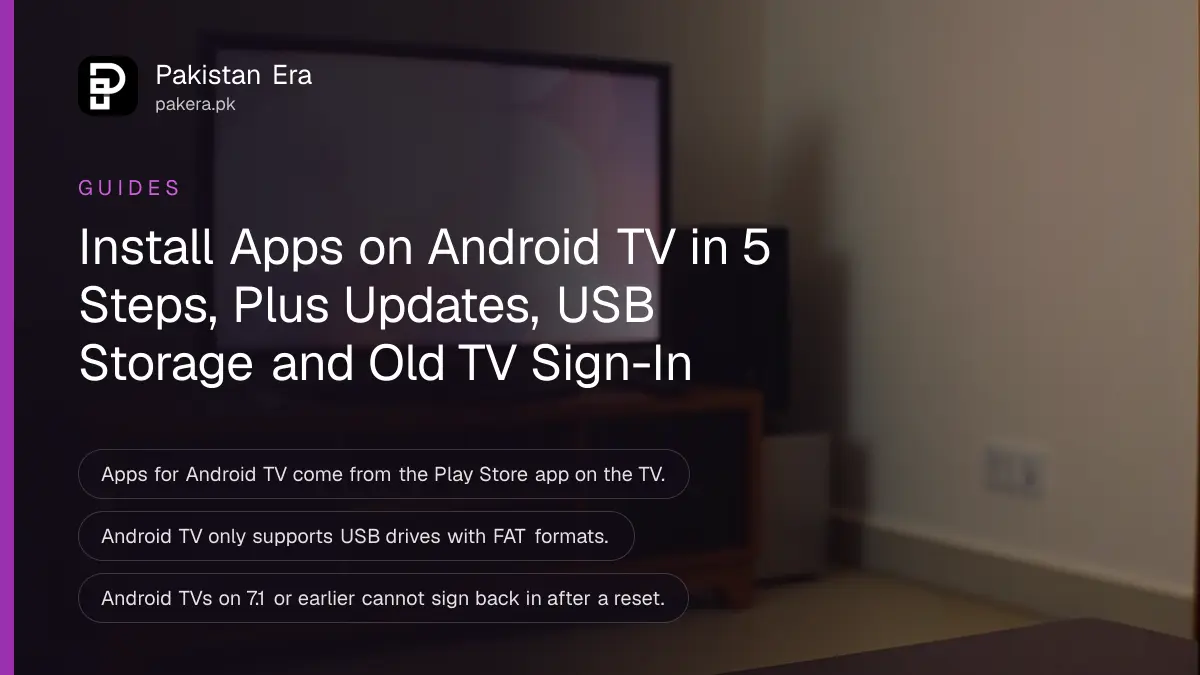
To install apps on an Android TV, go to the Home screen, scroll to Apps, open the Google Play Store, search for the app and select Install. To update apps, open the Play Store, choose My Apps and select Update all; to delete one, go to Settings, Apps, pick the app and select Uninstall. If the TV runs out of space, Google lets you add a USB drive as extra storage.
Below are Google's steps for getting, finding, updating and deleting apps on an Android TV, how to add storage with a USB drive, where Play Protect sits on a TV, how to use your phone as the remote, and an account change that hits older Android TVs. We read Google's Android TV Help pages on 1 November 2026.
Install apps from the Play Store on the TV itself
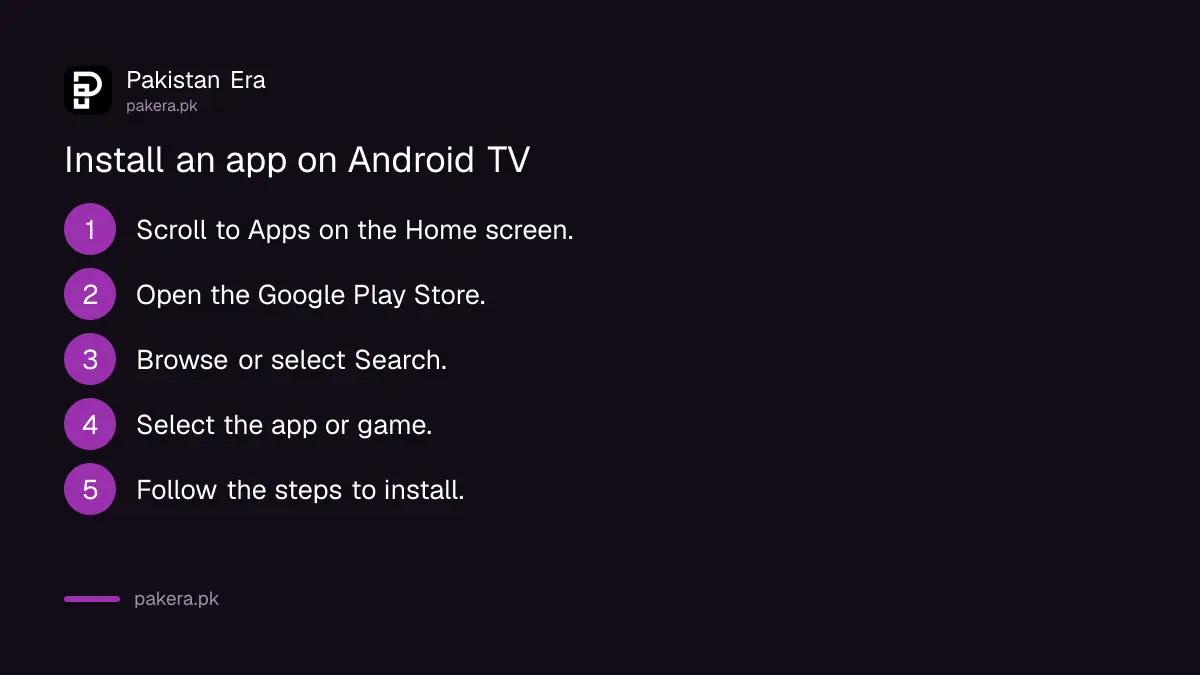
Google says apps for Android TV come through the Play Store app on the TV. From the Home screen, scroll to Apps, open the Google Play Store, browse or search, select the app, and follow the on-screen steps to install it or pay.
- On the Android TV Home screen, scroll to Apps.
- Select the Google Play Store app.
- To browse, move up or down through categories, then right to see items. To search, select Search at the top.
- Select the app or game you want.
- Follow the on-screen instructions to install it or complete the purchase.
Typing on a TV remote is slow, so the search box is where the phone remote described below earns its keep. If a paid app will not go through, Google suggests trying a different payment method, such as a card.
Not every phone app appears on a TV. Google says some games are not compatible with Android TV, and to check, open Google Play on a computer, select Install on the game and look under Choose a device: a dimmed TV means it will not run there. We expect the same applies to many phone apps, though Google's page only mentions games.
Find, update and delete apps you already have
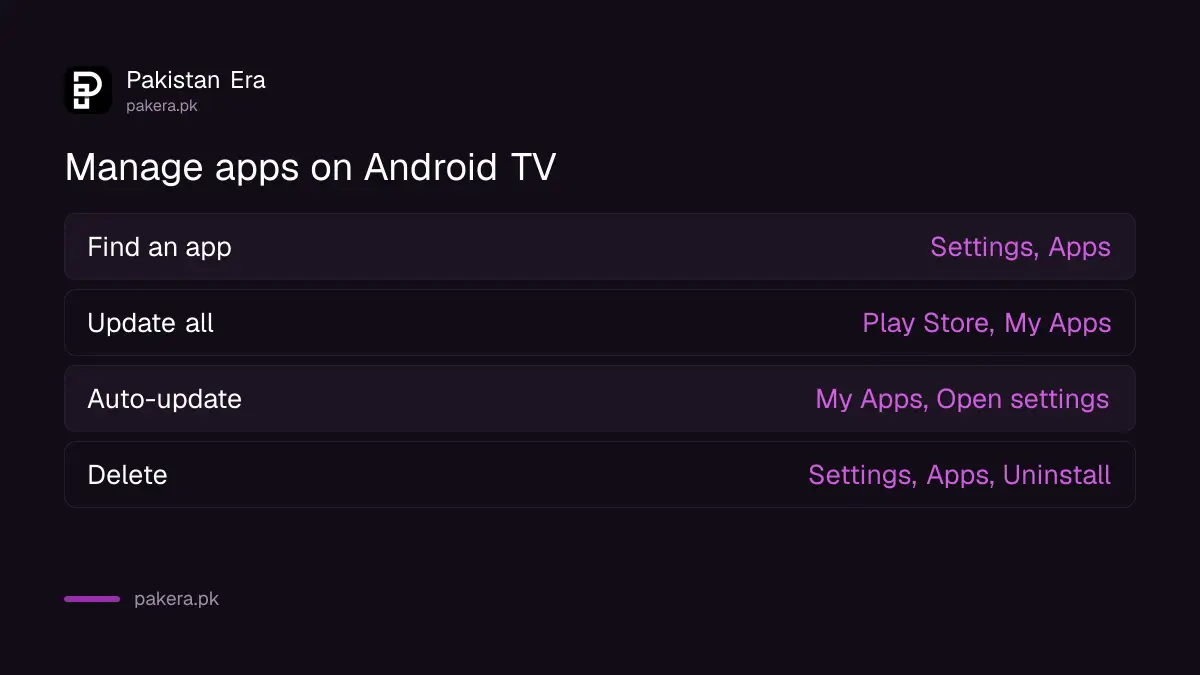
To find an installed app, open Settings, then Apps, or open the Play Store and choose My Apps. Updates are under My Apps, Updates available, with an Update all option. To delete an app, select it in Settings, Apps, then Uninstall and OK.
| Task | Where to go on the TV |
|---|---|
| Find an installed app | Settings, Apps; or Play Store, My Apps, Apps installed |
| Update one app or all | Play Store, My Apps, Updates available, then Update all |
| Turn on auto-update | Play Store, My Apps, Open settings, Auto-update apps |
| Delete an app | Settings, Apps, Downloaded apps, the app, Uninstall, OK |
| Stop an app filling the top row | Settings, Apps, the app, Notifications, Off |
Google's tip in the last row is a good one. An app that keeps pushing its shows into the top row of the Home screen stops once you turn off its notifications, and you do not have to delete it.
Auto-update is worth leaving on. When a video or game will not play, Google's fix list checks the Wi-Fi first, then a system update under Settings, About, System software update, then a restart from Settings, About, Restart. Clearing the app's data and cache under Settings, Apps comes after those.
Add storage with a USB drive when the TV is full
Google says you can free space by uninstalling apps or add space with a USB drive. Android TV only supports drives with FAT formats. When you plug one in, the TV either sets it up as removable storage or asks you to format it.
Formatting erases the drive, so copy anything you want to keep first. Google gives two choices:
- Internal storage: the TV stores more data on the drive, but you cannot move that data to another device.
- Removable storage: you can move content on the drive to another device, but apps and games cannot be moved to it.
To move an app onto the drive, go to Settings, Apps, select the app, then Storage used, and pick the USB drive. Eject the drive from Settings, Storage and reset before you unplug it. Google warns that apps stored on the drive cannot be used once it is ejected, and that these steps may not work on every TV that runs Android TV.
Play Protect checks TV apps too
Google Play Protect scans Play Store apps before you download them and checks apps from other sources. On Android TV 10 or lower, it is under Settings, Apps, Security and restrictions, Verify apps. On Android 11 or later, use Play Store, Menu, Play Protect.
Google says Play Protect is on by default and recommends keeping it on. It can warn you, disable a harmful app or remove it. This matters most for people who load apps onto a TV or Android TV box from outside the Play Store. In that case Play Protect may ask to send unknown apps to Google for a scan, and you can let it.
The same scanner runs on phones, and the steps to check Google Play Protect on Android work the same way there.
Older Android TVs are losing Google sign-in
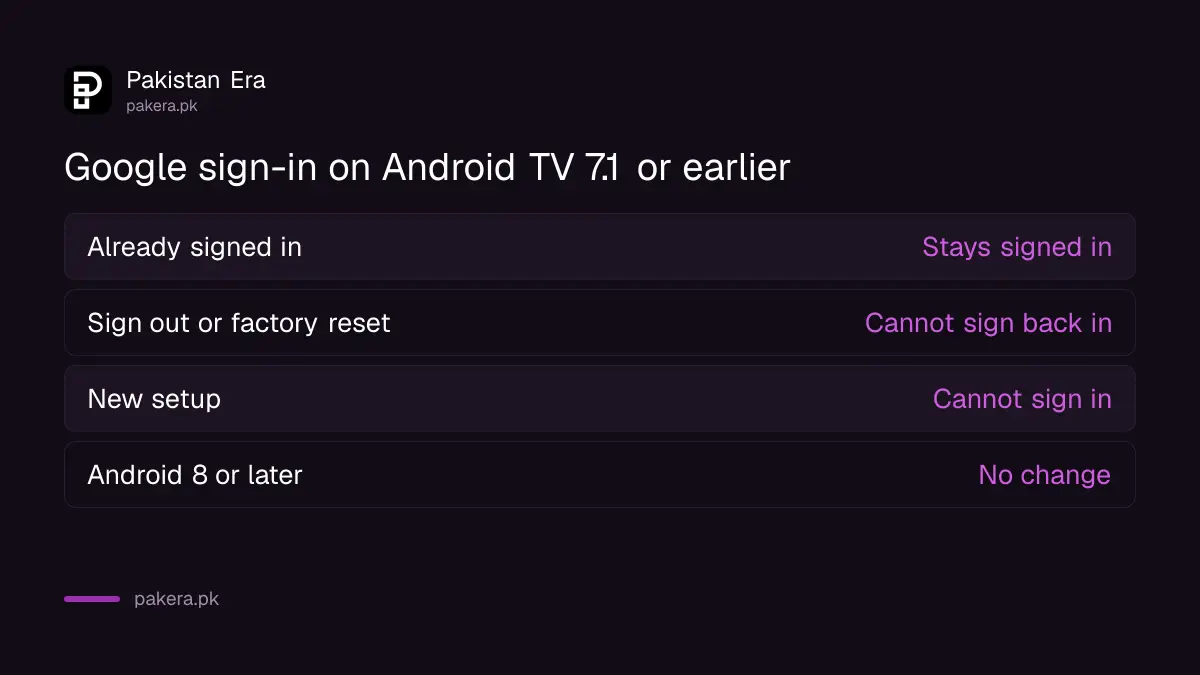
Google is ending account sign-in on Android TV devices running Android 7.1 or earlier. If you are already signed in, nothing changes. After a sign-out or factory reset, you cannot sign back in, so no Play Store downloads.
Check your version under Settings, About, or System, About, and look for Version or Android TV OS version. Android 8 or later is not affected. A new setup of a 7.1 or older TV cannot sign in to a Google account at all, though Google says the TV still works without one.
So on an old TV, do not factory reset it just to fix a slow app. Delete apps and clear space first. Google's page does not give a date for the change, and we could not find one on its help pages.
Use your phone as the remote to type faster
The Google TV app on an Android phone works as a remote for Android TV. Open it, tap Connect TV near the bottom right, choose your TV, enter the code shown on screen and tap Pair. Both need the same Wi-Fi.
If pairing fails, check the TV's network under Settings, Network and Accessories, Network, Advanced, Network status, and compare the network name with your phone's. Google's other fix is to unplug the TV, wait 10 seconds, plug it back in and pair again. Sending a phone's screen to the TV is a different job, covered by screen mirroring from a phone to a TV.
Common questions
How do I download apps on my Android TV?
Open the Google Play Store from the Apps row on the Home screen, search for the app and select Install.
Why can't I find an app on my TV's Play Store?
The app may not support Android TV. Google says some games are not compatible, and a dimmed TV under Choose a device on Google Play shows it.
How do I update all apps on Android TV?
Open the Play Store, choose My Apps, and select Update all under Updates available.
Can I use a USB drive for apps on Android TV?
Yes, if it is formatted as internal storage. Google says Android TV supports FAT formatted drives.
My old TV says I cannot sign in to Google. Why?
Google is ending sign-in on Android TVs with Android 7.1 or earlier. The TV still works without an account.
How we verified this
What we checked, where we read it, and what we could not confirm.
Last checked 1 November 2026. We read Google's Android TV Help pages Download or delete apps and games, Review Google Account login changes on older Android TVs, Get more storage for your Android TV, Protect your TV from harmful apps with Google Play Protect, and Use your phone as the remote on 1 November 2026. TVs with the newer Google TV interface and some makers' own menus may differ from these steps, and we could not check each brand. The view that many phone apps may also be missing from the TV store is our own reading; Google only says this of games.
About the author

Technology Journalist & Multimedia Producer
Ahmad Ali is a technology journalist and multimedia producer at Pakistan Era, joining the team in October 2026. He covers consumer technology and digital life for Pakistani readers, combining research with hands-on product testing.