Laptop Camera Not Working on Windows 11 in Pakistan: 9 Fixes and Every Error Code (Zoom, Teams, Meet)
Laptop camera not working on Windows 11? Check the switch or shutter, turn on the 3 camera privacy switches, then Microsoft's 9 fixes and every error code.
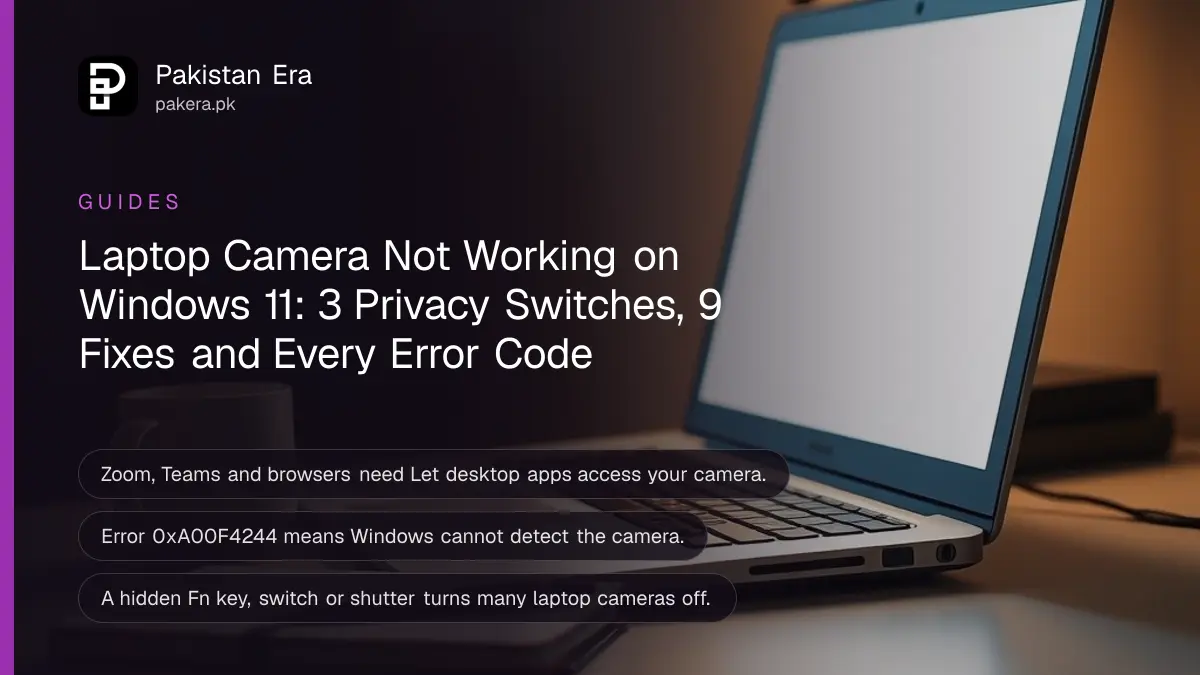
If your laptop camera is not working on Windows 11, check for a camera switch, an Fn key or a small privacy shutter first, then go to Settings > Privacy & security > Camera and turn on Camera access, Let apps access your camera and Let desktop apps access your camera. That last switch is the one most people miss: browsers, Zoom and Teams are desktop apps, and without it they see no camera at all.
Below are Microsoft's nine steps in order, a table of the camera error codes Windows shows (such as 0xA00F4244), and the driver fixes for when an update broke the camera. We read Microsoft's support page "Camera doesn't work in Windows" on 31 October 2026.
A hidden switch or shutter blocks many laptop cameras
Many laptops have a physical way to turn the camera off. Microsoft lists a key used with Fn, a camera button on the keyboard, a sliding switch on the side, or a small shutter over the lens. When it is off, Windows may show a camera with a line through it.
Look closely around the lens for a tiny slider, and along the top row of the keyboard for a camera symbol. On an external webcam, check the USB cable and try a different port. To rule out a dead camera, Microsoft suggests testing it on another computer.
Turn on all three camera privacy switches
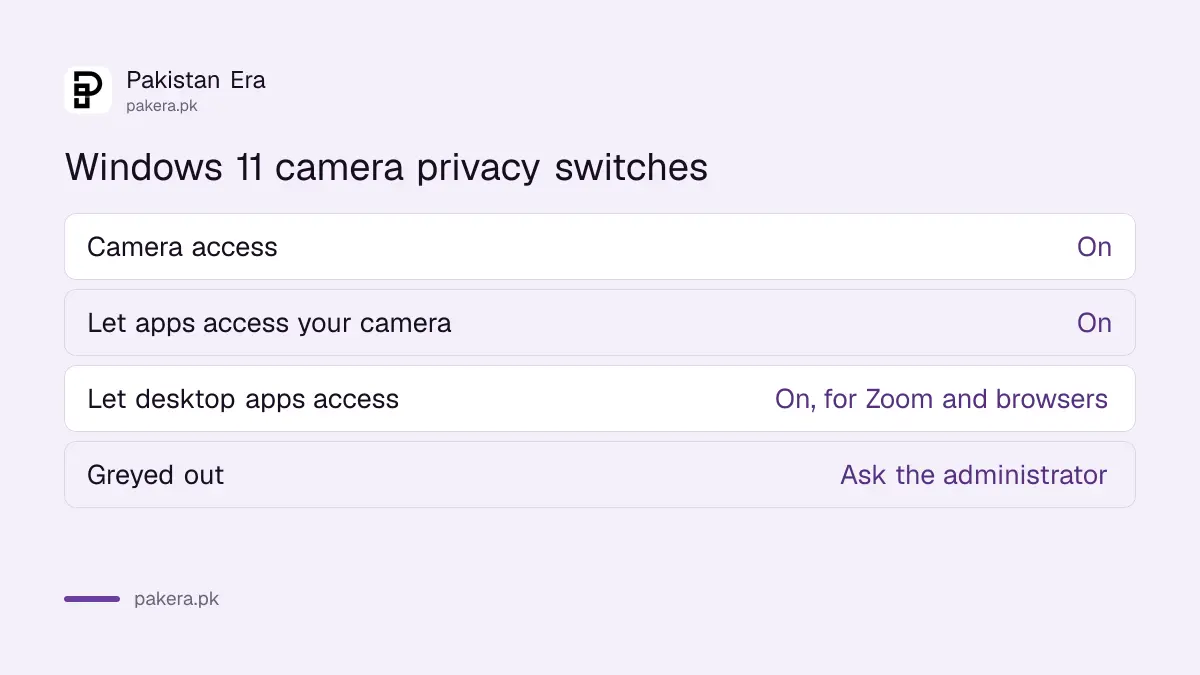
Open Start > Settings > Privacy & security > Camera. Turn on Camera access, then Let apps access your camera, then Let desktop apps access your camera. Microsoft says some apps lose camera access by default after Windows 11 updates.
Only apps from the Microsoft Store appear in the list under the second switch. Chrome, Edge, Zoom and Teams installed from a website count as desktop apps, so the third switch covers them. Microsoft notes you cannot switch camera access off for individual desktop apps. If Camera access is greyed out, an administrator has to turn it on, which is common on office laptops managed by an IT team.
Then open the Camera app from Start. If the preview works there but not in Zoom or Meet, the problem is inside that app, so check its own camera choice in its settings.
Microsoft's nine steps, in order
Microsoft starts with the Get Help camera troubleshooter, then gives nine general steps: connection, switch, privacy, a test in another app, updates and restart, the troubleshooter in Settings, antivirus, Basic camera mode and finally drivers.
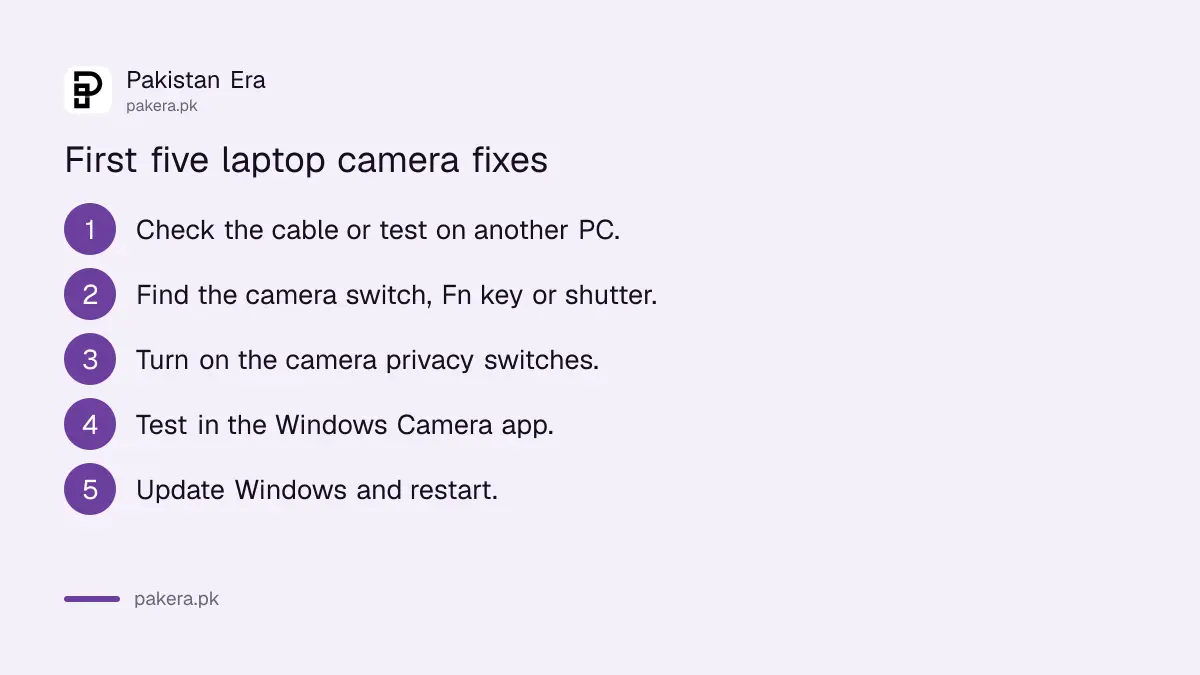
- Make sure an external camera is firmly connected, or test it on another PC.
- Check for a camera switch, Fn key or shutter.
- Turn on the three switches under Settings > Privacy & security > Camera.
- Test in the Windows Camera app.
- Go to Settings > Windows Update > Check for updates, then Advanced options > Optional updates for camera drivers. Restart: waking from sleep is not a restart.
- Run the camera troubleshooter: Settings > System > Troubleshoot > Other troubleshooters, then Run beside Camera.
- Check your antivirus. Microsoft says some antivirus programs or firewalls block the camera.
- On Windows 11 version 24H2 and later, try Basic camera mode, which helps when maker plug-ins or hardware acceleration stop the camera.
- Check the driver in Device Manager, as described below.
Error codes tell you what Windows thinks is wrong
The Windows Camera app often shows a code. 0xA00F4244 means Windows cannot detect a camera. 0xA00F4243 means another app is using it. 0xA00F4246 means security software has locked it. Each points to a different fix.
| Error code | Microsoft's cause | What to try |
|---|---|---|
| 0xA00F4244 | The system cannot detect the camera | Switch, cable, enable in Device Manager, privacy switches |
| 0xA00F4243 or 0xA00F4289 | Another app or process is using the camera | Close Zoom, Teams, WhatsApp and browsers, then retry |
| 0x80070005 | Access denied to the camera | Privacy switches |
| 0xA00F4292 | Camera access restricted by policy | Ask the administrator |
| 0x800705AA | Insufficient system resources | Close apps, restart |
| 0xA00F4246 | Camera locked by security software | Antivirus camera setting |
| 0x80070490 | Device detection error, registry or hardware | Drivers, then service |
| 0xA00F4294 | Video start failed | Restart, Basic camera mode, drivers |
| 0x80004005 | General error, often hardware or driver | Drivers, then service |
| 0xC00D7167 | A camera component needs a restart | Restart the PC |
The causes come straight from Microsoft's list. The "what to try" column is our short guide drawn from the steps on the same page.
Roll back, reinstall or swap the camera driver
Open Device Manager and find the camera under Cameras, Imaging devices or Sound, video and game controllers. If it stopped after an update, roll the driver back. Otherwise uninstall it and use Scan for hardware changes so Windows reinstalls it.
- Search Start for "device manager" and open it.
- If no camera is listed, open the Action menu and choose Scan for hardware changes.
- If the camera shows Enable device when right-clicked, it was disabled. Enable it.
- To roll back: right-click the camera, Properties, Driver tab, Roll Back Driver, Yes. Not every driver offers this.
- To reinstall: Driver tab, Uninstall Device, tick "Attempt to remove the driver for this device", then Scan for hardware changes and restart.
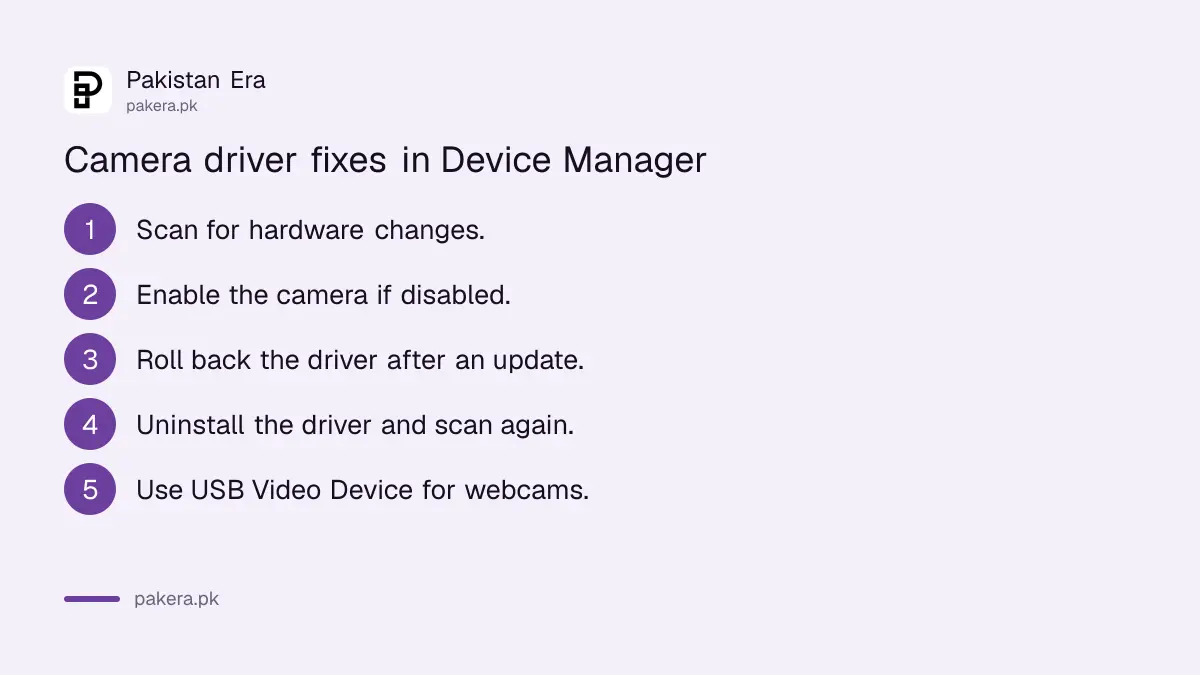
For an external USB webcam, Microsoft adds one more option. Most webcams work with Windows' built-in UVC driver. Choose Update driver, Browse my computer for drivers, Let me pick from a list, then USB Video Device. Microsoft warns that face sign-in through Windows Hello may stop working if the maker's driver provided it, which matters if you set up Windows Hello face recognition.
If updates keep breaking drivers, the fixes for Windows Update stuck or failing help. And if nothing works after all of this, the camera may have failed, which is a warranty job for the laptop maker.
Common questions
Why does my laptop camera show a camera with a line through it?
Microsoft says this can mean a physical camera switch or button is turned off. Check the keyboard, the side of the laptop and the lens shutter.
Camera works in the Camera app but not in Zoom. Why?
Then the problem is the app. Turn on Let desktop apps access your camera and pick the right camera inside Zoom's settings.
What is error 0xA00F4244?
Microsoft says the system cannot detect the camera. Check the switch, the connection, Device Manager and the privacy switches.
Can antivirus block my webcam?
Yes. Microsoft says some antivirus programs or firewalls block camera access. Check the camera setting in your antivirus.
Will uninstalling the camera driver break my laptop?
No. Windows reinstalls it when you scan for hardware changes or restart.
How we verified this
What we checked, where we read it, and what we could not confirm.
Last checked 31 October 2026. All steps and error codes come from Microsoft's page Camera doesn't work in Windows, which we read on 31 October 2026. Laptop makers' own camera keys and apps differ by model, and we could not check each brand. We did not reproduce each error code ourselves.
About the author

Technology Journalist & Multimedia Producer
Ahmad Ali is a technology journalist and multimedia producer at Pakistan Era, joining the team in October 2026. He covers consumer technology and digital life for Pakistani readers, combining research with hands-on product testing.