How to Set Up Windows Hello PIN, Fingerprint or Face Sign-In on Windows 11 in Pakistan
Set up Windows Hello on Windows 11 in Pakistan: open Settings, Accounts, Sign-in options, pick PIN, fingerprint or face, and check your hardware. Try it today.
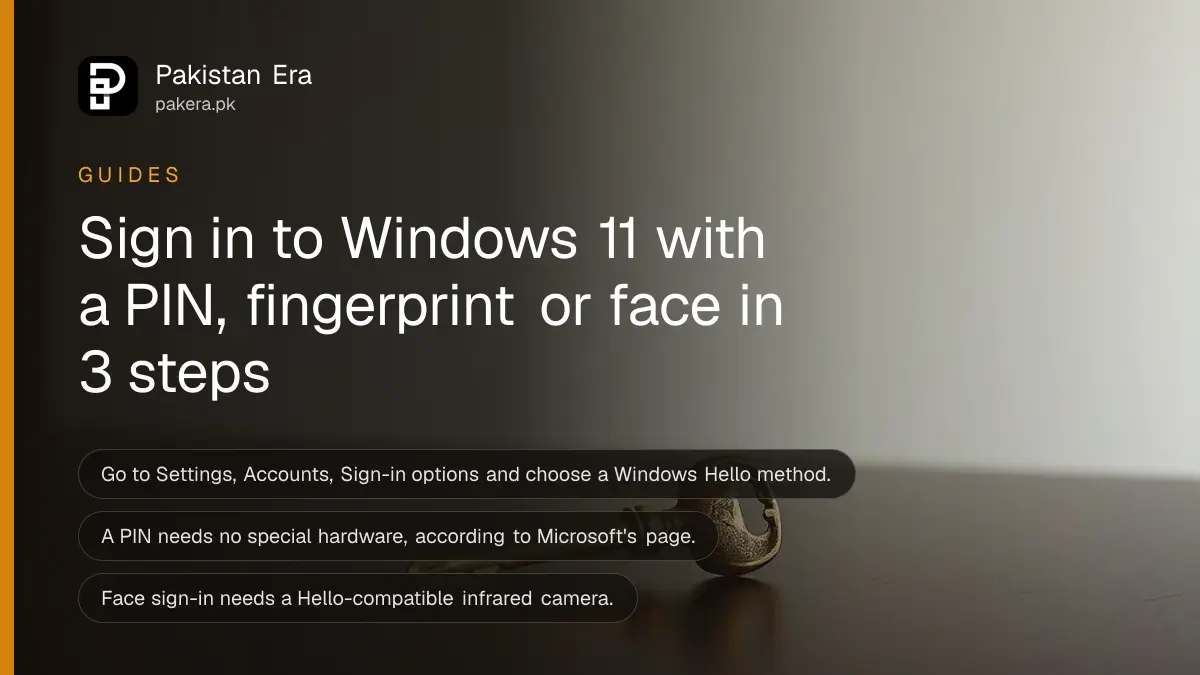
Short answer: Open Settings, Accounts, Sign-in options in Windows 11, choose PIN (Windows Hello), Fingerprint recognition or Facial recognition, tap Set up and follow the prompts. Face needs a Hello-compatible infrared camera, and fingerprint needs a fingerprint reader.
Typing a long password on a shared family laptop, in a university lab or at a cafe is slow, and people can watch your fingers. Windows Hello replaces that with a short PIN, your fingerprint or your face. It takes about two minutes to set up.
We read Microsoft's support page on Windows Hello on 14 October 2026. We did not test it on every laptop sold in Pakistan, and which methods you see depends on your hardware.
Windows Hello gives three faster ways to sign in
Windows Hello lets you sign in to a Windows 11 PC with a PIN, a fingerprint or facial recognition instead of typing your account password. Microsoft lists all three under Sign-in options. Which ones appear depends on whether your PC has the right hardware.
A PIN needs no special hardware, according to the Microsoft page, which lists no hardware requirement for it. That makes it the safe first choice for an older laptop or a desktop PC without a camera or reader.
Many students buy a used laptop in Pakistan, and not every one has a fingerprint reader. Check the options first before you spend money on an add-on.
Three steps set up Windows Hello
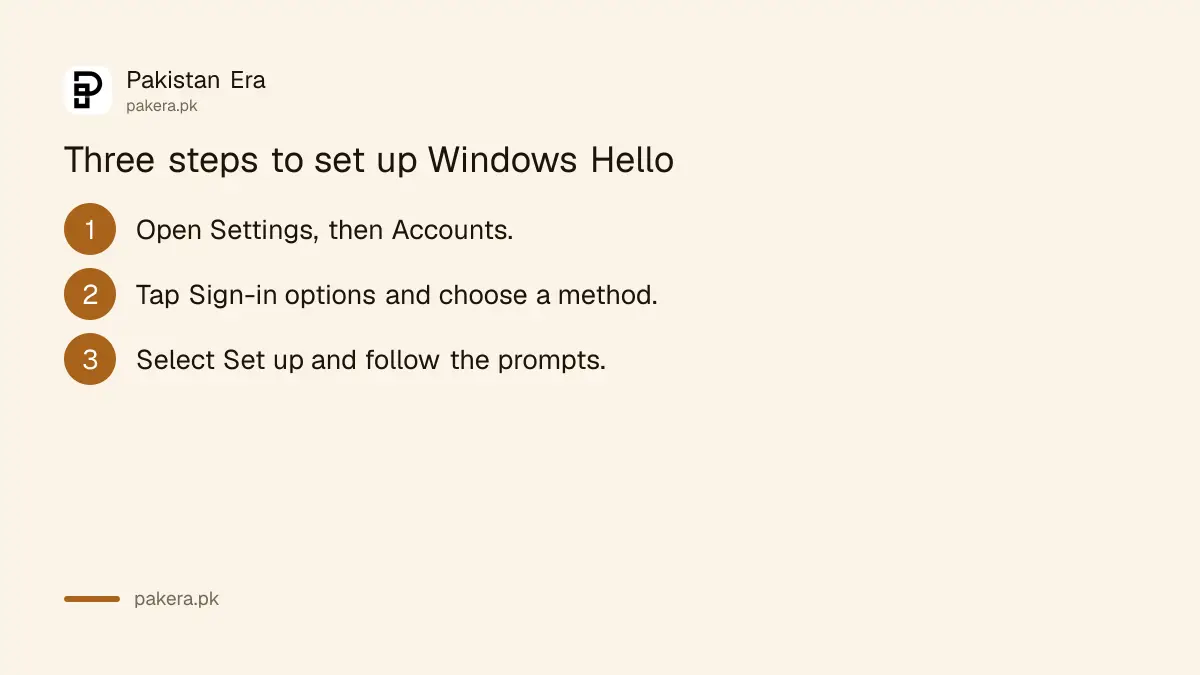
Go to Settings, Accounts, Sign-in options. Under Ways to sign in, pick PIN, Fingerprint recognition or Facial recognition from Windows Hello. Select Set up and follow the on-screen instructions. Microsoft says you can open the page directly with the ms-settings:signinoptions shortcut.
- Open Settings and go to Accounts, then Sign-in options.
- Under Ways to sign in, choose PIN (Windows Hello), Fingerprint recognition (Windows Hello) or Facial recognition (Windows Hello).
- Select Set up and follow the prompts.
Set up a PIN even if you also add a fingerprint or face. A PIN is the backup when your finger is wet, the camera is dirty or the reader fails. Pick a PIN you will remember but nobody else can guess. Not your birth year, and not 1234.
The same Sign-in options page is where you manage these methods later, as Microsoft notes.
Your hardware decides which method you can use
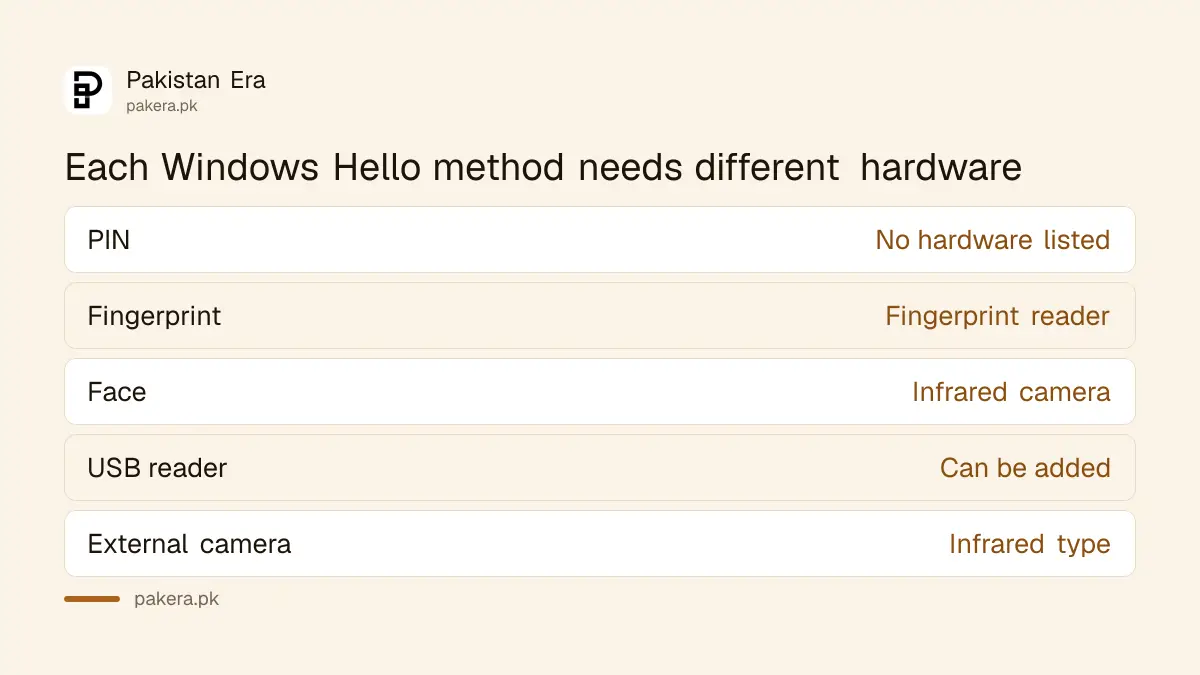
Face sign-in needs a Hello-compatible camera, which Microsoft says can be your PC's infrared camera or an external infrared camera. Fingerprint needs a fingerprint reader, and Microsoft says you can buy a USB reader if yours has none. A PIN works without either.
| Method | What Microsoft says you need |
|---|---|
| PIN | No hardware requirement is listed |
| Fingerprint | A fingerprint reader, or a USB reader you add |
| Face | A Hello-compatible infrared camera, built in or external |
An ordinary webcam may not be enough for face sign-in. Microsoft names an infrared camera. If the face option is greyed out or missing, that is the likely reason. We did not test which Pakistani laptop models include one.
Pair it with other account protection
Windows Hello protects the PC itself. Your online accounts need their own protection, such as passkeys and backup codes. Use Hello for the lock screen and a separate step for Google and other sites so one lost device does not lock you out everywhere.
If you sign in to Google on a shared computer, setting up a passkey for your Google account works well with Hello, because the PC can confirm you with the same PIN or fingerprint. A synced passkey in Chrome has its own risks, so read how to check Chrome synced passkeys on Windows.
Disk encryption is another layer. If your laptop uses BitLocker, keep the recovery key somewhere safe. See where to find your BitLocker recovery key.
On a laptop you share with a sibling, give each person a separate Windows account with their own PIN. That keeps files private and makes the lock screen mean something.
Fix problems when a method will not work
If a method fails, go back to Settings, Accounts, Sign-in options and run Set up again. Check that the camera lens or fingerprint reader is clean. Keep your PIN as the backup, because Microsoft lists it as an option with no hardware requirement.
For a fingerprint, set up the same finger more than once if the screen allows it, since a wet or dusty finger reads badly. In a hot Pakistani summer, sweaty hands cause many misreads. For face sign-in, sit in normal light and face the screen straight on.
If you buy a USB fingerprint reader, buy from a shop that lets you return it. Microsoft only says such readers exist at popular retailers. It does not name a model, so test before you keep it.
Common questions
Where is Windows Hello in Windows 11?
It is in Settings, under Accounts, then Sign-in options. Microsoft also gives the ms-settings:signinoptions shortcut to open that page directly.
Do I need special hardware for a PIN?
No. Microsoft's page lists no hardware requirement for a PIN. Fingerprint and face sign-in do need hardware, a reader and an infrared camera.
Can I use my normal webcam for face sign-in?
Microsoft says you need a Hello-compatible camera, such as an infrared camera built in or plugged in. An ordinary webcam may not qualify.
What if I do not have a fingerprint reader?
Microsoft says you can buy a USB fingerprint reader from popular retailers. Check that it works with Windows Hello before you buy.
Where do I change or remove a method later?
Return to Settings, Accounts, Sign-in options. Microsoft says that page is where you configure and manage each method.
How we verified this
What we checked, where we read it, and what we could not confirm.
Last checked on 14 October 2026, Pakistan time. We read Microsoft's support page on Windows Hello. We did not test the setup on Pakistani laptop models, so we cannot say which ones have a compatible camera or reader.
About the author

Technology Journalist & Multimedia Producer
Ahmad Ali is a technology journalist and multimedia producer at Pakistan Era, joining the team in October 2026. He covers consumer technology and digital life for Pakistani readers, combining research with hands-on product testing.