Find Your BitLocker Recovery Key in Pakistan Before Windows Locks You Out
Locked out by a BitLocker recovery screen? Microsoft says your key is in your Microsoft account, a work account, a printout or a USB drive. Find it in Pakistan.
Short answer: Your BitLocker recovery key is a 48 digit number, and Microsoft says it can be in four places: your Microsoft account at aka.ms/myrecoverykey, a work or school account, a printout, or a USB drive. Find it on another device today, before a blue recovery screen asks for it and your PC will not open.
A blue screen that asks for a "recovery key" scares people. A shop owner turns on a laptop after a BIOS change and cannot open a single file. The data is safe, but only the key unlocks it. Without it, the files on that drive are gone.
We read Microsoft's page on finding a BitLocker recovery key on 13 October 2026. The four places and the web addresses below are from that page. The reasons the screen appears and the habits we suggest are common practice and we say so where they are not from Microsoft.
BitLocker locks the drive and the key unlocks it
BitLocker is Windows' drive encryption. It scrambles everything on the disk so a thief who removes the drive cannot read it. The recovery key is the backup way in. Windows asks for it when it cannot be sure the PC is yours.
The screen often appears after a change that Windows sees as suspicious. Common triggers are a BIOS or firmware update, a motherboard or hard drive swap, or a repair at a laptop shop. Some PCs also turn encryption on by themselves when you sign in with a Microsoft account, so you may have BitLocker without ever choosing it.
That last point matters in Pakistan, where laptops are often repaired or reset at a market shop. A technician who clears a TPM or updates the BIOS can trigger the screen on a PC the owner has never thought about.
Look in four places, starting with your Microsoft account
Microsoft lists four locations. Check them in this order, because the first one holds the key for most home PCs.
| Where | How to get it |
|---|---|
| Your Microsoft account | From another device, open aka.ms/myrecoverykey and sign in |
| Work or school account | Open aka.ms/aadrecoverykey, sign in, choose Devices, then View BitLocker Keys |
| A printout | Check papers where you keep device documents |
| A USB flash drive | Plug it into the locked PC, or read the text file on another PC |
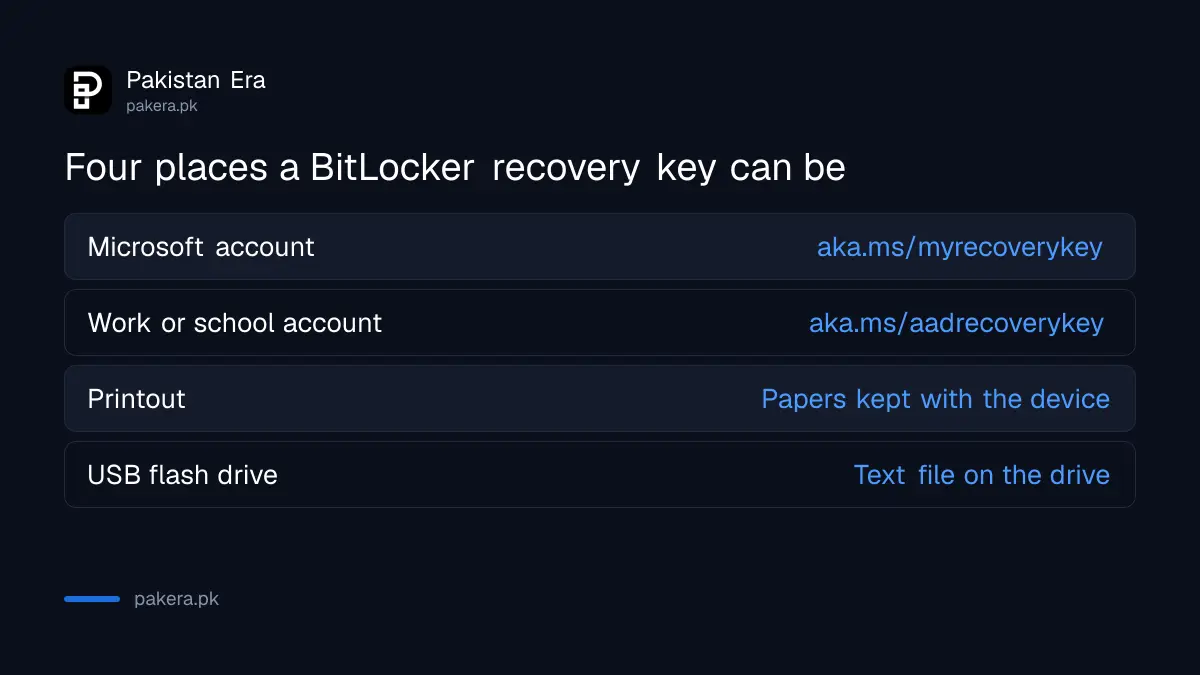
Use a phone or another PC to do this, since the locked PC cannot get online. Sign in with the same Microsoft account you use on the locked PC.
Match the key ID, not just the number
Your account may list more than one key, one for each drive or each reset. The blue screen shows a Key ID, which is the first characters of an identifier. Microsoft says to locate the key ID and use the matching recovery key.
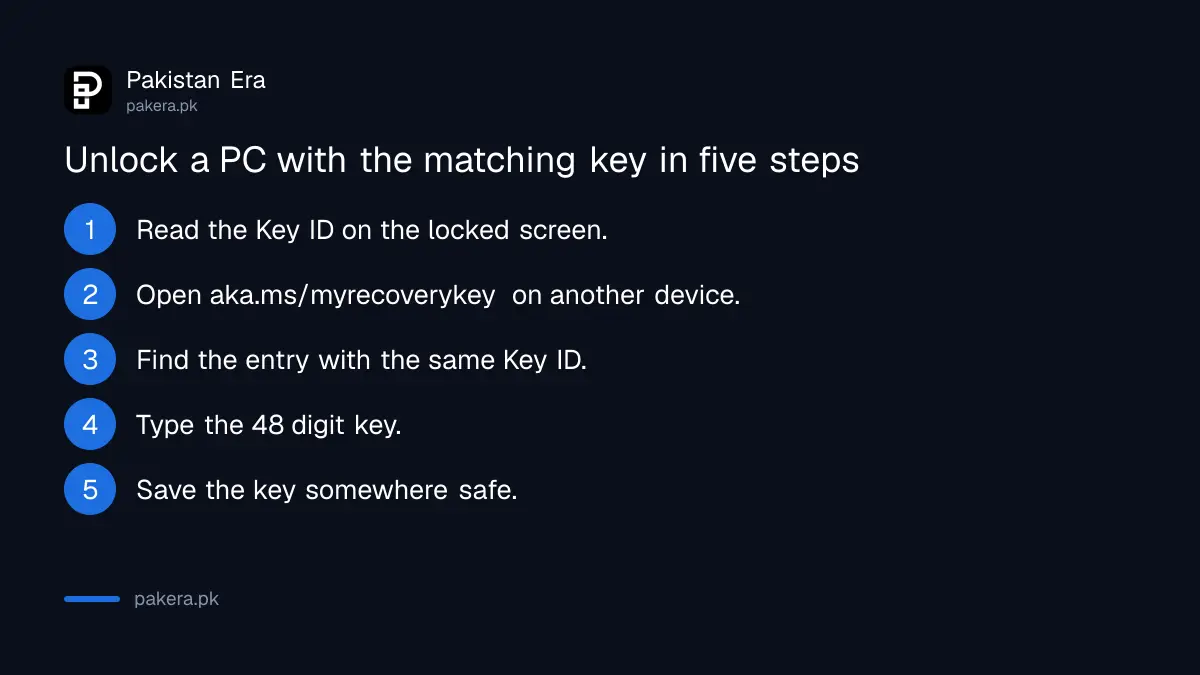
- On the locked PC, read the Key ID shown on the recovery screen.
- On another device, go to aka.ms/myrecoverykey and sign in.
- Find the entry with the same Key ID.
- Type the 48 digit key into the locked PC, using the numbers only.
- After it opens, save the key in a safe place straight away.
A key for a different drive will not work. If you used the PC with two Microsoft accounts, try the other account.
Save the key today so you are never locked out
Do this check now, while the PC works. Open aka.ms/myrecoverykey on your phone and see whether a key is listed for your PC. If it is, copy it somewhere safe that is not on the same PC.
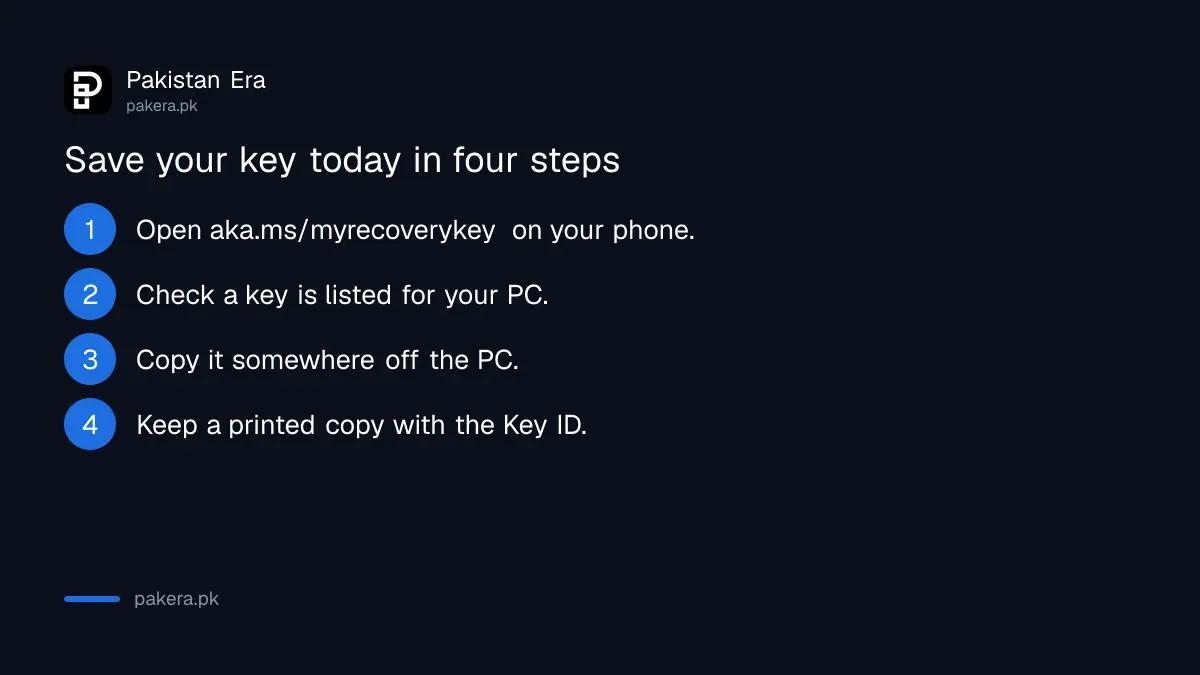
If your PC is used for a business, keep a printed copy with the owner or in a locked drawer. Store the Key ID with the key, since the ID is how you tell which key belongs to which device.
Never share the key in a public group or with someone who calls and says they can "unlock your laptop". A caller who asks for the key and your Microsoft password is running a scam. See our guide to the Google account device check for the same habit on another account, and the page on turning on two step verification, which also protects the Microsoft account that holds this key.
If you are about to hand a laptop to a repair shop, check for the key first. Also read the laptop buying checklist if you are buying second hand, because a used laptop that is still locked to a previous owner's account cannot be unlocked without their key.
If you cannot find a key
If none of the four places holds the key, the drive cannot be unlocked. That is the point of encryption. The only way forward is to reset Windows, which erases the drive, so the files are lost unless you have a backup.
Before you give up, check each Microsoft account you have ever used on the PC, including an old email you rarely open. Then check printouts and any USB drives that came with the laptop.
Common questions
Where is my BitLocker recovery key?
It is in your Microsoft account at aka.ms/myrecoverykey, in a work or school account, on a printout, or on a USB drive.
What if I use a work or school laptop?
Microsoft says to open aka.ms/aadrecoverykey, sign in, select Devices, expand your device and choose View BitLocker Keys.
How long is the recovery key?
It is a 48 digit number made of eight groups. Check your own screen to match the Key ID before typing.
Can a shop unlock my laptop without the key?
No. The key is the way in, and a shop cannot bypass it without wiping the drive. Be careful of anyone who claims otherwise.
Does BitLocker slow my PC?
On modern PCs the difference is usually small. We did not test this for the page.
How we verified this
What we checked, where we read it, and what we could not confirm.
Last checked on 13 October 2026, Pakistan time. The four locations, the two web addresses and the steps for a work or school account are from Microsoft's page on finding a BitLocker recovery key. The common triggers, the 48 digit length and the advice to save a copy are widely known practice that we did not test on a live PC for this page.
About the author

Technology Journalist & Multimedia Producer
Ahmad Ali is a technology journalist and multimedia producer at Pakistan Era, joining the team in October 2026. He covers consumer technology and digital life for Pakistani readers, combining research with hands-on product testing.