Print Job Stuck in Queue on Windows 11 in Pakistan: Clear It, Restart the Print Spooler and Every Fix
Print job stuck in queue on Windows 11? Cancel all jobs, restart the Print Spooler, clear the spool PRINTERS folder, and fix a spooler that keeps crashing.
To clear a print job stuck in the queue on Windows 11, open Settings > Bluetooth & devices > Printers & scanners, select the printer, choose Open print queue and cancel every job. If they will not go, open services.msc, stop the Print Spooler, delete the files in C:\Windows\System32\spool\PRINTERS, then start the Print Spooler again. Then turn the printer off for 60 seconds and restart the PC.
Below are Microsoft's four steps for a stuck queue, its three steps for a Print Spooler that keeps crashing, and the signs that tell the two problems apart. A printer that only shows "Offline" is a separate fix. We read Microsoft's pages on print jobs stuck in the queue and on the Print Spooler service on 1 November 2026.
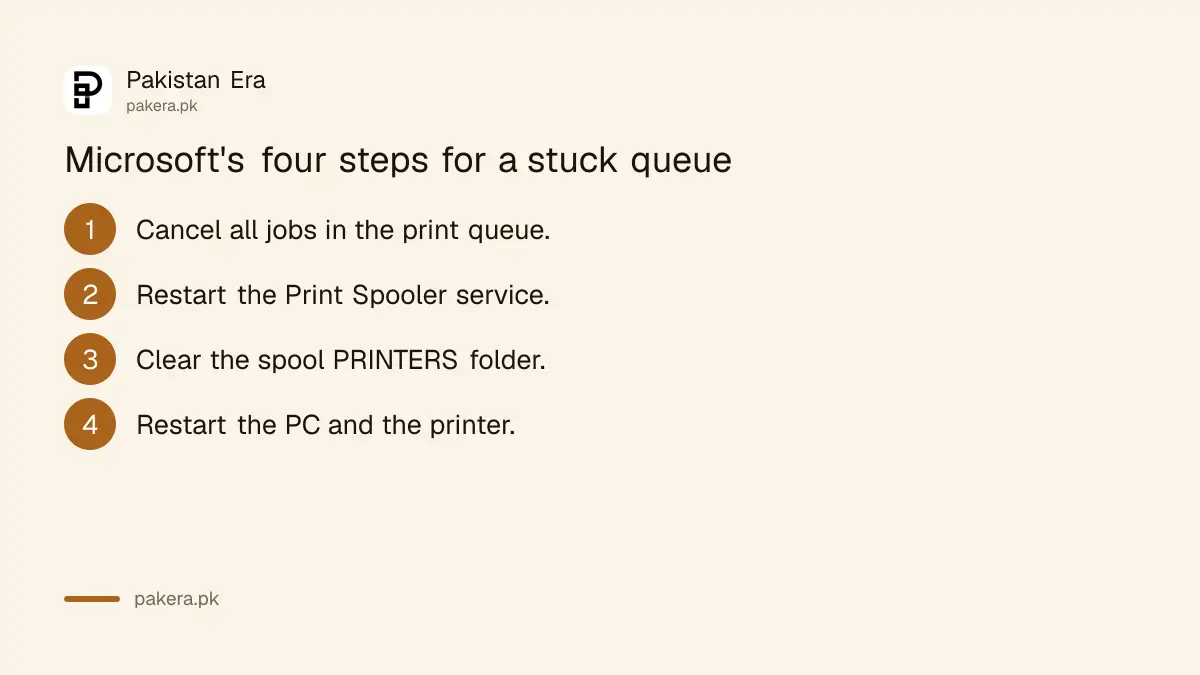
Cancel every job in the print queue first
Microsoft's first step is to cancel the stuck jobs from Windows Settings. Open Printers and scanners, select your printer, choose Open print queue, then right-click each job and select Cancel. One stuck document blocks every job behind it.
- Select Start, then Settings, then Bluetooth & devices, then Printers & scanners.
- Select your printer.
- Select Open print queue.
- Right-click each print job and select Cancel, until the list is empty.
Microsoft says clearing stuck jobs also helps the spooler restart cleanly. Sometimes a job shows "Deleting" and never leaves. That is the sign to move to the spooler steps below rather than clicking Cancel again.
Restart the Print Spooler service
The Print Spooler is the Windows service that handles every print job. To restart it, press the Windows key, type services.msc and press Enter, scroll to Print Spooler, right-click it and select Restart. Microsoft says this can clear temporary issues.
You do not need to install anything for this. The Services window is built into Windows. If User Account Control asks for permission, an administrator account is needed, which is common on an office PC managed by someone else.
Try printing a short test page after the restart. If the queue is still blocked, the stuck files are still on disk, and the next step removes them by hand.
Delete the stuck files in the spool folder by hand
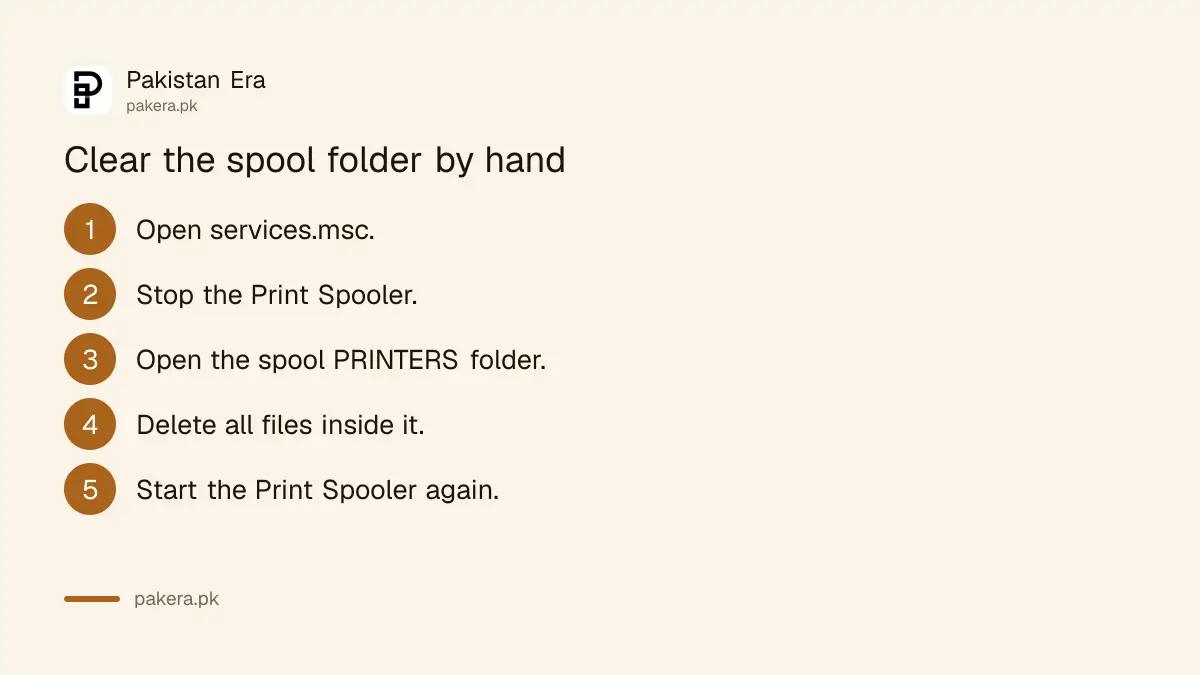
When cancelling does not empty the queue, Microsoft says to stop the Print Spooler in services.msc, open C:\Windows\System32\spool\PRINTERS in File Explorer, delete all the files in that folder, then start the Print Spooler again and print a test page.
- Press the Windows key, type services.msc and press Enter.
- Right-click Print Spooler and select Stop.
- Open File Explorer and go to C:\Windows\System32\spool\PRINTERS.
- Delete all files inside that folder. Leave the folder itself in place.
- Back in Services, right-click Print Spooler and select Start.
Stop the spooler before you delete anything, because Windows keeps those files locked while the service runs. Paste the folder path straight into the File Explorer address bar to get there fast. Windows may ask for administrator permission to open the folder; select Continue. The files are only the pending jobs, so you will need to send any document you still want again.
Then do Microsoft's last step. Turn the printer off, wait at least 60 seconds, turn it back on, and restart the PC from Start, Power, Restart. Print again.
A Print Spooler that keeps crashing points to old drivers
If printing stops suddenly, jobs freeze, or apps hang when you press Ctrl + P, Microsoft says the Print Spooler may have crashed. It names conflicting or outdated printer drivers as a common cause, so remove old and duplicate drivers in Device Manager.
- Clear the print queue, as above.
- From Start, open Device Manager and expand Print queues or Printers.
- Uninstall printer drivers you no longer need, old ones and duplicates.
- Install the latest driver for your printer model from the maker's website.
- Restart the Print Spooler in services.msc.
Duplicates build up in offices where the same printer was added by USB, over Wi-Fi and again from a shared PC. Each copy can bring its own driver entry. Keep one and remove the rest.
| What you see | Likely problem | Microsoft's fix |
|---|---|---|
| One document sits at the top and nothing prints | Stuck job | Cancel all jobs in the print queue |
| Jobs will not cancel, or stay on "Deleting" | Spool files locked | Stop the spooler, clear the PRINTERS folder, start it |
| Apps freeze when you press Ctrl + P | Print Spooler crashed | Restart the spooler; remove conflicting drivers |
| The printer shows Offline | Connection or network | The offline printer fixes |
| A second PC cannot print to a shared printer | Sharing settings | Microsoft's shared printer fixes |
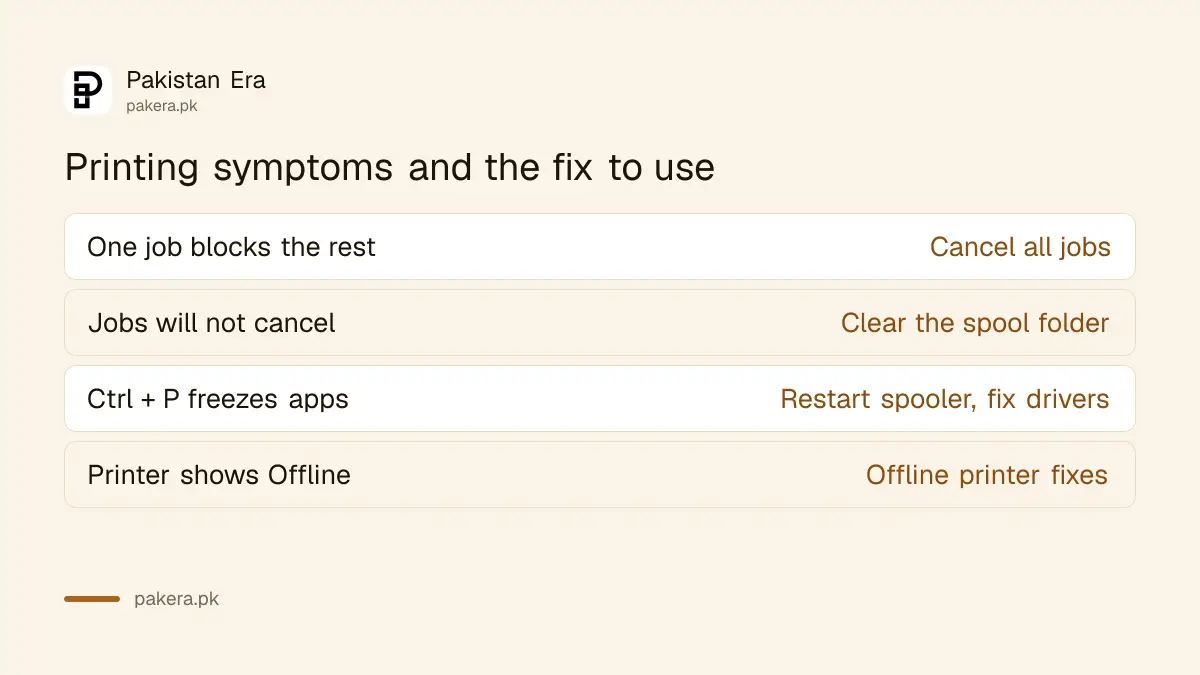
The middle column is our reading of Microsoft's pages, not its wording. For a printer that shows Offline, the separate steps for a printer offline on Windows 11 or 10 apply instead.
Windows 10 uses the same fix with different menu names
On Windows 10, open Settings, Devices, Printers and scanners, select the printer and choose Open queue. The services.msc steps, the spool folder path, the 60 second printer restart and the driver clean-up are exactly the same as on Windows 11.
Microsoft's Windows 10 instructions match the Windows 11 ones apart from that first menu. Microsoft also notes that free support for Windows 10 ended on 14 October 2025. If an old office PC keeps crashing its spooler with a printer bought new, the maker may not offer a fresh Windows 10 driver, and that is worth checking on its website before you buy a printer for an older machine.
Common questions
How do I clear the print queue on Windows 11?
Open Printers and scanners, select the printer, choose Open print queue, then right-click each job and select Cancel.
How do I restart the Print Spooler?
Press the Windows key, type services.msc, press Enter, right-click Print Spooler and select Restart.
Is it safe to delete files in the spool PRINTERS folder?
Yes, once the Print Spooler is stopped. Microsoft says to delete all files in that folder. They are pending print jobs only.
Why does my computer hang when I press Ctrl + P?
Microsoft says the Print Spooler may have crashed. Clear the queue, remove conflicting printer drivers and restart the spooler.
Why does a stuck job say Deleting forever?
The spooler still holds the file. Stop the Print Spooler, clear the PRINTERS folder and start it again.
How we verified this
What we checked, where we read it, and what we could not confirm.
Last checked 1 November 2026. We read Microsoft's pages Fix print job stuck in queue errors in Windows and Fix print spooler service not running errors in Windows on 1 November 2026. The "Deleting" sign, the locked files explanation, the duplicate driver remark and the symptom table's middle column are our own reading. We did not reproduce a spooler crash ourselves.
About the author

Technology Journalist & Multimedia Producer
Ahmad Ali is a technology journalist and multimedia producer at Pakistan Era, joining the team in October 2026. He covers consumer technology and digital life for Pakistani readers, combining research with hands-on product testing.