WhatsApp Live Location in Pakistan: Share It in 5 Steps, and Stop It in Every Chat at Once
Share WhatsApp live location in Pakistan from the attach icon, Location, Share live location. Stop it in all chats from Settings, Privacy, Live location. Steps.
To share live location on WhatsApp in Pakistan, open the chat, tap the attach icon, then Location, Share live location, pick how long, and send. To stop it everywhere at once, go to Settings, Privacy, Live location, then Stop sharing. WhatsApp says live location is end-to-end encrypted, so only the people in that chat can see it.
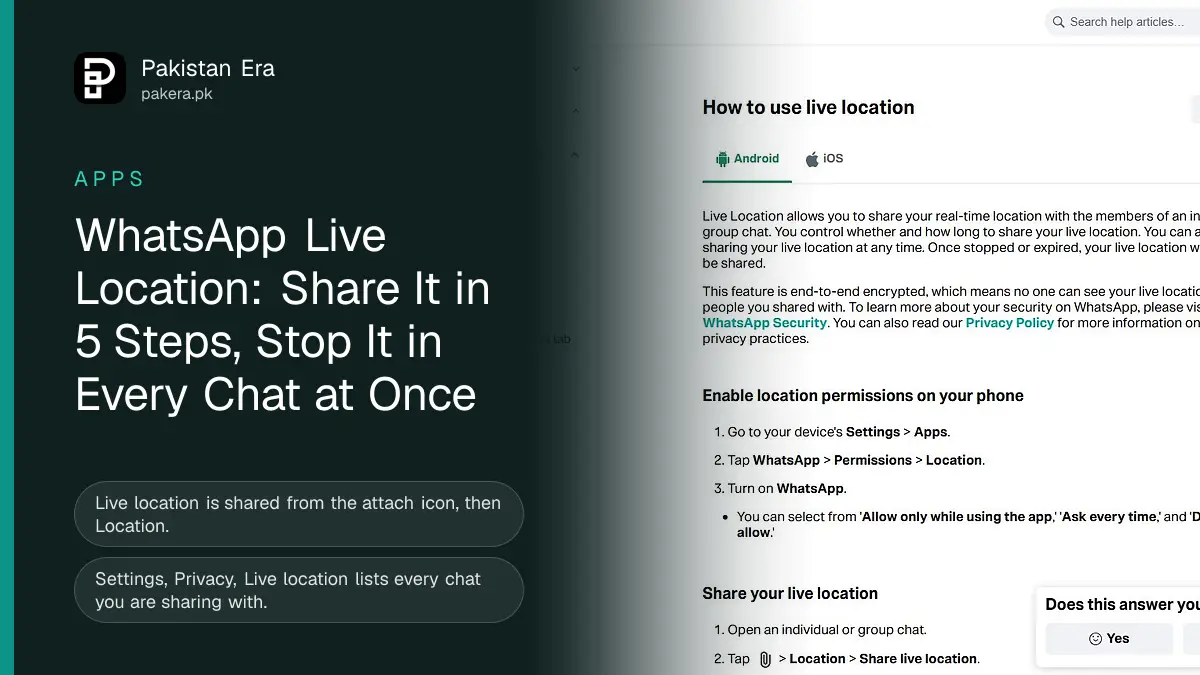
We went through WhatsApp's live location help page on 12 November 2026 and took a screenshot of it. Live location is one of the most useful safety tools on a Pakistani phone. Families use it when a daughter takes a late ride home from university, when a relative drives the motorway at night, or when guests are trying to find a wedding hall in a new housing scheme. It is also one of the easiest settings to forget about, and a share left running tells someone where you are for hours. This guide covers both sides.
Turn on location permission for WhatsApp first
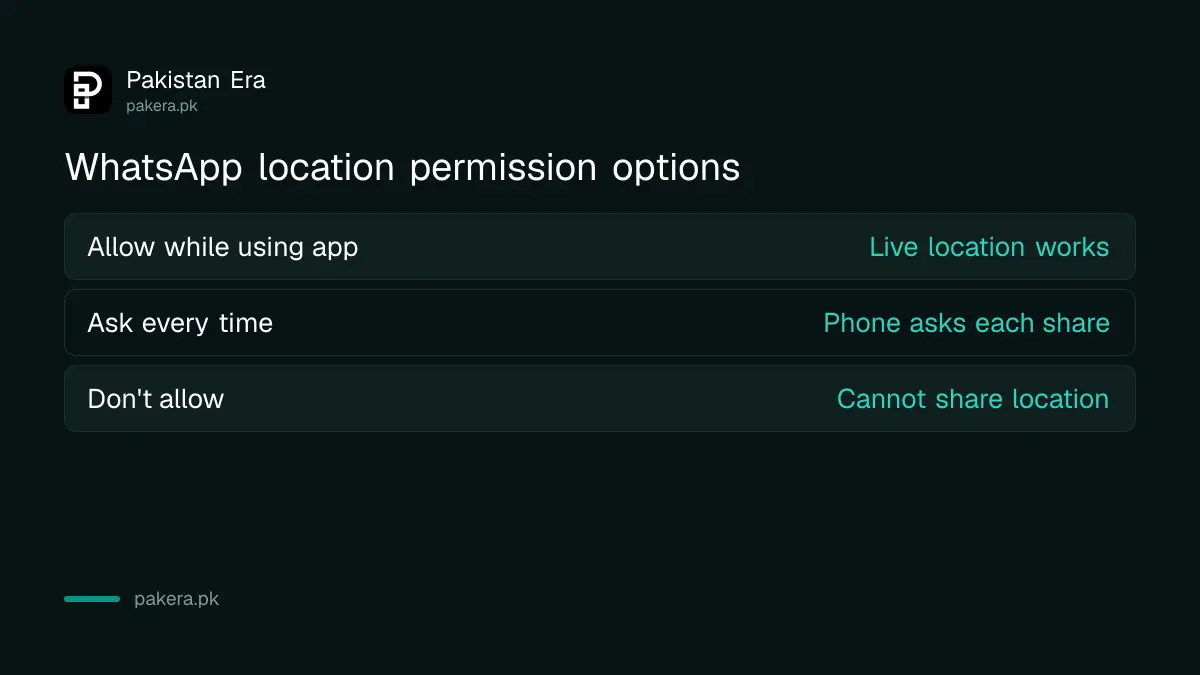
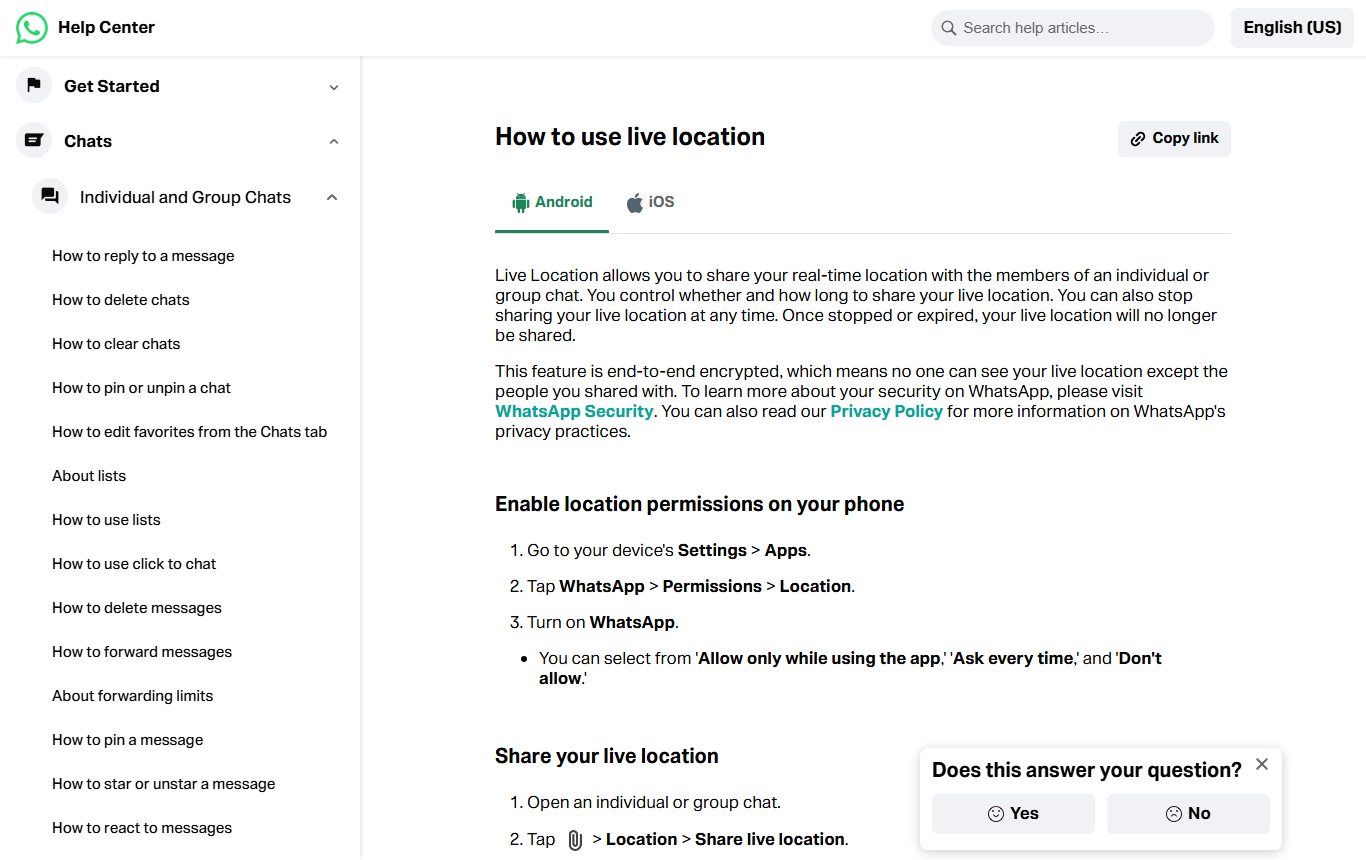
Live location needs your phone to let WhatsApp use location. On Android, go to phone Settings, Apps, WhatsApp, Permissions, Location, and choose Allow only while using the app or Ask every time. Don't allow switches it off completely.
| Permission option | What it means for live location |
|---|---|
| Allow only while using the app | Works when WhatsApp is open or in use |
| Ask every time | Phone asks you each time you share |
| Don't allow | Live location cannot be shared |
If the map shows you in the wrong place, the problem is usually the phone's GPS, not WhatsApp. Our guide to fixing GPS location on Android covers accuracy settings, which matter in dense areas like old Lahore or Saddar in Karachi where buildings block the signal.
Share your live location in 5 steps
These steps work in a one-to-one chat or a group. In a group, every member sees your location for as long as you share.
- Open the chat with the person or group.
- Tap the attach icon, then Location.
- Tap Share live location, and Continue if WhatsApp asks.
- Pick how long you want to share. Sharing stops on its own when that time runs out.
- Add a comment if you like, then tap send.
Pick the shortest time that covers the trip. WhatsApp's page does not list the exact choices, so check them in the app before you leave. For a 40 minute ride, the shortest option that covers it is enough. There is no reason to leave a share on all night.
Stop sharing live location in one chat or in all chats
You can stop sharing in a single chat or everywhere at once. WhatsApp says once a share is stopped or has expired, your live location is no longer shared.
In one chat: open the chat, tap Stop sharing, then Stop.
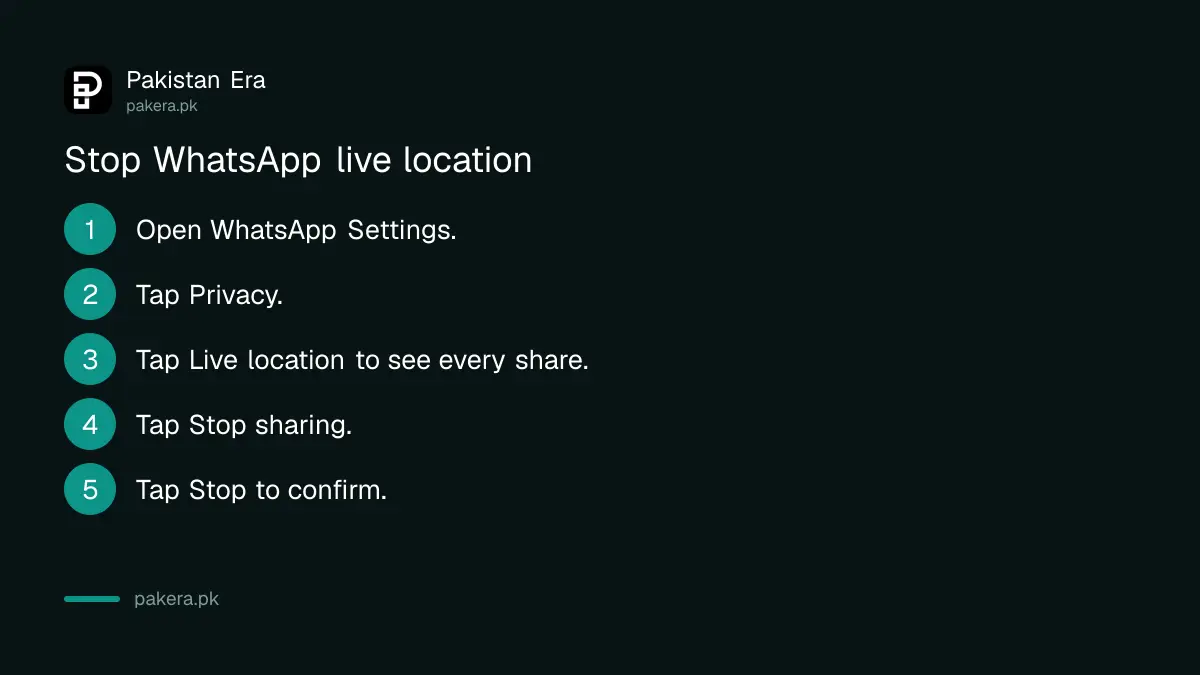
In every chat: from the Chats tab, open Settings, Privacy, Live location. The screen lists every chat where you are sharing. Tap Stop sharing, then Stop.
We would make the second route a habit. It is the only place that shows every share in one list, and it is the quickest way to catch one you forgot. If your phone is lost or snatched, stopping shares will not help, because the person holding the phone can open WhatsApp. Lock the phone first, then deal with the account.
Live location versus current location
WhatsApp offers two kinds of location. Live location moves with you for the time you choose. Send your current location drops one pin at the spot where you are, and it does not update. For giving someone your shop address, a single pin is better. For a journey, live location is the one.
- Use a single pin to share a fixed place, like a clinic, a house or a shop.
- Use live location for a trip, a pickup, or a family member travelling alone.
- Share live location in a small family group, not a large one, so fewer people see where you are.
Keep live location safe
WhatsApp says live location is end-to-end encrypted. That means no one, including WhatsApp, can see it except the people in the chat you shared with. The weak points are people, not the encryption.
- Check which chat you are in before you tap send. A share in the wrong group reaches everyone in it.
- Check Settings, Privacy, Live location after every trip.
- Do not share live location with sellers or strangers from online listings. Meet in a public place instead.
- If someone pressures you to keep live location on all the time, that is control, not care. Our page on iPhone Safety Check explains how to stop every kind of location sharing at once on an iPhone.
Google Maps has its own location sharing, separate from WhatsApp. Turning off WhatsApp sharing does not stop it. See our guide to stopping Google location sharing if you set that up as well.
Why live location is not working
If the option is greyed out or your location does not move, check four things. Location permission for WhatsApp must not be set to Don't allow. Phone location must be on. Mobile data or Wi-Fi must be working, because the position is sent over the internet. And battery saver modes on some phones stop apps running in the background, which can freeze the location on the other person's screen.
That last cause is common on budget phones with strong battery saving. If your family says your dot stopped moving, open WhatsApp once. The position should update.
Frequently asked questions
How do I share live location on WhatsApp?
Open the chat, tap the attach icon, then Location, Share live location. Pick a time and tap send.
How do I stop sharing live location on WhatsApp?
In the chat, tap Stop sharing, then Stop. To stop in every chat, go to Settings, Privacy, Live location, Stop sharing.
Can WhatsApp see my live location?
No. WhatsApp says live location is end-to-end encrypted, so only the people you shared with can see it.
Does live location stop on its own?
Yes. It stops after the time you picked, and once stopped or expired your location is no longer shared.
Can I share live location in a WhatsApp group?
Yes. Everyone in the group can see it while it is on, so use a small group.
How do I turn off location for WhatsApp completely?
On Android, go to Settings, Apps, WhatsApp, Permissions, Location and choose Don't allow.
How we verified this
What we checked and where we read it.
Last checked on 12 November 2026. Steps, the permission options, the stop routes and the encryption statement are from WhatsApp's How to use live location page, which we read in full and screenshotted, and its privacy settings page. We did not share a live location from a real account for this article.
About the author

Technology Journalist & Multimedia Producer
Ahmad Ali is a technology journalist and multimedia producer at Pakistan Era, joining the team in October 2026. He covers consumer technology and digital life for Pakistani readers, combining research with hands-on product testing.