How to Use Safety Check on Your iPhone to Stop Sharing Your Location in Pakistan
Use iPhone Safety Check in Pakistan: open Settings, Privacy & Security, pick Emergency Reset or Manage Sharing & Access, and see what Apple says it cannot.
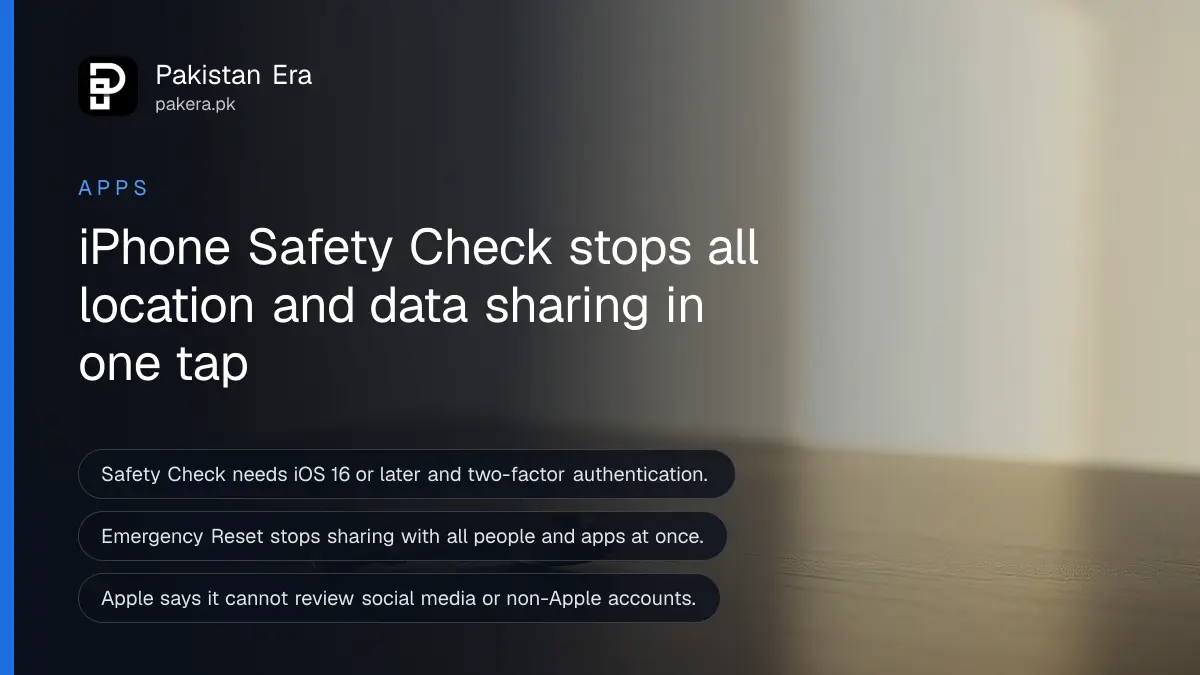
Open Settings, then Privacy & Security, then Safety Check. Tap Emergency Reset to stop sharing with every person and app at once, or Manage Sharing & Access to choose one by one. It needs an iPhone on iOS 16 or later and an Apple Account with two-factor authentication.
Most of us share more than we remember. A live location with a relative, a shared photo album with an old friend, a calendar from a former workplace. Safety Check is Apple's built-in tool for finding all of that in one place and switching it off. We read Apple's Personal Safety guide for this article, and every step below comes from that page.
Safety Check lives under Privacy and Security in Settings
Safety Check is a menu inside Settings that lists who can see your information and which apps can reach it. Apple says to go to Settings, Privacy & Security, then Safety Check. You may need to scroll down to find it.
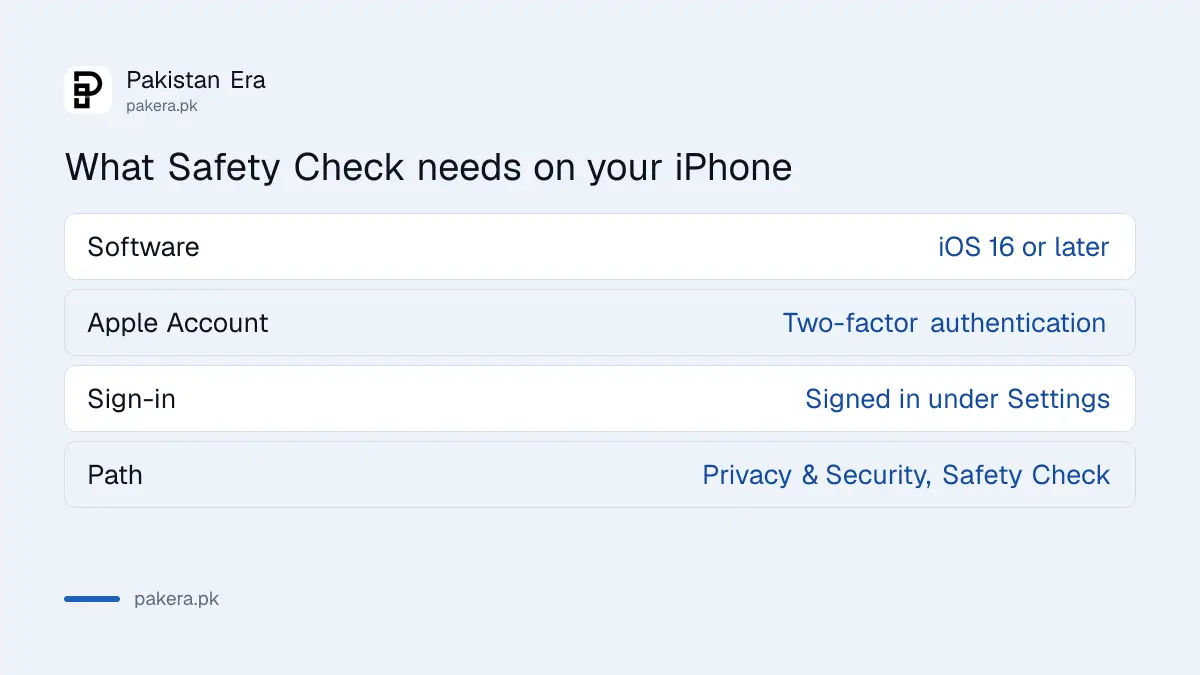
Before you start, check three things. Your iPhone must run iOS 16 or later. You can see this in Settings, General, About. Your Apple Account must use two-factor authentication. And you must be signed in, which you can confirm by tapping your name at the top of Settings.
If you use an iPad or a Mac, or Safety Check does not work for you, Apple offers three manual checklists instead: limit device and account access, manage location information, and manage content. They take longer, but they cover devices that Safety Check does not.
Emergency Reset stops all sharing in one go
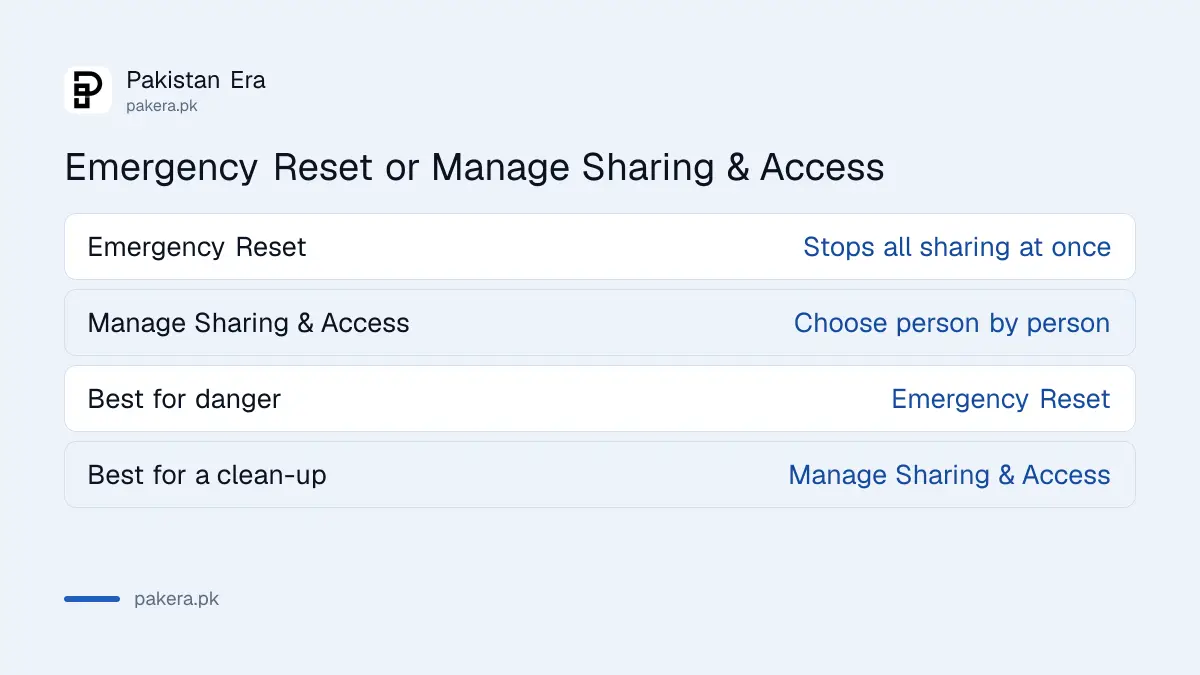
Emergency Reset is the fast option. Apple describes it as stopping sharing with all people and apps at once, then walking you through your emergency contacts, connected devices and Apple Account password. Use it when you feel unsafe or no longer trust someone.
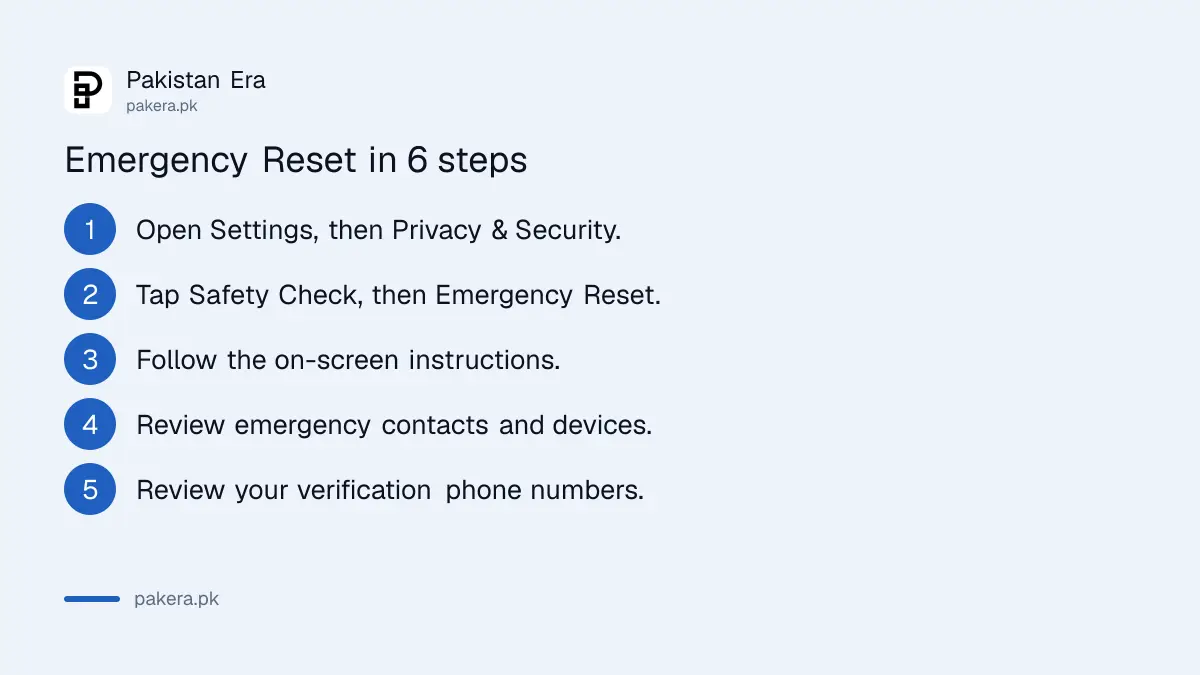
- Open Settings, then Privacy & Security, then Safety Check.
- Tap Emergency Reset.
- Follow the on-screen instructions. Apple says your progress is saved as you go.
- Review your emergency contacts and the devices connected to your Apple Account.
- Review the phone numbers used to verify your identity.
- Change your Apple Account password if you think someone else knows it.
Think before you tap it. Stopping all sharing at once can cut off people you do trust, such as family who follow your location. Apple says you can share again later from the app or service. If you are in danger right now, your safety comes first. The Quick Exit button in the top right corner of Safety Check closes Settings and returns to the Home Screen. Changes you already made stay saved.
Manage Sharing and Access lets you pick person by person
Manage Sharing & Access is the slower option. It shows what each person and each app can see, and lets you remove only the ones you choose. Use it for a routine privacy clean-up when nothing is wrong.
| Tab | What it shows | What you can do |
|---|---|---|
| People | Each person you share with and what they see | Stop sharing with that person |
| Information | Each type of data and who can see it | Stop sharing that type |
| Apps | Each app and what it can access | Remove the app's access |
After you choose, tap Continue. Apple then lets you remove devices from your Apple Account, update verification phone numbers, change your Apple Account password, update emergency contacts and change your passcode or Face ID and Touch ID. On newer versions you can also remove synced computers (iOS 17 or later) and switch on Private Relay if you have iCloud+ (iOS 17 or later).
Finish with Done, then verify. Go back into Safety Check and confirm the People and Information tab shows no sharing you meant to stop. Check the Apps tab the same way. If you deleted an Apple app such as Notes or Fitness, you may need to reinstall it to see what you shared through it.
Safety Check cannot see accounts outside Apple
Safety Check only covers Apple sharing. Apple lists what it cannot review: non-Apple accounts and passwords, social media sharing, and devices where you are signed in to a different Apple Account. It also cannot review an iPad or Mac that has sharing turned on for other apps.
That matters in Pakistan, where most sharing happens in apps outside Apple. Live location in WhatsApp, a shared Google account, a Facebook login on someone else's phone: none of these are touched. Check linked devices on WhatsApp separately, and look at where your Facebook is logged in. For Google, sign out unknown devices and linked apps in the same way.
If Stolen Device Protection is on, Apple says Safety Check may work a little differently. Apple's page does not explain how, so read Apple's Stolen Device Protection article, or see how to turn on Stolen Device Protection first. Screen Time limits or a work device profile (MDM) can also hide some options.
Review sharing again after any breakup, job change or lost phone
Run Safety Check whenever a relationship at home or work changes, when you pass on a phone, or after a phone is lost. It takes about five minutes. A quick routine is enough: open People, scan the list, remove anyone you no longer share with.
If your phone is lost rather than shared, use Find My on iPhone first. For people at high risk of targeted attacks, Lockdown Mode is another option. Keep your Apple Account recovery details somewhere safe, because changing your password and verification numbers is part of the flow.
Common questions about Safety Check on iPhone
Which iPhones have Safety Check?
Any iPhone running iOS 16 or later. Apple says to check your version in Settings, General, About. Older versions use Apple's manual checklists.
Does Safety Check tell the other person?
Apple's page does not say that people are notified when you stop sharing. It does say you can share again later from the app or service. Do not assume the other person never notices.
Can I use Safety Check without two-factor authentication?
No. Apple lists an Apple Account with two-factor authentication as a requirement. Turn that on first in your Apple Account settings.
Will Emergency Reset delete my photos or apps?
No. Apple describes it as stopping sharing and reviewing account details. It does not erase your phone. You can share again later.
Does Safety Check cover WhatsApp or Instagram?
No. Apple says it cannot review non-Apple accounts and social media sharing. Check those apps in their own settings.
How we verified this
What we checked, where we read it, and what we could not confirm.
Last checked 14 October 2026. Requirements, menu path, both options and the limits come from Apple's Safety Check for an iPhone with iOS 16 or later page in the Personal Safety User Guide. We read the page, but we did not run Safety Check on a Pakistani Apple Account, so menu wording on your phone may differ slightly.
About the author

Technology Journalist & Multimedia Producer
Ahmad Ali is a technology journalist and multimedia producer at Pakistan Era, joining the team in October 2026. He covers consumer technology and digital life for Pakistani readers, combining research with hands-on product testing.