How to Turn On Stolen Device Protection on Your iPhone in Pakistan, Free
Turn on iPhone Stolen Device Protection in Pakistan: Settings steps, what it blocks away from home, the one hour delay and what to do if your phone is stolen.
Short answer: On your iPhone, go to Settings, Face ID and Passcode, enter your passcode, tap Stolen Device Protection and turn it on. Set "Require Security Delay" to Always if you want it to work at home too. It needs iOS 17.3 or newer, two-factor authentication and Find My.
A thief who snatches an iPhone often does not need to crack anything. If they watched you type the passcode, they know it. With that passcode alone they could once change your Apple Account password, lock you out and erase the phone. Stolen Device Protection was built to close that gap.
We read Apple's support page "About Stolen Device Protection for iPhone", published 31 July 2026, and its linked pages. We did not run it on a handset for this article, so menu names are Apple's wording.
Stolen Device Protection adds face checks and a one hour wait
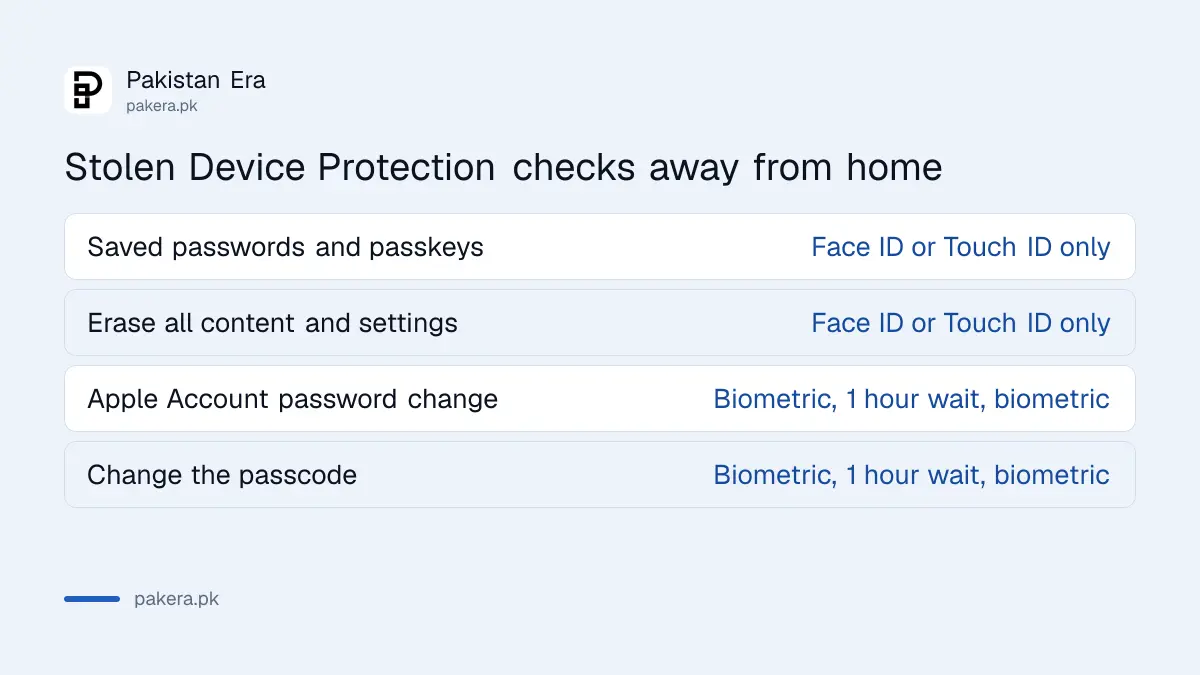
Away from familiar places like home or work, some actions need Face ID or Touch ID with no passcode fallback. Changing key security settings also needs a one hour security delay and a second biometric check. A thief with your passcode is stopped.
| Action away from a familiar place | What Apple requires |
|---|---|
| Use saved passwords, passkeys or Safari card AutoFill | Face ID or Touch ID, no passcode option |
| Turn off Lost Mode, or erase all content and settings | Face ID or Touch ID, no passcode option |
| Set up or transfer an eSIM | Face ID or Touch ID, no passcode option |
| Change your Apple Account password | Face ID or Touch ID, one hour wait, then Face ID or Touch ID again |
| Change your passcode or add a new face | Face ID or Touch ID, one hour wait, then Face ID or Touch ID again |
| Turn off Stolen Device Protection | Face ID or Touch ID, one hour wait, then Face ID or Touch ID again |
Apple says you can still use your passcode for Apple Pay purchases. At a familiar location like home or work, the extra steps are not required and your passcode works as usual.
How to turn it on in Settings
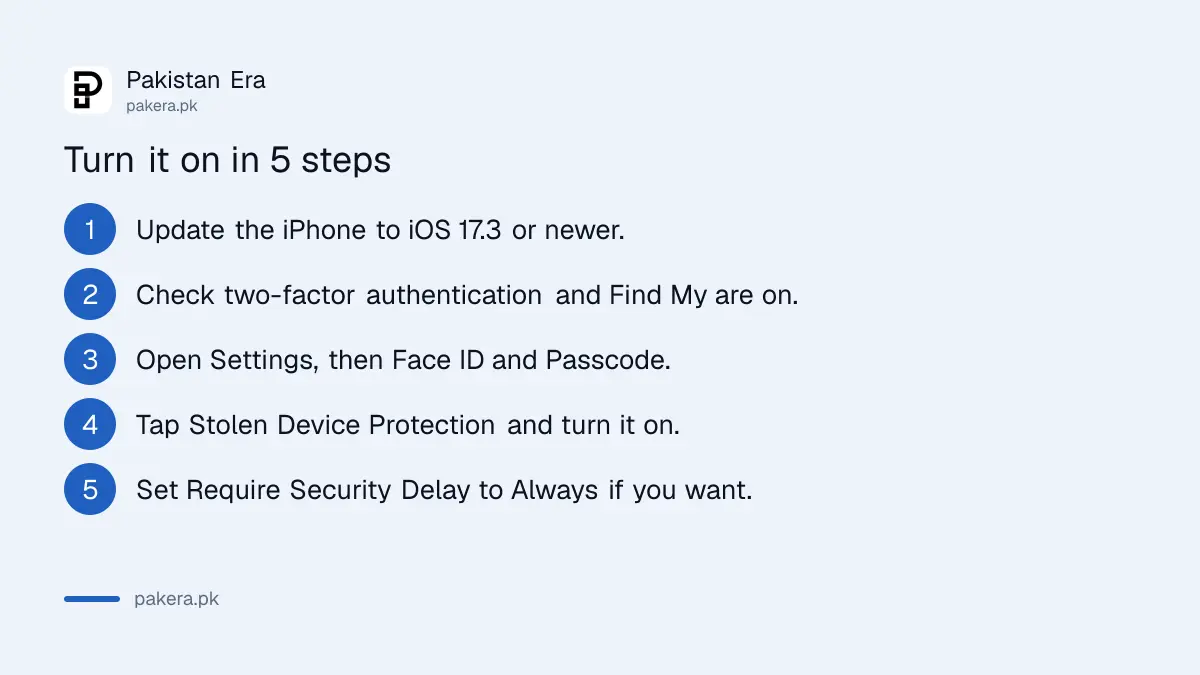
Open Settings, tap Face ID and Passcode, enter your passcode, tap Stolen Device Protection and switch it on. Apple says it might already be on by default. It must be on before the iPhone is lost or stolen, so check it now.
- Update to iOS 17.3 or newer.
- Make sure two-factor authentication is on for your Apple Account.
- Check that a passcode, Face ID or Touch ID, and Find My are on.
- Open Settings and tap Face ID and Passcode (or Touch ID and Passcode).
- Enter your passcode and tap Stolen Device Protection.
- Turn it on. Under Require Security Delay, choose Always if you want the checks everywhere.
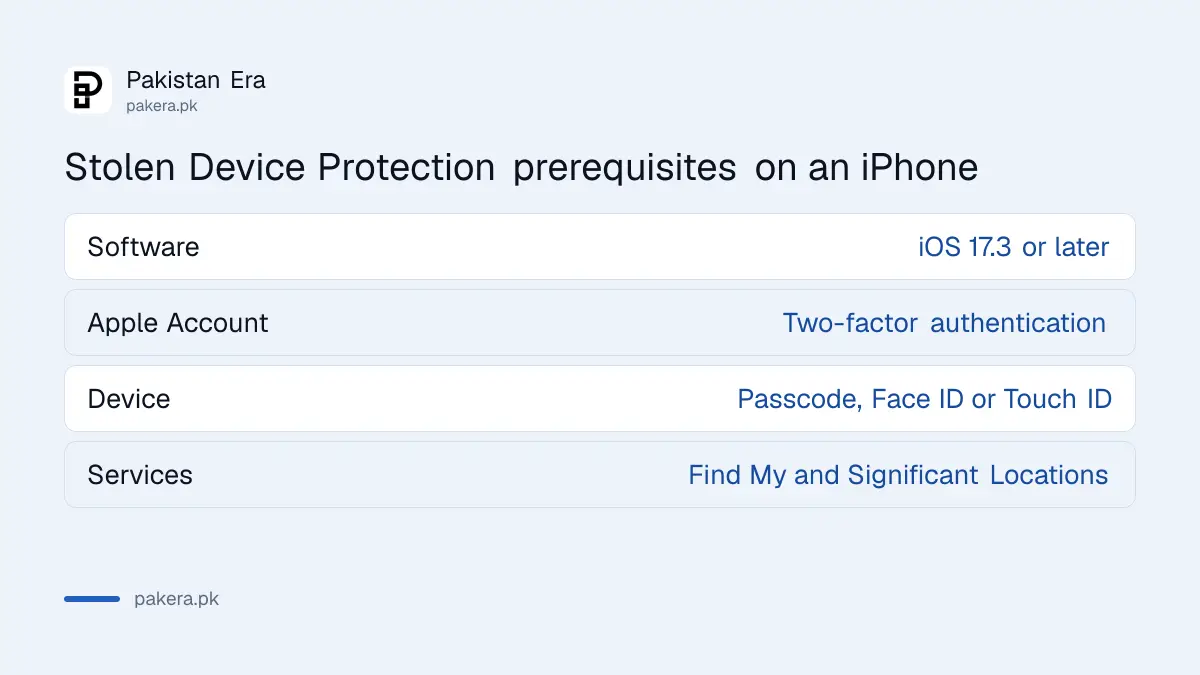
Apple also lists Significant Locations as required. It sits under Privacy and Security, Location Services, System Services, Significant Locations and Routes. That is how the phone learns which places are familiar. Find My cannot be turned off while Stolen Device Protection is on.
Choose Always if you spend time in places that are not home or work
By default the extra checks apply only away from familiar places. If you want them everywhere, set Require Security Delay to Always. Then even a thief who gets you at your own gate faces the one hour delay and biometric checks.
The trade-off is small. You will see the delay when you yourself change your Apple Account password or passcode. Plan those changes for when you have an hour. Apple says the phone may end the delay early when it detects you have arrived at a familiar location.
Turn the feature off before you sell, give away or trade in the phone. Apple says to do this first. If you try to turn it off away from a familiar place, the security delay starts before it allows that.
What to do in the first hour if the iPhone is stolen
Use another device to open iCloud.com/find, mark the iPhone as lost, then call your network to block the SIM. Apple's one hour delay gives you that window to protect your Apple Account before a thief can change its password.
Apple's own page links a separate guide, "what to do if your iPhone is stolen". Follow the order that fits Pakistan: Lost Mode, SIM block, IMEI block through PTA, bank and wallet apps, then a complaint. The SIM and IMEI steps are in how to block a lost or stolen phone in Pakistan.
If you also use WhatsApp, a thief can try to register your number on a new phone once they hold your SIM. The steps in recovering a hacked WhatsApp account apply if that happens. Lock your SIM with a PIN as well, as covered in how to lock your SIM with a PIN in Pakistan.
Common questions
Which iPhones can use Stolen Device Protection?
Apple says it needs iOS 17.3 or later, so any iPhone that can update that far. You also need two-factor authentication for your Apple Account, a passcode, Face ID or Touch ID, Find My and Significant Locations.
Is it on by default?
Apple says it might be on by default. Open Face ID and Passcode and check that Stolen Device Protection is switched on, instead of assuming.
Does it stop a thief who knows my passcode?
It limits what they can do. Away from familiar places, they cannot use saved passwords or change your Apple Account password without your face or finger and a one hour wait.
Can I turn it on after the phone is stolen?
No. Apple says it must be turned on before the device is lost or stolen.
Will it get in my way at home?
Not by default. At familiar locations your passcode works as usual. If you choose Always, you will face the delay for security changes even at home.
Does this replace blocking the SIM and IMEI?
No. It protects your accounts and data. Blocking the SIM and IMEI and filing a report are still separate steps.
How we verified this
What we checked, where we read it, and what we could not confirm.
Last checked on 11 October 2026. We read Apple Support's page About Stolen Device Protection for iPhone, dated 31 July 2026. We did not run the feature on an iPhone, and the page gives no Pakistan specific details. Menu names may change with later iOS versions.
About the author

Technology Journalist & Multimedia Producer
Ahmad Ali is a technology journalist and multimedia producer at Pakistan Era, joining the team in October 2026. He covers consumer technology and digital life for Pakistani readers, combining research with hands-on product testing.