Google AI Mode in Pakistan: How to Use It in English and Urdu
Google AI Mode works in Pakistan in English and Urdu. Open it in 3 ways, see how it differs from AI Overviews, clear your history and get plain links back.
Google AI Mode works in Pakistan. Go to google.com/ai, or tap AI Mode in the Google app or under the search bar on google.com, and type, speak or upload a photo. Google's own help page lists Pakistan as a supported country and Urdu as a supported language, along with Punjabi, Sindhi and Pashto.
Google first brought AI Mode to Pakistan in English in late August 2025. Since then the list of languages has grown. We read Google's AI Mode and AI Overviews help pages on 6 October 2026 to check what a Pakistani user can do with it today, what it saves about you, and how to get plain blue links back when you don't want an AI answer.
AI Mode works in Pakistan in English and Urdu
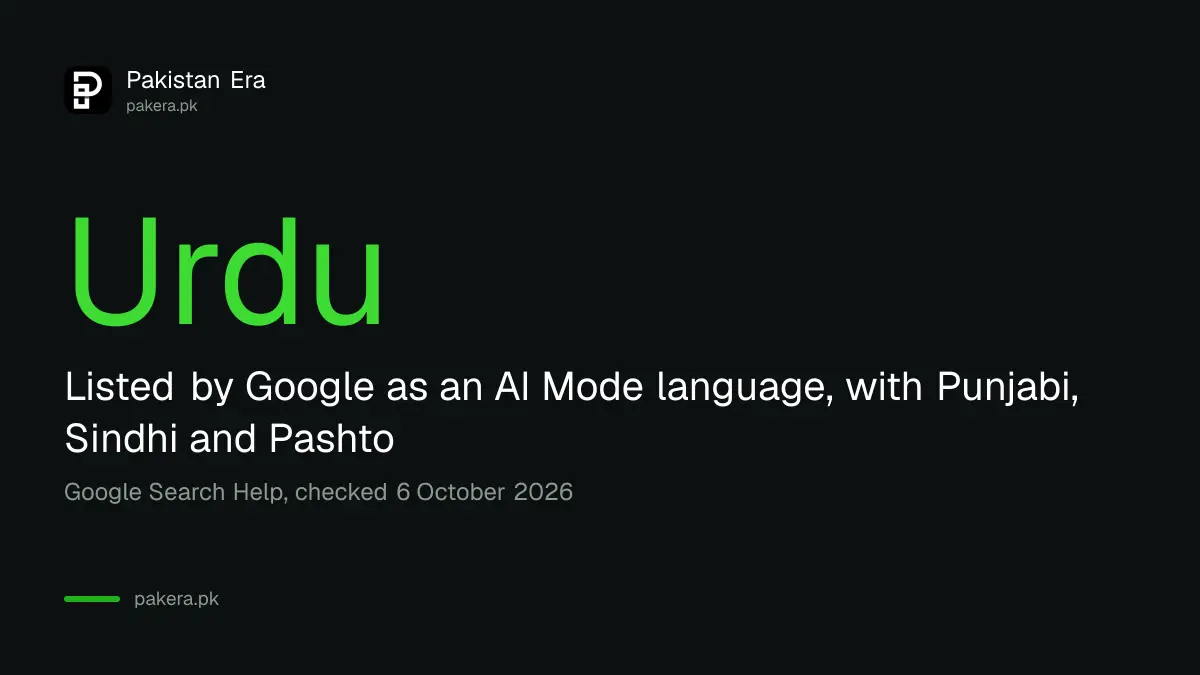
AI Mode is available in Pakistan to anyone using Google Search. Google's support page puts Pakistan on its list of supported countries and Urdu on its list of supported languages, so you can ask a question in Urdu script and get an answer in Urdu.
AI Mode is Google's chat-style search. You ask a full question, and instead of ten links you get one written answer with links to the web pages it used. You can then ask a follow-up, like you would with a person.
Google splits your question into smaller parts and searches each one at once, so long questions work well. But its own page warns that AI responses may include mistakes. For fees and deadlines, open the source link and check.
Three ways to open AI Mode on your phone or computer
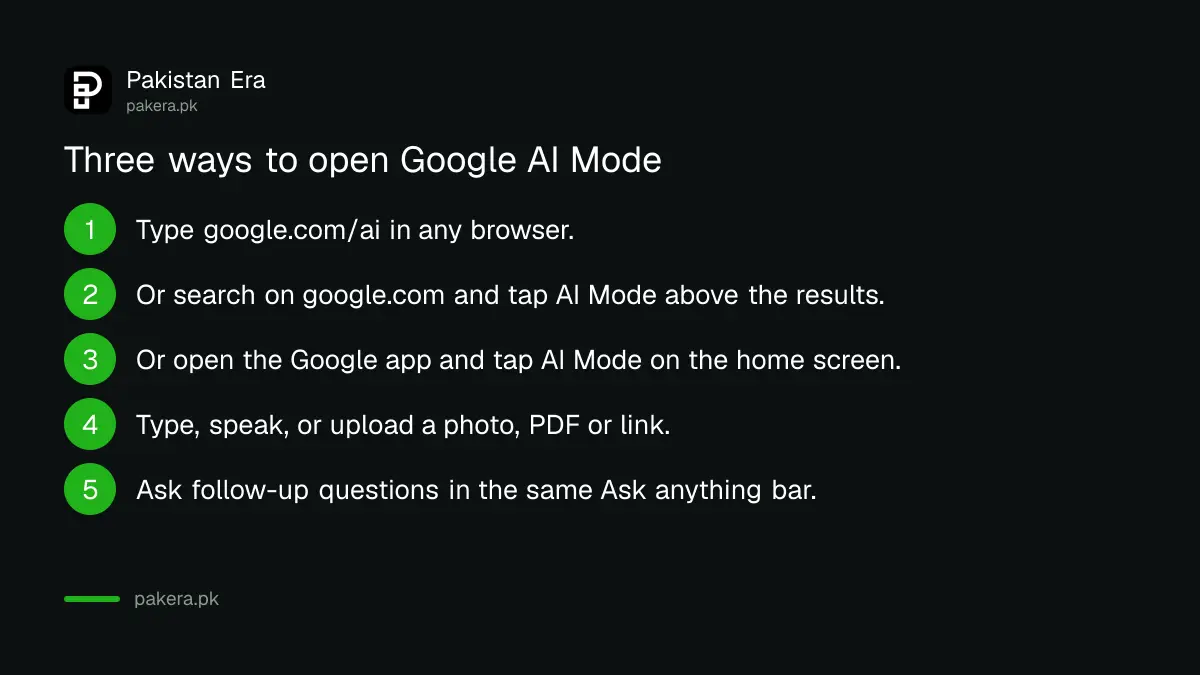
You can open AI Mode in three ways: type google.com/ai in any browser, search on google.com and tap AI Mode above the results, or open the Google app and pick AI Mode on the home screen. All three are free.
- Open google.com/ai in Chrome, Safari or any other browser on your phone or laptop.
- Or search on google.com as normal, then tap AI Mode in the row of options near the top of the results.
- Or open the Google app on Android or iPhone and tap AI Mode on the home screen.
- Type your question in the Ask anything bar, or tap the microphone to speak it.
- To ask about a picture, a PDF or a web page, use the menu in the Ask anything bar to upload it, or paste the link.
- Ask a follow-up question in the same bar. AI Mode keeps the earlier answer in mind.
You don't have to sign in. Without Search history on, AI Mode still works, but you can't return to old chats later.
For Urdu, type in Urdu script or speak in Urdu. Google's list names Urdu, not Roman Urdu. If you're trying to decide which assistant handles Urdu best overall, we compared the best AI for Urdu across four chatbots.
AI Mode is not the same as AI Overviews
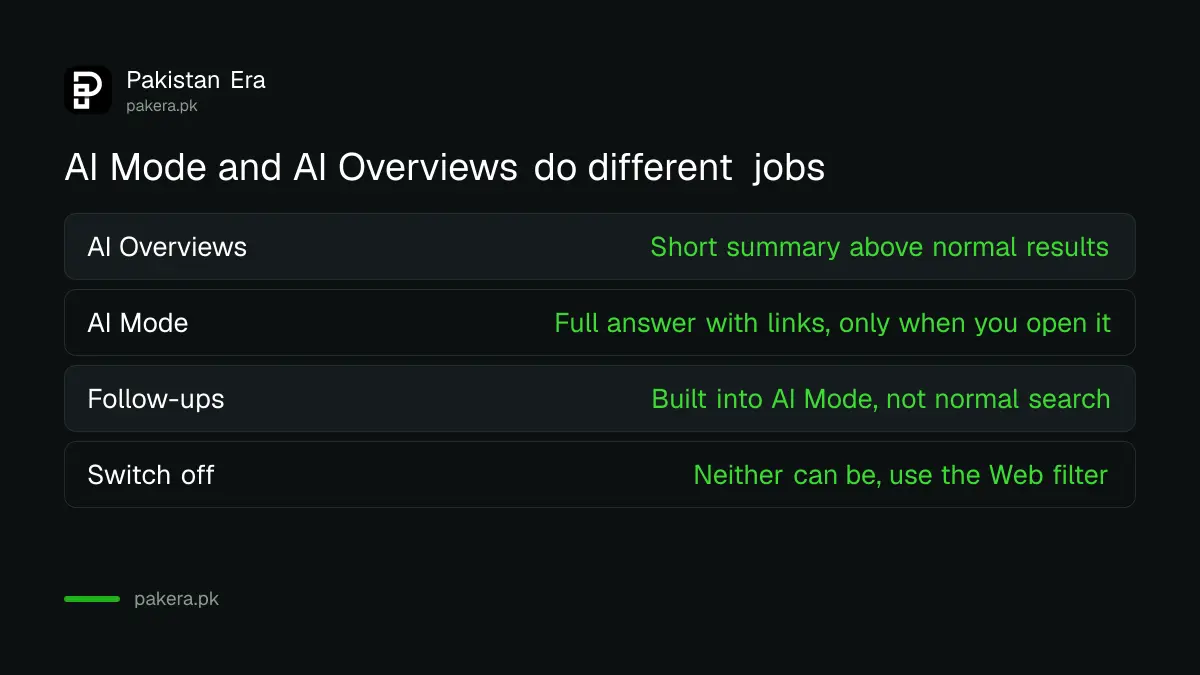
AI Overviews is the short AI summary that appears on top of normal Google results. AI Mode is a separate screen built for longer questions and follow-ups. You get an Overview without asking for it; you only get AI Mode when you choose it.
| Feature | Normal search | AI Overviews | AI Mode |
|---|---|---|---|
| What you see | A list of links | A short AI summary above the links | A full written answer with source links |
| When it appears | Always | On some searches, automatically | Only when you open it |
| Follow-up questions | No | Yes, by tapping into AI Mode on mobile | Yes, in the same chat |
| Photos, PDFs and links as input | Photos through Lens | No | Yes |
| Can you switch it off? | Not applicable | No, use the Web filter instead | Not needed, just don't open it |
Gemini 3 Pro and other extras have limits
The standard AI Mode is free with no stated cap. The stronger Gemini 3 Pro model inside AI Mode is offered in English to users in Pakistan, with daily limits, and paid Google AI plan subscribers aged 18 or over get more use.
To try it, open the menu in the Ask anything bar and choose Pro instead of Fast. You must be signed in to a personal Google account that you manage yourself, so a school or office account may not show it. When you hit the daily limit, you wait for it to refresh or upgrade.
Before paying for an upgrade, check whether you already qualify for a free one. Pakistani students could claim a free year of Gemini, and the free plans of ChatGPT, Gemini and Claude cover a lot of daily use without a card.
Your AI Mode history and privacy settings
AI Mode saves your questions to your Google account when Search history is on. You can delete one conversation or all of them from the AI Mode history panel, and Google says deleted items leave My Activity within 24 hours.
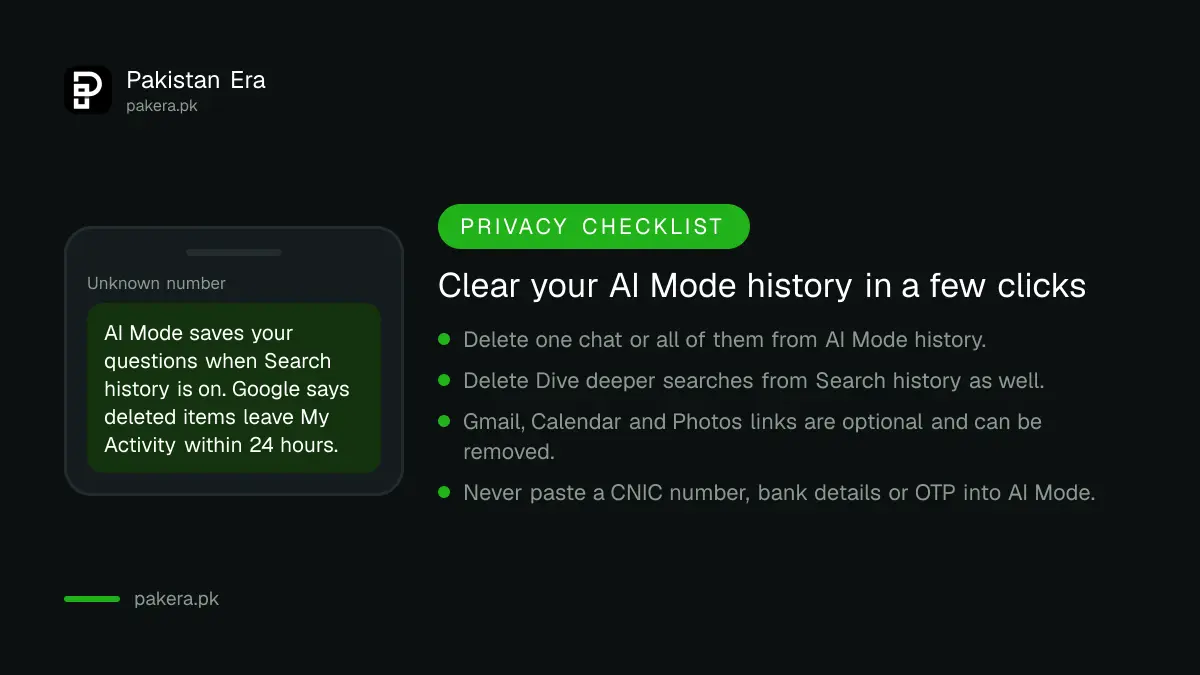
Here is how to clear it on a computer, following Google's steps:
- Open AI Mode and click AI Mode history on the left.
- Pick a single conversation to delete, or click More at the top, then Delete all.
- If the search started as an AI Overview and you tapped "Dive deeper", delete it from your main Search history too. Otherwise one copy stays.
- To stop saving altogether, turn off history at myactivity.google.com/search-services/settings.
Linking Gmail, Calendar or Photos to Search is optional. Google says it gives all its Search services, including Maps and Shopping, access to that content. On a shared family phone, we'd leave it off.
Google also says it uses what people search and the feedback they give to improve its AI. Trained reviewers may read some of it, and Google says that data is cut off from your account and stripped of identifying details first. Even so, don't paste your CNIC number, bank details or a one-time code into AI Mode, just as you wouldn't into any chatbot. If someone does get into your Google account, two-step verification is the lock that stops them.
How to avoid AI Mode and get plain links
You cannot turn AI Mode or AI Overviews off in settings. Google calls them core Search features. What you can do is skip them: don't tap AI Mode, and after any search tap the Web filter to see only text links.
The Web filter sits in the same row as Images, News and Videos. On a phone it may hide under More. Tap it and Google shows ten plain links with no AI Overview and no other boxes. It is the closest thing to old Google that still exists.
For a child's account, parents manage these settings through Google's Family Link app.
Common questions
Is Google AI Mode free in Pakistan?
Yes. AI Mode is free on google.com/ai, google.com and the Google app. Only heavier use of the Gemini 3 Pro model goes past a daily limit, and a paid Google AI plan raises that limit.
Can I use Google AI Mode in Urdu?
Yes. Google's help page lists Urdu as a supported AI Mode language, alongside Punjabi, Sindhi and Pashto. Type or speak your question in Urdu and the answer comes back in Urdu.
Can I turn off AI Overviews on Google?
No. Google says AI Overviews cannot be turned off. Use the Web filter after a search to see only text links without the AI summary.
Does AI Mode save my searches?
Yes, if Search history is on. You can delete single chats or all of them from AI Mode history, and turn history off at myactivity.google.com/search-services/settings.
Is AI Mode the same as Gemini?
No. Gemini is Google's separate chatbot app. AI Mode runs on a Gemini model but lives inside Google Search and always shows the web links it used.
How we verified this
What we checked, where we read it, and what we could not confirm.
We last checked this on 6 October 2026 by reading Google's own help pages. We did not test answer quality for this piece, so treat the comparisons above as Google's description of its tools, not our verdict.
- Google Search Help, Get AI-powered responses with AI Mode in Google Search: countries, languages, access, Gemini 3 Pro, history and privacy.
- Google Search Help, AI Overviews in Google Search: why Overviews cannot be turned off and the Web filter.
- Google's own announcement of the August 2025 English launch in Pakistan, as distributed to the press at the time.
About the author

Technology Journalist & Multimedia Producer
Ahmad Ali is a technology journalist and multimedia producer at Pakistan Era, joining the team in October 2026. He covers consumer technology and digital life for Pakistani readers, combining research with hands-on product testing.