iPhone Screen Recording With Sound in Pakistan: Turn On the Microphone, Add the Button and Fix Black Videos
Record your iPhone screen with sound: touch and hold Screen Recording in Control Center, tap Microphone, then Start. Add the button and fix black videos here.
To record your iPhone screen with sound, open Control Center, touch and hold the Screen Recording button, tap Microphone to turn it on, then tap Start Recording. A plain tap on the same button records the screen without your voice. If the button is missing, you add it to Control Center first, and the video lands in Photos under Screen Recordings.
Most people want this for one of three jobs: showing an elderly parent how to use an app, keeping proof of an error message, or sending a teacher a clip. We read Apple's iPhone User Guide pages on screen recording, Control Center and screen capture settings on 25 October 2026. Below is each step, the fix for a missing button, and why some recordings come out black or silent.
iPhone records the screen from Control Center in 3 seconds
Swipe down from the top-right corner to open Control Center and tap the Screen Recording button. Apple says a 3-second countdown starts, then everything on the screen is recorded until you stop it. Recordings save to the Photos app on their own.
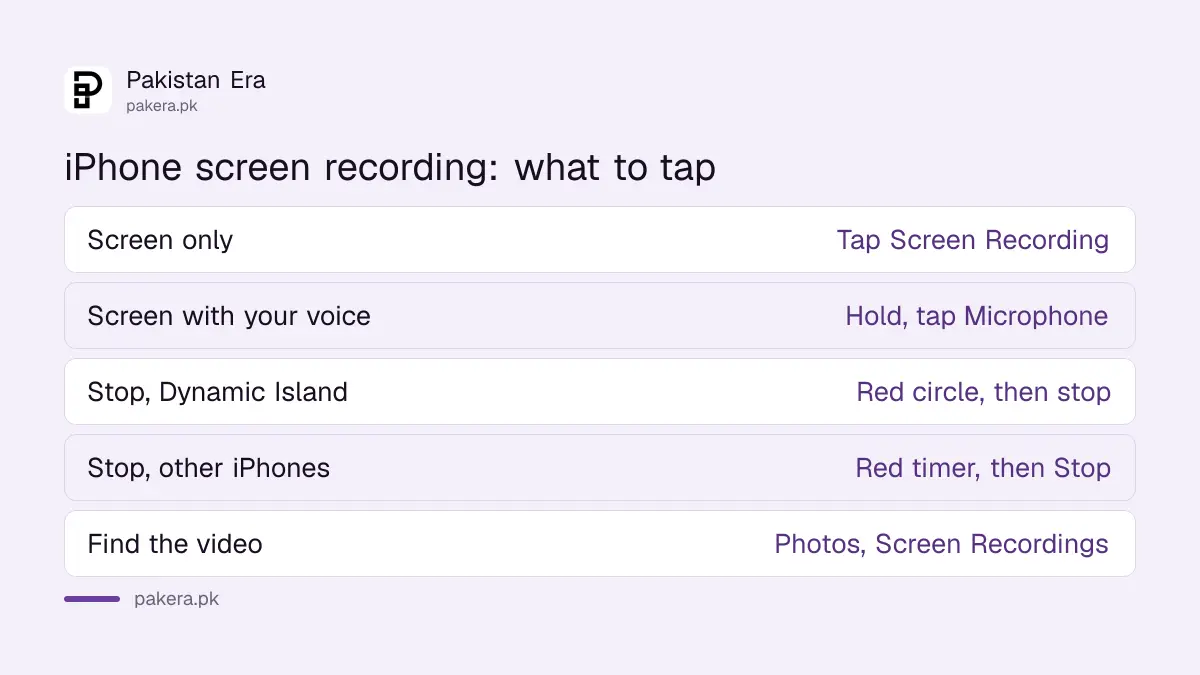
| You want | Do this |
|---|---|
| Screen only | Tap Screen Recording in Control Center |
| Screen with your voice | Touch and hold Screen Recording, tap Microphone, Start Recording |
| Stop, iPhone with Dynamic Island | Tap the red circle, then the stop button |
| Stop, other iPhones | Tap the red timer at top left, then Stop |
| Find the video | Photos, Collections, Media Types, Screen Recordings |
Turn on the microphone to record your voice with the screen
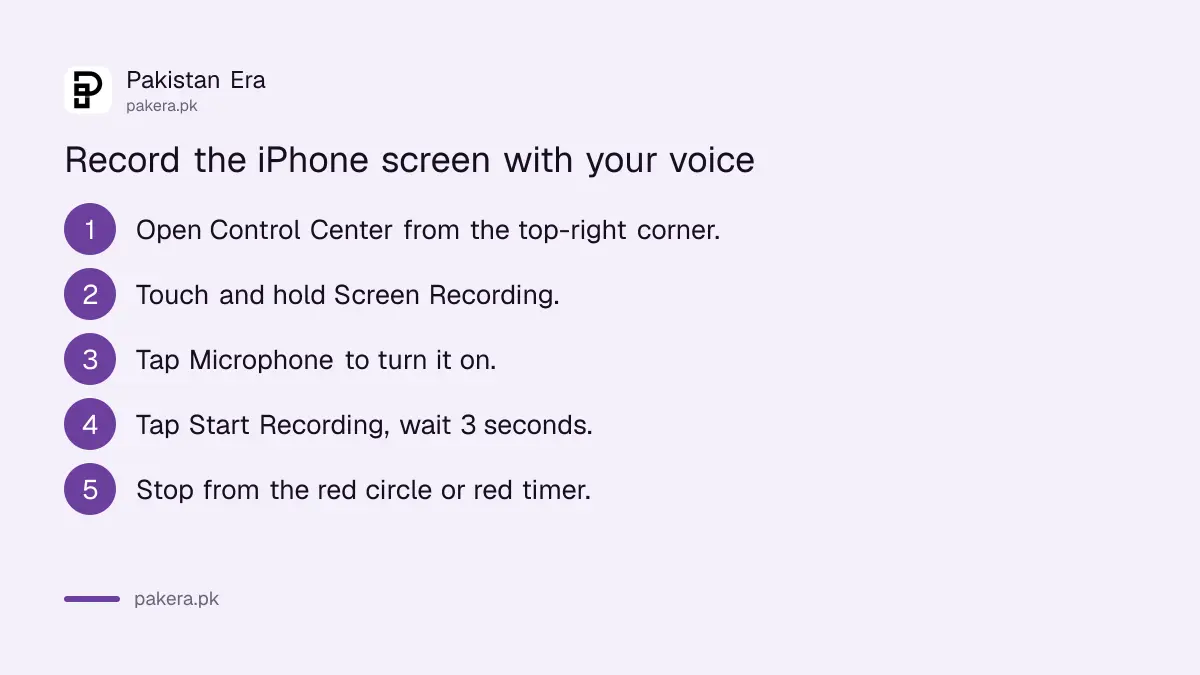
Your voice is off by default. Open Control Center, touch and hold the Screen Recording button rather than tapping it, tap Microphone so it turns on, then tap Start Recording. After the 3-second countdown, speak normally while you work.
- Swipe down from the top-right corner to open Control Center.
- Touch and hold the Screen Recording button.
- Tap Microphone to turn it on.
- Tap Start Recording and wait for the 3-second countdown.
- Swipe up to close Control Center and do what you want to show.
- Stop from the red circle or the red timer at the top.
Touch and hold the button again before your next recording and check whether Microphone is on or off. It takes one second and saves a re-record in a busy room. A clip meant for a teacher or a bank complaint should not carry the television in the background.
Add the Screen Recording button if it is not in Control Center
If you cannot see the button, open Control Center and tap the edit button at the top to start editing. Then tap Add a Control at the bottom, find Screen Recording in the gallery and tap it. Close Control Center by swiping up.
Apple's Control Center page says you can also drag controls to a new place, resize them and build your own group. Put Screen Recording on the first page if you use it often. On iPhone SE, Control Center opens by swiping up from the bottom of the screen, not down from the corner.
A black or silent recording usually means the app blocks capture
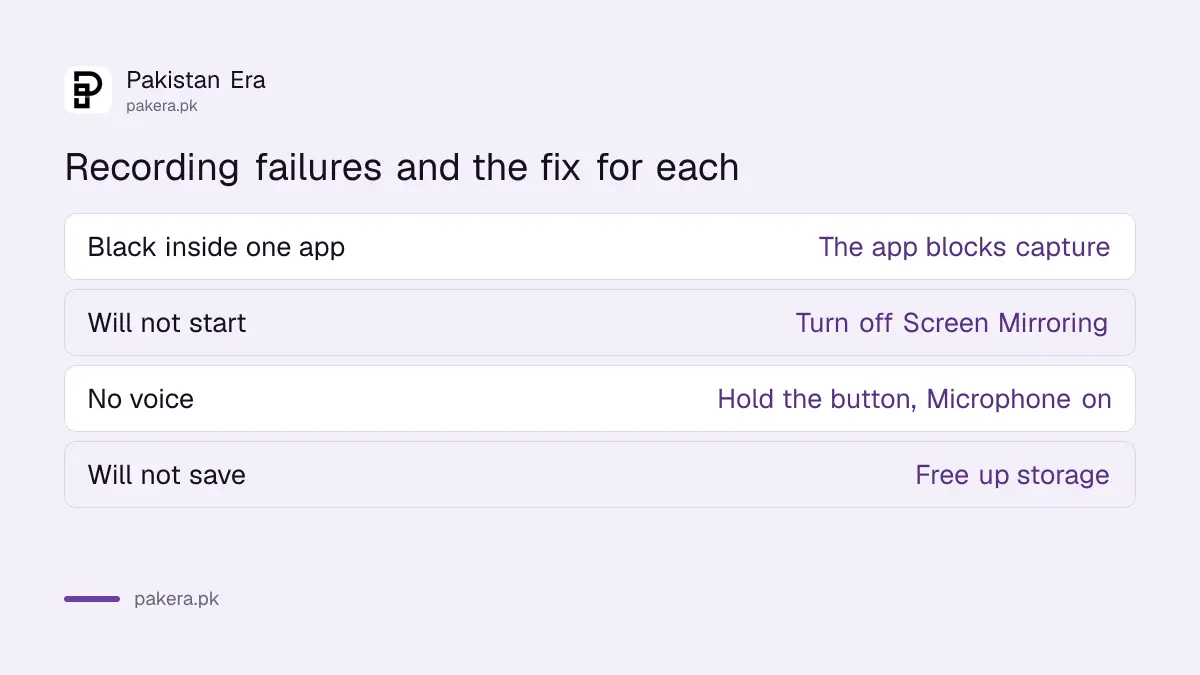
Apple says some apps might not allow their content to be recorded, and you cannot record while screen mirroring. Streaming and banking apps are the usual cases, so the video may turn black inside them. Stop mirroring to a TV before you record.
- Black screen inside one app: that app blocks recording. Nothing on your phone is broken.
- Recording will not start: turn off Screen Mirroring in Control Center first.
- No voice: you tapped instead of touching and holding. Turn on Microphone and record again.
- Button greyed out: check Screen Time restrictions on a child's or office phone.
- Video will not save: free up space; a long recording is large. Phone storage full stops new videos.
A note on phone calls. Screen recording is not a call recorder, and recording another person has its own rules in Pakistan. iPhone call recording works differently and announces itself to the other side; recording phone calls and what the law says covers both parts.
Recordings save in Photos and can be trimmed before you share
Every screen recording saves to your photo library automatically. Open Photos, tap Collections, scroll to Media Types and tap Screen Recordings. You can trim the start and end, where Control Center shows, before you send it on WhatsApp or email.
Apple's screen capture settings let you choose SDR or HDR under Settings, General, Screen Capture. SDR is the standard choice for sharing; both use the HEVC video format, and Apple says HDR recordings play back with slightly reduced quality on standard displays. If a relative on an older Android phone cannot open your clip, record in SDR.
Watch what is on screen before you share. A recording of a JazzCash or bank app can show your balance, account number or a one-time code. Trim or crop those parts out first. If you also use Android, recording an Android screen with sound works from the Quick Settings tile.
Common questions
How do I screen record on iPhone with sound?
Touch and hold the Screen Recording button in Control Center, tap Microphone to turn it on, then tap Start Recording.
Where do iPhone screen recordings go?
To the Photos app. Open Collections, then Media Types, then Screen Recordings.
Why can't I find screen recording on my iPhone?
The button is not in Control Center yet. Edit Control Center, tap Add a Control and choose Screen Recording.
Why is my iPhone screen recording black?
Apple says some apps do not allow recording. Streaming and banking apps often block it, so their screens record as black.
How do I stop a screen recording on iPhone?
On iPhones with Dynamic Island, tap the red circle, then stop. On others, tap the red timer at top left, then Stop.
Can I screen record and mirror to a TV at the same time?
No. Apple says you cannot record your screen and use screen mirroring at the same time.
How we verified this
What we checked, where we read it, and what we could not confirm.
Last checked 25 October 2026. We read Apple's iPhone User Guide pages take a screen recording, use and customise Control Center and change the screen capture settings, for iOS 27, on that date. Earlier iOS versions may show slightly different menus. The note that streaming and banking apps are the usual blockers, and the Screen Time remark, are our general advice rather than Apple's wording.
About the author

Technology Journalist & Multimedia Producer
Ahmad Ali is a technology journalist and multimedia producer at Pakistan Era, joining the team in October 2026. He covers consumer technology and digital life for Pakistani readers, combining research with hands-on product testing.