How to Record Your Android Screen With Sound in Pakistan
Record your Android screen with sound in Pakistan: swipe down twice, tap Screen record, choose audio and touches, then Start. Find the video and keep OTPs safe.
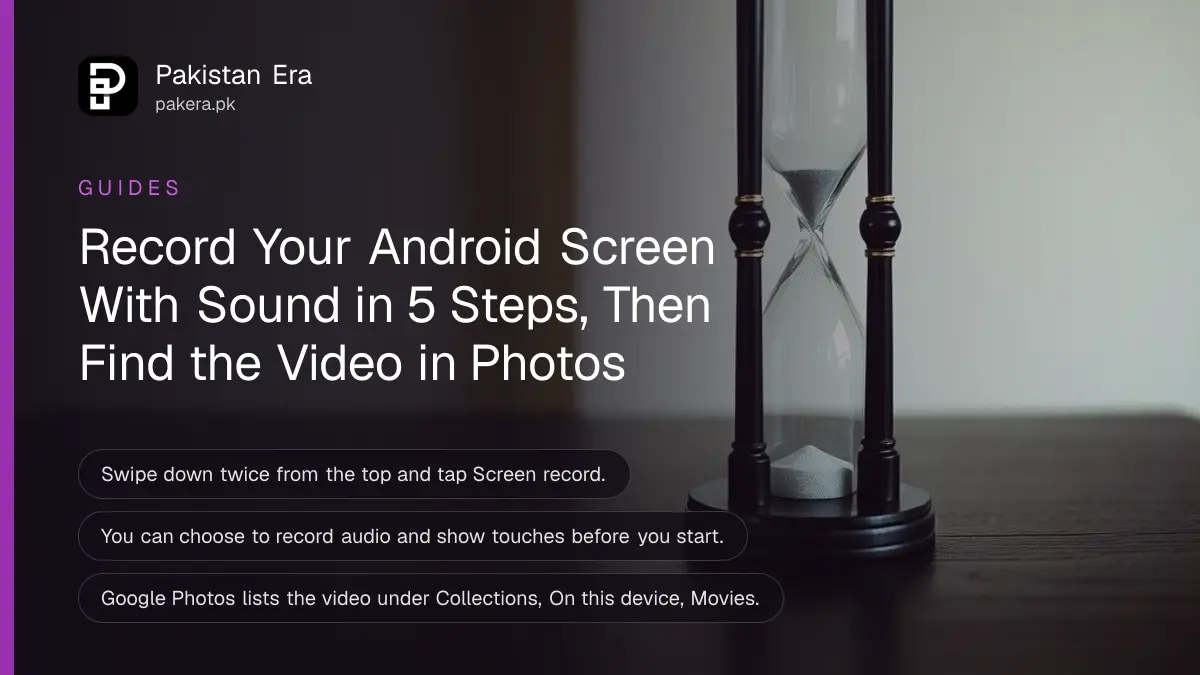
To record your Android screen, swipe down twice from the top, tap Screen record, choose what to record and whether to include audio, then tap Start. To stop, swipe down and tap the recorder notification. Your video is saved on the phone, and Google Photos shows it under Movies.
A student needs to show a portal error to a helpdesk. A shopkeeper wants to teach a staff member an app. A parent wants a clip of a game bug. A short screen video explains in ten seconds what ten messages cannot. We read Google's Android help page on taking a screenshot or recording the screen on 15 October 2026, and the steps below follow it. Menus differ a little between brands, so we note where.
Swipe down twice, tap Screen record and press Start
Google's steps are short: swipe down twice from the top of the screen, tap Screen record, choose what to record, and tap Start. Recording begins after a countdown. If the tile is not visible on the first panel, swipe right to find it.
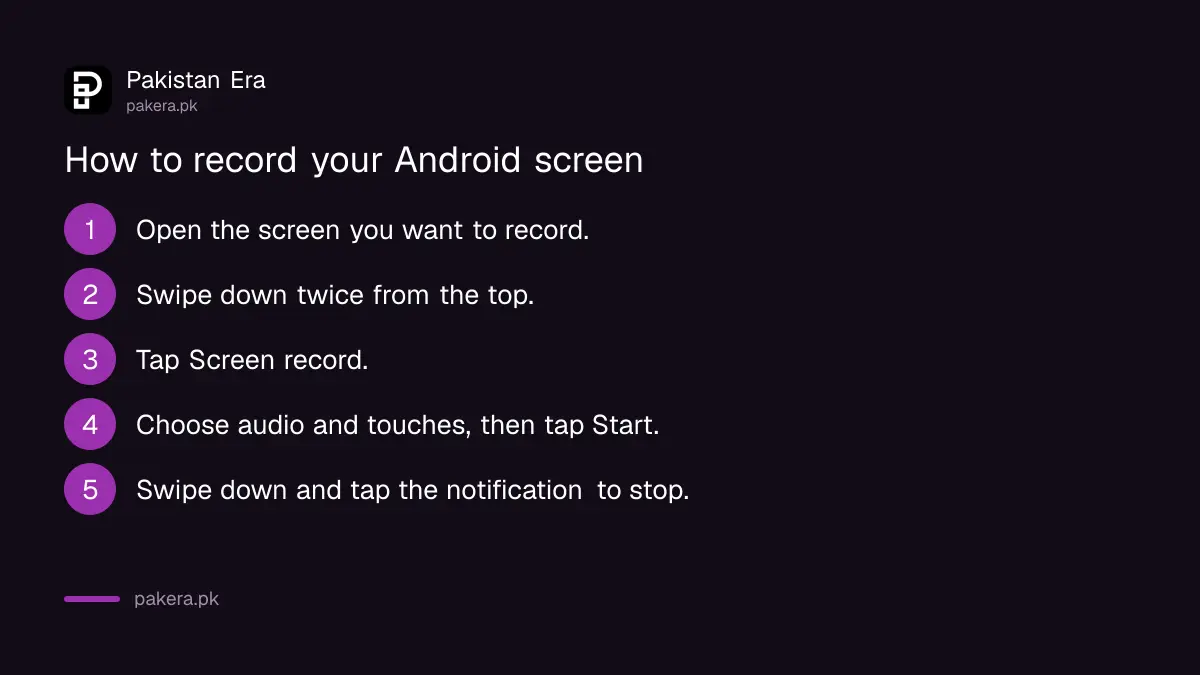
- Open the app or screen you want to record, but do not start yet.
- Swipe down twice from the top of the screen to open Quick Settings.
- Tap Screen record. Swipe right if you cannot see it.
- Choose what to record, and whether to record audio and show touches.
- Tap Start, wait for the countdown, and begin.
- To stop, swipe down and tap the Screen recorder notification.
Add the Screen record tile if it is missing
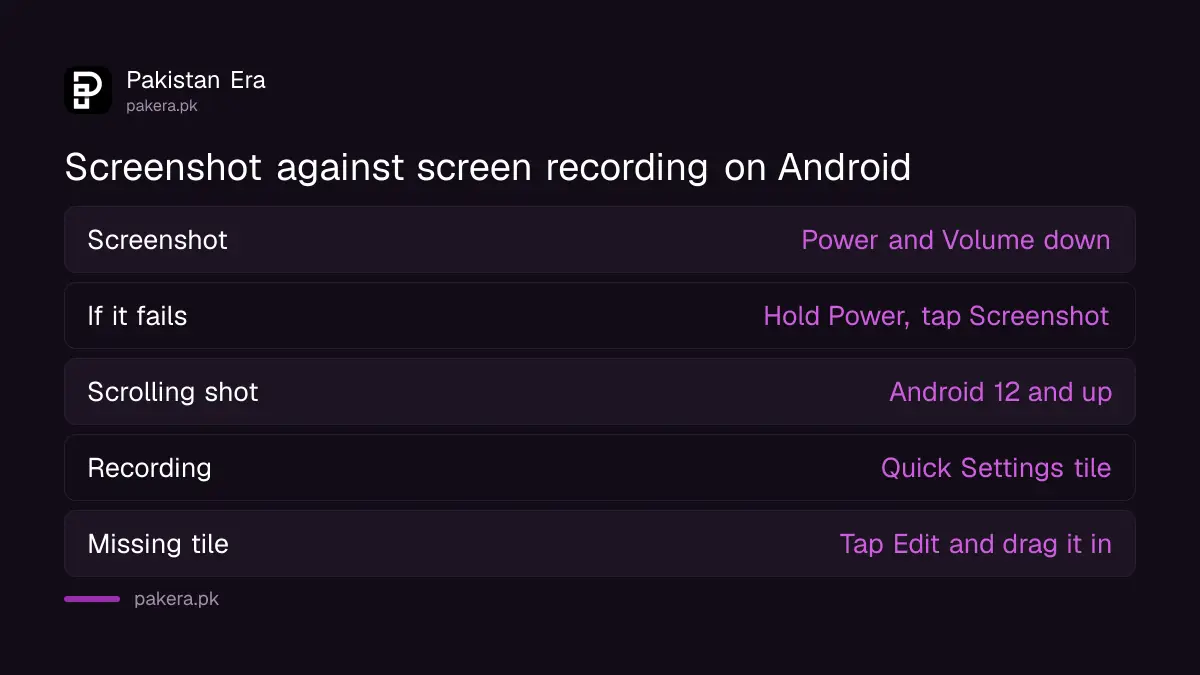
Google says that if Screen record is not in Quick Settings, you tap Edit and drag Screen record into your Quick Settings. After that it stays one swipe away. Google adds a note that on Pixel phones some of these steps work only on Android 11 and up.
We did not test every brand. Samsung, Xiaomi, Oppo and other makers add their own recorder with extra options such as resolution, so the wording may differ. If you cannot find the tile, open Quick Settings, look for an edit or pencil icon, and check the phone maker's support page, which Google also advises for screenshot steps that do not work.
Choose audio and touches before you start
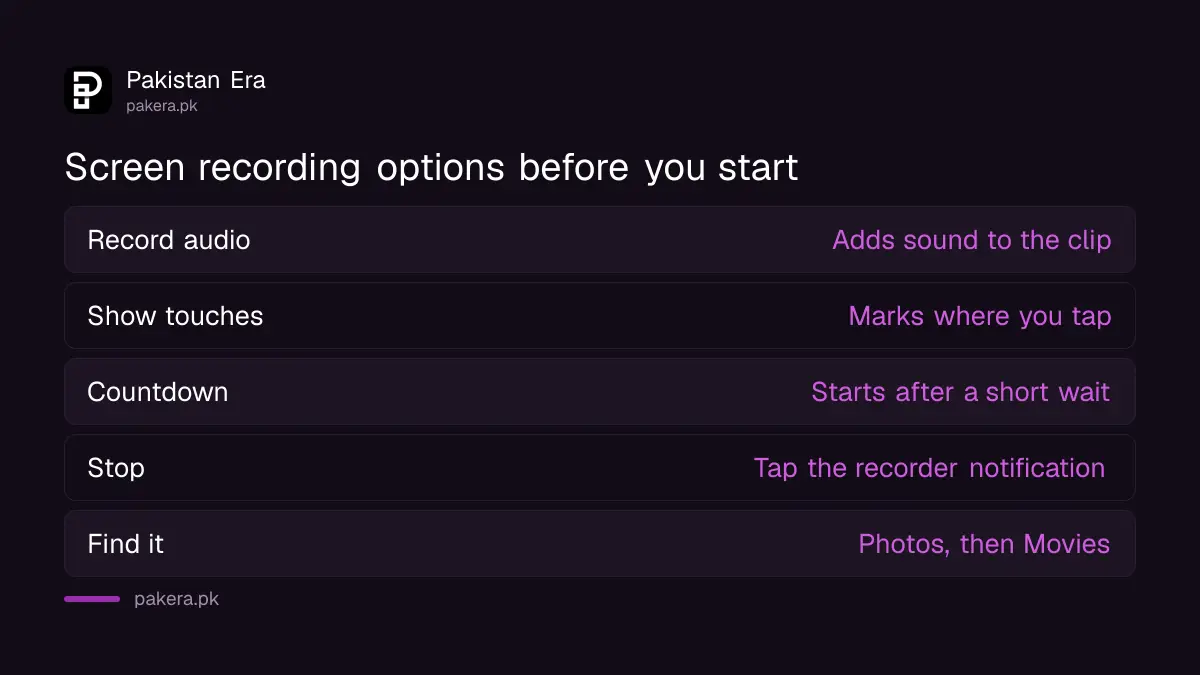
Google says you can choose whether to record audio and show touches before the recording begins. Showing touches adds a small mark where your finger taps, which helps viewers follow a tutorial. Leave it off for a plain clip.
| Setting | Use it when | Leave it off when |
|---|---|---|
| Record audio | You explain aloud or the app makes a sound | Other people are talking nearby |
| Show touches | You teach someone where to tap | You only need a clean video |
The table is our practical advice. Google's page names the two options but does not say when to use them. The audio choice on some phones lets you pick between sound from the phone and sound from the microphone. Check the option names before you press Start. We did not test this on every phone.
Find the video in Google Photos under Movies
Google says to open the Photos app, tap Collections, then On this device, then Movies. That is where screen recordings are listed. If your phone does not have the Photos app, open the Gallery app and look in the albums.
Long clips can be large. A five minute recording can fill several hundred megabytes on a high quality setting, which is our rough estimate and varies by phone. If storage is tight, delete the clip after you share it, or see the steps to fix a full phone storage.
Take a screenshot or scrolling screenshot instead
For a still image, Google says to press the Power and Volume down buttons at the same time. If that does not work, press and hold Power for a few seconds and tap Screenshot. On Android 12 and up, tap Capture more after the screenshot to grab a long page.
A scrolling screenshot is a good way to show a whole receipt, chat or form. A screenshot is not proof of payment on its own, because screenshots are easy to fake. The page on how to verify a payment received against a fake SMS or screenshot shows what to check instead.
Keep private information out of the video
A screen recording captures everything that appears, including notification pop-ups, OTP messages and balances. Turn on Do Not Disturb before you start, and never share a clip that shows a PIN, MPIN, OTP or CNIC number. This is our advice, not a line on the Google page.
Some banking and wallet apps may block recording or show a black screen. That is normal and is meant to protect you. If you want to record a phone call, a different set of rules applies, which the report on recording phone calls in Pakistan explains.
Common questions about recording an Android screen in Pakistan
How do I start a screen recording on Android?
Swipe down twice from the top, tap Screen record, choose your options and tap Start. Google lists these steps on its Android help page.
Why is Screen record missing from my phone?
Open Quick Settings, tap Edit and drag Screen record into the panel. On Pixel phones some steps work only on Android 11 and up, says Google.
Can I record my screen with sound?
Yes. Google says you can choose whether to record audio before you start. The sound options vary by phone, so read them before you press Start.
Where are my screen recordings saved?
Google says to open Photos, tap Collections, then On this device, then Movies. On other phones, check the Gallery app.
How do I stop the recording?
Swipe down from the top of the screen and tap the Screen recorder notification, as Google describes.
Can I take a screenshot at the same time?
Yes, with the Power and Volume down buttons on most phones. Google says if that fails, hold Power and tap Screenshot.
How we verified this
What we checked, where we read it, and what we could not confirm.
Last checked 15 October 2026. The recording steps, the Quick Settings edit, the audio and touch options, the Pixel Android 11 note, the Movies location and the screenshot steps come from Google's Android Help page, "Take a screenshot or record your screen on your Android device", at support.google.com, which we opened on 15 October 2026. Brand differences, the file size estimate and the privacy advice are our own and we did not test them on every phone.
About the author

Technology Journalist & Multimedia Producer
Ahmad Ali is a technology journalist and multimedia producer at Pakistan Era, joining the team in October 2026. He covers consumer technology and digital life for Pakistani readers, combining research with hands-on product testing.