Laptop Keyboard Not Working on Windows 11 in Pakistan: Every Fix, Plus the Touchpad
Laptop keyboard not working on Windows 11? Try Microsoft's port and receiver checks, reinstall the driver, type with the touch keyboard and fix the touchpad.
If your laptop keyboard is not working on Windows 11, restart the laptop, then open Device Manager, update the keyboard driver or uninstall it and restart so Windows installs it again. For a USB or wireless keyboard, try another port and unplug the receiver for about 10 seconds. Until the keys come back, the Windows touch keyboard lets you type a password or a search with the touchpad.
Below are Microsoft's hardware checks in the order it gives them, the driver steps that bring back most dead keyboards, how to switch on the touch keyboard as a stopgap, and the separate fix for a touchpad that stops moving the pointer. We read Microsoft's support pages on mouse and keyboard problems, touchpad problems and the touch keyboard on 1 November 2026.
Check the hardware before you change any Windows setting
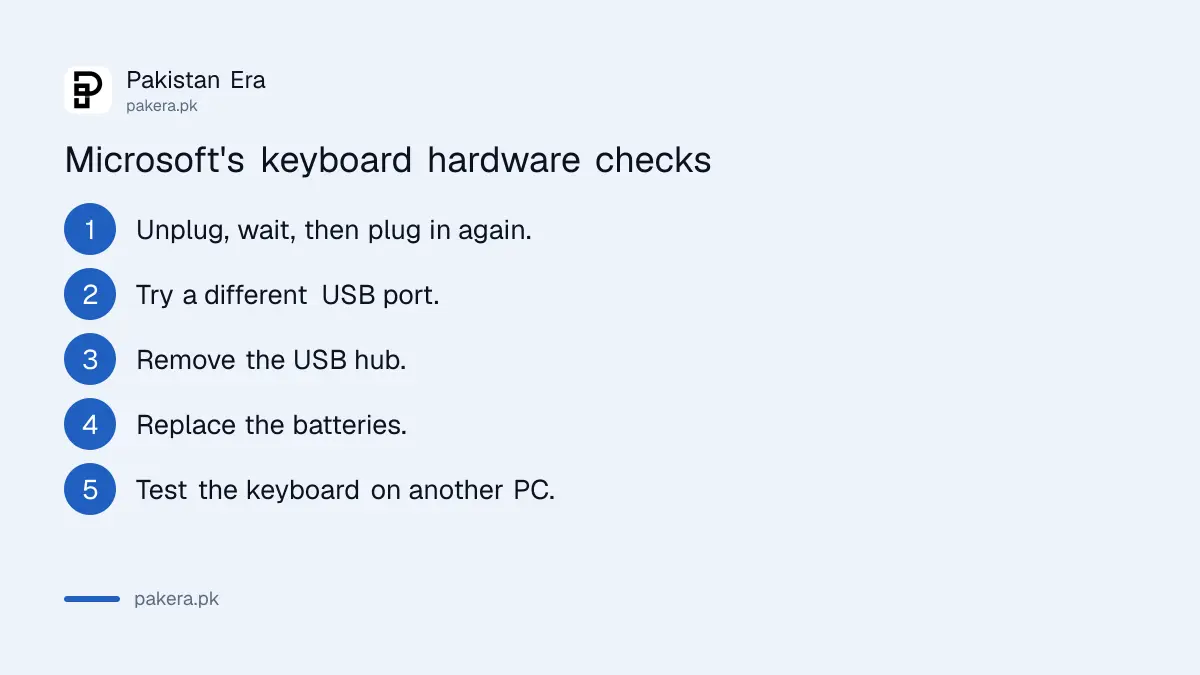
Microsoft's first checks are physical: unplug a USB keyboard and plug it back in, try another USB port, remove any USB hub, check the cable for damage, replace the batteries in a wireless keyboard, and clear dirt from under the keys.
Microsoft says to wait a little after unplugging, so Windows can unload the driver, and only then plug the keyboard back in. If you use a hub, make sure the hub has power. If it still fails, plug the keyboard straight into the laptop.
A laptop's built-in keyboard has no cable you can reach, so the useful test there is the opposite one. Plug in any spare USB keyboard. If the spare one types and the built-in one does not, the fault sits with the built-in keyboard's driver or its hardware, and the driver steps below come next.
Microsoft also says that if a keyboard shows no lights at all, try it on another PC. If it is dead there too, it needs replacing, not fixing.
| Keyboard type | What Microsoft says to check |
|---|---|
| Built-in laptop keyboard | Windows Update, then the driver in Device Manager, then the laptop maker |
| Wired USB keyboard | Unplug, wait, plug in again; another port; no hub; cable damage |
| Wireless with a USB receiver | Batteries; Reset button on the keyboard or receiver; unplug the receiver for about 10 seconds |
| Bluetooth keyboard | Microsoft's Bluetooth fixes, including pairing it again |
| Any keyboard with no lights | Test it on another PC; replace it if it fails there too |
Wireless and Bluetooth keyboards need a reset or a fresh pairing
For a wireless keyboard, look for a Reset button on the bottom of the keyboard or on its USB receiver. Microsoft also suggests unplugging the receiver, waiting about 10 seconds and plugging it back in. Bluetooth keyboards follow the Bluetooth fixes instead.
Resetting breaks the wireless link and makes it again. That is often all a keyboard needs after the laptop wakes from sleep. Swap the batteries before anything else, because a weak cell makes keys miss or repeat long before the keyboard stops completely.
A Bluetooth keyboard is a different case. Remove it from Bluetooth settings, pair it again, and if Windows will not find it at all, work through the steps for Bluetooth not working on Windows 11, since the keyboard can only be as reliable as the Bluetooth link under it.
Update or reinstall the keyboard driver in Device Manager
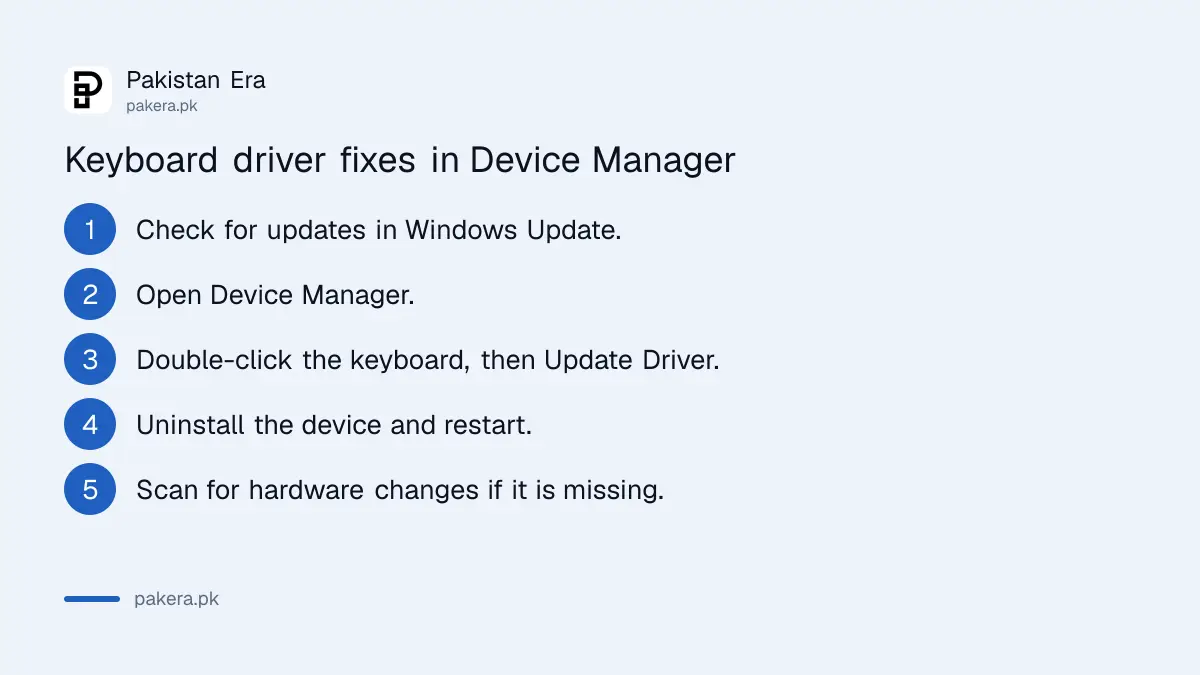
When the hardware checks out, the driver is the usual suspect. Microsoft lists Windows Update first. If that finds nothing, open Device Manager, double-click the keyboard and choose Update Driver, or uninstall it and restart so Windows installs it again.
- In the taskbar search box, type check for updates and select Check for updates. Install what Windows offers. Microsoft warns there might be no driver update available.
- In the taskbar search box, type device manager and open Device Manager.
- Expand the keyboard category and double-click your keyboard.
- Open the Driver tab, select Update Driver and follow the instructions.
- If nothing changes, right-click the keyboard, select Uninstall device and restart. If it does not come back, open the Action menu and choose Scan for hardware changes.
- If the keyboard shows a yellow exclamation mark, right-click it, open Properties and read the code under Device status.
Uninstalling the driver does not delete anything of yours. Windows reinstalls the keyboard on restart or on a hardware scan. If Windows Update itself keeps failing while it fetches drivers, the Windows Update troubleshooter is the next stop before you blame the keyboard.
Type with the touch keyboard until the keys work again
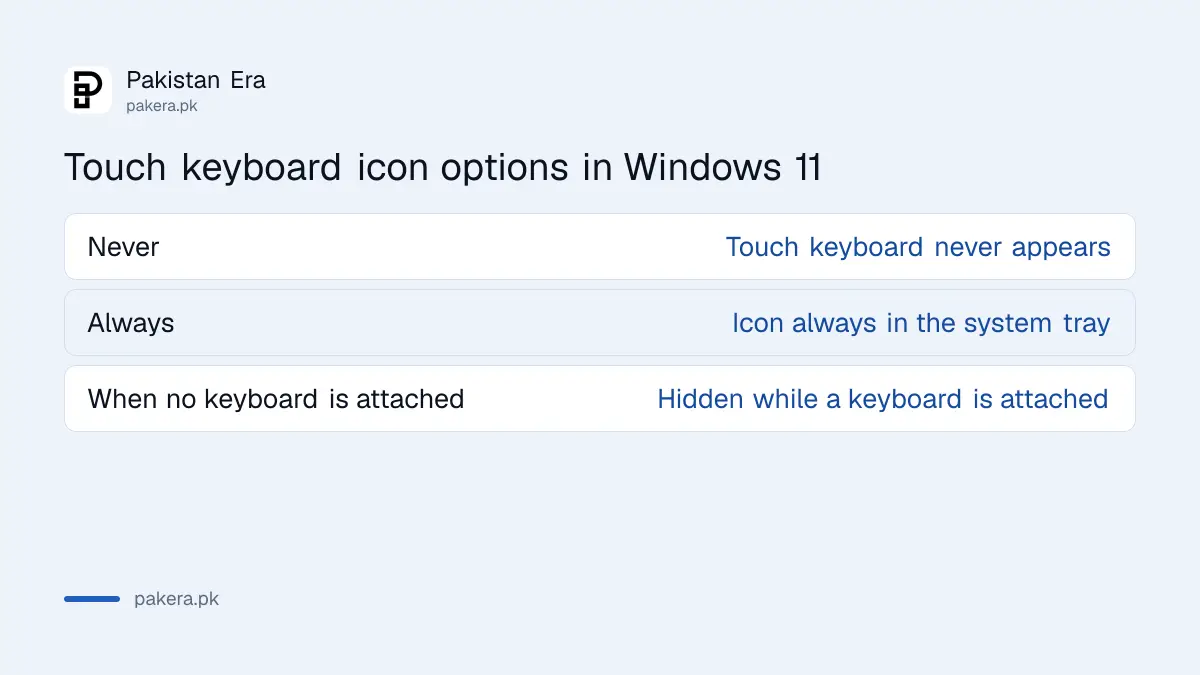
Windows 11 has an on-screen touch keyboard. Right-click the taskbar, open Taskbar settings, and under System tray icons set Touch keyboard to Always. Then select its icon near the clock and click the keys with the touchpad or a mouse.
The setting matters here. Microsoft's default choice, "When no keyboard is attached", hides the icon whenever Windows thinks a keyboard is present, and a laptop's built-in keyboard counts as attached even when it is dead. So pick Always, not the default.
| Touch keyboard option | What Microsoft says it does |
|---|---|
| Never | Hides the icon, so the touch keyboard never appears |
| Always | The icon always shows in the system tray |
| When no keyboard is attached | The icon only shows when no wired or wireless keyboard is attached |
This is a stopgap for signing in, searching and short messages, not for a day of typing. If some keys work but type the wrong letters, a second input language may be switched on, which can happen after adding an Urdu keyboard on a computer.
A touchpad that stops working needs its own driver fix
Microsoft says a touchpad that stops working is often down to a missing or out-of-date driver. Update it through Windows Update, or find it in Device Manager under Human Interface Devices or Mice and other pointing devices, then update or reinstall it.
Microsoft recommends Windows Update as the first method. If there is no update, or the update does not help, reinstall the touchpad from Device Manager. Microsoft says reinstalling forces the latest driver to download from Windows Update. Plug in a USB mouse first so you can click through Device Manager while the touchpad is dead.
On a touchscreen laptop there is one more stopgap. Under Taskbar settings, System tray icons, switch on Virtual Touchpad, then select its icon to get an on-screen touchpad you control by touch.
If updating and reinstalling the driver does not help with either the keyboard or the touchpad, Microsoft's advice for both is the same: contact the laptop maker. A keyboard that died after a spill or a drop is a repair job, and the maker's service centre can check it under warranty.
Common questions
Why did my laptop keyboard stop working after a Windows update?
A driver problem is the most likely cause. Update or reinstall the keyboard driver in Device Manager, then restart.
Will uninstalling the keyboard driver break my laptop?
No. Windows installs the driver again when you restart or choose Scan for hardware changes in Device Manager.
How do I type my password if the keyboard is dead?
Use the touch keyboard. Set Touch keyboard to Always in Taskbar settings and click its icon near the clock.
How do I reset a wireless keyboard?
Press the Reset button on the keyboard or its receiver if it has one, or unplug the USB receiver for about 10 seconds and plug it back in.
Where is the touchpad in Device Manager?
Microsoft says to look under Human Interface Devices or Mice and other pointing devices.
How we verified this
What we checked, where we read it, and what we could not confirm.
Last checked 1 November 2026. We read Microsoft's pages Mouse and keyboard problems in Windows, Fix touchpad problems in Windows and Enable and disable the touch keyboard in Windows on 1 November 2026, plus its Device Manager error codes page for the uninstall and scan steps. The advice to test with a spare USB keyboard and the note about the default touch keyboard setting are our reading of those pages. Laptop makers' own keyboard and touchpad keys differ by model, and we could not check each brand.
About the author

Technology Journalist & Multimedia Producer
Ahmad Ali is a technology journalist and multimedia producer at Pakistan Era, joining the team in October 2026. He covers consumer technology and digital life for Pakistani readers, combining research with hands-on product testing.