Bluetooth Not Working on Windows 11 in Pakistan: 8 Microsoft Fixes for Laptops, Earbuds and Mice
Bluetooth not working on Windows 11? Try Microsoft's 8 fixes: troubleshooter, quick settings, discovery mode, re-pairing, driver update and adapter reinstall.
When Bluetooth stops working on a Windows 11 laptop, run the Bluetooth troubleshooter in Get Help, check Bluetooth and Airplane mode in quick settings, set device discovery to Advanced, remove and re-pair the device, then update or reinstall the Bluetooth driver in Device Manager. These are Microsoft's eight general fixes. Below is each one with the exact clicks for earbuds, speakers, mice and keyboards, plus the Windows 10 differences.
We read Microsoft's guide to fixing Bluetooth problems in Windows on 28 October 2026. It covers Windows 11 and Windows 10, and most of the steps take under a minute.
Start with the Bluetooth troubleshooter in Get Help
On Windows 11, Microsoft's first fix is the automated Bluetooth troubleshooter in the Get Help app. It checks the adapter and settings and tries to repair them itself. You can also run it from Settings, System, Troubleshoot, Other troubleshooters, then Run next to Bluetooth.
If it reports nothing wrong and your earbuds still will not connect, the problem is usually one of the simple settings below. Work down the list in order.
Microsoft's eight Bluetooth fixes for Windows 11
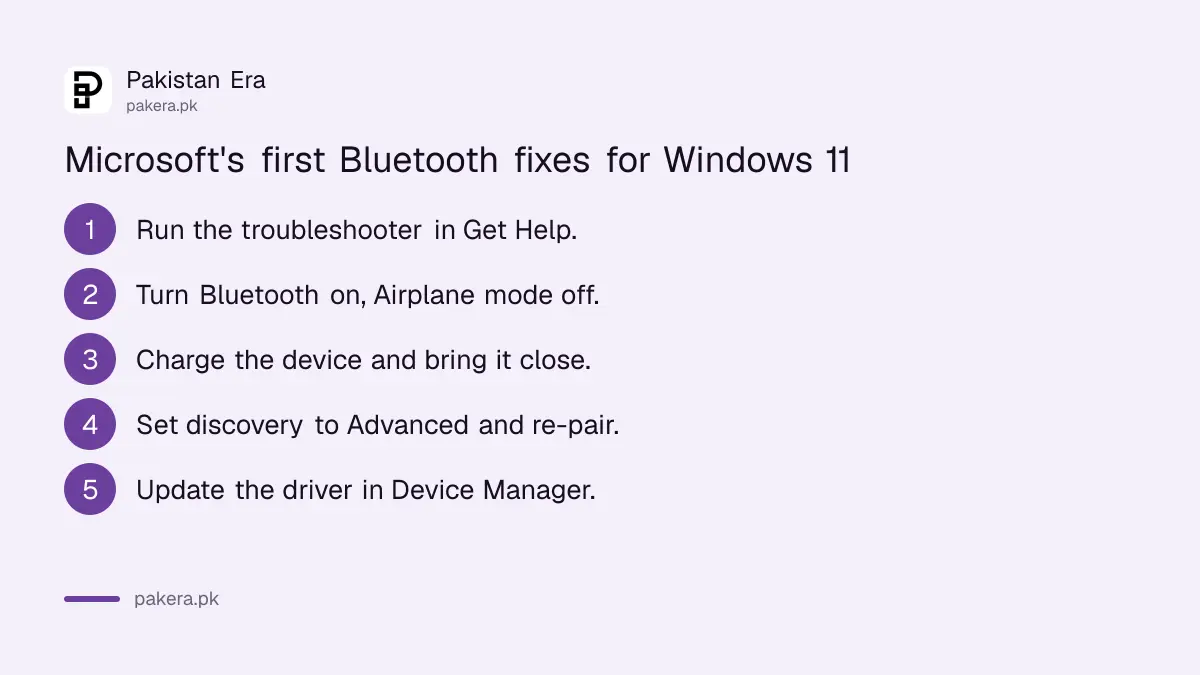
Microsoft's general fixes are: confirm the PC has Bluetooth, turn it on, check the device, change the discovery setting, check Airplane mode and re-pair, run the troubleshooter, update the driver, and reinstall the adapter. The first five need no technical skill.
- Check the PC's specifications. Microsoft notes that some PCs have no Bluetooth at all.
- Turn Bluetooth on in quick settings, or in Settings, Bluetooth and devices. Check any physical switch on the laptop.
- Turn the device off and on, charge it, bring it close, and keep it away from USB 3.0 ports.
- In Settings, Bluetooth and devices, Devices, set Bluetooth devices discovery to Advanced.
- Turn Airplane mode off, switch Bluetooth off and on, then remove the device and pair it again.
- Run the Bluetooth troubleshooter from Settings, System, Troubleshoot, Other troubleshooters.
- Update the Bluetooth driver in Device Manager.
- Uninstall the Bluetooth adapter in Device Manager, shut down, and restart so Windows reinstalls it.
Step 3 surprises people. Microsoft says unshielded devices in a USB 3.0 port can interfere with Bluetooth. If your wireless mouse lags only when a flash drive is plugged in beside it, that is the likely reason.
Earbuds not in the list? Change the discovery setting
Windows 11 shows only common Bluetooth devices by default. If your earbuds or speaker never appear when you select Add device, open Settings, Bluetooth and devices, Devices, and change Bluetooth devices discovery from Default to Advanced, which shows every type of device.
Also put the earbuds in pairing mode, which usually means holding the case button until a light flashes. Earbuds still connected to your phone will not show up on the laptop. Turn off Bluetooth on the phone for a minute while you pair.
| Problem | Most likely cause | Fix to try first |
|---|---|---|
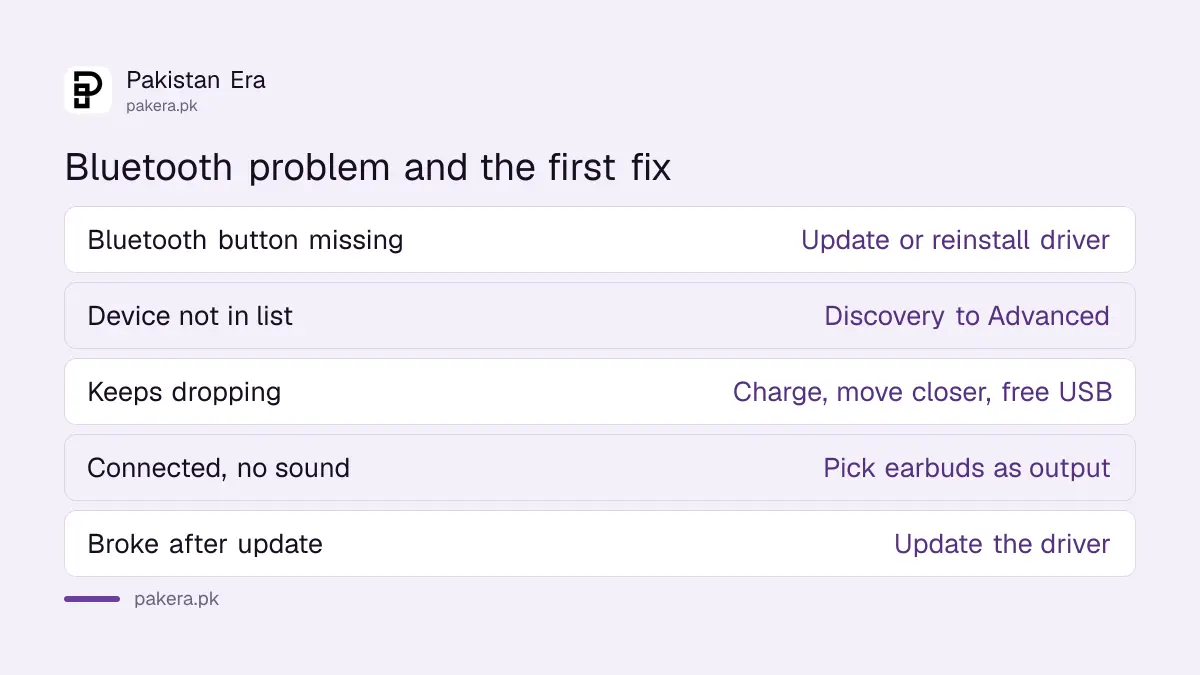
| Bluetooth button missing | Driver or adapter problem | Update the driver, then reinstall the adapter |
| Device not in the list | Discovery set to Default, or device not in pairing mode | Set discovery to Advanced |
| Pairs but keeps dropping | Range, low battery or USB 3.0 interference | Charge it, move closer, free the USB port |
| Connected but no sound | Wrong audio output chosen | Pick the earbuds as the sound output |
| Worked before a Windows update | Old driver for the new Windows build | Update the driver |
Microsoft has separate guides for "connected but no sound", for Bluetooth that keeps disconnecting, and for audio playing in one ear only, all linked from its main page.
Update the Bluetooth driver in Device Manager
Search for Device Manager, open Bluetooth, right-click the adapter, which often has "radio" in its name, and select Update driver, then Search automatically. Restart if asked. Microsoft calls an outdated or incompatible driver one of the most common causes of Bluetooth problems.
This matters most after upgrading to Windows 11, Microsoft says, because the old driver may have been built for an earlier version. If Windows finds no newer driver, download one from your laptop maker's own website. Microsoft explains two cases:
- An .exe file: double-click it and let it install.
- Separate .inf and .sys files: in Device Manager, choose Update driver, then Browse my computer for drivers, and point it to the folder.
Use the maker's site only, such as the support page for your Dell, HP or Lenovo model. Driver download portals can bundle unwanted software. If a stuck update is behind the change, the steps for a Windows update that keeps failing come first.
Reinstall the Bluetooth adapter when the button disappears
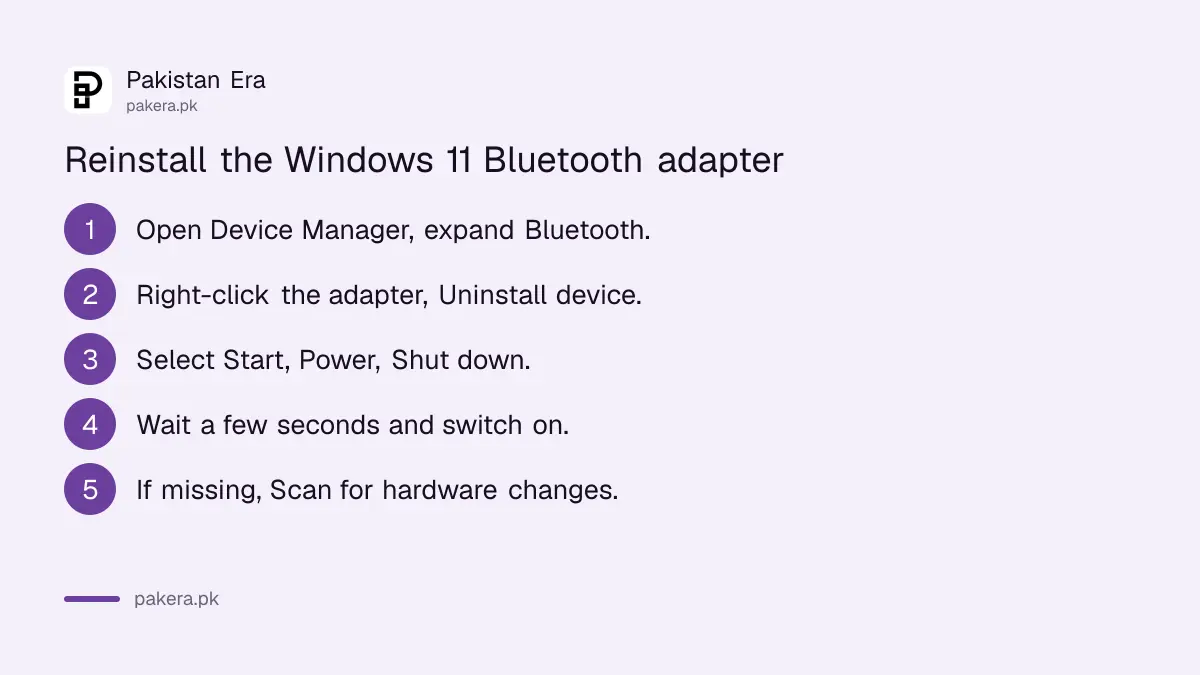
If the Bluetooth icon has vanished but Bluetooth still shows in Device Manager, uninstall the adapter there, shut the PC down, wait a few seconds and turn it on. Windows reinstalls the driver. If it does not, open Device Manager, select Action, then Scan for hardware changes.
- Open Device Manager and expand Bluetooth.
- Right-click the adapter and select Uninstall device, then Uninstall.
- Select Start, Power, Shut down. Microsoft says shut down, not restart.
- Wait a few seconds, then switch the PC back on.
- If Bluetooth is still missing, select Action, then Scan for hardware changes.
Microsoft notes you may need the PC maker's help to get the right driver. If none of this works on a laptop still under warranty, take it to the maker's service center rather than a market shop.
Windows 10 menus are slightly different
On Windows 10, Bluetooth sits under Settings, Devices, Bluetooth and other devices, and discovery is a tick box called "Allow Bluetooth devices to find this PC" under More Bluetooth options. Microsoft also notes that Windows 10 support ended on 14 October 2025.
The fixes are otherwise the same. Windows 10 PCs keep working, but free updates have stopped, so check the options to keep getting Windows 10 security updates if you are staying on it.
Common questions
Why has the Bluetooth option disappeared on my laptop?
Usually a driver problem. Update the driver in Device Manager, or uninstall the adapter and shut down so Windows reinstalls it.
Why can't Windows find my earbuds?
They may not be in pairing mode, may still be linked to your phone, or discovery may be set to Default. Set it to Advanced.
Does every laptop have Bluetooth?
No. Microsoft says some devices do not. Check the model's specifications; a small USB Bluetooth adapter can add it.
Can a USB drive affect Bluetooth?
Yes. Microsoft says unshielded devices in a USB 3.0 port can interfere with Bluetooth connections.
Where do I download a Bluetooth driver?
Windows Update first, then your PC maker's own website. Avoid third-party driver sites.
How we verified this
What we checked, where we read it, and what we could not confirm.
Last checked 28 October 2026. We read Microsoft Support's "Fix Bluetooth problems in Windows" for Windows 11 and Windows 10 on that date; the steps, menu paths and driver advice come from it. We did not test a Bluetooth device ourselves. The advice to pair while the phone's Bluetooth is off, the USB adapter remark and the warning about driver portals are our own suggestions, not Microsoft's.
About the author

Global Affairs & Political Economy Writer
Muhammad Hatim is a book lover who started writing because he enjoys it. At Pakistan Era he writes about international relations, geopolitics and the global economy, with a particular interest in South Asia and the forces behind current events.