Screenshot on Laptop in Pakistan: Every Windows 11 and 10 Shortcut and Where It Saves
Take a screenshot on a laptop with Windows key + PrtScn or Windows key + Shift + S. See all six Windows 11 and 10 shortcuts, where they save and key fixes.
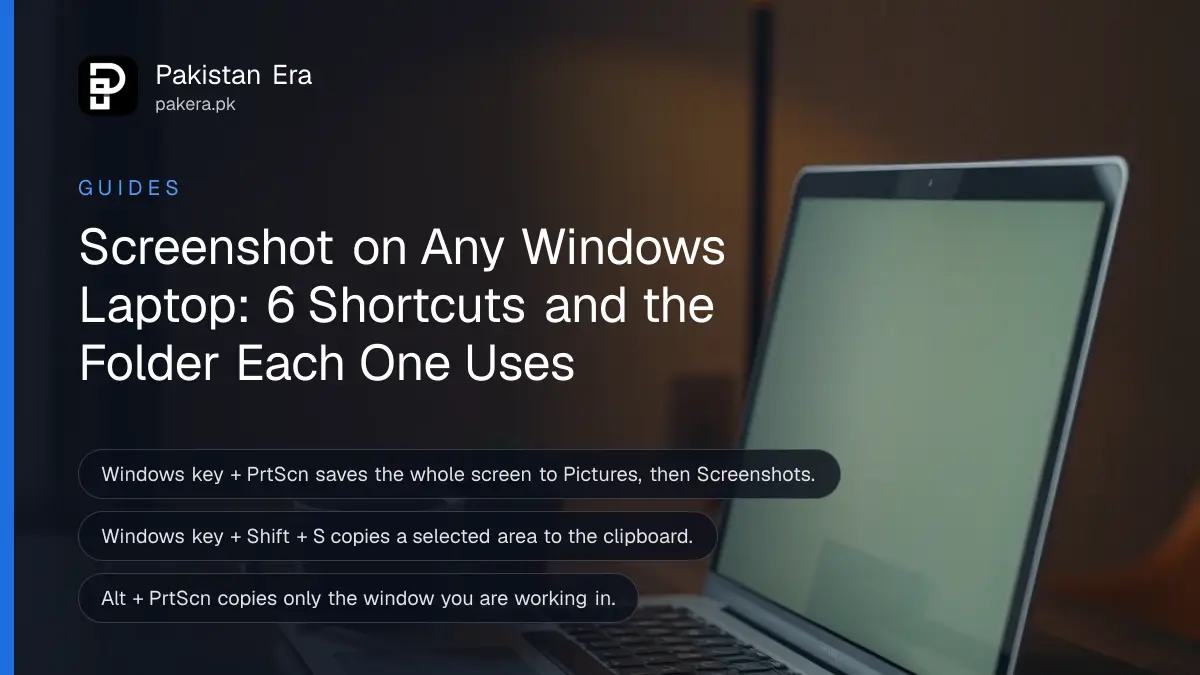
To take a screenshot on a laptop running Windows 11 or 10, press the Windows key + PrtScn to save the whole screen as a file, or Windows key + Shift + S to pick an area and copy it. Those two cover most needs, but Windows has five more ways, and each one saves to a different place. That is why so many people press the key, see nothing happen and think it failed.
We read Microsoft's own keyboard shortcuts list and its Snipping Tool help on 25 October 2026. Below is every shortcut, where each picture goes, and what to try when the key does nothing on your laptop.
Windows has six screenshot shortcuts, and they save to two places
Windows key + PrtScn saves a full screen picture as a file straight away. PrtScn, Alt + PrtScn and Windows key + Shift + S copy the picture to the clipboard instead, so you must paste it somewhere before it is saved.
The clipboard is a short-term memory. Copy something else and the screenshot is gone. Shop owners sending a payment proof on WhatsApp Web, or students putting a chart into a Word file, usually want the clipboard. Anyone keeping a record wants the file.
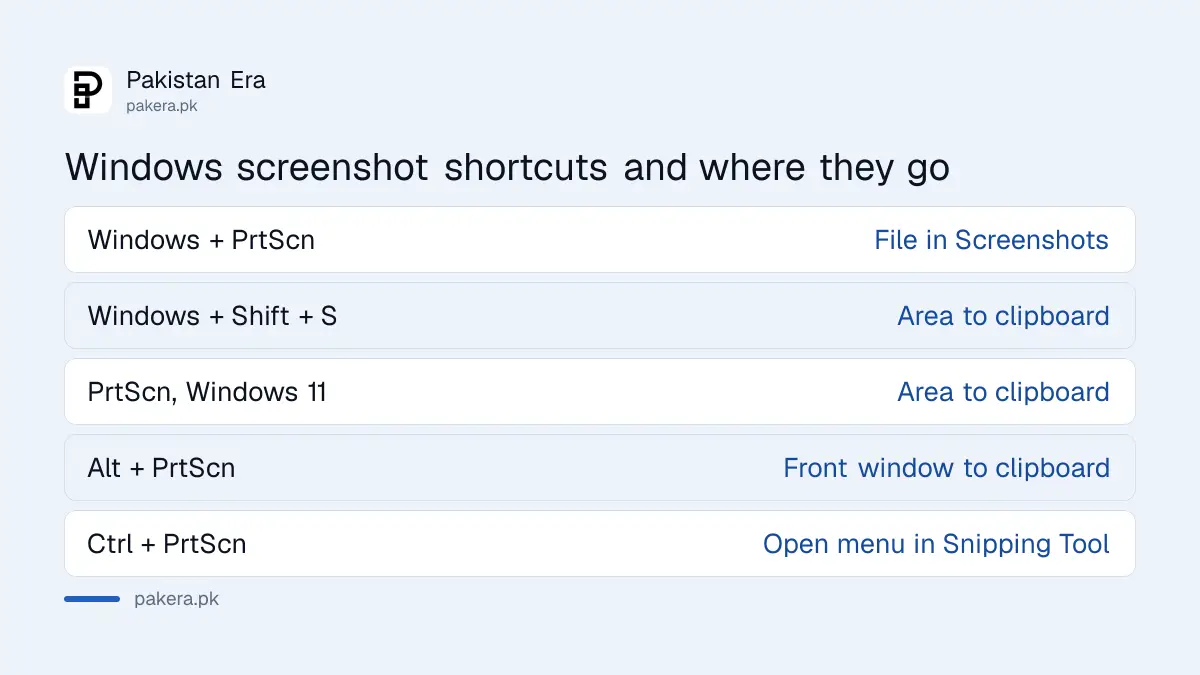
| Shortcut | What it captures | Where it goes |
|---|---|---|
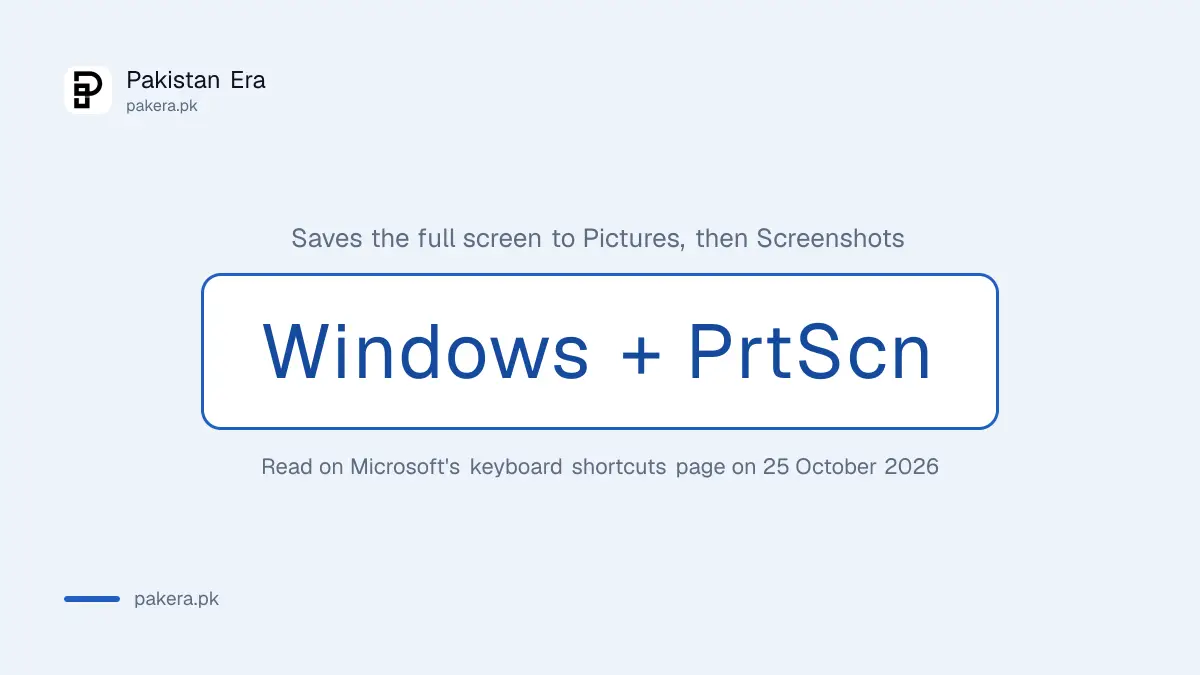
| Windows key + PrtScn | The whole screen | A file in Pictures, then Screenshots |
| Windows key + Shift + S | An area you select | Clipboard, plus Snipping Tool |
| PrtScn (Windows 11) | An area you select | Clipboard |
| PrtScn (Windows 10) | The whole screen | Clipboard |
| Alt + PrtScn | Only the window in front | Clipboard |
| Ctrl + PrtScn | An open menu | Snipping Tool |
Windows key + PrtScn is the only shortcut that saves a file on its own
Press Windows key + PrtScn and the screen dims for a moment. Microsoft says the picture is saved as a file in the Screenshots subfolder of your Pictures folder. Nothing needs pasting, and the file stays after a restart.
To find it, open File Explorer, click Pictures on the left and open Screenshots. Files are numbered in order, so the newest one sits at the bottom when you sort by name. If you take many screenshots a day for office work, this folder fills fast. Clearing it now and then helps, and Storage Sense in Windows 11 can do part of that clean-up for you.
Windows key + Shift + S lets you choose the area and the shape
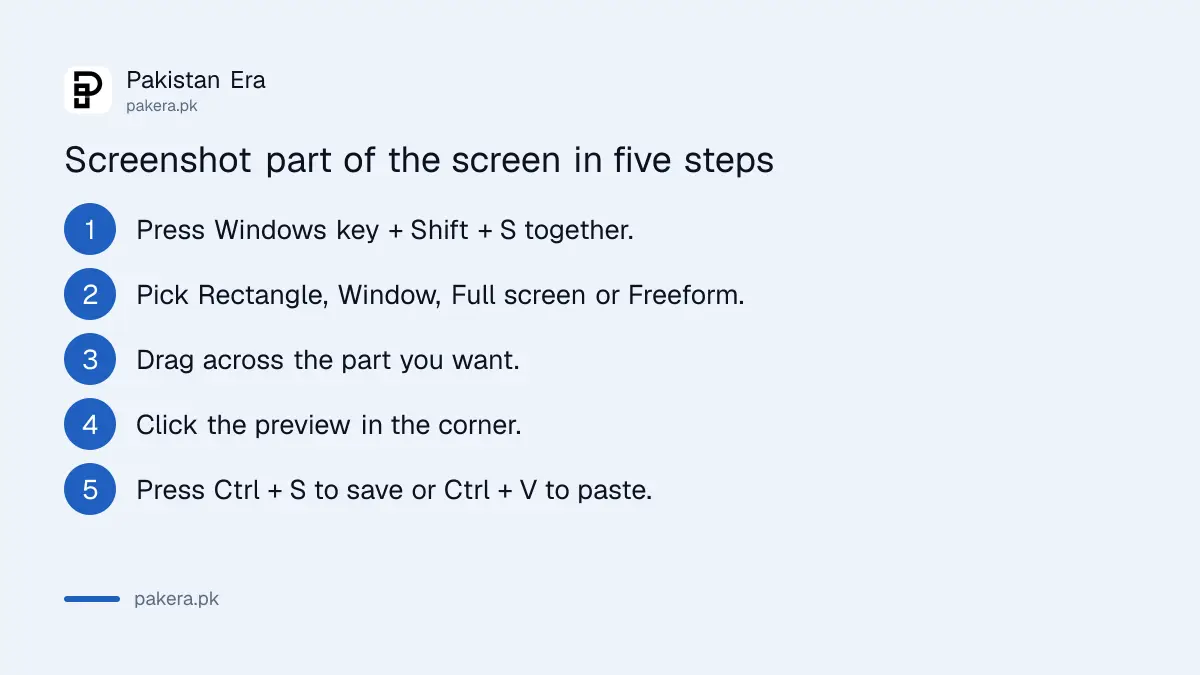
Windows key + Shift + S opens the Snipping Tool bar at the top of the screen. You then choose a rectangle, a free shape, one window or the full screen. The picture goes to the clipboard and a small preview appears.
- Press Windows key + Shift + S together.
- Pick a mode from the bar: Rectangle, Window, Full screen or Freeform.
- Drag across the part of the screen you want.
- Click the preview that pops up in the corner to open it in Snipping Tool.
- Press Ctrl + S to save it, or Ctrl + V to paste it into a chat, email or document.
Microsoft says Snipping Tool saves screenshots to your Screenshots folder automatically, and you can change that in its Settings. On Windows 10 the older Snipping Tool asks you to press Save Snip instead. If you want a delay, for example to catch a drop-down list, Alt + D in Snipping Tool waits 1 to 5 seconds before it captures.
Alt + PrtScn copies only the window you are working in
Alt + PrtScn captures the active window and nothing else, so your taskbar, other tabs and notifications stay out of the picture. Microsoft lists it as copying to the clipboard, so paste it with Ctrl + V before you copy anything else.
This is the cleanest choice for a bank or utility bill page you need to share. It keeps your other open tabs private. Paste it into Paint and press Ctrl + S if you want to keep a file.
Ctrl + PrtScn is for menus that close when you click away. Microsoft says the screen turns grey with the menu still open, and you then pick the snip type.
Laptop keys that do nothing usually need the Fn key or a setting
If PrtScn does nothing, hold the Fn key and press PrtScn, because many laptop keyboards share that key with another function. On Windows 11, PrtScn may also be set to open Snipping Tool rather than copy the whole screen.
Microsoft notes that the PrtScn key behaviour on Windows 11 can be changed in Settings, then Accessibility, then Keyboard. Turn the option off if you want the old full screen copy back. Some laptops print the label as PrtSc, Prt Scr or PrintScreen; it is the same key.
- Nothing in the Screenshots folder: you used a clipboard shortcut. Paste with Ctrl + V into Paint and save.
- Black picture of a video: some apps block capture of protected video. That is the app, not your laptop.
- Snipping Tool missing on Windows 10: search for Snip and Sketch or Snipping Tool from the Start menu.
- Need the screenshot on your phone: send it with Phone Link between your phone and Windows PC rather than a USB cable.
Screenshots of payments and IDs need care before you share them
A screenshot can carry your CNIC number, account balance or a one-time code. Crop it to the part the other person needs, and never send a screenshot of an OTP. Shopkeepers should confirm money arrived in the app, since screenshots are easy to fake.
A fake payment screenshot is one of the commonest tricks used on sellers in Pakistan. If you sell online, check the payment inside your JazzCash, Easypaisa or bank app before you hand over anything. On a shared or office laptop, delete sensitive screenshots from the Screenshots folder and empty the Recycle Bin.
If you need a moving recording rather than a still picture, Microsoft lists Windows key + Shift + R on Windows 11. It records a selected area as an MP4 video into the Screen Recordings folder inside Videos. On a phone, the steps differ; recording an Android screen with sound uses the Quick Settings tile.
Common questions
Where do laptop screenshots go in Windows 11?
Windows key + PrtScn saves to Pictures, then Screenshots. Snipping Tool also saves there automatically. Other shortcuts copy to the clipboard only.
Why is my PrtScn key not working on my laptop?
Try Fn + PrtScn. Many laptops share the key with another function. Also check Settings, Accessibility, Keyboard for the PrtScn option on Windows 11.
How do I screenshot only one window?
Press Alt + PrtScn. It copies the active window to the clipboard. Paste it with Ctrl + V.
How do I take a screenshot of part of the screen?
Press Windows key + Shift + S, choose Rectangle or Freeform, and drag over the area. It copies to the clipboard and opens a preview.
Do these shortcuts work on HP, Dell and Lenovo laptops?
Yes. They are Windows shortcuts, so they work on any laptop running Windows 11 or 10. The PrtScn key may need the Fn key on some models.
Can I take a screenshot on a timer?
Yes. In Snipping Tool, Alt + D delays the capture by 1 to 5 seconds, which helps with menus and drop-down lists.
How we verified this
What we checked, where we read it, and what we could not confirm.
Last checked 25 October 2026. We read Microsoft's keyboard shortcuts in Windows list and its Snipping Tool help page on that date. The shortcuts, save folders and the PrtScn setting come from those pages. The Fn key tip is general laptop advice, not from Microsoft, and laptop makers place the key differently. We did not test every laptop brand.
About the author

Technology Journalist & Multimedia Producer
Ahmad Ali is a technology journalist and multimedia producer at Pakistan Era, joining the team in October 2026. He covers consumer technology and digital life for Pakistani readers, combining research with hands-on product testing.