Link Your Android or iPhone to a Windows PC With Phone Link in Pakistan
Use Phone Link to read messages, see photos and take calls on your Windows PC. Android needs version 10, iPhone needs iOS 16 and Bluetooth. Free setup steps.
Short answer: Install the Link to Windows app on an Android phone running Android 10 or later, sign in with the same Microsoft account as your PC, and scan the QR code from the Phone Link app. An iPhone needs iOS 16 or later and Bluetooth, and it gets only messages, calls and notifications.
Typing a reply on a keyboard is faster than on a phone screen. Phone Link lets you read messages, see photos and take calls on a Windows laptop without touching the phone. It is free, and it is already inside Windows 11.
We read Microsoft's pages on Phone Link requirements and setup on 13 October 2026. The steps and limits below come from them. We did not pair a phone for this guide.
Check that your phone and PC qualify
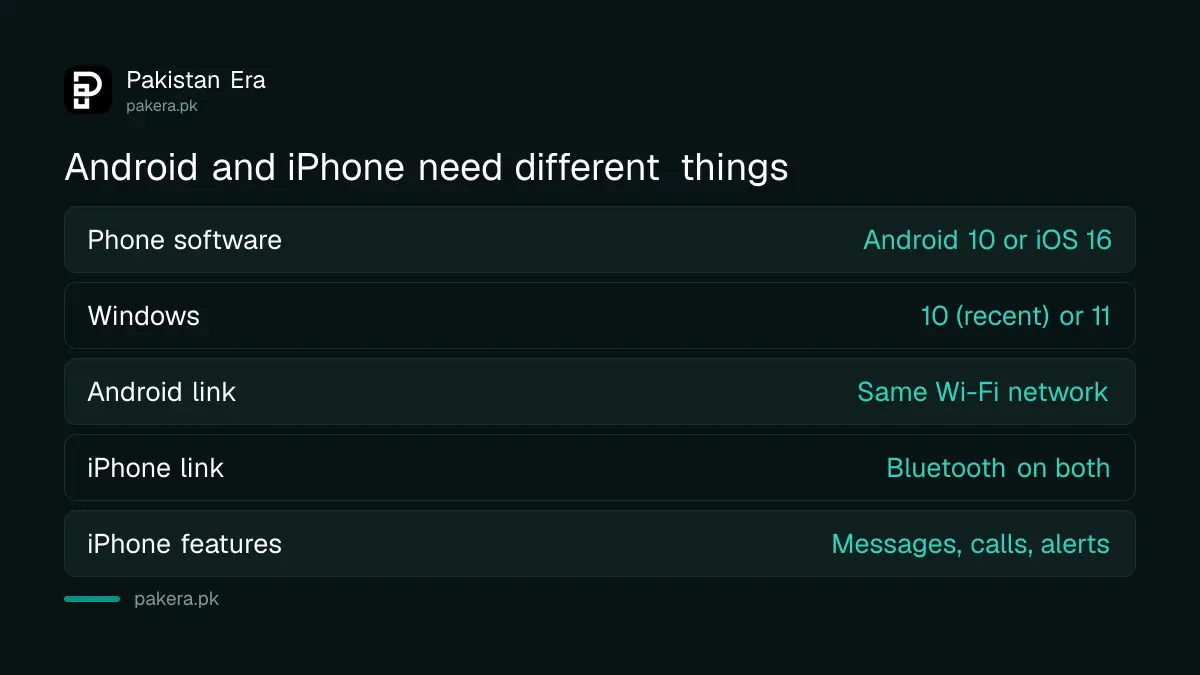
Phone Link needs a recent Windows PC and a recent phone. Android needs version 10 or later. iPhone needs iOS 16 or later and a PC with Bluetooth Low Energy. For Android, both devices must be on the same Wi-Fi network while you set up.
| Item | Android phone | iPhone |
|---|---|---|
| Phone software | Android 10 or later | iOS 16 or later |
| Windows | Windows 10 (October 2022 update or later) or Windows 11 | Windows 10 (May 2019 update or later) or Windows 11 |
| Connection | Same Wi-Fi network | Bluetooth on both, PC with Bluetooth Low Energy |
| Features | Messages, photos, calls, apps, notifications, phone screen | Messages, calls and notifications only |
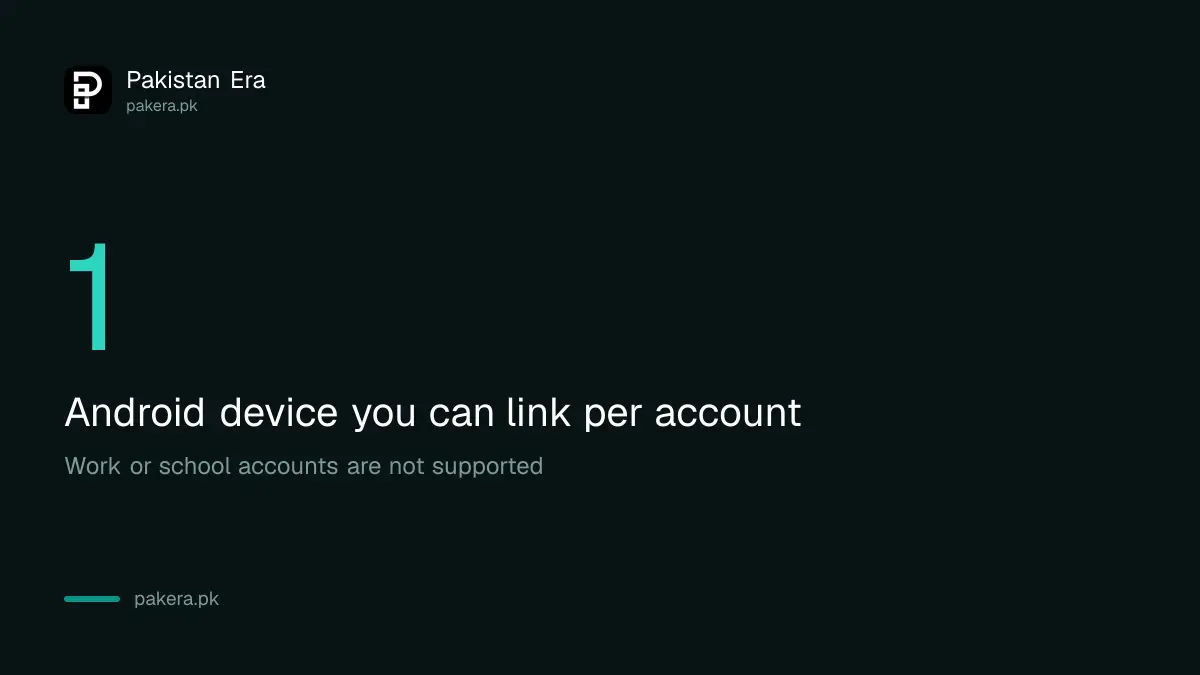
Microsoft adds two limits. Phone Link does not work with work or school accounts, and it supports one linked Android device per account. Check your PC first with the guide to checking if your PC can run Windows 11.
Link an Android phone with a QR code
For Android, you install the Link to Windows app on the phone and scan a QR code shown on the PC. The whole job takes a few minutes. Sign in with the same Microsoft account on both devices.
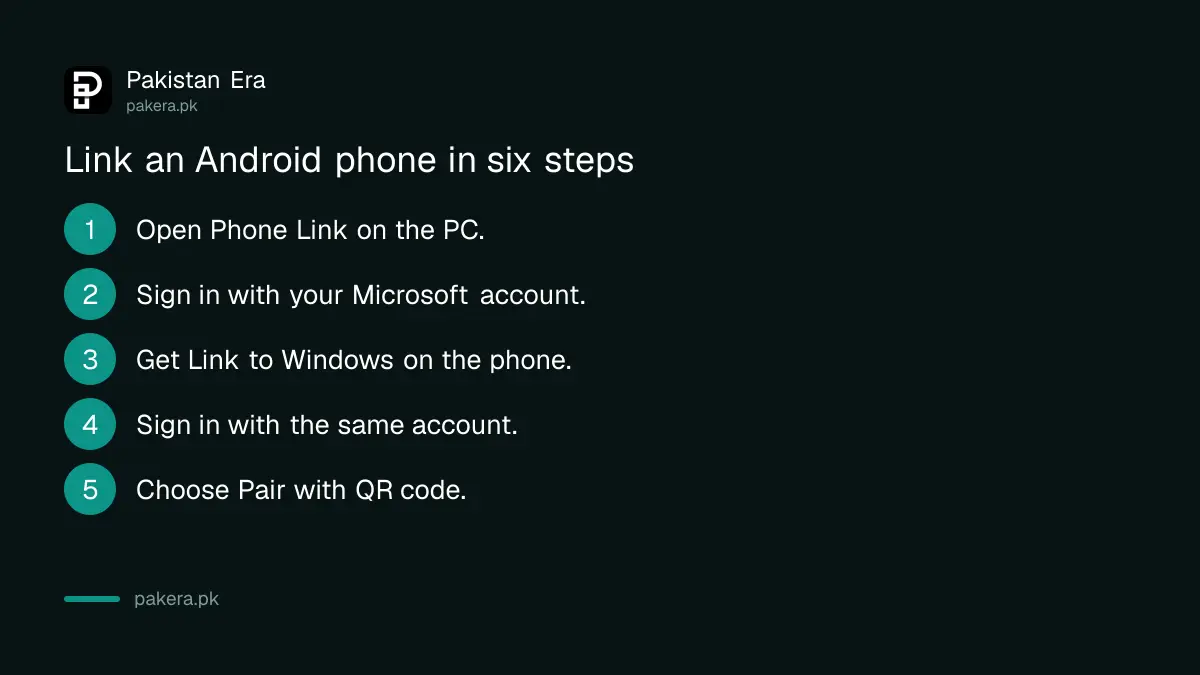
- On the PC, type Phone Link in the taskbar search box and open it.
- Sign in with your Microsoft account if asked.
- On the phone, open a browser and enter www.aka.ms/yourpc to get the Link to Windows app. Samsung phones can also use the Samsung Galaxy Store.
- Sign in to the app with the same Microsoft account.
- On the PC, tick I have the Link to Windows app ready, then choose Pair with QR code.
- Scan the QR code with the phone camera and allow the permissions it asks for.
Be careful with the permissions. Messages, photos and notifications are private. Allow only what you need, and link only a PC that you own or fully trust. Do not use Phone Link on a shared shop or cafe computer.
An iPhone links by Bluetooth with fewer features
An iPhone connects through Bluetooth, not a QR code on Wi-Fi. Microsoft says iPhone users get messages, calls and notifications, but not photos, apps or the phone screen. Know this before you spend time on setup.
Turn on Bluetooth on both devices and follow the on-screen pairing steps in Phone Link. If your needs are mainly photos and files, sending them is easier through other methods, such as Google Photos backup or the file sharing described in the page on using WhatsApp on your PC.
Fix a link that will not connect
When pairing fails, the cause is nearly always the network, the account or a permission. Check these in turn, and keep the phone close to the PC while you do.
- Make sure the phone and PC are on the same Wi-Fi network, not one on Wi-Fi and one on mobile data.
- Check that both use the same Microsoft account, and that it is a personal account, not a work account.
- Check that Bluetooth is on if you use an iPhone.
- Restart the Link to Windows app and Phone Link.
- Update Windows. A stuck update can break apps, as covered in fixing a Windows update that is stuck.
If the Wi-Fi is the issue, a router restart often helps. See router tips for a stronger signal.
Unlink when you sell a phone or PC
Linking gives a PC access to your messages and photos. Unlink the phone before you sell the PC, and unlink the PC before you sell the phone. Microsoft's pages on managing mobile devices cover removal, and we did not read those steps in full.
The simple rule is this: sign out of the Link to Windows app on the phone, remove the phone in Phone Link settings on the PC, and then reset the device you are selling, as in erasing a phone before selling it.
Common questions
Is Phone Link free?
Microsoft presents Phone Link as a Windows app that needs no payment. You do need a Microsoft account and an internet connection for setup.
Which Android version does Phone Link need?
Android 10 or later, according to Microsoft. The PC must run Windows 10 with the October 2022 update or later, or Windows 11.
Can I see my iPhone photos on my PC with Phone Link?
No. Microsoft says iPhone users get messages, calls and notifications only. Android users get photos, apps and the phone screen as well.
Can I link two Android phones to one account?
Microsoft says Phone Link does not currently support multiple Android profiles, which limits you to one linked device per user account.
Does it work with a work Microsoft account?
No. Microsoft says Phone Link does not support work or school accounts on either Android or iPhone. Use a personal Microsoft account.
How we verified this
What we checked, where we read it, and what we could not confirm.
Last checked on 13 October 2026, Pakistan time. We read Microsoft's Phone Link requirements and setup page. We did not read the steps for unlinking a device in full, and we did not pair a phone for this page. Mobile data use and call quality depend on your network, which Microsoft's page does not cover.
About the author

Technology Journalist & Multimedia Producer
Ahmad Ali is a technology journalist and multimedia producer at Pakistan Era, joining the team in October 2026. He covers consumer technology and digital life for Pakistani readers, combining research with hands-on product testing.