Free Up Disk Space on Windows 11 With Storage Sense in Pakistan
Windows 11 C drive full? Turn on Storage Sense, use Cleanup recommendations, move files to OneDrive and remove unused apps. Microsoft's warning on old Windows.
Short answer: Open Settings, then System, then Storage. Turn on Storage Sense, then open Cleanup recommendations and delete temporary files, unused apps and files you already have in the cloud. Do not delete the previous Windows version if you may want to go back, because it cannot be restored.
A laptop with a full C drive is slow, cannot install updates and shows "low disk space" warnings. Many Pakistani laptops ship with a 256 GB or 512 GB drive, and it fills fast with downloads, WhatsApp Web files and old updates. Windows 11 has built-in tools to clear it, and none of them costs money.
We read Microsoft's support page on freeing up drive space in Windows on 13 October 2026. The menu paths below come from that page. We did not clean a machine for this guide, so check what Windows lists before you delete anything.
Storage Sense clears junk on its own
Storage Sense is a Windows tool that removes items you do not need, such as temporary files and old Recycle Bin items. Once you turn it on, it works in the background, so the drive does not fill with junk again.
To find it, open Settings, then System, then Storage, then Storage Sense. Microsoft says it gets rid of "temporary files and items in your Recycle Bin". Switch it on, and choose how often it runs.
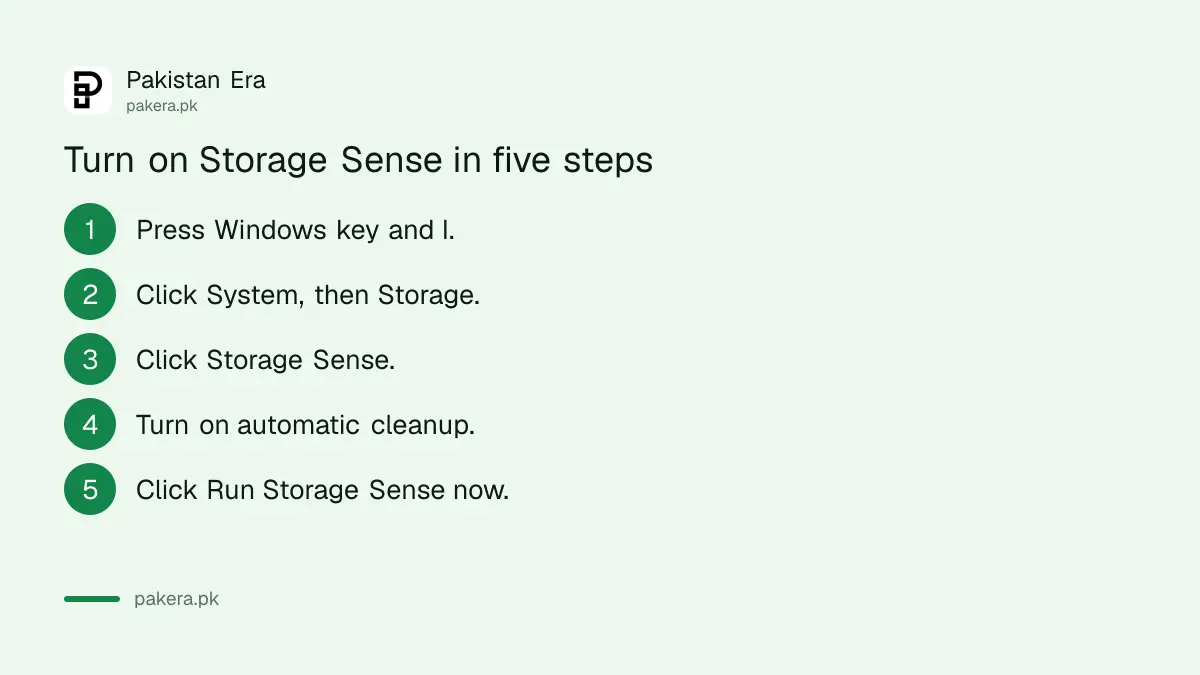
- Press the Windows key and I together to open Settings.
- Click System, then Storage.
- Click Storage Sense and turn on automatic cleanup.
- Choose how often it runs, for example every week.
- Click Run Storage Sense now to clean at once.
Storage Sense can also clear your Downloads folder after a set time. Check that setting before you turn it on. Anything you keep only in Downloads, such as a degree scan or a tax file, should be moved to Documents first.
Cleanup recommendations show what is safe to remove
Cleanup recommendations is a Windows 11 screen that groups files by type and shows how much space each group uses. It lists temporary files, large or unused files, files synced to the cloud, and unused apps. You choose what to delete.
The path is Settings, then System, then Storage, then Cleanup recommendations. Open each group and read the list. Tick only what you understand.
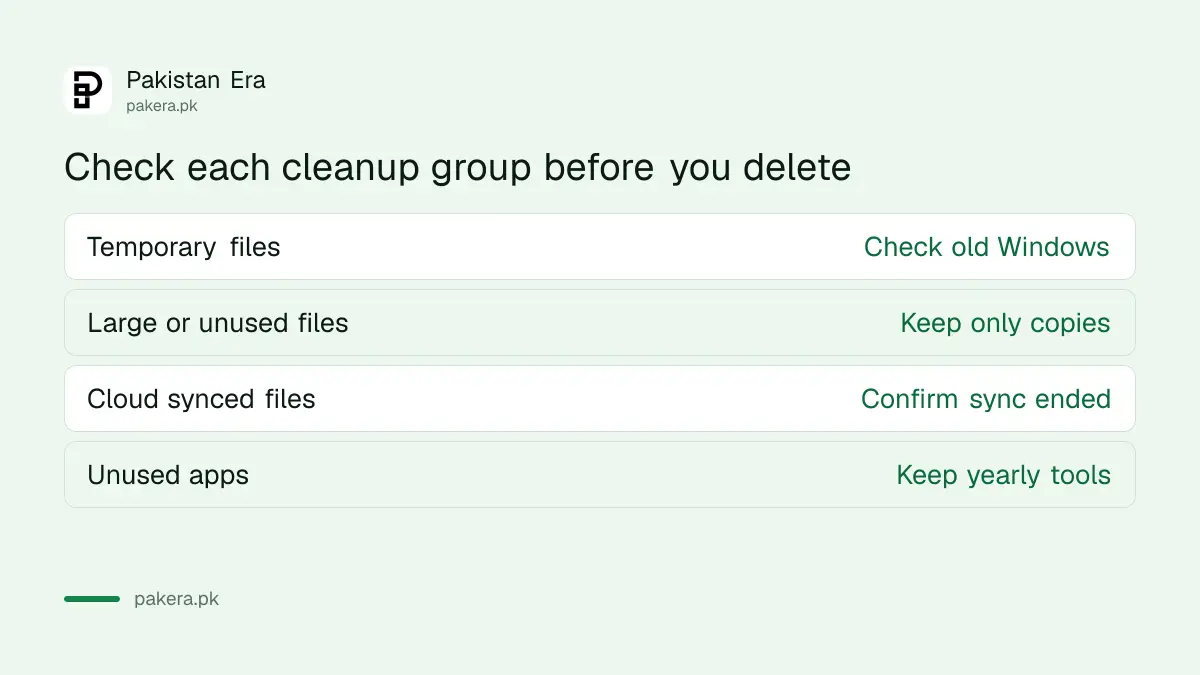
| Group | What it holds | Be careful with |
|---|---|---|
| Temporary files | Files apps and Windows no longer need | Previous Windows version, see below |
| Large or unused files | Big files you have not opened lately | Anything that is your only copy |
| Files synced to the cloud | Items already in OneDrive | Confirm the sync finished first |
| Unused apps | Apps you have not opened for a long time | Apps you use once a year, such as tax tools |
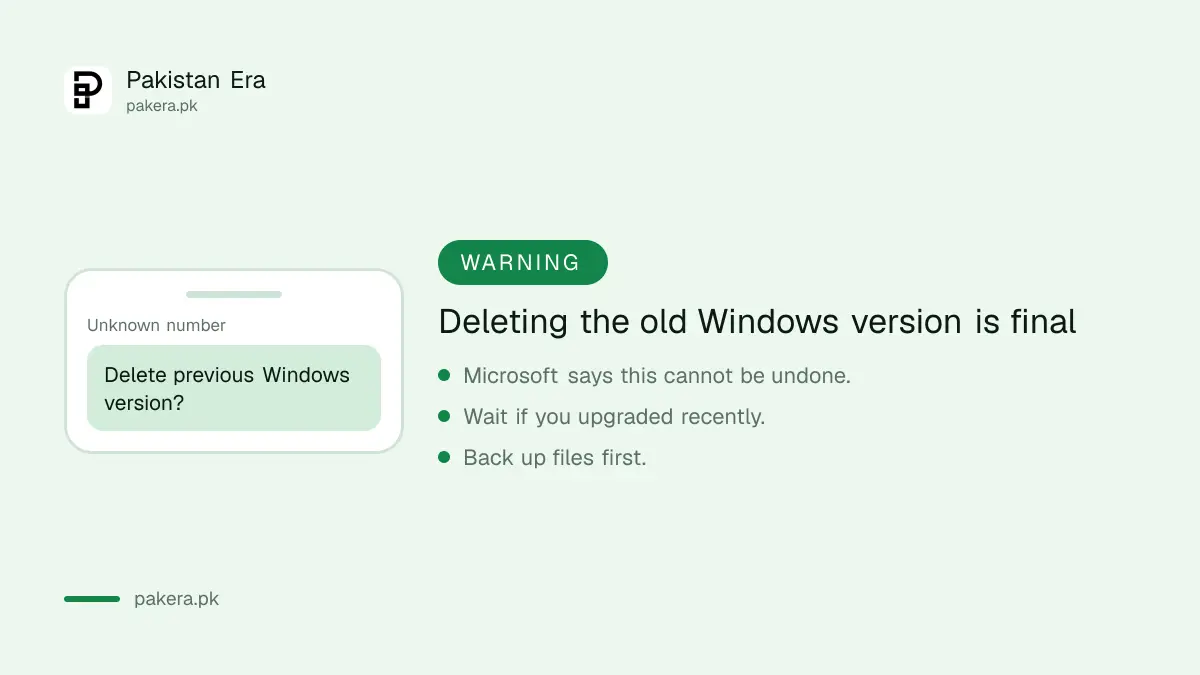
Microsoft gives one clear warning. If it is fewer than 10 days since you upgraded Windows, the previous Windows version is stored on the drive, and you can delete it. After that you cannot go back to the old version. If you upgraded recently and are not sure the new one works well, leave it for now.
OneDrive can keep files online and free the drive
OneDrive Files On-Demand keeps a small placeholder on your laptop instead of the full file. The full file stays in your OneDrive account and downloads when you open it. This frees space but needs internet when you open those files.
Microsoft places the setting under Settings, then System, then Storage, then Advanced storage settings. Think about your internet before you use it. If you work offline or your connection drops often, keep your working files on the laptop and move only old ones.
A free Microsoft account comes with limited cloud space, so check what you have. The price list for extra space is in the page on Microsoft 365 prices in Pakistan. For phone photos you can use a similar approach, as shown in the guide to backing up photos and clearing space.
Uninstall apps you no longer use
Unused apps take space and often run in the background. Cleanup recommendations lists the ones you have not opened for a long time. Remove them one by one, and keep anything you are not sure about.
- Open Settings, then System, then Storage, then Cleanup recommendations.
- Open the Unused apps group.
- Tick the apps you are sure you no longer need.
- Click Clean up.
On Windows 10, the older route is to type "disk cleanup" in the taskbar search box, pick the drive and tick the file types to delete. Choose Clean up system files for a deeper clean. The same Windows.old warning applies. If your PC is on Windows 10, also read the page on free Windows 10 security updates in Pakistan.
Back up first and know when to stop
Deleting is permanent for large files that skip the Recycle Bin. Copy anything you cannot replace to an external drive or the cloud before a big clean. Stop when you have about 20 percent of the drive free; more cleaning gives little extra speed.
If the drive is still full after cleaning, the drive may simply be too small. The page on buying a laptop in Pakistan explains which storage size to pick. Also check that your battery and drive health are fine with the steps in the guide to checking laptop battery health.
Common questions
Is it safe to turn on Storage Sense?
Yes. Microsoft describes it as a tool that removes temporary files and Recycle Bin items you do not need. Check the Downloads folder setting first, so it does not clear files you meant to keep.
Where is Cleanup recommendations in Windows 11?
Open Settings, then System, then Storage, then Cleanup recommendations. It lists temporary files, large or unused files, cloud-synced files and unused apps with their sizes.
Can I get back the previous Windows version after deleting it?
No. Microsoft warns that deleting the previous Windows version cannot be undone. If it is under 10 days since your upgrade, wait until you are sure the new version works.
Does OneDrive Files On-Demand delete my files?
No. It keeps a small placeholder on the laptop, while the full file stays in your OneDrive account. You need internet to open a file that is online only.
Does Windows 10 have the same tools?
Windows 10 has Storage Sense and Disk Cleanup. Cleanup recommendations is a Windows 11 screen. Open Disk Cleanup by typing its name in the taskbar search box.
How we verified this
What we checked, where we read it, and what we could not confirm.
Last checked on 13 October 2026, Pakistan time. We read Microsoft's page on freeing up drive space in Windows. Microsoft gives no exact amount of free space needed for updates, so the 20 percent figure is our own rule of thumb, not Microsoft's. We did not run these steps on a laptop for this page.
About the author

Technology Journalist & Multimedia Producer
Ahmad Ali is a technology journalist and multimedia producer at Pakistan Era, joining the team in October 2026. He covers consumer technology and digital life for Pakistani readers, combining research with hands-on product testing.