See Saved Wi-Fi Password in Pakistan: iPhone, Android, Windows 11 and 10 (Every Method)
See a saved Wi-Fi password in the iPhone Passwords app, as a QR code in Android Wi-Fi settings, or under Properties in Windows 11. Steps for each device here.
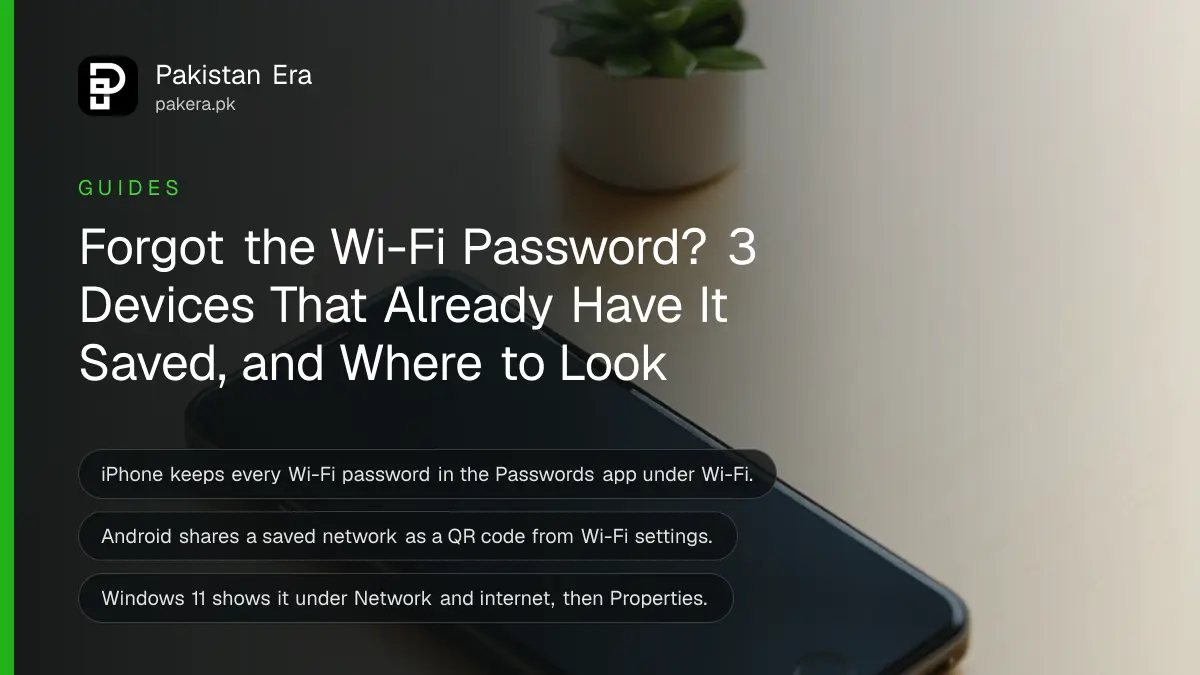
To see a saved Wi-Fi password, open the Passwords app on iPhone and tap Wi-Fi, go to Settings, Network and internet, Internet, your network, Share on Android, or open Network and internet, Properties and press Show next to the password on Windows 11. Each device keeps the password of every network it has joined, so you do not need the router or the internet company.
A guest asks for the Wi-Fi, the sticker on the router has faded, and the person who set it up two years ago has moved away. That is the usual story. We read Apple's, Google's and Microsoft's own help pages on 25 October 2026. Below are the steps for each device, the older Windows 10 route, and what to do when no device remembers the password.
Every phone and laptop that has joined the network can show its password
iPhone, Android and Windows all store the passwords of networks they have joined. You can read or share them from settings, as long as you can unlock the device. A device that never joined the network cannot show it.
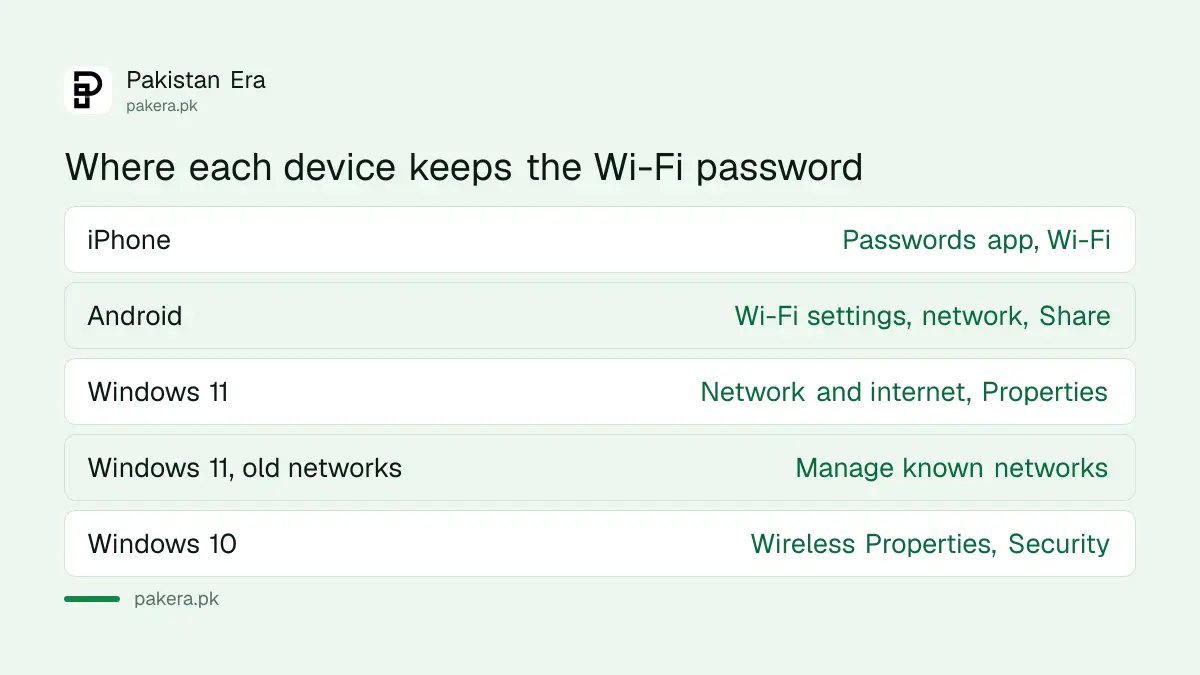
| Device | Where the password is | Shows text or QR |
|---|---|---|
| iPhone | Passwords app, Wi-Fi, network, Password | Text, plus a QR code |
| Android | Settings, Network and internet, Internet, network, Share | QR code |
| Windows 11 | Network and internet, Properties, Show | Text, plus a QR code |
| Windows 11, other saved networks | Manage known networks, network, Show | Text |
| Windows 10 | Network and Sharing Center, Wireless Properties, Security | Text |
iPhone keeps every Wi-Fi password in the Passwords app
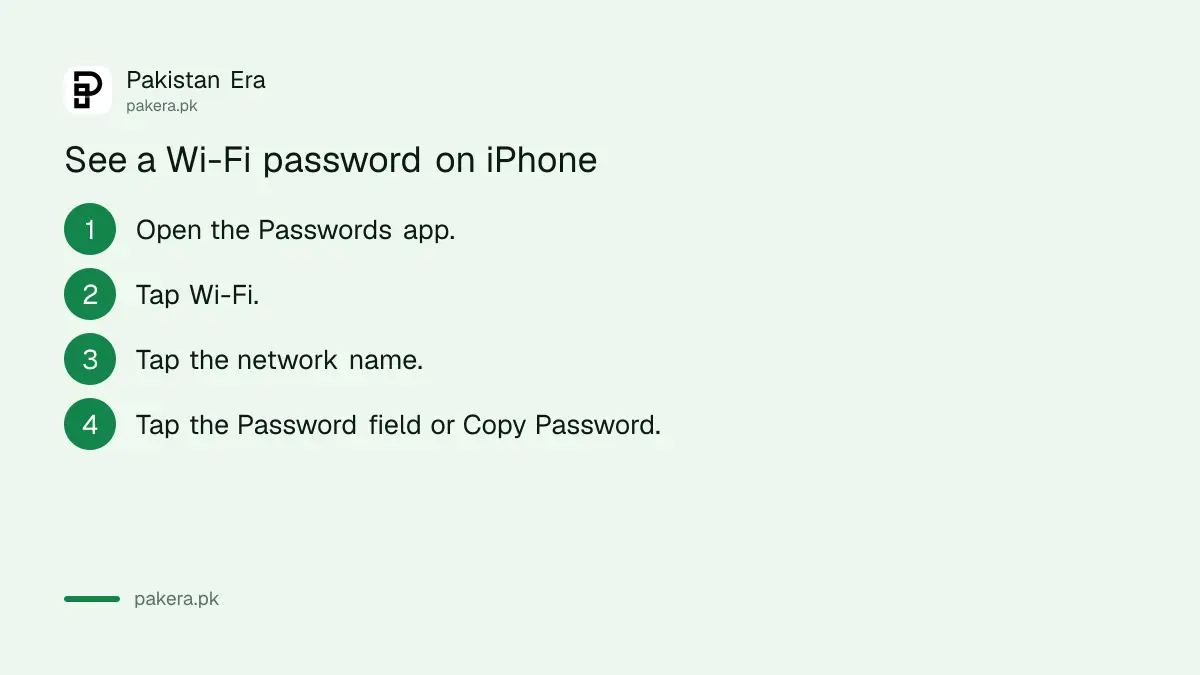
On iPhone, open the Passwords app and tap Wi-Fi. Your current network sits at the top and older saved networks are listed below. Tap a network, then tap the Password field to reveal it, or tap Copy Password.
- Open the Passwords app on your iPhone.
- Tap Wi-Fi. Tap the Back button first if you do not see the categories.
- Tap the network name.
- Tap the Password field to show it, then Copy Password if you need it elsewhere.
Apple also gives a quicker route for a family member. With your iPhone unlocked and on the network, they choose the network on their iPhone, iPad or Mac, and you tap Share Password when the message appears. Apple says both devices must be in Bluetooth and Wi-Fi range, not using Personal Hotspot, and saved in each other's contacts. For anyone else, tap Show Network QR Code and let them scan it.
Android shares the password as a QR code from Wi-Fi settings
On Android, open Settings, then Network and internet, then Internet. Tap your Wi-Fi network and tap Share. After you confirm your screen lock, the phone shows a QR code that another phone can scan with its camera to join.
Google says some of these steps work only on Android 12 and up, and menu names vary by brand. On a Samsung or Xiaomi phone, look for Connections or Wi-Fi in place of Network and internet, then the gear or arrow next to the network. Google's help page promises the QR code only. On some phones the password is also printed in text below it, which helps when the other device is a laptop.
If the code appears but no text, scan it with another phone. Most phone cameras read a Wi-Fi QR code and offer to join, and that is usually all the guest needed. Running a shop or a small office? A separate guest Wi-Fi with its own QR code keeps your main password private.
Windows 11 shows the password under Network and internet, Properties
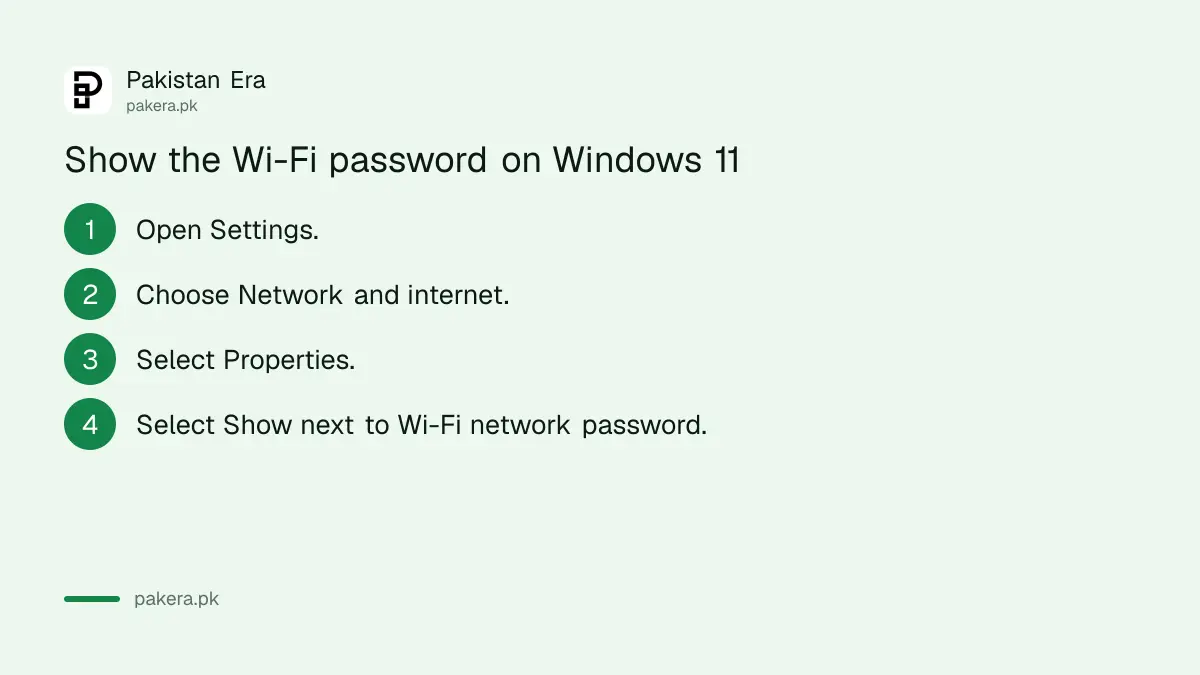
On Windows 11, open Settings, choose Network and internet, then Properties, and select Show next to Wi-Fi network password. For a network you are not connected to now, open Manage known networks, pick it, and select Show.
Microsoft says the same screen gives a QR code for phones that can scan one. That is the quickest way to put a laptop's saved network on a guest's phone.
Windows 10 uses the older route:
- Open Settings, then Network and Internet, then Status.
- Select Network and Sharing Center.
- Click your Wi-Fi network name.
- In Wi-Fi Status, select Wireless Properties.
- Open the Security tab and tick Show characters.
Microsoft says the password then appears in the Network security key box. People who manage several office PCs often use the command line instead: netsh wlan show profile name="NetworkName" key=clear in Command Prompt prints the saved key under Key Content. That command is not on Microsoft's help page, so treat it as an extra.
If no device remembers it, change the password on the router
When no phone or laptop has the password saved, log in to the router's admin page and set a new one, or press the reset button and use the default printed on the sticker. Every connected device will then need the new password.
The admin password and the Wi-Fi password are two different things. The admin login is usually on the router sticker. Each internet company's router has its own address and menu:
- PTCL Flash Fiber and DSL: changing a PTCL Wi-Fi password
- StormFiber: StormFiber router login and password change
- Any brand: securing the router admin password once you are in
A word on manners and the law. Read only the password of a network you own or are allowed to use. Viewing a password saved on your own device is fine; breaking into someone else's network is not.
Common questions
How can I see my Wi-Fi password on my phone?
On iPhone, open the Passwords app and tap Wi-Fi. On Android, open Wi-Fi settings, tap your network and tap Share to get a QR code.
Can I see the Wi-Fi password on Android without root?
Yes. The Share option in Wi-Fi settings needs only your screen lock, not root. It shows a QR code, and on some phones the text too.
How do I find the Wi-Fi password on Windows 11?
Open Settings, Network and internet, Properties, and select Show next to Wi-Fi network password.
Where is the Wi-Fi password on Windows 10?
Network and Sharing Center, your network, Wireless Properties, the Security tab, then tick Show characters.
Can I share Wi-Fi from iPhone to Android?
Yes. On iPhone open the network in the Passwords app or Wi-Fi settings and tap Show Network QR Code. The Android phone scans it with its camera.
What if I forgot the Wi-Fi password and no device remembers it?
Log in to the router's admin page and set a new password, or reset the router and use the default on its sticker.
How we verified this
What we checked, where we read it, and what we could not confirm.
Last checked 25 October 2026. We read Apple's find and share your Wi-Fi password page for iOS 27, Google's Android help on connecting to and sharing Wi-Fi networks, and Microsoft's connect to a Wi-Fi network in Windows page on that date. Menu paths come from those pages. The netsh command and the note that some Android phones show the password as text are not from those pages. We did not test every phone brand.
About the author

Technology Journalist & Multimedia Producer
Ahmad Ali is a technology journalist and multimedia producer at Pakistan Era, joining the team in October 2026. He covers consumer technology and digital life for Pakistani readers, combining research with hands-on product testing.