How to Change Your PTCL WiFi Password
Most guides give one router address and it fails for half of PTCL customers. Find the address your own router is using, then change the password.
You want to change your PTCL WiFi password. Every guide tells you to open 192.168.1.1. For a lot of readers, that page never loads.
The address is not wrong. It is just not yours. Here is how to find the one that is.
Why the guides disagree with each other
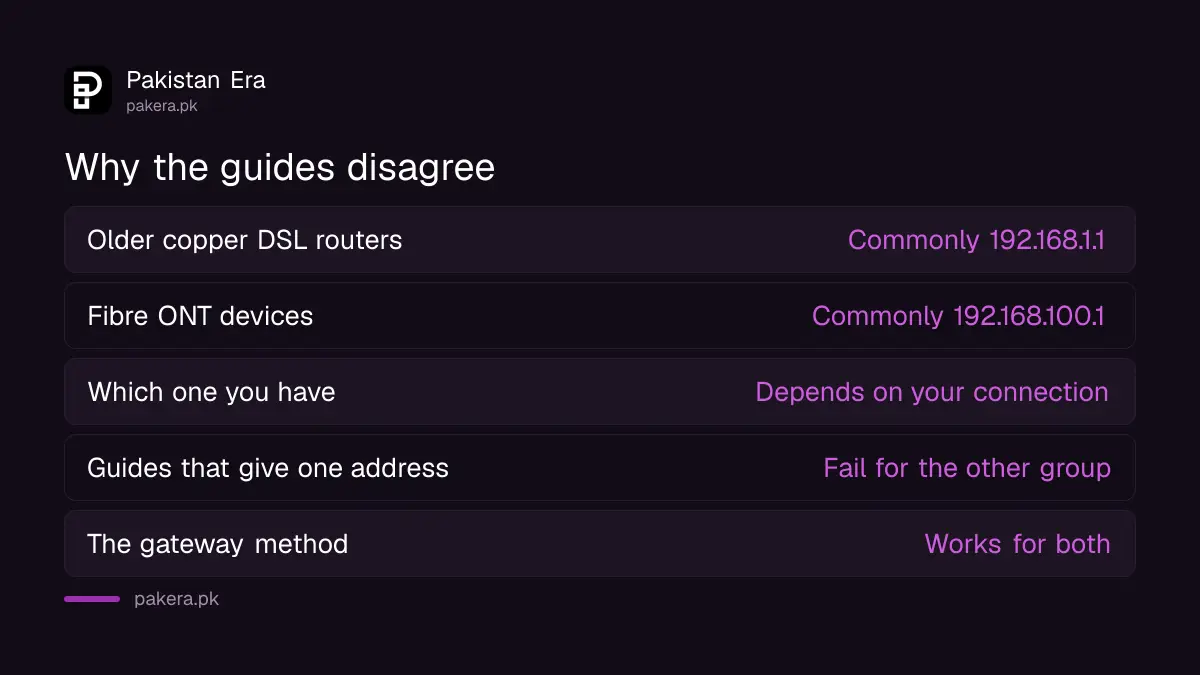
We checked the pages that rank for this on 13 August 2026. They do not agree, and both sides are partly right.
| Your equipment | Address commonly used |
|---|---|
| Older copper DSL router | 192.168.1.1 |
| Fibre optical network terminal | 192.168.100.1 |
| Some third party routers | 192.168.0.1 |
PTCL has not shipped one device for twenty years. A guide that names a single address works for whoever has that hardware and fails silently for everyone else, who then assume they did something wrong.
We are giving you the method instead of the list. It takes thirty seconds and it is right every time, on any connection.
Find your router's address
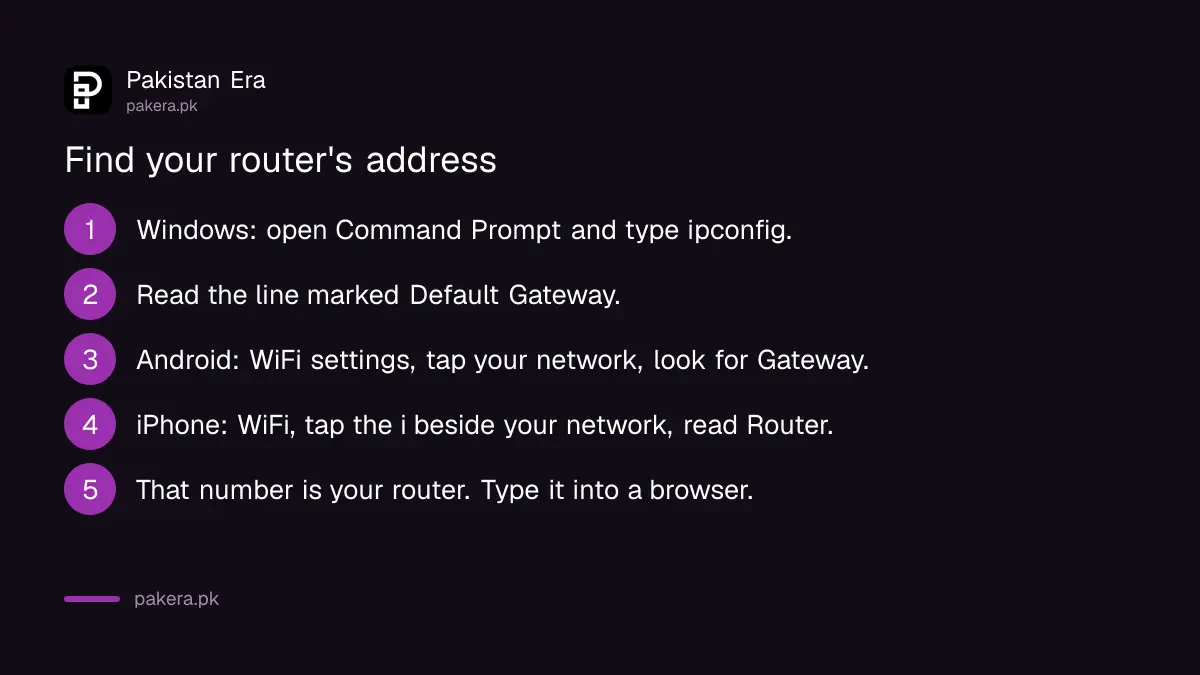
Your router's address is called the default gateway. Your device already knows it.
- On Windows. Press the Windows key, type cmd, open Command Prompt. Type ipconfig and press Enter. Find the line that says Default Gateway. The number beside it is your router.
- On Android. Open Settings, then WiFi. Tap the network you are connected to, then look for Gateway or Router under the advanced details.
- On iPhone. Open Settings, then WiFi. Tap the small i beside your network name. The number beside Router is the one you want.
- Type that number into a browser address bar and press Enter. Not a search box, the address bar.
If a login page appears, you are in the right place. If nothing loads, check that you are on the WiFi and not mobile data, because a router page is only reachable from the network itself.
Change the WiFi password
Once you are logged in, the wording differs by device but the shape is the same.
Find the wireless section. It will be called WLAN, Wireless, or WiFi Settings.
Find the password field. It is often labelled WPA PreSharedKey, Pre-Shared Key, or simply Password. Your network name sits near it, labelled SSID.
Enter a new password of at least eight characters, then apply or save.
Reconnect. Every device in the house drops off the moment you save, including the one you are using. That is normal. Reconnect with the new password.
If your router shows two networks, one marked 2.4G and one marked 5G, they have separate settings. Change both or you will spend a week wondering why one phone still connects on the old password.
The password you probably forgot to change
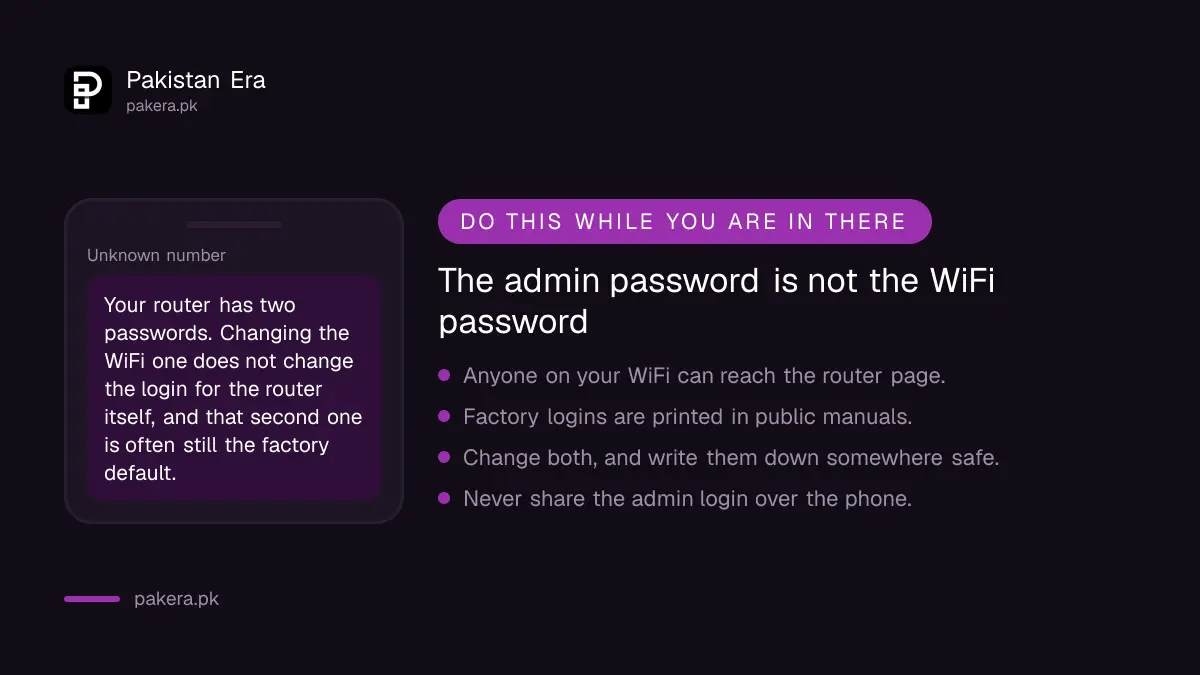
This is the part no guide mentions, and it matters more than the one you came for.
Your router has two separate passwords. One is the WiFi key, which people type to join the network. The other is the administrator login for the router's own settings page, the one you just used.
Changing the WiFi key does nothing to the administrator login. On a great many home routers, that second password is still whatever the factory set, and factory logins are printed in manuals anybody can download.
So think about what that means. Anyone who is on your WiFi, a guest, a neighbour who was given the key two years ago, a tenant who moved out, can open that same page and change your settings.
While you are logged in, look for a section called Administration, System, Management or Account, and change the login password there too. Then write both down somewhere you will actually find them.
What to do if you cannot get in
Three common situations, in order of how often they happen.
The login is rejected. Turn the router over. Most have a sticker with the factory login and often the factory WiFi key. If someone changed it and nobody remembers, a factory reset is the only way back, and that erases your connection settings too.
The page loads but nothing saves. Some routers restrict certain settings to the ISP's own account. That is a support call rather than something you can work around.
You are not sure which device you have. The model number is on the same sticker. It is worth knowing before you call, because the first thing you will be asked.
For anything tied to your account rather than your equipment, PTCL's support pages are the place to start. We could not read their FAQ answers, because that part of the site loads through script, so we are not quoting a PTCL instruction we did not see.
A note on router security
A weak WiFi password is not just a bandwidth problem. Someone on your network sits inside it, which is a different position from someone on the internet outside it.
Three habits are worth more than anything else. Use a password you have not used elsewhere. Change it when someone who had it no longer needs it. And do not read your administrator login out to anyone who phones claiming to be from your provider, because a real provider does not need it.
That last one is the pattern behind a lot of local fraud. We covered a version of it in the fake e-challan SMS scam, and a related account takeover route in WhatsApp accounts under review.
If your complaint is with the service rather than the hardware, the regulator's route is in our PTA telecom complaint guide. What PTCL's ownership change may mean is in the PTCL acquisition.
Questions readers are asking
What is the PTCL router login address?
There is no single one. Older DSL routers commonly use 192.168.1.1 and fibre devices commonly use 192.168.100.1. Read your default gateway to get yours.
How do I find my default gateway?
On Windows, type ipconfig in Command Prompt and read the Default Gateway line. On Android and iPhone it is in the WiFi details for your connected network.
What is the default username and password?
Check the sticker on the router itself. We are not publishing factory logins, and if yours is still on one, change it.
Why did all my devices disconnect?
That is expected. Saving a new WiFi password drops every device, including the one you used to make the change. Reconnect with the new password.
Do I need to change the 2.4G and 5G passwords separately?
On most routers, yes. They are separate networks with separate settings, and changing one leaves the other as it was.
Is the WiFi password the same as the router password?
No. The WiFi key joins the network. The administrator password opens the router's settings. They are different, and the second is often never changed.
What if the login page will not open at all?
Confirm you are on WiFi rather than mobile data, and that you typed the number in the address bar rather than a search box. A router page cannot be reached from outside the network.
About the author

Senior Writer, Public Services and Technology
Shahid joined us in 2024 as an author. He is a senior contributor to Pakistan's leading technology websites. He writes detailed articles, mostly covering his expertise in the latest tech, mobiles, apps, gadgets, and step-by-step guides. His ideology is to help people understand the latest trends and explain complex methods through very easy-to-understand guides.