TP-Link Router Login in Pakistan: tplinkwifi.net, 192.168.0.1 and Wi-Fi Password Change (Every Step)
Log in to a TP-Link router at tplinkwifi.net or 192.168.0.1, change the Wi-Fi and admin password, and reset it when locked out. Every step and fix for Pakistan.
To log in to a TP-Link router, connect to it and type tplinkwifi.net or 192.168.0.1 into your browser's address bar; a TP-Link DSL modem router uses tplinkmodem.net or 192.168.1.1 instead. Below are the steps to sign in, change the Wi-Fi password, change the admin password, and reset the router when you are locked out, plus the fixes when the login page will not open.
We followed TP-Link's own login guide and its Wi-Fi password, admin password and factory reset guides on TP-Link's Pakistan site, read on 28 October 2026. Menu names differ a little by model, so we give every path TP-Link lists.
TP-Link routers open on tplinkwifi.net or 192.168.0.1
Most TP-Link Wi-Fi routers, including Archer models, open on tplinkwifi.net or 192.168.0.1. TP-Link DSL modem routers, the ones a phone line plugs into, open on tplinkmodem.net or 192.168.1.1. You must be connected to the router first, but you do not need working internet.
| Your TP-Link device | Login address | Backup address | First login |
|---|---|---|---|
| Wi-Fi router (Archer, TL-WR) | tplinkwifi.net | 192.168.0.1, then 192.168.1.1 | Create an admin password, or admin and admin on older models |
| DSL modem router | tplinkmodem.net | 192.168.1.1 | Set an admin password, or admin and admin on older models |
| Router linked to a TP-Link ID | tplinkwifi.net | 192.168.0.1 | Sign in with your TP-Link ID email and password |
| Phone instead of a browser | TP-Link Tether app | Not needed | Same admin password |
The bottom label of your router also prints its default login address, Wi-Fi name and Wi-Fi password. If you have never changed them, that label is all you need.
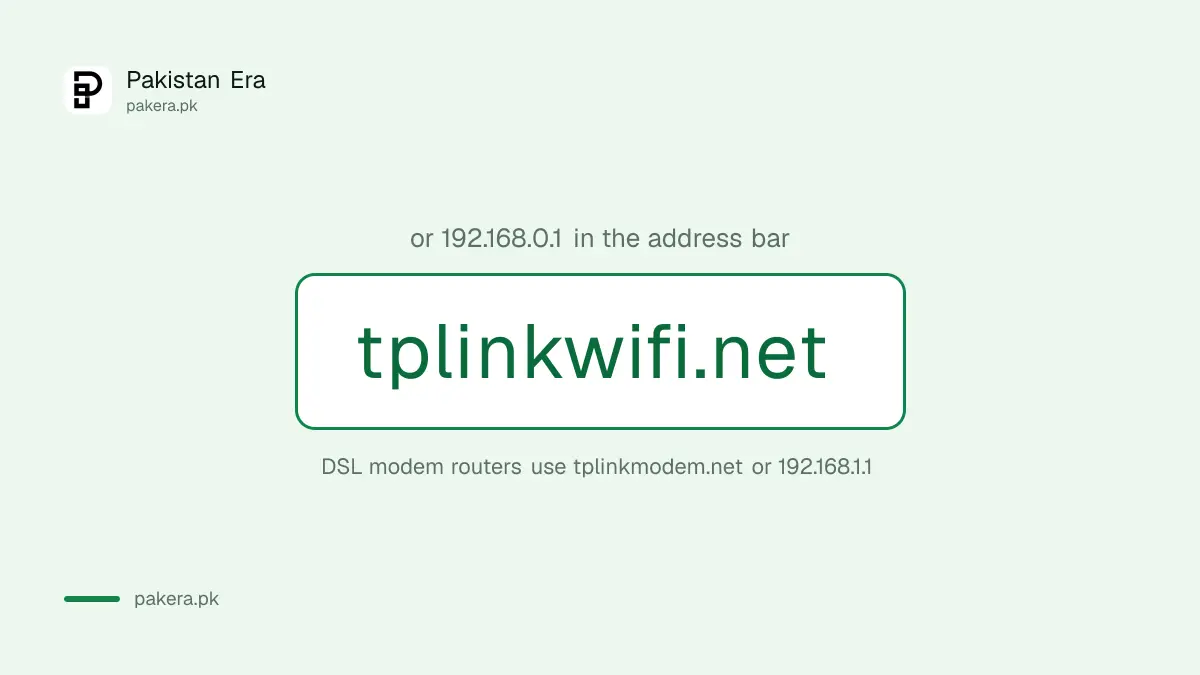
How to log in to a TP-Link router, step by step
Connect to the router by Wi-Fi or cable, open Chrome, Firefox or Edge, type tplinkwifi.net in the address bar, pass the privacy warning if it appears, and enter your admin password. TP-Link says to type the address in the address bar, not the search box.
- Join the router's Wi-Fi, or plug a laptop into a LAN port with a cable.
- Open Chrome, Firefox or Edge. TP-Link says older browsers can fail.
- Type tplinkwifi.net or 192.168.0.1 in the address bar and press Enter.
- If you see "Your connection isn't private", select Advanced, then Proceed.
- Enter your admin password, or create one on first login.
- If the router is linked to a TP-Link ID, switch to that login and use it.
That privacy warning scares people, but TP-Link explains it: the router uses a self-signed certificate, so the browser cannot vouch for it. TP-Link says the connection is still secure. The warning only matters on a page you did not expect, so never pass it on a bank or wallet site.
Change your TP-Link Wi-Fi password in the wireless settings
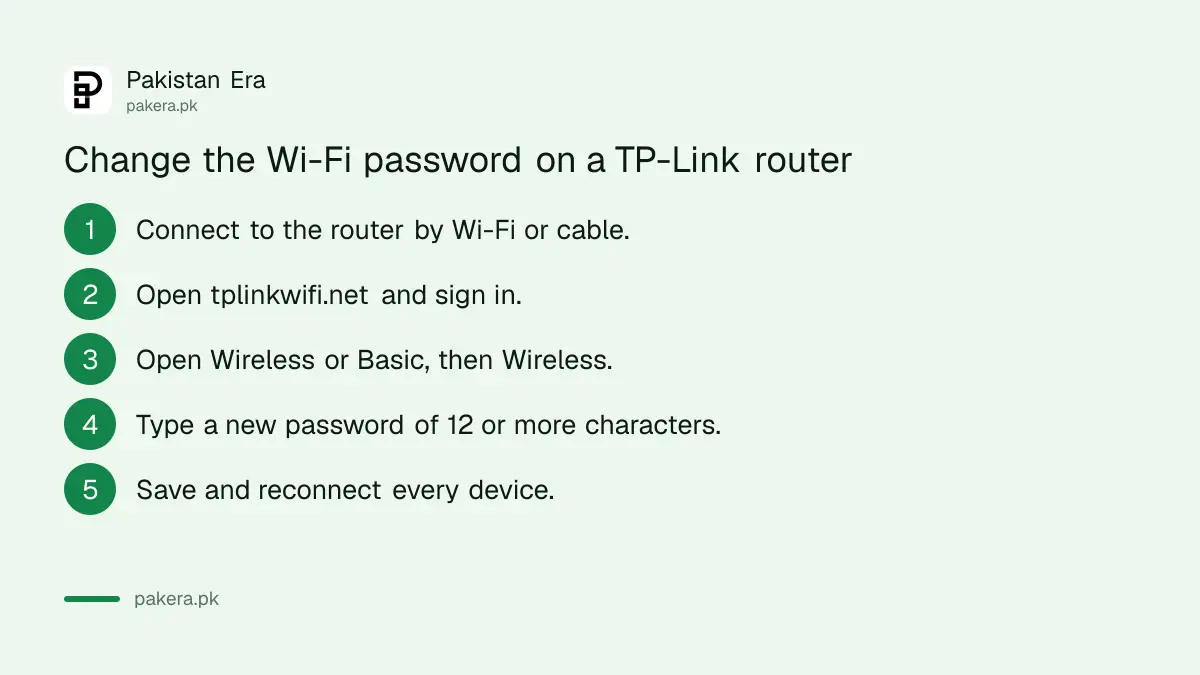
After logging in, open Wireless, then Wireless Settings, or Basic, then Wireless, depending on your model. Type the new Wi-Fi password, save, and reconnect every phone and laptop with it. Older models keep the password on a separate Wireless Security page.
TP-Link lists three menu layouts:
- Wireless, then Wireless Settings, which shows the password directly.
- Basic, then Wireless, where you change both the network name and password.
- Basic Settings for the name and Wireless Security for the password, on some older models.
TP-Link suggests a password of at least 12 characters mixing letters, numbers and symbols. That is sensible advice in a crowded apartment block, where a short password gets shared fast. For a fuller lock-down, including WPA3 and a strong admin password, follow the steps to secure a home Wi-Fi router.
The admin password is separate from the Wi-Fi password
The admin password opens the router's settings page. The Wi-Fi password lets devices join the network. To change the admin password, go to Advanced, then System, then Administration, enter the current password, set a new one and save. You need the current password to do this.
On the Tether app, TP-Link gives the path More, then System, then Manage Password, or Tools, then System, then Login Account. If you have forgotten the current admin password, TP-Link offers two ways back: Password Recovery through a linked TP-Link ID, or a factory reset.
If your router still opens with admin as the password, change it today. Anyone on your Wi-Fi who knows that default can otherwise open the settings and change everything.
Reset a TP-Link router when you are locked out
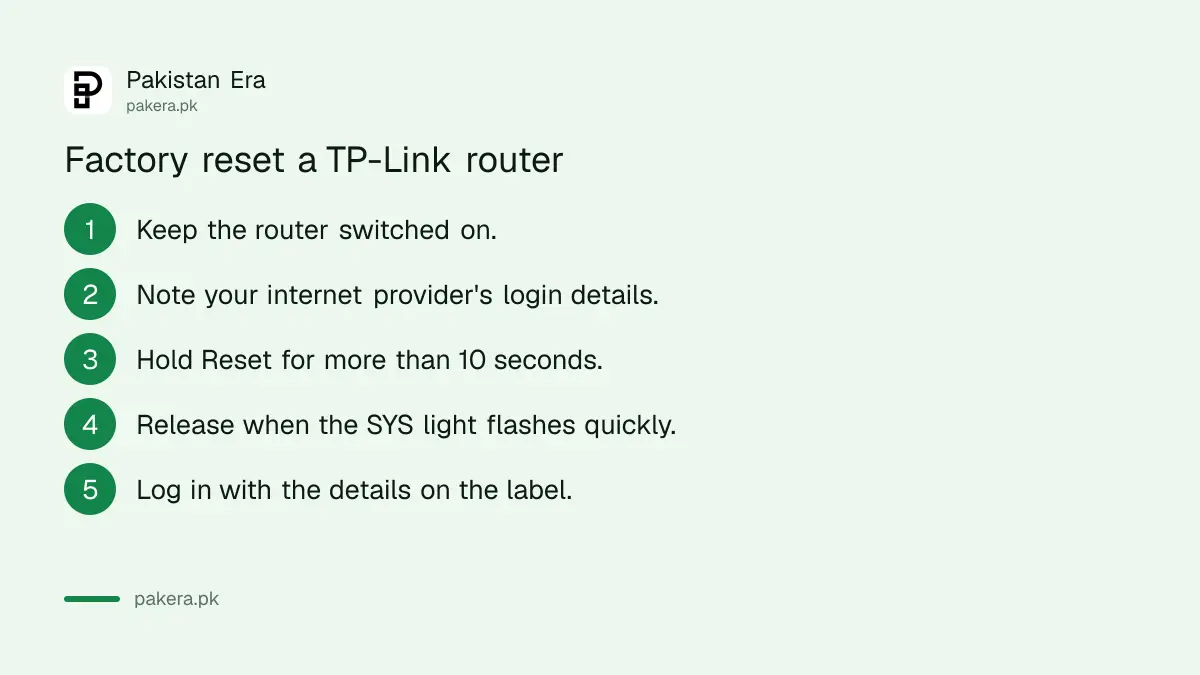
With the router switched on, press and hold the Reset or WPS/Reset button for more than 10 seconds, until the SYS light changes from a slow flash to a quick flash. The router restarts with the default name, password and login printed on its label.
Read this before you press anything. A reset erases all your settings, including the internet connection settings. If your internet provider set the router up with a username and password for the connection, you will need those again, so ask the provider first. TP-Link also suggests backing up the configuration file from the settings page if you can still log in.
On a combined WPS/Reset button, a press under 5 seconds starts WPS pairing instead. Hold it longer. If the router came from your provider rather than a shop, their steps may differ, such as those to change a PTCL Wi-Fi password.
When tplinkwifi.net will not open
Try 192.168.0.1 or 192.168.1.1 instead, switch off any VPN or proxy, connect with a cable, try another browser or device, and clear the browser cache. TP-Link lists these six fixes in order. Most failures come from not being connected to the router itself.
A phone on mobile data cannot reach the page, because tplinkwifi.net only works inside your own network. Turn off mobile data, join the TP-Link Wi-Fi, and try again.
If a Windows laptop shows "connected, no internet" after you change the password, the router may be fine and the laptop at fault. A Windows network reset often clears that.
Common questions
What is the default TP-Link router password?
Newer models ask you to create one on first login. Older models use admin as both the username and password. The Wi-Fi password is on the bottom label.
Is tplinkwifi.net the same as 192.168.0.1?
Yes, on most TP-Link Wi-Fi routers both open the same login page. Use the IP address if the name will not load.
How do I see my TP-Link Wi-Fi password?
Log in and open Wireless Settings, or Basic, then Wireless. If you never changed it, read the router's bottom label.
Will a reset delete my internet settings?
Yes. A factory reset erases everything, including the internet connection settings, so you may need your provider's details again.
Can I manage a TP-Link router from my phone?
Yes, with the TP-Link Tether app, which uses the same admin password as the browser login.
How we verified this
What we checked, where we read it, and what we could not confirm.
Last checked 28 October 2026. We read TP-Link's Pakistan support FAQs on router login (FAQ 87), DSL modem router login (FAQ 114), finding the Wi-Fi password (FAQ 399), changing the admin password (FAQ 73) and factory reset (FAQ 497) at tp-link.com/pk/support. We did not test a TP-Link router ourselves. Menu names vary by model and firmware, so follow your router's label and user guide where they differ.
About the author

Global Affairs & Political Economy Writer
Muhammad Hatim is a book lover who started writing because he enjoys it. At Pakistan Era he writes about international relations, geopolitics and the global economy, with a particular interest in South Asia and the forces behind current events.