Huawei Router Login in Pakistan: 192.168.3.1, 192.168.8.1 and Wi-Fi Password Change (Every Model)
Log in to a Huawei router at 192.168.3.1, or 192.168.8.1 on a Mobile WiFi, then change the Wi-Fi password in My Wi-Fi. Plus login password, blocking and reset.
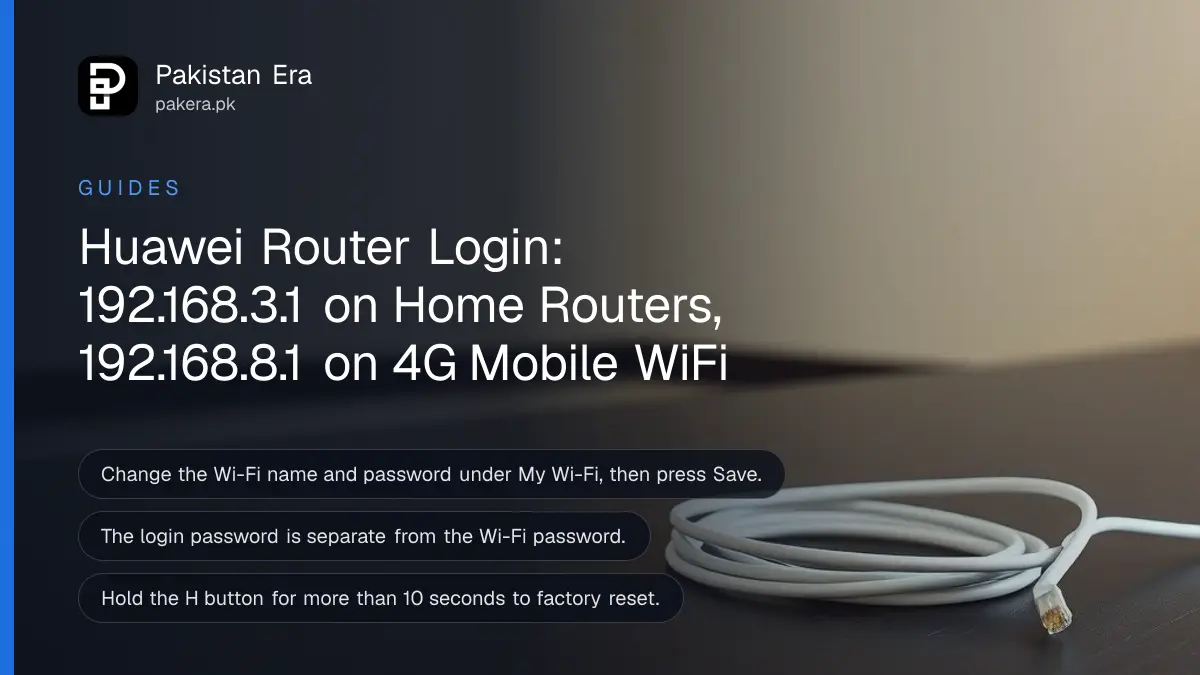
To log in to a Huawei Wi-Fi router in Pakistan, connect to its Wi-Fi and open 192.168.3.1 in a browser. A Huawei 4G pocket device (Mobile WiFi) uses 192.168.8.1 instead. Then open My Wi-Fi to change the Wi-Fi name and password, and press Save. If neither address opens, read the label under the device: Huawei says carrier-customised units can use a different address and password.
Below you will find every address, the menu path for each kind of Huawei device, how to change the separate login password, how to block a neighbour who already has your password, and what to do when you are locked out. We read Huawei's own support pages on 31 October 2026 for every step.
Huawei uses 192.168.3.1 on home routers and 192.168.8.1 on Mobile WiFi
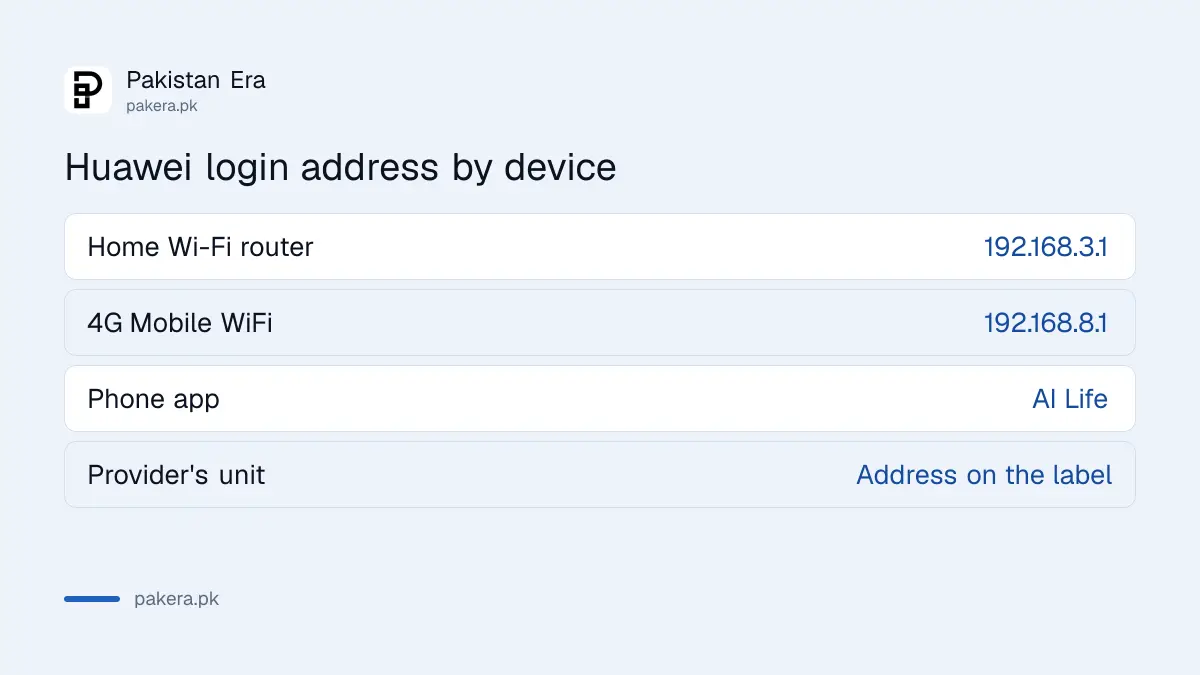
Huawei's home Wi-Fi routers open their settings page at 192.168.3.1. Its 4G Mobile WiFi devices open at 192.168.8.1. Units supplied by an internet company can use a custom address, so the label under the device has the final word.
| Huawei device | Login address | Where to change Wi-Fi password | Login password menu |
|---|---|---|---|
| Home Wi-Fi router (AX and similar) | 192.168.3.1 | My Wi-Fi | More Functions > System Settings > Change Login Password |
| Mobile WiFi (4G pocket device) | 192.168.8.1 | Wi-Fi Settings > Wi-Fi Basic Settings | Advanced > System > Modify Password |
| Router managed by phone | AI Life app | Show more > Wi-Fi management > Wi-Fi | Not described by Huawei |
| Unit from your internet company | Printed on the label | Ask the company if the page is locked | Printed on the label |
Fibre boxes installed by Pakistani providers are a separate case. They are often set up by the company, and some providers give their own steps. If your box came from Optix, the Optix Wi-Fi password change at 192.168.100.1 has the default usernames. PTCL users can follow the steps to change a PTCL Wi-Fi password.
Change the Wi-Fi password in My Wi-Fi and press Save
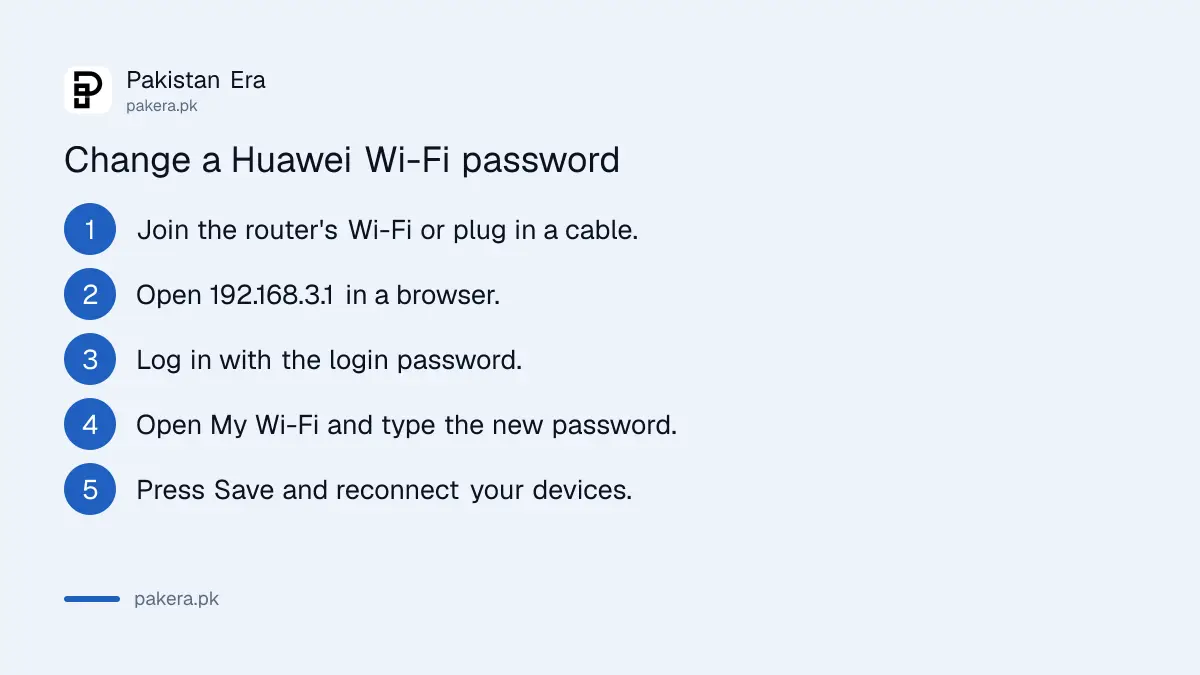
Connect to the router, open 192.168.3.1, log in, then open My Wi-Fi. Type a new name in the Wi-Fi network name box and a new password in the Wi-Fi network password box. Press Save, and every device must reconnect.
- Join the router's Wi-Fi on your phone or laptop, or plug a laptop into a LAN port with a cable.
- Type 192.168.3.1 into the browser's address bar. Use the address on the label if this one does not load.
- Enter the login password. This is not the Wi-Fi password.
- Open My Wi-Fi.
- Type the new Wi-Fi name and the new Wi-Fi password.
- Press Save, then join the network again with the new password.
On a dual-band router, Huawei's page shows a switch called Prioritize 5 GHz. Turn it off and you can give the 2.4 GHz and 5 GHz networks different names and passwords. That helps when an old printer or a smart TV only sees 2.4 GHz.
Prefer the phone? In the AI Life app, tap your router, then Show more, Wi-Fi management and Wi-Fi. Type the new name and password and tap the tick at the top right.
On a Huawei Mobile WiFi, open 192.168.8.1 in desktop view
Join the pocket device's Wi-Fi, open 192.168.8.1 and log in. Go to Wi-Fi Settings, then Wi-Fi Basic Settings, to see or change the name and password. On a phone, switch the browser to its desktop version first.
Huawei suggests a Wi-Fi password of at least 8 characters with both capital and small letters, changed from time to time. The default login password is printed on the nameplate on the bottom of the device. Carrier versions can differ, so check the label or ask the company that sold it.
If 192.168.8.1 does not load, first make sure your phone is joined to the pocket device's own Wi-Fi and not to home Wi-Fi. Then try the address printed on the nameplate, because Huawei says some carriers use their own.
The login password is separate, change it after the Wi-Fi password
The login password protects the settings page, not the Wi-Fi. Change it on a home router under More Functions, System Settings, Change Login Password. On a Mobile WiFi it sits under Advanced, System, Modify Password.
We think this step matters more than the Wi-Fi password itself. Anyone on your network who knows a default login password can change the Wi-Fi password and lock you out. The wider checks, including firmware and WPA3, are in our steps to secure a home Wi-Fi router.
If somebody is already using your connection, you do not have to wait. On the web page, open Manage Device and turn off the Internet Access switch next to their device. In the AI Life app, open Connected devices and turn off the Allow switch.
Forgot the password? A factory reset brings back the label details
If you cannot log in, reset the router. Hold the H, Hi or WPS button for more than 10 seconds until the light goes off, or press the reset hole with a pin. All settings are erased, so you must set the router up again.
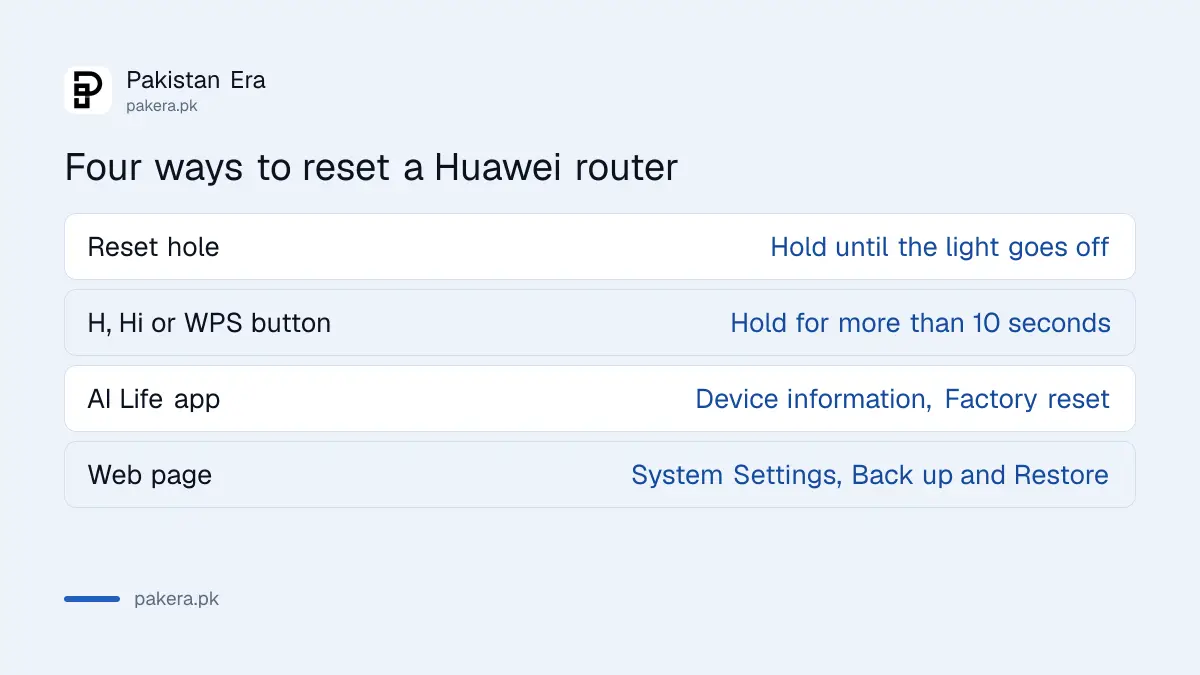
Huawei lists four ways to reset: the reset hole, the H or Hi button, the AI Life app, and the web page under More Functions, System Settings, Back up and Restore, Factory Reset. The Wi-Fi name and password survive only if you had turned on the option to retain network settings before the reset.
Do not reset a box your internet company configured unless you have its account details. A reset can wipe the settings that connect it to the provider, and then only the company can bring the line back. If that happens, the helplines are in the home internet outage checks.
Forgot only the Wi-Fi password, not the login? Skip the reset. Any laptop or phone still connected can show it through the steps to see a saved Wi-Fi password.
Common questions
What is the default IP for a Huawei router?
Huawei's home routers use 192.168.3.1. Its Mobile WiFi devices use 192.168.8.1. Carrier units can differ, so check the label under the device.
What is the default Huawei router password?
Huawei prints the default login password on the nameplate under the device. It does not publish one password for every model.
Why does 192.168.3.1 not open?
You may not be connected to that router, or it may use a custom address. Join its Wi-Fi or plug in a cable, then try the address on the label.
Can I change the Huawei Wi-Fi password from my phone?
Yes. Use the AI Life app, or open the router's address in the phone browser and switch the browser to desktop view.
Will a reset delete my Wi-Fi name and password?
Yes, unless you had turned on the option to retain network settings before the reset. Huawei says a second reset clears even those.
How we verified this
What we checked, where we read it, and what we could not confirm.
Last checked 31 October 2026. We read Huawei's support pages on changing a router's Wi-Fi name and password, changing a Mobile WiFi password at 192.168.8.1, managing connected devices, changing the login password and the four factory reset methods, all at consumer.huawei.com on 31 October 2026. We did not test a Huawei router ourselves, and we could not confirm the address used on fibre boxes supplied by individual Pakistani providers, so check the label on yours.
About the author

Technology Journalist & Multimedia Producer
Ahmad Ali is a technology journalist and multimedia producer at Pakistan Era, joining the team in October 2026. He covers consumer technology and digital life for Pakistani readers, combining research with hands-on product testing.