How to Undo Send and Schedule Send in Gmail, Free, in Pakistan
Stop a wrong Gmail message before it lands: set Undo Send to 30 seconds and learn how Schedule send, the 100 email limit and Cancel send work. Set it up today.
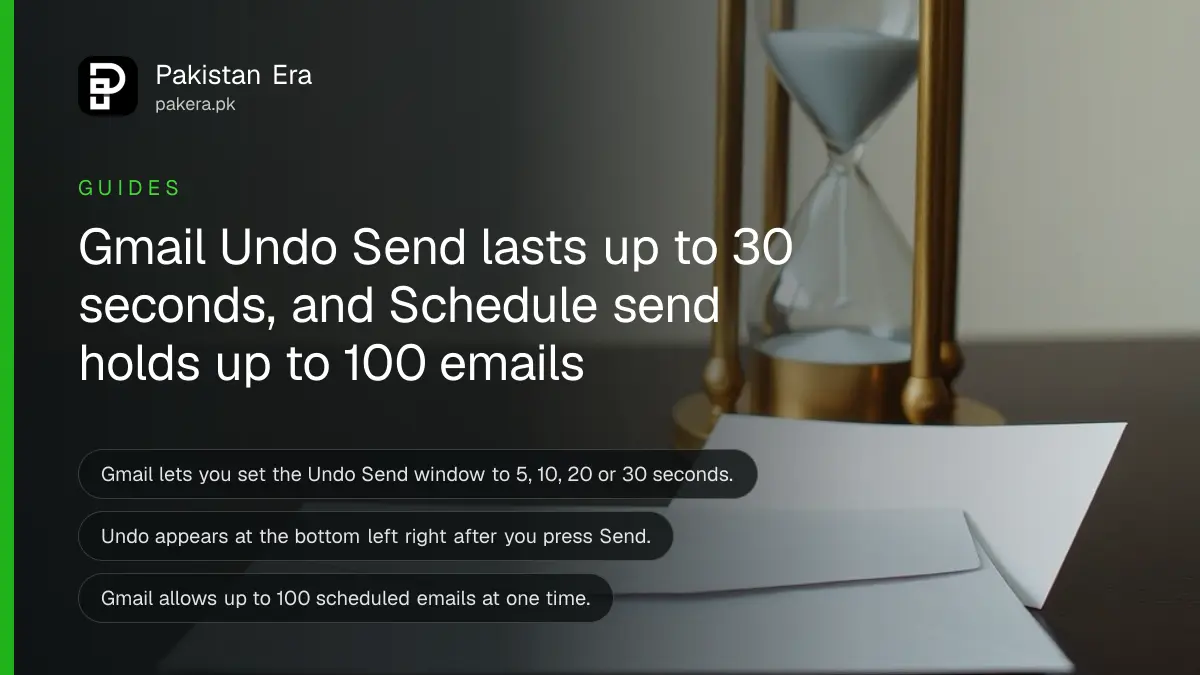
Short answer: Right after you press Send in Gmail on a computer, a "Message sent" box appears at the bottom left with an Undo button. Click it before it disappears. To get more time, open Settings, choose See all settings and set Undo Send to 5, 10, 20 or 30 seconds.
Most of us have sent the wrong attachment, or an email to the wrong "Ahmed", and felt our stomach drop. Gmail gives you a short window to take it back. The default window is small, and many people never change it.
We read two Gmail Help pages on 11 October 2026: "Send or unsend Gmail messages" and "Schedule emails to send" (the iPhone and iPad version). We did not send test messages for this guide, so everything below is what Google's pages say.
Undo Send works only in a short window after you press Send
Google says you have a short time after sending to cancel an email. When that time passes, the Undo button goes away. The only control you have is how long that window lasts.
Google's page says that right after you send a message, you will see "Message sent" in the bottom left with the options "Undo" or "View message". Click Undo and the message comes back to the compose box. You can fix the mistake and send again.
| Setting | What Google's page says |
|---|---|
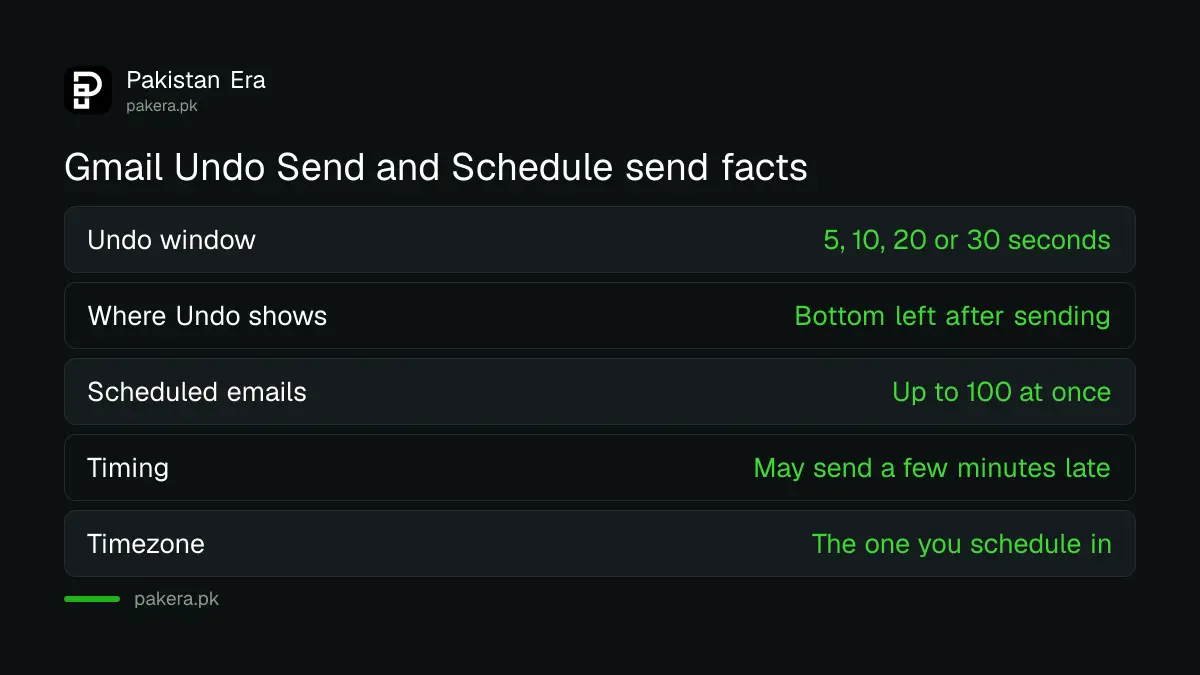
| Where Undo appears | Bottom left, "Message sent" with Undo or View message |
| Cancellation period options | 5, 10, 20 or 30 seconds |
| Where to change it | Settings, See all settings, Undo Send, then Save changes |
| Scheduled emails at one time | Up to 100 |
| Scheduled send timing | May go a few minutes after the chosen time |
Set the Undo Send window to 30 seconds
Open Gmail on a computer, click the Settings gear at the top right, choose See all settings, and find Undo Send. Pick 30 seconds from the Send cancellation period list. Click Save changes at the bottom. Without that last click, the setting does not stick.
- On your computer, go to Gmail at mail.google.com.
- At the top right, click Settings, then See all settings.
- Next to "Undo Send", select 5, 10, 20 or 30 seconds.
- At the bottom, click Save changes.
Thirty seconds is the longest Google offers, so it gives you the most time to catch a mistake.
The page also tells you what to check if a message seems late. Look in your Sent and Drafts folders. Ask the recipient to check Junk or Spam. Wait a few hours to see if a delivery error message arrives.
Schedule send holds an email until the time you choose
Schedule send lets you write an email now and have Gmail send it later. On the iPhone and iPad app, tap Compose, write the email, tap the More menu at the top right, choose Schedule send and pick a time. It is useful when you write at night but want the email to land in office hours.
Google's page lists a few limits that matter:
- You can have up to 100 scheduled emails at one time.
- Scheduled emails may be sent a few minutes after the scheduled time.
- Emails go out based on the timezone you schedule them in.
The timezone point is easy to miss. If you travel from Karachi to Dubai or London and schedule an email there, Gmail uses the timezone you scheduled in. Check the time shown before you confirm.
The iPhone page says separate instructions exist for Android and desktop. We did not read the desktop page in full, so open Gmail's menu and look for the scheduling option on your device.
Cancel or edit a scheduled email before it leaves
To change a scheduled email, open the Gmail menu and tap Scheduled. Select the email and tap Cancel send. Gmail turns it into a draft. Edit it, then schedule it again with the same steps. This is the safest way to fix a typo in an email you queued days ago.
- Open the Gmail app and tap the Menu.
- Tap Scheduled.
- Select the email, then tap Cancel send.
- Edit the draft, then use Schedule send again.
For a business or a student, one habit helps: before a big email, such as a job application or a fee query to a university, schedule it, then reopen the Scheduled folder once and read it again.
Gmail still cannot recall mail sent from other apps
Google's page notes that if you sent from an email client such as Apple Mail or Outlook and a message was delayed, you should send it from the Gmail app or mail.google.com. The Undo window belongs to Gmail itself, so do not count on it in another mail program.
If the wrong person already received something private, Undo cannot help. Change any password you shared. If the email was a Google Account credential or a one time code, secure the account at once with two-step verification. If you are locked out, see Gmail account recovery.
Keep your account tidy while you are in settings. Signing out devices you do not use is covered in signing out unknown devices and linked apps, and a Google Account passkey makes it harder for someone else to send mail as you.
Common questions
How long do I have to unsend an email in Gmail?
You choose 5, 10, 20 or 30 seconds in Settings under Undo Send, according to Google's help page.
Where is the Undo button in Gmail?
It appears at the bottom left right after you send, in a "Message sent" box with Undo and View message.
How many emails can I schedule in Gmail?
Up to 100 scheduled emails at one time, per Google's Schedule emails page.
Will a scheduled email go out exactly on time?
Not always. Google says scheduled emails may be sent a few minutes after the scheduled time.
Can I cancel a scheduled email?
Yes. Open Menu, tap Scheduled, select the email and tap Cancel send. It becomes a draft.
Can I undo an email after the window closes?
No. Google's page describes Undo only for a short time right after sending, so use a longer window or Schedule send for important mail.
How we verified this
What we checked, where we read it, and what we could not confirm.
Last checked on 11 October 2026 against Google's Gmail Help pages Send or unsend Gmail messages and Schedule emails to send. We read the iPhone and iPad version of the schedule page. Menu wording can change.
About the author

Technology Journalist & Multimedia Producer
Ahmad Ali is a technology journalist and multimedia producer at Pakistan Era, joining the team in October 2026. He covers consumer technology and digital life for Pakistani readers, combining research with hands-on product testing.