Zong Internet Settings: APN for Android and iPhone, SMS 2161 and the 4G Fix
Zong internet settings from Zong's guide: APN zonginternet for Android and iPhone, free settings by SMS to 2161, the 4G steps and five fixes when data fails.
Zong's internet settings for Android and iPhone are APN "zonginternet", with authentication set to None and APN type "default", according to Zong's own settings guide. You can also get the settings sent to you by texting "all" to 2161 for free, or call 310 and let Zong's staff set the phone up.
Most "no internet" problems on a new Zong SIM come down to one of four things: a wrong APN, the SIM in the wrong slot, 4G switched off, or no data bundle. Below are all three of Zong's setting methods, the 4G steps from Zong's own page, and what to try when the internet still does not work. We read Zong's pages on 31 October 2026.
The Zong APN is zonginternet for both Android and iPhone
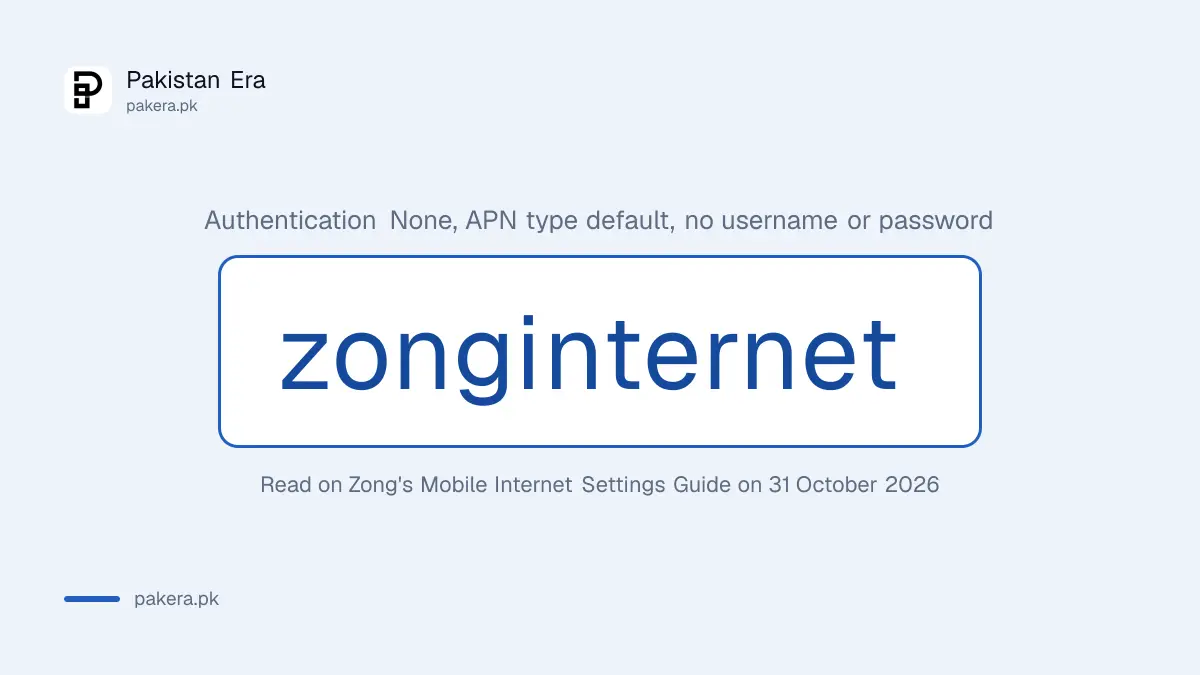
Zong's Mobile Internet Settings Guide lists one set of values for Android and iPhone. Type them exactly as shown, in small letters, and leave the username and password empty. Most phones fill in the other fields by themselves once you save.
| Field | Value from Zong |
|---|---|
| Name | Internet (any name you like works) |
| APN | zonginternet |
| Username | Leave empty |
| Password | Leave empty |
| Authentication type | None |
| APN type | default |
The same guide still prints an old WAP profile: APN "zongwap", gateway 10.81.6.33 and port 8000. That profile is for old WAP phones. On a modern smartphone, use zonginternet. We read both on Zong's guide; we did not test the WAP profile.
Send "all" to 2161 to get Zong internet settings by SMS
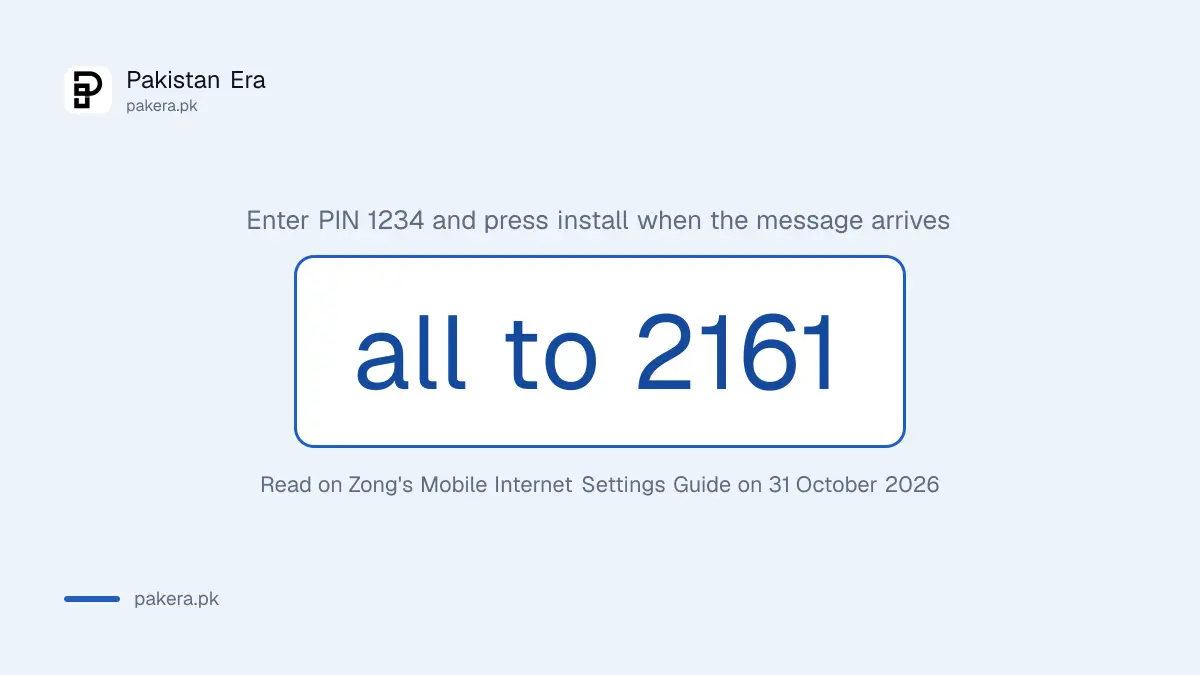
The quickest method is the settings SMS. Zong says the message is free. You get a configuration message, enter the PIN 1234 when the phone asks, and press install. The settings then save on their own.
- Open messages on the phone that holds your Zong SIM.
- Type "all" and send it to 2161.
- Wait for the settings message from Zong.
- Open it, enter PIN 1234 and press Install.
- Turn mobile data off and on, then open a website to test.
Many newer phones, and iPhones in general, do not accept these configuration messages. If nothing installs, use the manual method in the next section. That is not a fault with your SIM.
Add the APN by hand on Android or iPhone
On Android, the APN screen is inside the mobile network settings for the Zong SIM. On an iPhone, it is under mobile data settings. Menu names differ by brand and software version, so look for "Access Point Names" or "Mobile Data Network".
On Android, the usual path is Settings, then SIM cards or Mobile network, then the Zong SIM, then Access Point Names. Tap the plus sign or "Add", fill in the values from the table, save, and select the new profile. On a dual SIM phone, set the Zong SIM as the mobile data SIM.
On an iPhone, the usual path is Settings, then Mobile Data, then Mobile Data Network. Type zonginternet in the APN field under Mobile Data. If the field is missing, your phone may be using settings pushed by the network, and you can skip this step.
Turn on 4G with the steps from Zong's own page
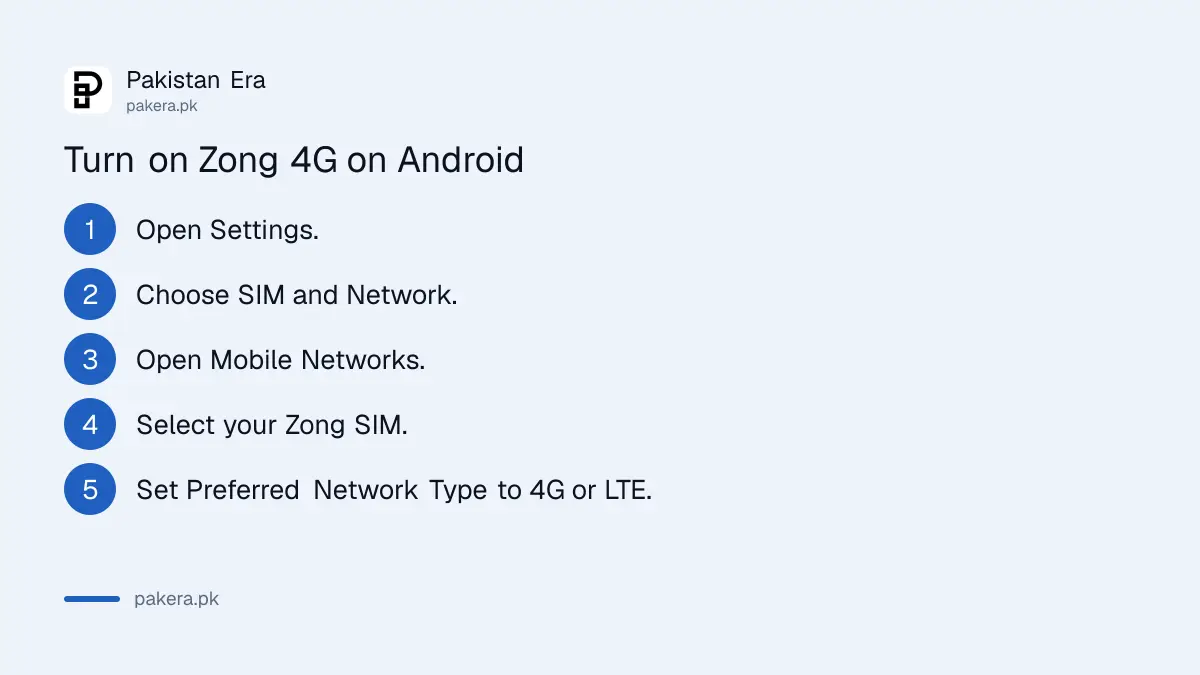
Zong's 4G SIM settings page gives a five step path on Android: Settings, SIM and Network, Mobile Networks, your Zong SIM, then Preferred Network Type set to 4G or LTE. On a 5G phone, pick the option that includes 5G.
The internet SIM page adds an important point. Zong says the SIM must sit in the slot that supports 3G, 4G or 5G. On some dual SIM phones, only one slot does. If the Zong SIM is in the other slot, the phone falls back to 2G and the internet will feel broken.
If your phone supports 5G and you are in a 5G area, the list of Zong 5G supported phones shows how to switch it on. To check whether the SIM itself is 4G, follow the steps to check a 4G SIM and VoLTE.
Internet still not working: check these five things
When the APN is right and internet still does not work, the cause is usually the bundle, the slot or the signal. Work through the list below in order. Each check takes under a minute and needs no visit to a franchise.
| Problem | What to check |
|---|---|
| No data at all | Mobile data is on and the Zong SIM is chosen for data |
| Data used up | Dial *102# to check remaining MBs (10 paisa plus tax) |
| Only E or H on the screen | SIM is in the 4G or 5G slot and 4G is selected |
| Wrong APN | APN reads zonginternet with no spaces or capitals |
| Still nothing | Restart the phone, then call 310 |
A new SIM may also have no bundle, so it uses balance at the standard rate. The Zong dial codes list has the balance and bundle codes. For signal and SIM faults, try the Zong SIM not working fixes.
If you set the APN on a Jazz SIM before, note the values differ by network. The Jazz internet settings use a different APN, so a copied profile will not work on Zong.
Call 310 if you want Zong to set it up for you
Zong's guide says you can dial 310 from your Zong number and staff will help configure the phone. This is the right choice for an older phone or if you do not want to touch settings. Keep the phone model name ready.
One warning. Zong staff will never ask for a verification code, a JazzCash or bank PIN, or your password to set up internet. If a caller asks for one, hang up. Internet settings need only the APN values on this page.
Common questions
What is the Zong APN?
The APN is zonginternet, with authentication None and APN type default, for both Android and iPhone.
How do I get Zong internet settings by SMS?
Send "all" to 2161. Zong says it is free. Enter PIN 1234 and press install when the message arrives.
Why does my Zong internet show E instead of 4G?
The SIM may be in a slot that does not support 4G, or the preferred network type may be set to 2G or 3G.
Do I need a username and password for the Zong APN?
No. Zong's guide leaves both empty.
Is zongwap the right APN?
Not for a smartphone. Zong's guide lists zongwap as the old WAP profile. Use zonginternet.
How do I check my Zong internet MBs?
Dial *102#. Zong charges 10 paisa plus tax for each check, or use the My Zong app.
How we verified this
What we checked, where we read it, and what we could not confirm.
Last checked 31 October 2026. We read Zong's Mobile Internet Settings Guide, its 4G SIM settings page, and the internet SIM usage page on zong.com.pk on 31 October 2026. The APN values, the 2161 SMS, the PIN 1234, the 310 helpline and the 4G steps come from those pages. The Android and iPhone menu paths are general and vary by phone. We did not set up a phone ourselves, so we could not confirm which handsets still accept the 2161 configuration message.
About the author

Technology Journalist & Multimedia Producer
Ahmad Ali is a technology journalist and multimedia producer at Pakistan Era, joining the team in October 2026. He covers consumer technology and digital life for Pakistani readers, combining research with hands-on product testing.