External Monitor Not Detected on Windows 11 in Pakistan: HDMI Fixes, Detect Button and Driver Reset
External monitor not detected on Windows 11? Press Windows + P, use Detect, check HDMI cables and ports, reset the graphics driver and fix USB-C display issues.
If your external monitor or HDMI screen is not detected on Windows 11, press Windows + P and choose Extend, then go to Settings > System > Display > Multiple displays and select Detect. If it is still blank, unplug docks and adapters, reseat or swap the cable, and press Windows + Ctrl + Shift + B to reset the graphics driver. Those are Microsoft's first steps, and the rest of its list follows below.
Below are Microsoft's checks in order for a first setup, for a second or third monitor, and for a setup that worked yesterday and stopped today, plus what changes over a USB-C cable. We read Microsoft's pages on troubleshooting external monitor connections, using multiple monitors and USB-C problems on 1 November 2026.
Press Windows + P and check Extend is selected
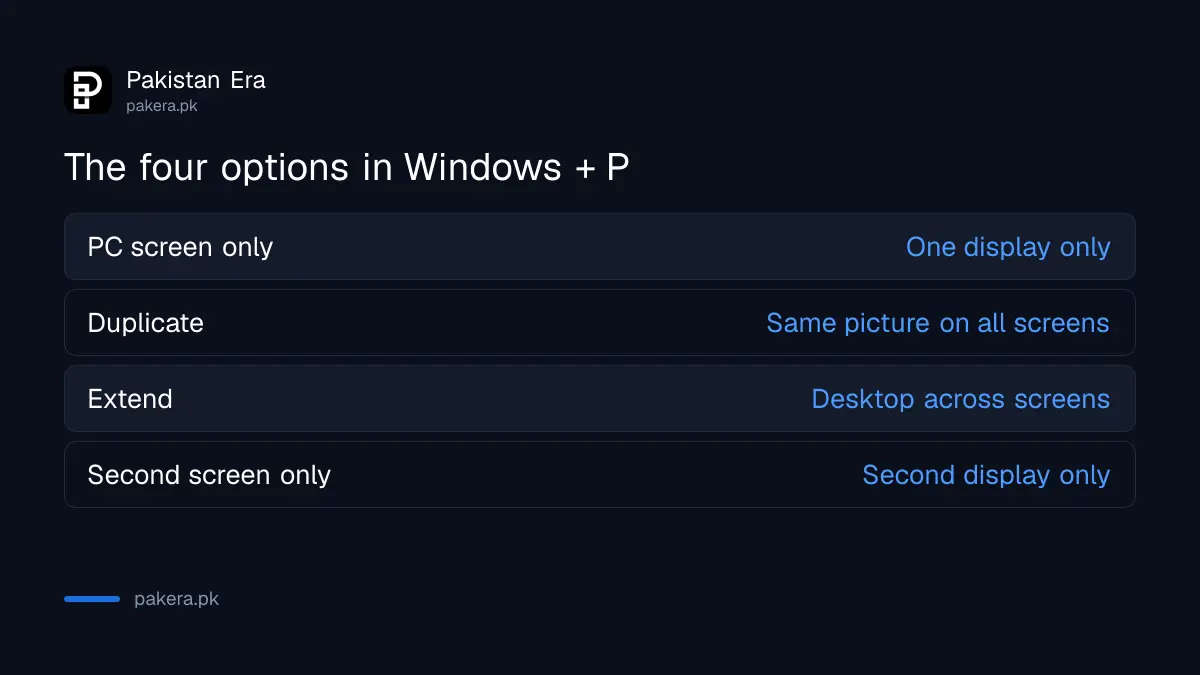
Microsoft's first step for a monitor that is not working is Windows logo key + P, to make sure Extend is selected. The same menu offers PC screen only, Duplicate and Second screen only. If PC screen only is chosen, the monitor stays dark.
| Option in Windows + P | What you see |
|---|---|
| PC screen only | Things on one display only |
| Duplicate | The same thing on all displays |
| Extend | The desktop across screens, with items movable between them |
| Second screen only | Everything on the second display only |
Next, make Windows look for the screen. Select Start, Settings, System, Display, then expand Multiple displays and select Detect. Microsoft says this is the step when a connected display is not showing in Settings. Select Identify to see which number belongs to which screen.
Cables, ports and adapters cause most blank screens
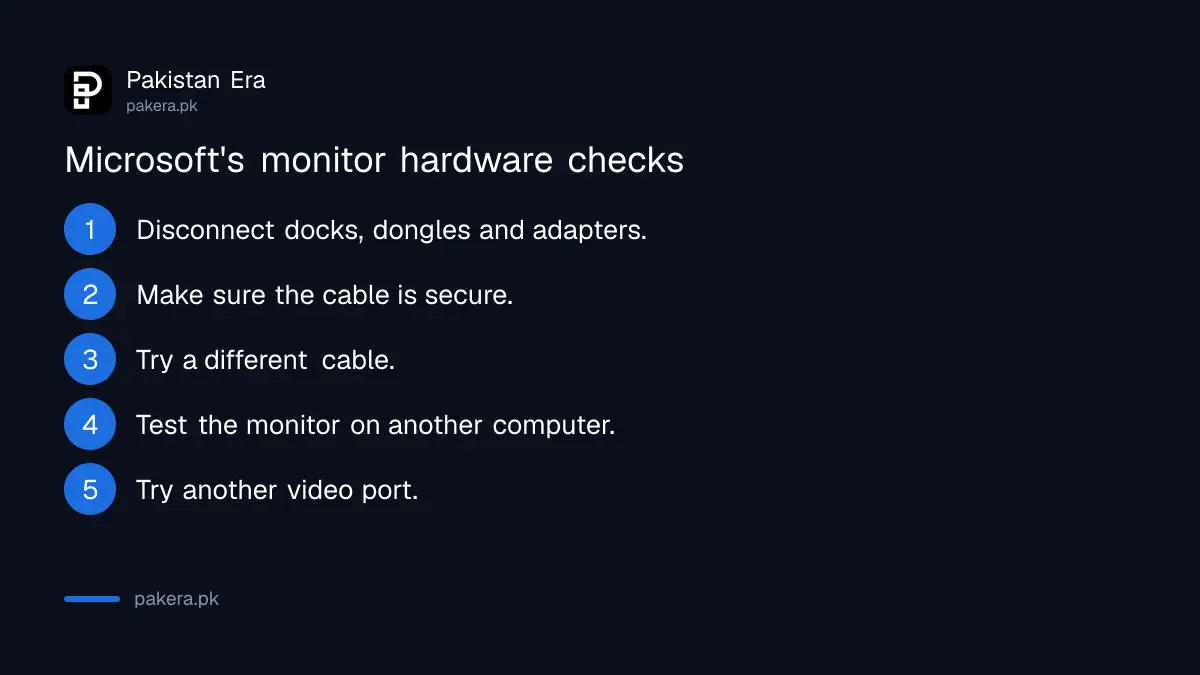
Microsoft's hardware checks are: disconnect all accessories, including docks, dongles and adapters, make sure the cable is secure, try a different cable, and test the monitor with another computer. Then try another video port such as HDMI, VGA, DVI or DisplayPort.
- Disconnect docks, dongles, adapters and other hardware from the laptop.
- Make sure the cable is firmly in at both ends.
- Swap the cable. If the new one works, the old one was faulty.
- Connect the monitor to another computer to see whether the monitor or the laptop is at fault.
- If your PC has more than one video port, try the other one.
Two more checks are worth a minute. Set the monitor's own input to the port you used, since a monitor left on VGA will show no signal from HDMI. And check the monitor's power lead, because a loose plug looks exactly like a dead connection. Both are our additions, not Microsoft's.
If your system has two graphics adapters, Microsoft says you can try switching the default one, often through the graphics software when you right-click the desktop. The steps vary by maker. To see which adapter you have, open Device Manager and expand Display adapters, or check your laptop's generation, processor and graphics in Settings.
A second or third monitor needs a port for each screen
If one external monitor works but two do not, Microsoft says your graphics adapter may not support more than one. A laptop with one video port supports one external monitor by default, and a display splitter only duplicates the same picture.
To run more screens from one port, Microsoft names two options: a docking station from your PC's maker, or a USB adapter if the laptop has a USB-C port, which can add another video output. Ask the graphics adapter's maker how many monitors it supports before you buy anything.
That splitter point catches many buyers. A cheap HDMI splitter sends one signal to two screens. It cannot give you two separate desktops, however you set Windows.
A setup that suddenly stopped needs a driver reset or rollback
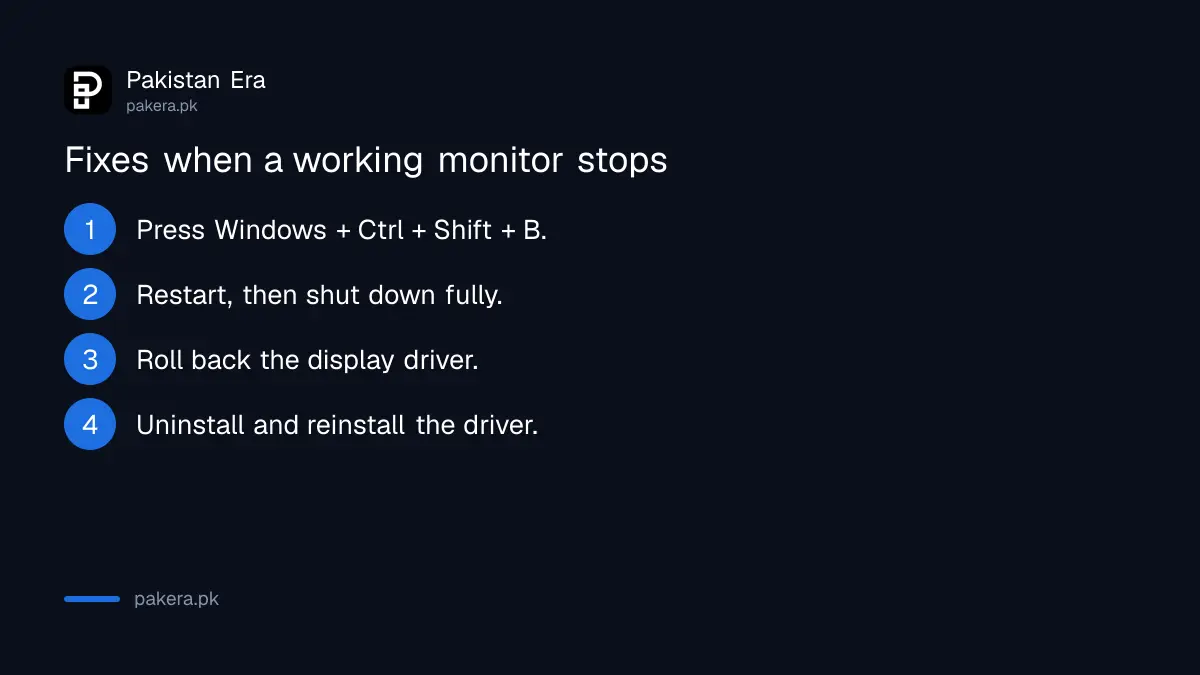
When monitors that worked suddenly stop, Microsoft suggests pressing Windows + Ctrl + Shift + B to reset the graphics driver, then a restart, then a full shut down. If the trouble began after an update, roll back the display driver, or reinstall it.
- Press Windows logo key + Ctrl + Shift + B.
- Restart from Start, Power, Restart. If that fails, use Shut down, then turn the laptop on again.
- To roll back, open Device Manager, expand Display adapters, right-click your adapter, select Properties, then the Driver tab and Roll Back Driver.
- If there is no roll back option, right-click the adapter, select Uninstall device, tick Attempt to remove the driver for this device, and select Uninstall.
- Restart if asked, open Device Manager again, right-click the adapter, select Update driver, then Search automatically for updated driver software.
Microsoft suggests writing down the remaining steps before you restart, so keep this page open on your phone. If no sound comes through the HDMI screen once the picture works, that is a separate fix for no sound on a Windows 11 laptop.
USB-C monitors need the right port and cable
A monitor on USB-C only works if the laptop, the cable and the display all support a display mode such as DisplayPort, HDMI or MHL over USB-C. Microsoft says to connect directly to the USB-C port that supports it, not through a hub.
Windows may show "Display connection might be limited" when this goes wrong. Microsoft lists the causes: the PC or cable lacks the display feature, the adapter is in the wrong USB-C port, a hub or dock sits in between, or too many USB-C display devices are connected. Not every USB-C port on a laptop carries video, so check the maker's port labels or manual.
For a TV rather than a monitor, there is also wireless casting. Microsoft says to connect a wireless display adapter to the TV's HDMI port, then press Windows + K on the PC to open Cast. Phones work differently, and screen mirroring from a phone to a TV has its own steps.
Common questions
Why does my monitor say no signal with HDMI?
Check Windows + P is not on PC screen only, the cable is secure, and the monitor's input is set to HDMI. Then try another cable.
How do I make Windows 11 detect a second monitor?
Go to Settings, System, Display, expand Multiple displays and select Detect.
What does Windows + Ctrl + Shift + B do?
Microsoft says it resets the graphics driver and may fix a monitor that suddenly stopped working.
Can an HDMI splitter give me two separate screens?
No. Microsoft says a splitter duplicates the same signal instead of creating two independent ones.
Why does my USB-C monitor not work?
The laptop port, cable and monitor must all support a display mode over USB-C. Connect directly, without a hub.
How we verified this
What we checked, where we read it, and what we could not confirm.
Last checked 1 November 2026. We read Microsoft's pages Troubleshoot external monitor connections in Windows, How to use multiple monitors in Windows and Fix USB-C problems in Windows on 1 November 2026. The monitor input and power lead checks, and the note that not every USB-C port carries video, are our own additions. Graphics software and port layouts differ by laptop maker, and we did not test each brand.
About the author

Technology Journalist & Multimedia Producer
Ahmad Ali is a technology journalist and multimedia producer at Pakistan Era, joining the team in October 2026. He covers consumer technology and digital life for Pakistani readers, combining research with hands-on product testing.