No Sound on Windows 11 Laptop in Pakistan: 13 Fixes for Speakers, Headphones and HDMI
No sound on a Windows 11 laptop? Pick the right output device from the speaker icon first. Then Microsoft's 13 fixes in order, from enhancements to drivers.
When a Windows 11 laptop has no sound, click the speaker icon on the taskbar, press the arrow beside the volume slider and pick the right output device. That one step fixes most cases, because Windows often switches to headphones, a Bluetooth speaker or an HDMI monitor without telling you. If it does not, Microsoft lists 12 more steps, and we have put them in the order that wastes the least time.
We read Microsoft's support page on fixing sound and audio problems in Windows on 31 October 2026. Every menu name below comes from it. Windows 10 steps are listed separately at the end, since many office and university laptops in Pakistan still run it.
Pick the right output device before changing anything else
Click the speaker icon on the taskbar, then the arrow beside the volume slider. The menu says "Select a sound output". Choose your laptop speakers or headphones. Windows often keeps sending sound to a device that is no longer there.
The usual culprit in an office is an external monitor or projector on HDMI. Microsoft says to make sure a monitor without speakers is not set as the default. At home it is often a Bluetooth earbud set that is still paired. If the earbuds are the problem, the steps for Bluetooth not working on Windows 11 sort that out.
Next, check the plain things. Cables must be in the right jack: green is usually output and pink is the microphone. Mute must be off, and the volume must be up in Windows, in the app and on the speakers. Unplug headphones in case they are taking the sound.
Microsoft's 13 sound fixes, in order
Microsoft starts with the Get Help troubleshooter, then moves from settings to drivers to services. Test the sound after each step. Stop as soon as it works, because the later steps change more of the system.
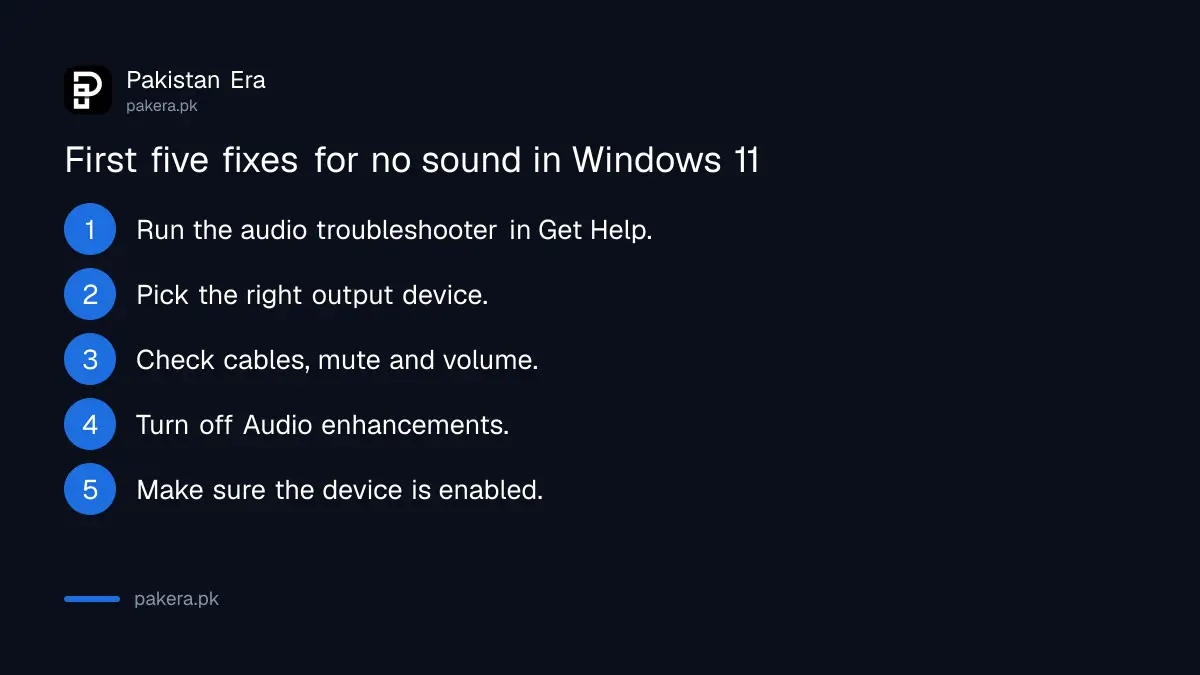
| Step | What to do | Where (Windows 11) |
|---|---|---|
| 1 | Run the audio troubleshooter | Get Help app |
| 2 | Choose the output device | Speaker icon > arrow by the volume slider |
| 3 | Check cables, mute and volume | Hardware, app and Windows volume |
| 4 | Turn off Audio enhancements | Settings > Sound > your device > Advanced |
| 5 | Run the built-in troubleshooter | Settings > System > Troubleshoot > Other troubleshooters > Audio |
| 6 | Unmute and enable the device | Volume mixer, then More sound settings |
| 7 | Set the default device | Settings > System > Sound > Output |
| 8 | Install updates and restart | Settings > Windows Update |
| 9 | Update, reinstall or roll back the driver | Device Manager > Sound, video and game controllers |
| 10 | Swap the IDT codec for the generic driver | Device Manager |
| 11 | Change the default audio format | Control Panel > Sound > Properties > Advanced |
| 12 | Restart the audio services | Services app |
| 13 | Allow microphone access | Settings > Privacy & security > Microphone |
Audio enhancements and a disabled device are the quiet causes
Two settings break sound without any warning. Audio enhancements can clash with a driver, so turn them off. And a playback device can be switched off in sound properties, so make sure "Use this device (enable)" is selected.
For enhancements, go to Start > Settings > Sound, choose your device under Output, scroll to Advanced settings and set Audio enhancements to Off. For the disabled device, right-click the speaker icon, open the Volume mixer and unmute anything marked with an x. Then go to Settings > System > Sound > Advanced > More sound settings, select the device on the Playback tab, open Properties and check "Use this device (enable)".
Microsoft also suggests changing the default audio format when sound crackles or stays silent. In Control Panel, open Hardware and Sound, then Sound. On the Playback tab, right-click the default device, open Properties, then the Advanced tab, and try a different Default Format.
Reinstall or roll back the audio driver when an update broke it
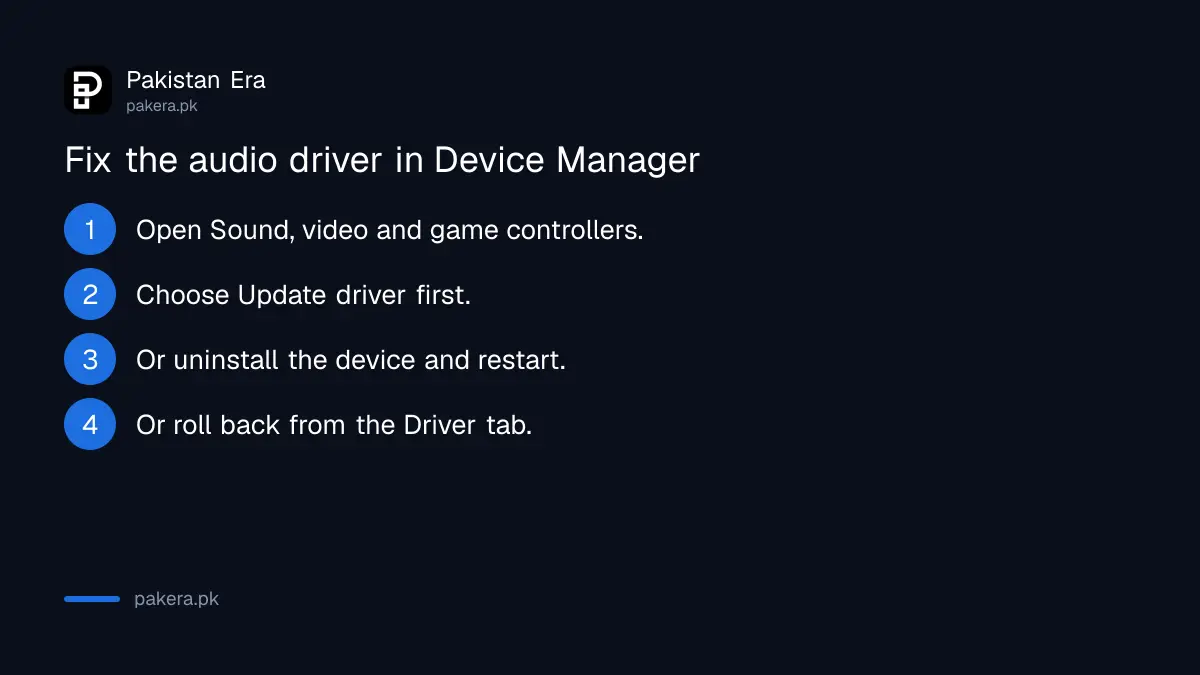
If sound stopped after a Windows update, the driver is the likely cause. In Device Manager, open Sound, video and game controllers. Update the driver first, then uninstall it and restart, or roll it back from the Driver tab.
- Search the taskbar for "device manager" and open it.
- Expand Sound, video and game controllers.
- Right-click your audio device and choose Update driver, then Search automatically for drivers.
- If that fails, choose Uninstall device, tick "Attempt to remove the driver for this device", and restart. Windows reinstalls it.
- Or open Properties, then the Driver tab, and press Roll Back Driver.
- If nothing works, use a restore point to go back to a working date.
Microsoft also lists a generic driver option: Update driver, Browse my computer for drivers, Let me pick from a list, and choose High Definition Audio Device. On laptops that show "IDT High Definition Audio CODEC", that swap is a step of its own. A restore point only helps if one exists, and the steps to create a Windows restore point are worth doing once sound is back.
The last software step is to restart three services: Windows Audio, Windows Audio Endpoint Builder and Remote Procedure Call (RPC). Search for "services", open it, right-click each and choose Restart.
Windows 10 uses older menus for the same fixes
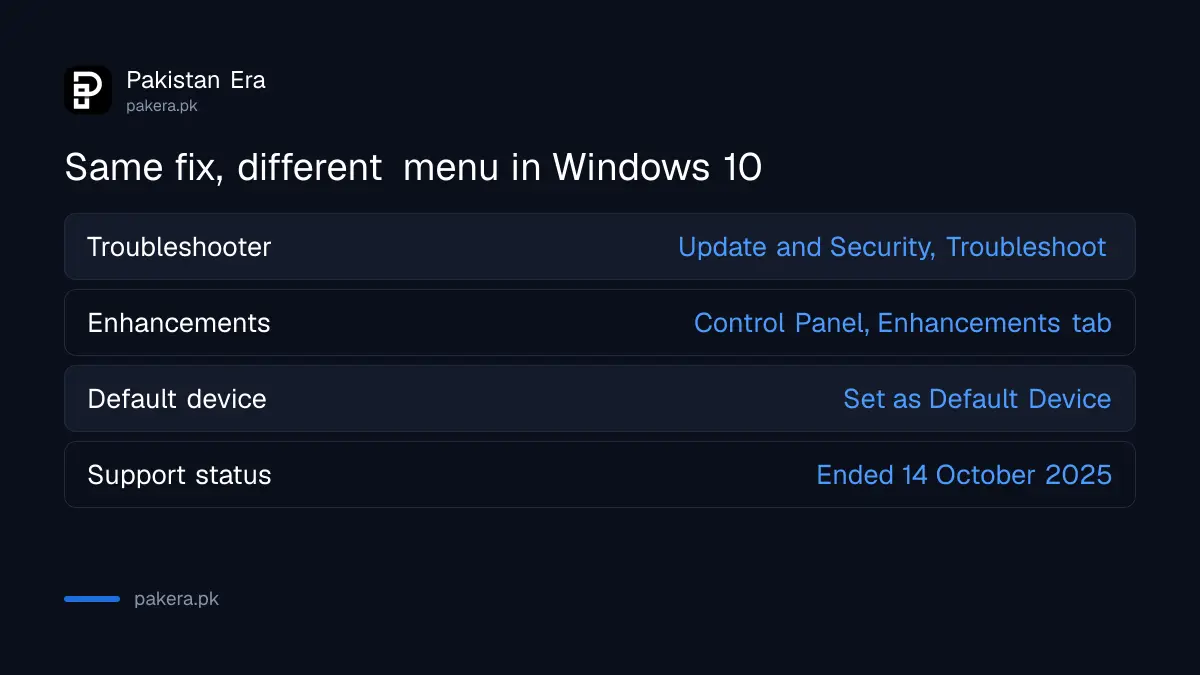
The steps are the same on Windows 10, but the menus differ. Enhancements sit in Control Panel under the Enhancements tab, and the troubleshooter is under Update & Security. Microsoft notes that Windows 10 support ended on 14 October 2025.
On Windows 10, the troubleshooter path is Start > Settings > Update & Security > Troubleshoot, then Playing audio. To set a default device, open Control Panel > Hardware and Sound > Sound, right-click the device on the Playback tab and choose Set as Default Device. If you are still on Windows 10, read how the free Windows 10 security updates work, since an unpatched laptop has bigger problems than sound.
If none of the 13 steps works and headphones are silent too, the speaker or the sound chip may have failed. That is a repair job for the laptop maker's service centre.
Common questions
Why is there no sound on my laptop after connecting HDMI?
Windows may have switched output to the monitor. Pick your laptop speakers from the speaker icon's output list.
How do I run the sound troubleshooter in Windows 11?
Go to Start > Settings > System > Troubleshoot > Other troubleshooters, and press Run next to Audio. Or use the Get Help app.
Sound stopped after a Windows update. What do I do?
Roll back the audio driver from Device Manager, or uninstall it and restart so Windows reinstalls it.
Will reinstalling the audio driver delete my files?
No. It only removes and reinstalls the driver. Your files stay where they are.
My microphone does not work in Zoom or Teams. Is it the same fix?
Partly. Also check Settings > Privacy & security > Microphone and turn on access for apps.
How we verified this
What we checked, where we read it, and what we could not confirm.
Last checked 31 October 2026. Every step comes from Microsoft's page Fix sound or audio problems in Windows, which we read on 31 October 2026, including its Windows 10 tab. The page shows no update date. Laptop makers sometimes add their own audio apps, which we could not check brand by brand. We did not reproduce each fault ourselves.
About the author

Technology Journalist & Multimedia Producer
Ahmad Ali is a technology journalist and multimedia producer at Pakistan Era, joining the team in October 2026. He covers consumer technology and digital life for Pakistani readers, combining research with hands-on product testing.