How to Create a Windows Restore Point and Turn On System Protection in Pakistan
Create a Windows restore point and turn on system protection in Pakistan: open Create a restore point, click Configure, set disk space, then Create. Do it now.
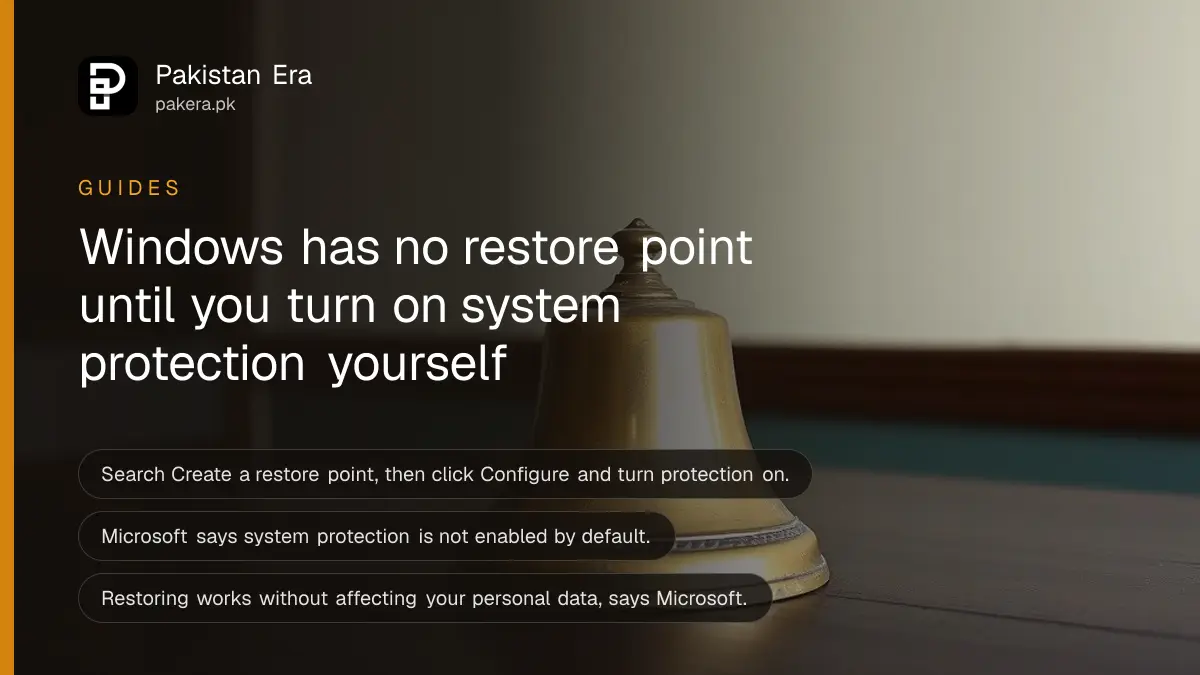
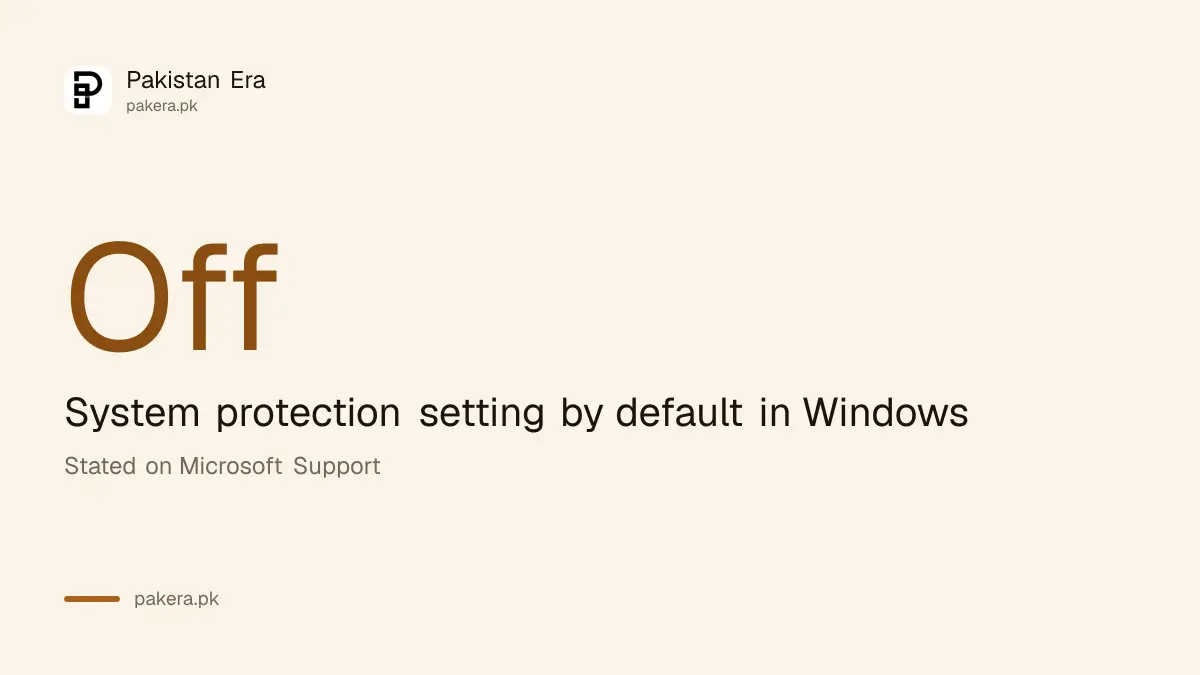
Short answer: Press the Start button, search for Create a restore point, open it, select your C: drive, click Configure, turn on system protection and click Create. Microsoft says system protection is off by default, so a PC with it off has nothing to go back to.
A driver update goes wrong. A new program makes the laptop crawl. The screen shows a blue error just before an assignment is due. In each case, one saved restore point can bring Windows back to a working state in minutes.
We read Microsoft's support page on restore points on 14 October 2026. The steps below follow it. We did not test them on a Pakistani brand laptop, and menu words can differ a little between Windows 10 and Windows 11.
A restore point is a saved copy of your Windows settings
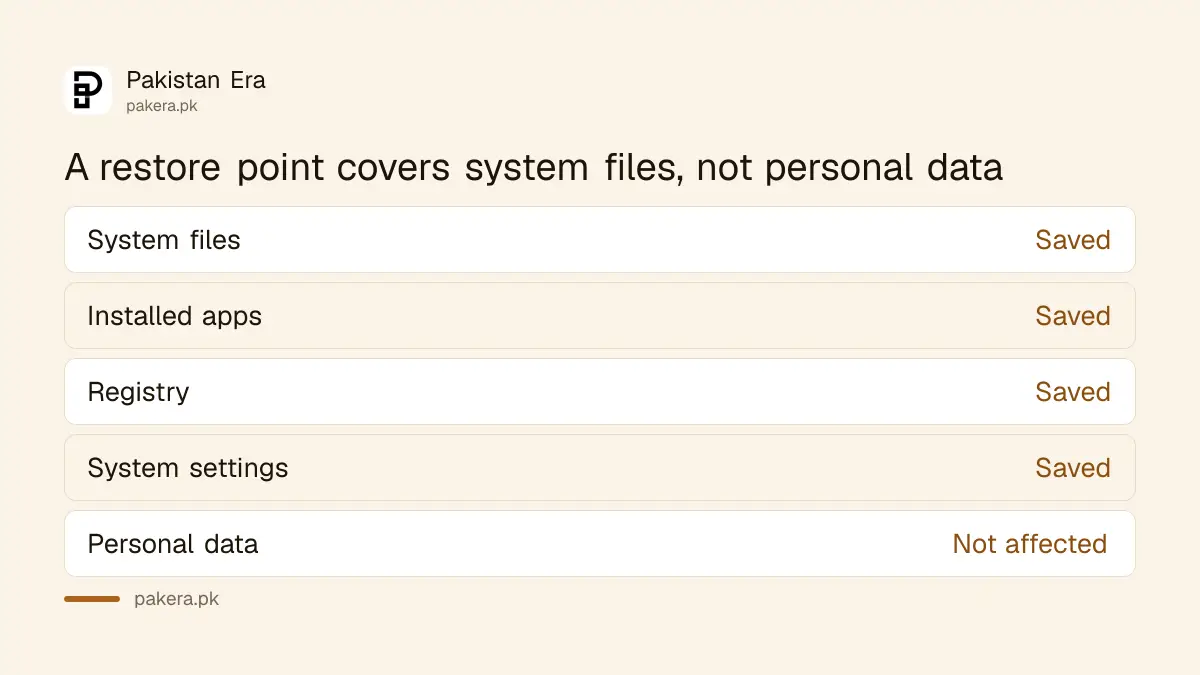
A restore point saves your system files, installed programs, the Windows Registry and system settings at one moment. Microsoft says restoring to it works without affecting your personal data. Think of it as an undo button for Windows itself, not for your photos or documents.
That last point matters. A restore point is not a backup. If your hard disk dies, the restore point dies with it. Keep your files safe in a separate place as well.
Most people never learn this tool exists until something breaks. By then it is too late, because Microsoft says system protection is not enabled by default. Spend five minutes now and the tool will be ready later.
Five steps turn on system protection
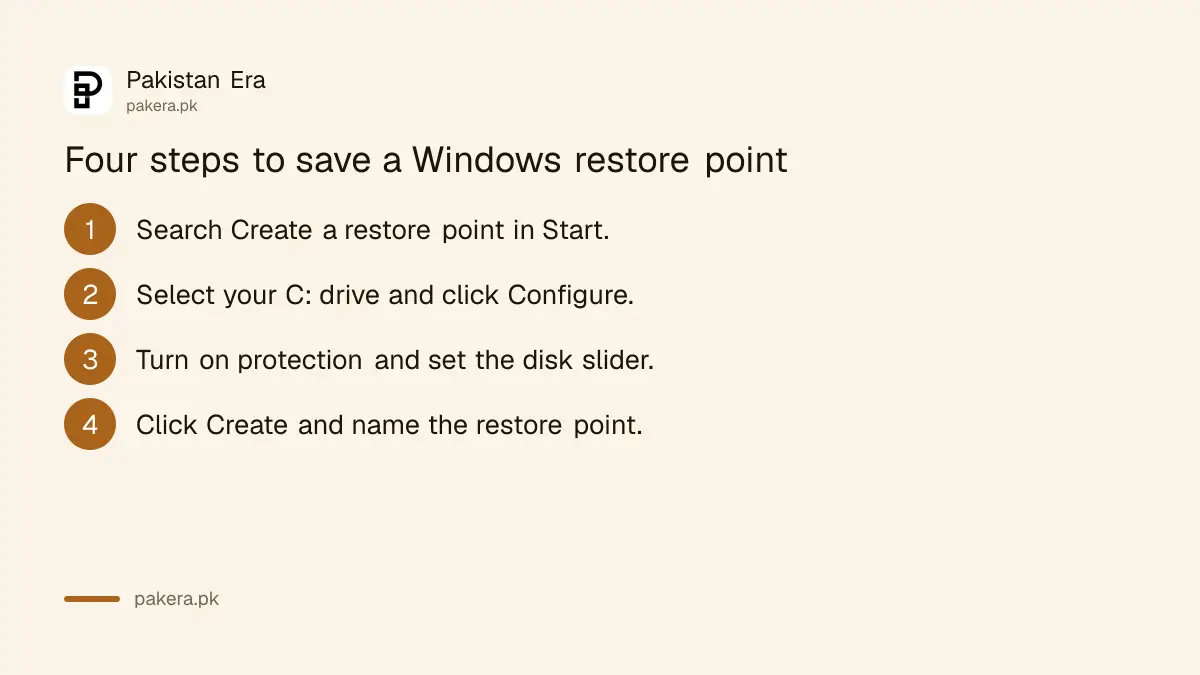
Search for Create a restore point in Start, open the System Protection tab, select your Windows drive, click Configure, choose to turn on system protection, set the disk space slider and click Apply. Windows then creates restore points on its own when needed.
- Click Start, type Create a restore point and open the result. You can also press Win+R, type systempropertiesprotection.exe and press Enter.
- On the System Protection tab, select your main drive, usually C:.
- Click Configure and choose the option to turn on system protection.
- Move the slider to set the most disk space that restore points may use.
- Click Apply, then OK.
Microsoft does not say how much space the slider needs. On a small disk, keep the slider low. If your drive is almost full, clear space first, as in freeing up disk space with Storage Sense.
Create a restore point by hand before risky changes
Open System Protection, click Create, type a short description such as "before driver update" and click Create again. Make one before you install a driver, a big program or a Windows update. Microsoft lists these steps for both Windows 10 and Windows 11.
Use a name you will recognise later. "Before new printer driver" is better than "test". When something fails, you will pick from a list and the name is your only clue.
| Action | Where to click |
|---|---|
| Open the tool | Start, search Create a restore point |
| Turn protection on | System Protection tab, Configure |
| Limit disk space | Slider inside Configure |
| Save a restore point now | System Protection tab, Create |
| Name it | Type a description, then Create |
What a restore point covers and what it does not
Microsoft says a restore point includes system files, installed applications, the Registry and system settings. It does not touch your personal data. So it can undo a bad driver, but it cannot bring back a deleted assignment or a lost photo.
If the PC will not start at all, restore points are one option, but a full reset is another. Read how to reset Windows 11 and keep your files if you need that heavier fix. A reset takes longer and removes your apps, so try a restore point first.
Restore points can also help when updates fail. If Windows Update breaks something, see what to do when a Windows update is stuck or failing. And if a PC feels slow only after a new program, trimming startup apps may fix it without any restore at all.
One more note for laptops with BitLocker drive encryption. Know where your recovery key is before you change system settings. The guide to finding your BitLocker recovery key shows where to look.
Check before you rely on it
After you create a restore point, reopen the System Protection tab and confirm protection shows as On for your drive. Microsoft's page does not give detailed System Restore steps and links to a separate article, so read that article before you actually need to restore.
Do this test once while the PC is healthy. If you wait until the PC is broken, you will be reading instructions on a phone with a shaking hand. Also tell family members who share the laptop. They may be the ones who need it.
Keep the habit small: one restore point before any big change. Delete nothing by hand. Windows manages the old ones inside the space you gave it.
Common questions
Is system protection on by default in Windows?
No. Microsoft's page says it is not enabled by default and recommends turning it on. Until you do, Windows has no restore points to go back to.
Will a restore point delete my files?
No. Microsoft says restoring works without affecting personal data. It changes system files, programs, the Registry and settings, so programs you installed after the point may disappear.
How do I open the tool quickly?
Press Win+R, type systempropertiesprotection.exe and press Enter. You can also search Create a restore point from the Start menu.
How much disk space does it need?
Microsoft does not state a number. You set the maximum with a slider in Configure. Use a small share on a nearly full disk, and clear space first.
Does this work on Windows 10 too?
Yes. Microsoft gives the same steps for Windows 10 and Windows 11, though some wording may differ slightly on your screen.
How we verified this
What we checked, where we read it, and what we could not confirm.
Last checked on 14 October 2026, Pakistan time. We read Microsoft's support page on creating a system restore point. We did not run a full System Restore, and the page gives no disk space figure, so we state none. Brands and Windows builds can word menus differently.
About the author

Technology Journalist & Multimedia Producer
Ahmad Ali is a technology journalist and multimedia producer at Pakistan Era, joining the team in October 2026. He covers consumer technology and digital life for Pakistani readers, combining research with hands-on product testing.