Speed Up a Slow Windows PC by Turning Off Startup Apps in Pakistan
Slow Windows laptop at start? Open Task Manager, sort Startup apps by impact and disable High impact apps you do not need. Settings route and safe choices.
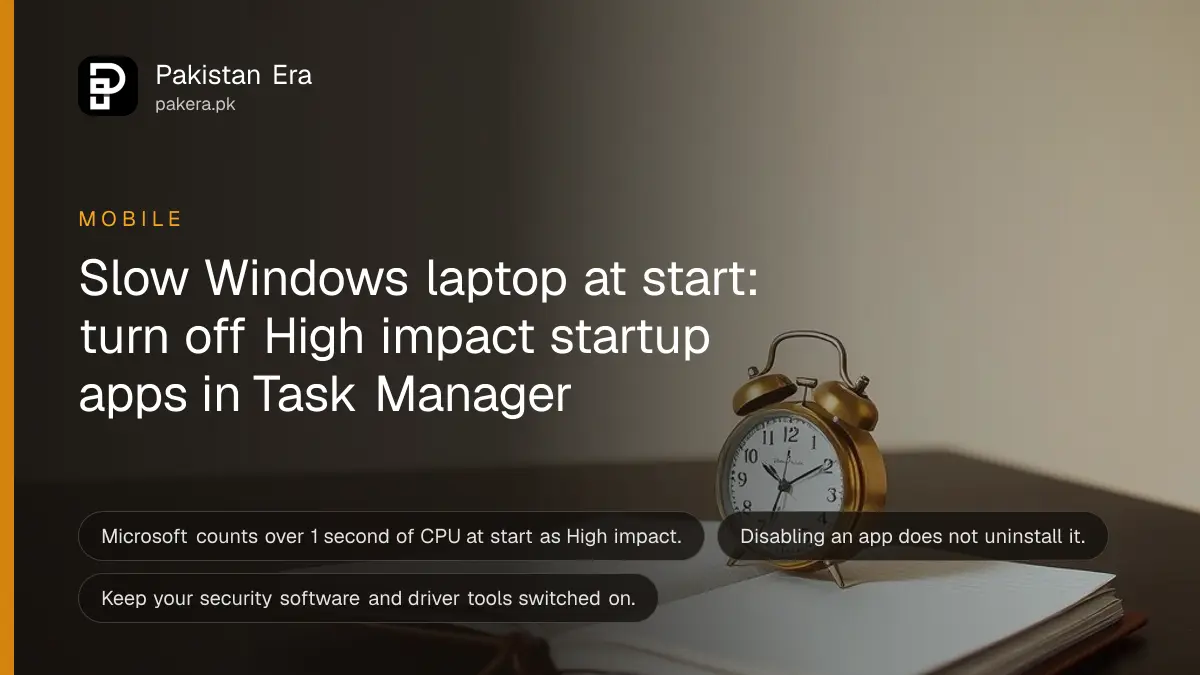
Short answer: Right-click Start, open Task Manager, go to the Startup apps tab, and disable apps marked High impact that you do not need at sign-in. You can also use Settings, then Apps, then Startup. Disabling an app does not uninstall it. You can turn it on again at any time.
A laptop that takes five minutes to become usable after you switch it on is usually not broken. It is running too many apps at start. Chat tools, updaters, game launchers and cloud tools all add themselves to the list, and every one takes a share of the processor and the disk.
We read Microsoft's support page on configuring startup applications in Windows on 13 October 2026. The menu paths and impact levels come from that page. We did not time a laptop before and after for this guide, so we do not promise a speed gain.
See what starts with Windows
Windows gives you two places to see startup apps. Settings gives a clean list with switches. Task Manager adds a startup impact column, which shows which apps cost the most. Use Task Manager if the laptop is slow.
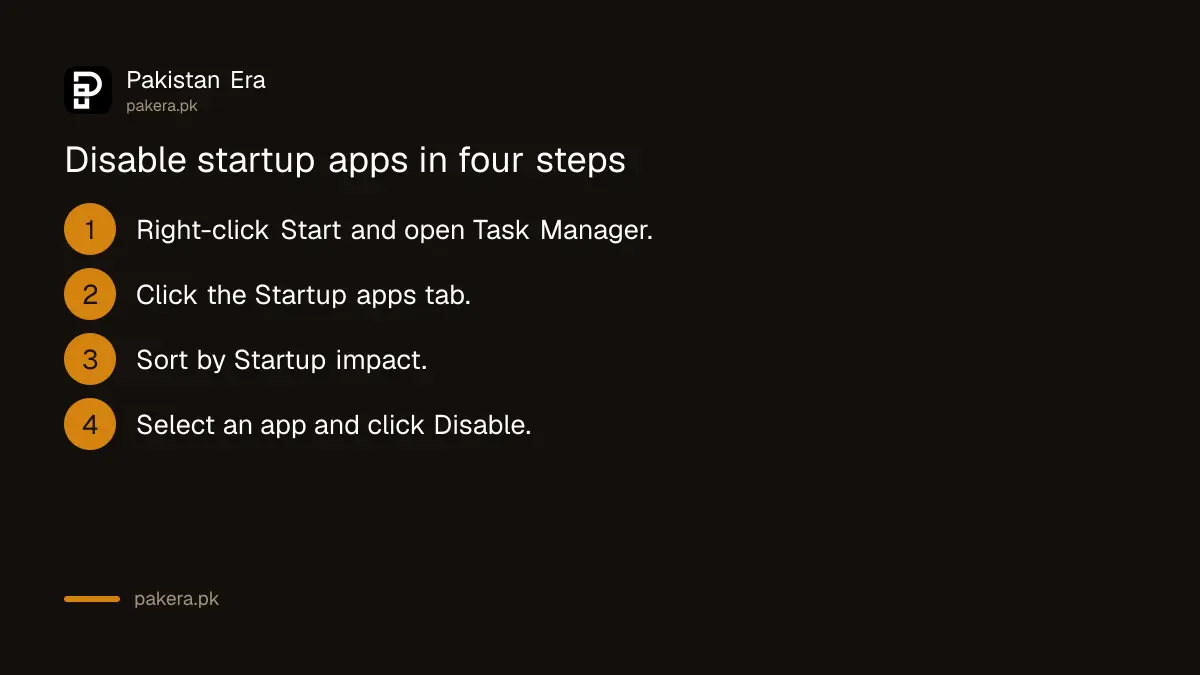
- Right-click the Start button and choose Task Manager.
- Click the Startup apps tab.
- Click the Startup impact column heading to sort by impact.
- Select an app and click Disable to stop it starting at sign-in.
For the simpler route, open Start, then Settings, then Apps, then Startup. Each app has an on and off switch. Turn off the ones you do not need at sign-in.
Read the impact levels
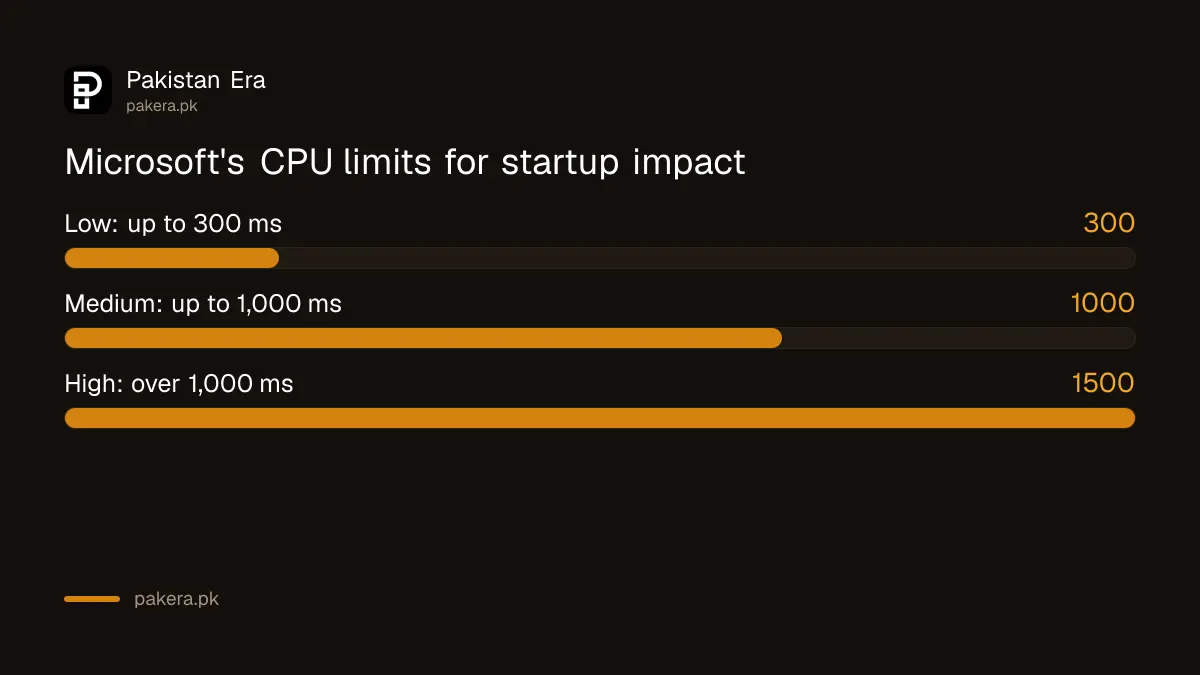
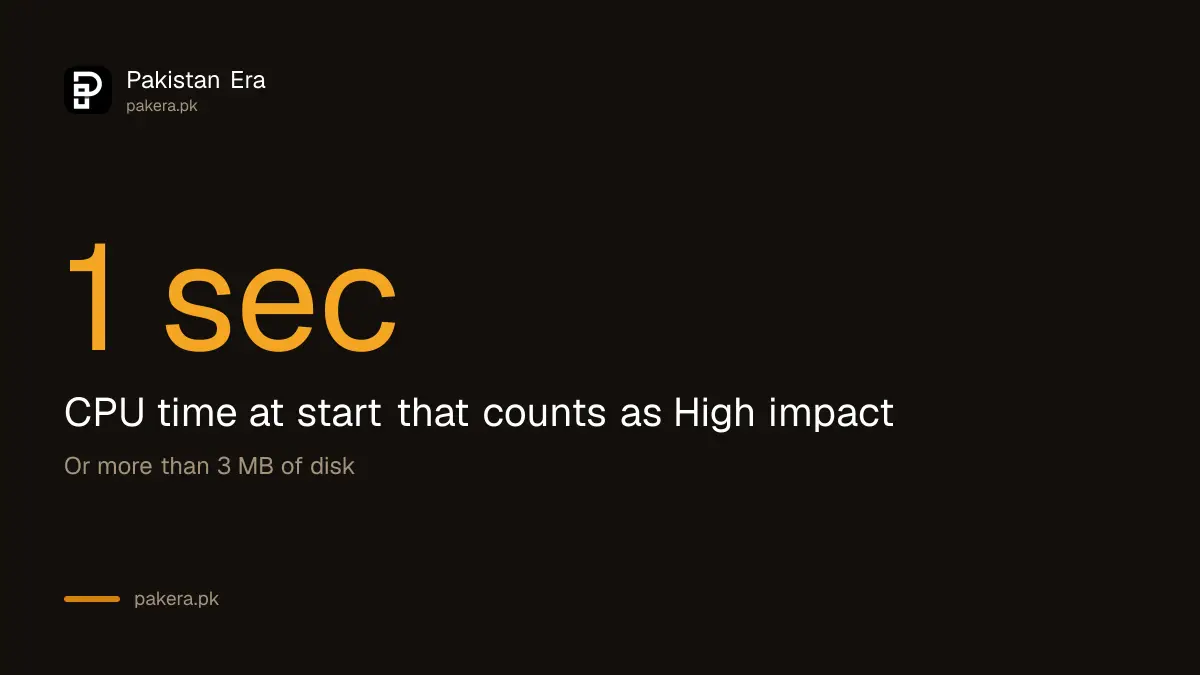
Microsoft gives numbers for the impact labels in Task Manager. Low impact means CPU use under 300 milliseconds and disk use under 292 KB. High impact means more than 1 second of CPU or more than 3 MB of disk at start. Start with the High ones.
| Impact | CPU at start | Disk at start |
|---|---|---|
| Low | Under 300 ms | Under 292 KB |
| Medium | 300 ms to 1 second | 292 KB to 3 MB |
| High | Over 1 second | Over 3 MB |
These measure the effect at start only. An app marked Low can still use a lot of memory once you open it. Also, a startup list shows a measure over time, so a new app may show Not measured at first.
Decide what to leave on
Do not turn off everything. Keep your antivirus or security app, your laptop maker's driver tools and anything that protects your files, such as a backup tool. Turn off apps that you open yourself when needed.
Good candidates to disable are game launchers, chat apps you open by hand, music apps, printer helper tools and updaters for software you rarely use. If you do not recognise a name, search for it before you disable it. An unknown app that you did not install can be a sign of unwanted software, so see the steps in checking Chrome passkeys on Windows after a malware advisory.
Disabling is easy to undo, so change one or two at a time and restart. If something stops working, switch that app back on.
Handle apps that are not in the list
Some programs start in a way that Settings and Task Manager do not show. Microsoft says you can place a shortcut in a startup folder for those you want to add, using shell:startup for one user or shell:common startup for all users on the PC.
This is for adding an app, not for removing a hidden one. Microsoft also warns that changing the registry can have unintended results, and says to back up the registry first. Beginners should not edit the registry to hunt for startup entries. Stay with Settings and Task Manager.
Go further if the laptop is still slow
Startup apps are one cause of a slow laptop. A full drive, a failed update, an old battery or too little memory can all slow a machine. Check them in order and change one thing at a time so you know what helped.
- Free space on the drive, as in the guide to fixing a stuck Windows update, because updates need room.
- Check the battery report with checking laptop battery health, since a worn battery makes a laptop throttle.
- Check that your PC meets the needs of the newer system with the Windows 11 requirements check.
- If you are buying again, use the laptop buying checklist and pick an SSD drive.
Common questions
Does disabling a startup app uninstall it?
No. It only stops the app from opening when you sign in. You can still open it by hand, and you can turn the switch back on at any time.
Which startup apps are safe to disable?
Apps you open yourself, such as game launchers, music apps and updaters for rarely used software. Keep your security software and driver tools on.
Where is the Startup impact column?
Open Task Manager, click the Startup apps tab, and read the Startup impact column. Microsoft lists Low, Medium and High, with set limits for each.
Will this make my laptop much faster?
It can shorten the time to a usable screen, but we did not measure it. Results depend on how many heavy apps you have and on the drive. Microsoft does not promise a number.
Is it safe to edit the registry to remove startup items?
Microsoft warns that changing the registry can have unintended results and says to back it up first. Use Settings and Task Manager instead.
How we verified this
What we checked, where we read it, and what we could not confirm.
Last checked on 13 October 2026, Pakistan time. We read Microsoft's page on configuring startup applications in Windows. We did not time a laptop, so there is no speed figure on this page. Which apps are safe to disable depends on your laptop and its maker, which Microsoft's page does not cover.
About the author

Technology Journalist & Multimedia Producer
Ahmad Ali is a technology journalist and multimedia producer at Pakistan Era, joining the team in October 2026. He covers consumer technology and digital life for Pakistani readers, combining research with hands-on product testing.