How to Run Facebook Privacy Checkup and Control Who Sees Your Posts in Pakistan
Use Facebook Privacy Checkup to hide your phone number, limit who finds you and review connected apps and ad preferences. Learn the steps and run it today.
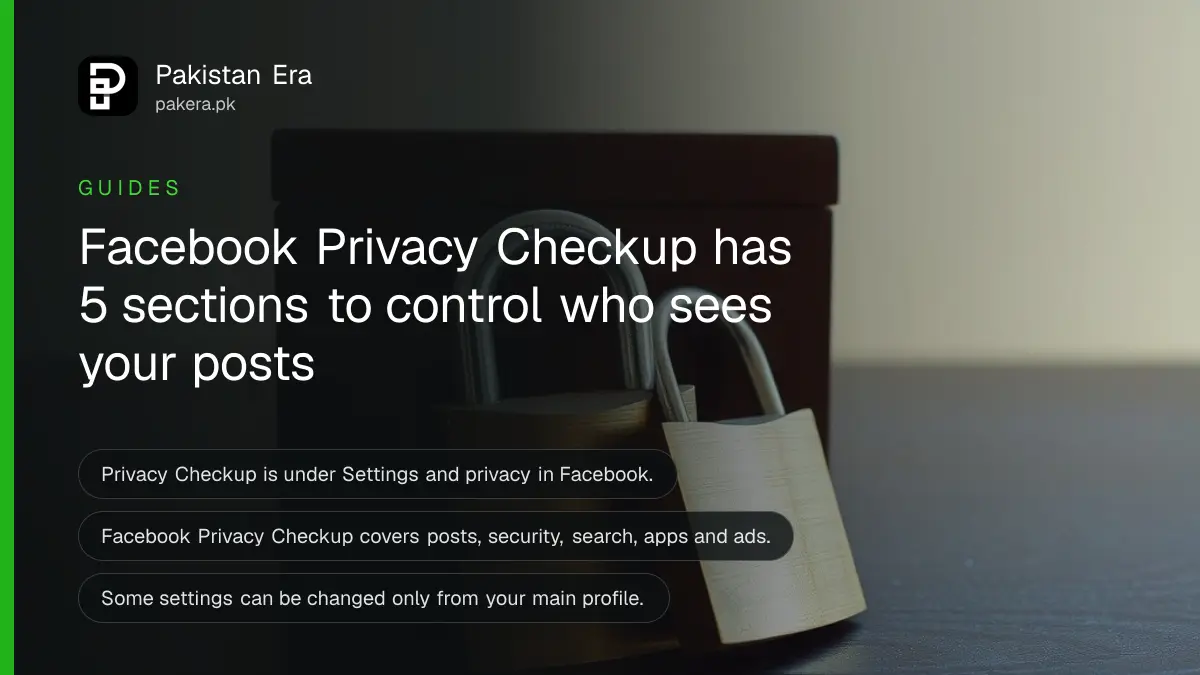
Short answer: On Facebook, click your profile picture at the top right, choose Settings and privacy, then Privacy Checkup. It walks you through who sees your posts, how people find you, your account security, apps connected to Facebook and your ad preferences. Run it from your main profile.
Your phone number, your birthday and a post from 2016 may still be visible to people you have never met. Privacy Checkup is Facebook's own review tool, and it puts those choices in one place.
We read Facebook's Help Center page "Facebook Privacy Checkup" on 11 October 2026. We did not open Privacy Checkup on an account for this piece, so every step and section below is as Facebook describes it.
Privacy Checkup has five review sections
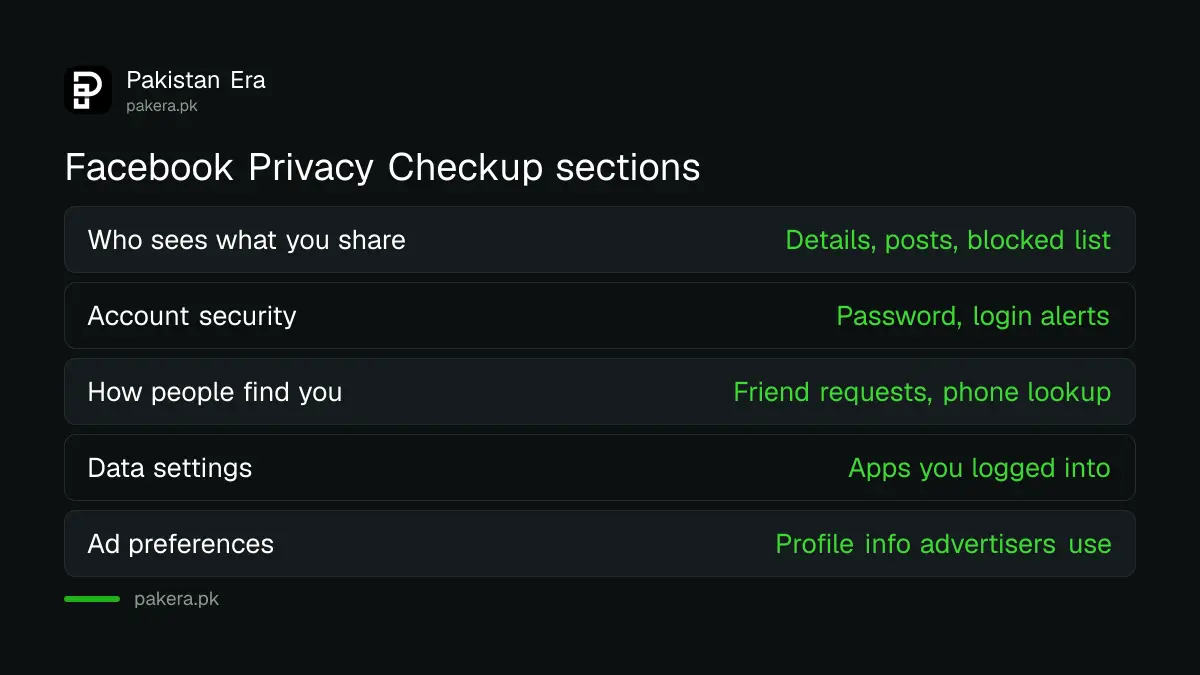
Facebook's page lists five sections: who can see what you share, how to keep your account secure, how people can find you, your data settings and your ad preferences. You can go through them in one sitting, and each one changes real settings on your account.
| Section | What you can review |
|---|---|
| Who can see what you share | Phone number, email, birthday, relationship status, future and past posts, blocked list |
| Keep your account secure | Update your password, turn on login alerts |
| How people find you | Who can send friend requests, who can look you up by phone or email |
| Your data settings | Apps and websites you logged into with Facebook |
| Your ad preferences | Profile information advertisers can use, who sees your social interactions next to ads |
Open Privacy Checkup in two clicks
On a computer, click your profile picture at the top right of Facebook. Click Settings and privacy, then click Privacy Checkup. Facebook says some of its settings can be managed only from your main profile, the one you made when you signed up, so switch to it first if you use more than one.
- Click your profile picture in the top right of Facebook.
- Click Settings and privacy.
- Click Privacy Checkup.
- Work through each section and save your choices.
Facebook's page has separate help for iPhone, iPad, Android, mobile browser and Facebook Lite, so the menu may look different on your phone.
Hide your phone number and birthday first
The first section lets you choose who can see details such as your phone number, email, birthday and relationship status. Setting the phone number and email to Only me is a sensible choice unless a business page needs them. Fewer people who can see your number means fewer people who can misuse it.
The same section controls who sees your future and past posts. Facebook's page also lists other routes to change the audience of past posts and to edit the basic info on your profile.
If a fake account is using your photos, privacy settings will not remove it. Report it with the steps in reporting a fake Facebook profile. If someone already has your login, go to recovering a hacked Facebook account.
Secure the account and limit who can find you
In the security section you can update your password and turn on alerts for logins from a place Facebook does not recognise. In the finding section you choose who can send friend requests and who can look you up by phone number or email address.
- Pick a new password you do not use anywhere else.
- Turn on login alerts, so an unknown device reaches you at once.
- Limit who can look you up by phone number or email.
Alerts help, but a second step helps more. Two-step verification adds that second step to your important accounts.
Look through the data settings section as well. It lets you review and remove apps and websites you have logged into with Facebook. Remove any you no longer use. Each connected app is one more place that holds a slice of your profile.
Check ad preferences and old audiences
The ad section lets you choose what profile information advertisers can use to reach you, and who can see your social interactions, such as things you liked or followed, next to an ad. Facebook's page also points to a way to change the audience of every past post.
- Review which profile details advertisers can use.
- Choose who sees your likes and follows next to ads.
- Change the audience on old posts that are still public.
If you decide the account is no longer worth keeping, deleting a Facebook account has its own steps. The same kind of review exists for chat: the WhatsApp privacy checkup covers that app.
Common questions
Where is Privacy Checkup on Facebook?
Click your profile picture, then Settings and privacy, then Privacy Checkup, as Facebook's Help Center describes.
Why can I not change some settings?
Facebook says some Privacy Checkup settings can be managed only from your main profile, which you created at sign up.
Can I change who sees my old posts?
Yes. Facebook's page links to a way to change the audience for your past posts.
Can I stop people finding me by phone number?
Yes. The "How people can find you" section lets you choose who can look you up by phone number or email.
Does Privacy Checkup remove apps connected to Facebook?
It lets you review and remove recently used apps and websites you logged into with Facebook.
Does it cost anything?
Facebook's page lists no charge. It is a free tool inside Facebook settings.
How we verified this
What we checked, where we read it, and what we could not confirm.
Last checked on 11 October 2026 against Facebook's Help Center page Facebook Privacy Checkup. Meta changes its menus often, so follow the wording on your own screen.
About the author

Technology Journalist & Multimedia Producer
Ahmad Ali is a technology journalist and multimedia producer at Pakistan Era, joining the team in October 2026. He covers consumer technology and digital life for Pakistani readers, combining research with hands-on product testing.