Google Review Link and QR Code for Your Business in Pakistan: Get Both in 3 Steps, Free
Get your Google review link and QR code in Pakistan in 3 steps from your Business Profile, free. Why it only works on a computer, where to share it, the rules.
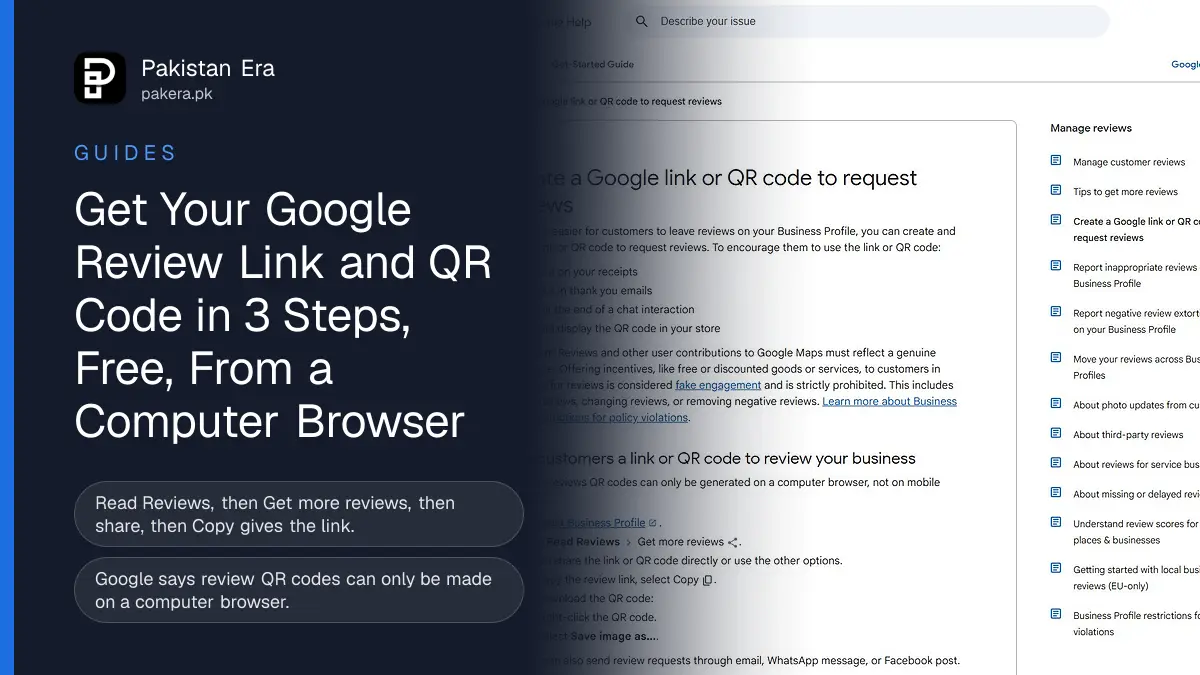
To get your Google review link in Pakistan, open your Business Profile on a computer, select Read Reviews, then Get more reviews, then the share icon, and press Copy. The same box shows a QR code. Right-click it and choose "Save image as" to download it. Google says the QR code can only be made on a computer browser, not on a phone.
We read Google's help page on review links and QR codes on 12 November 2026 at about 21:20 PKT and followed its links. The first step, "Go to your Business Profile", asks you to sign in to the Google account that manages the shop. Below are the steps as Google gives them, where to put the link in a Pakistani shop, and the one rule that can get your profile restricted.
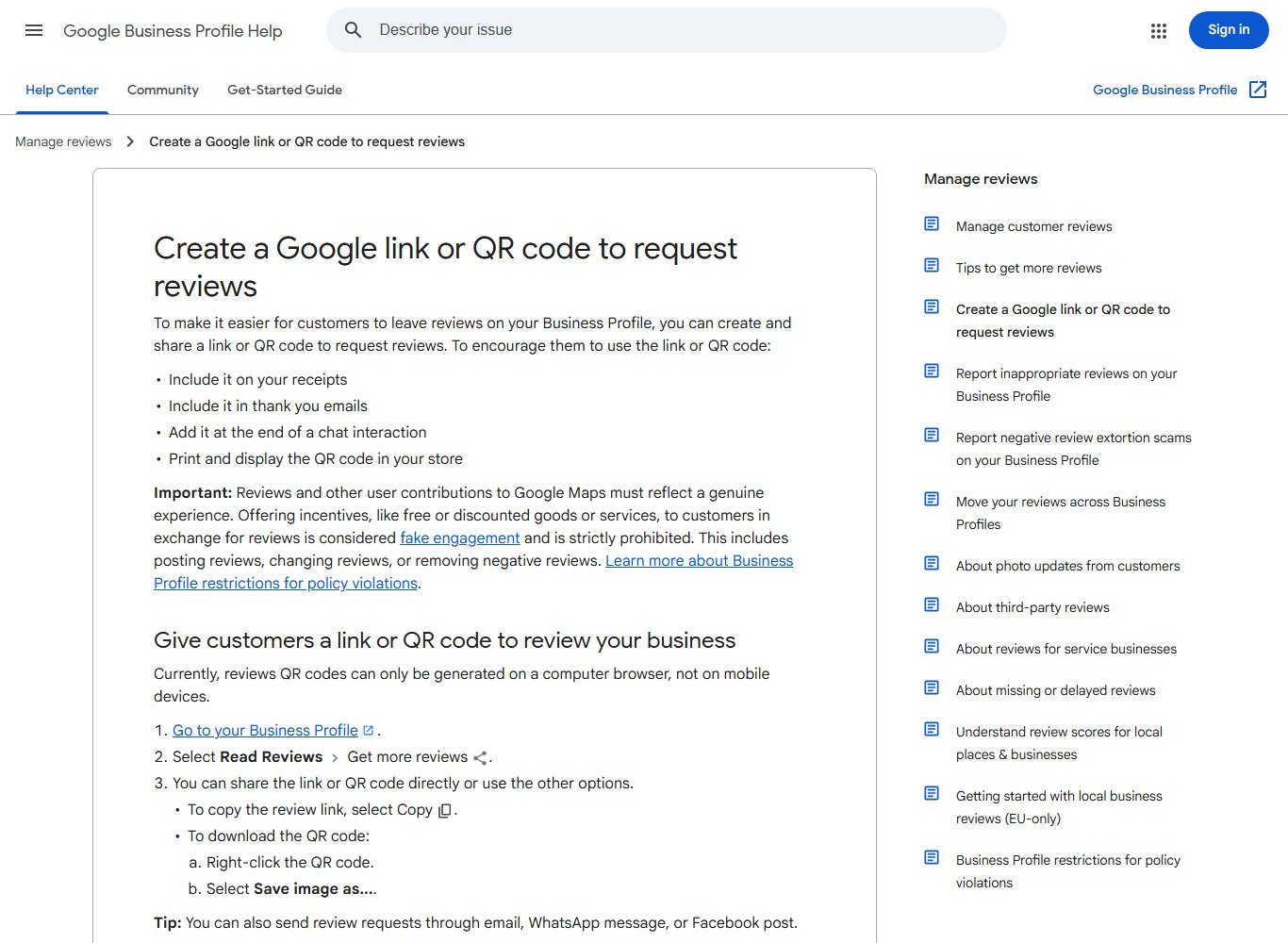
Google gives the review link and QR code in 3 steps on a computer
The review link and QR code sit in the same box on your Business Profile. You need a computer browser, the Google account that manages the profile, and about two minutes. Your customers then open the link or scan the code and land straight on the review form.
- Sign in to the Google account that manages your business, then go to your Business Profile. The "Go to your Business Profile" link on Google's help page takes you there.
- Select Read Reviews, then Get more reviews, then the share icon.
- To copy the link, select Copy next to the review link.
- To download the QR code, right-click the QR code and select Save image as.
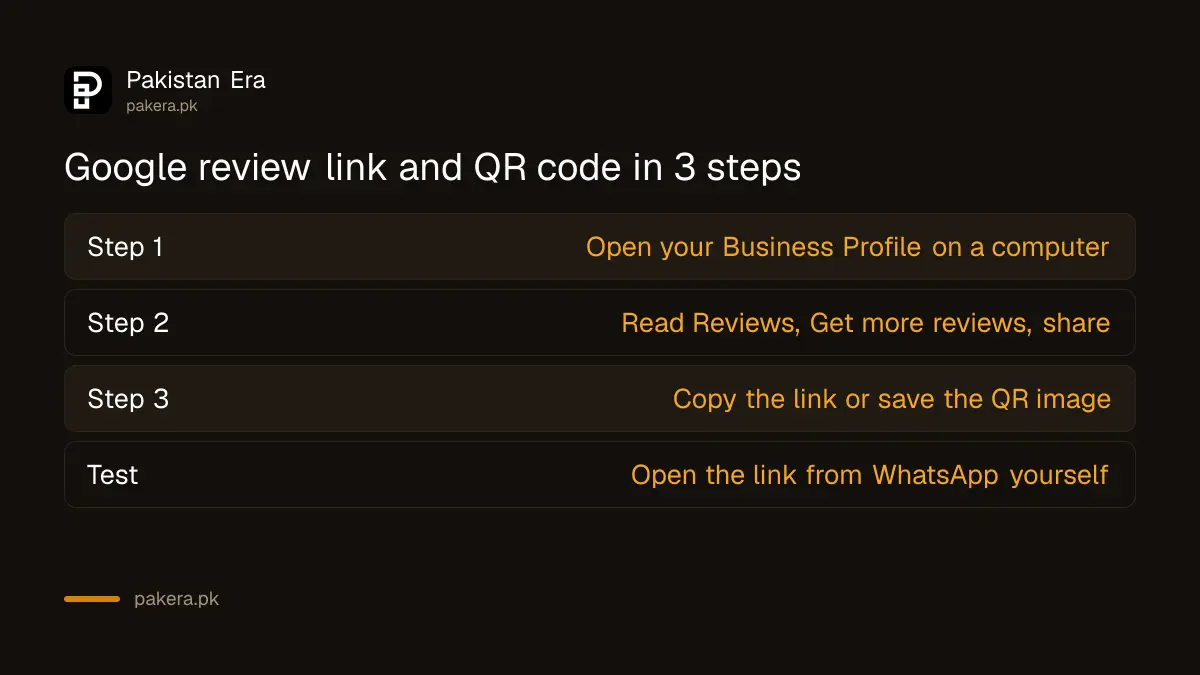
- Paste the link into a test WhatsApp chat to yourself and open it, so you know it works before customers see it.
Steps 2 to 4 are Google's own wording. Step 1 and step 5 are our advice. If you do not see Get more reviews, your profile may not be verified yet. Read our guide to verifying a Google Business Profile in Pakistan first.
The QR code cannot be made on a phone
Google's help page says it plainly: "Currently, reviews QR codes can only be generated on a computer browser, not on mobile devices." Most small shop owners in Pakistan run their profile from a phone, so this is where many get stuck.
There are two simple ways round it. Borrow a laptop or use a computer at a print or net cafe for five minutes, sign in, and save the QR image. Or copy the link once on a computer and keep it in your phone's notes, since the link itself works from any device once you have it.
| Task | Computer browser | Phone |
|---|---|---|
| Copy the review link | Yes | Not covered by Google's page |
| Make the QR code | Yes | No, says Google |
| Share the saved link | Yes | Yes |
| Customer leaves a review | Yes, signed in to Google | Yes, signed in to Google |
Put the link where Pakistani customers already are
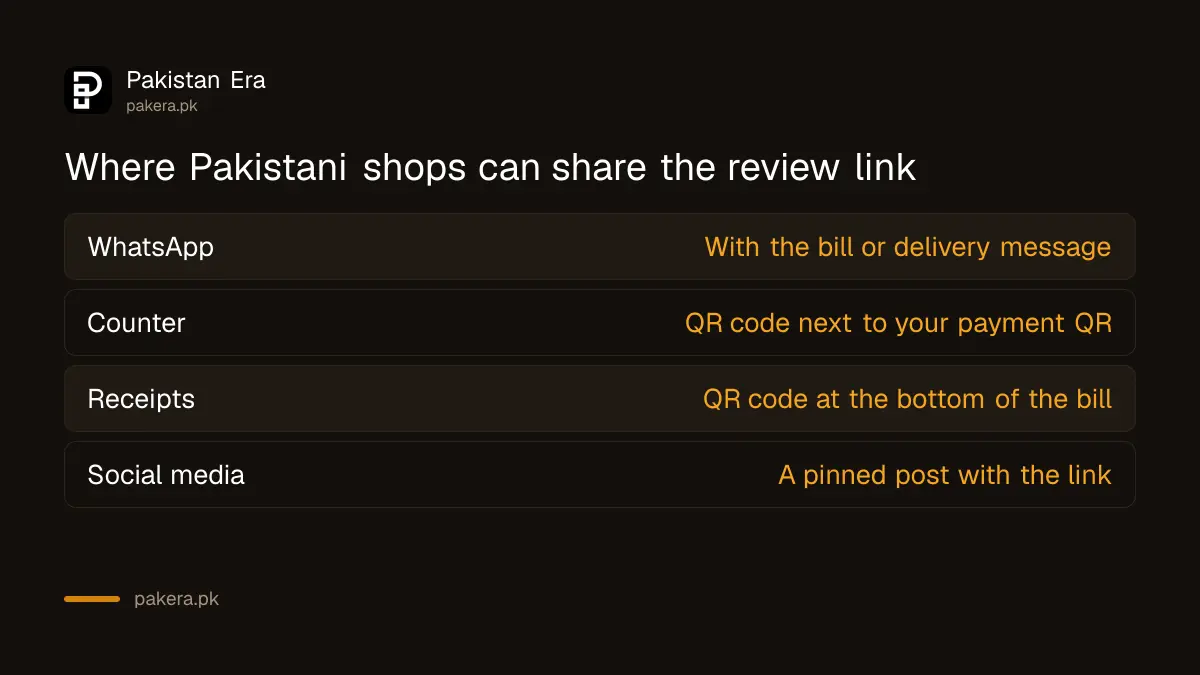
Google suggests four places: receipts, thank-you emails, the end of a chat, and a printed QR code in the shop. It also says you can send review requests "through email, WhatsApp message, or Facebook post". For most Pakistani shops, WhatsApp and the counter do the most work.
- WhatsApp: send the link with the delivery or bill message, one line and the link.
- Counter: print the QR code next to your Raast or wallet QR, with a short line such as "Review us on Google".
- Receipts: print the QR code at the bottom of the bill if your billing software allows an image.
- Facebook or Instagram: pin a post with the link once a month.
Keep the request short and polite. A tailor in Lahore or a pharmacy in Peshawar gets more reviews from one clear line after a good sale than from a long message. Once reviews arrive, reply to them: our guide on replying to Google reviews in Pakistan shows how.
Never offer a discount for a review
Google bans paying for reviews in any form. Its help page says offering "free or discounted goods or services" in exchange for reviews is fake engagement and "strictly prohibited". That covers asking for a review, asking someone to change one, or asking them to remove a bad one.
So "10% off if you give us 5 stars" can cost you far more than it brings in. Google links this rule to its page on Business Profile restrictions for policy violations. If your profile is already restricted, see how to fix a suspended Google Business Profile.
Two more points from Google's page. Every review must reflect a genuine experience, and customers must be signed in to a Google account to leave one. A customer without a Gmail account cannot review you through the link.
Check that the reviews are working after a week
Give the link a week, then check your profile. Count the new reviews and read each one. If you share the link and see none, try it yourself from a different Google account to make sure it opens the review form.
Google's performance report shows how many people found and called you, which helps you see if more reviews bring more customers. Our guide to checking Business Profile performance in Pakistan lists all 12 metrics. If a stranger posts fake 1 star reviews and asks for money, read how to report a Google review extortion scam.
Common questions
How do I get my Google review link in Pakistan?
On a computer, go to your Business Profile, select Read Reviews, then Get more reviews, then the share icon, and press Copy next to the review link.
Can I make a Google review QR code on my phone?
No. Google says review QR codes can only be made on a computer browser for now. You can still share a saved link from your phone.
Is the Google review link free?
Yes. Google does not charge for the review link, the QR code or the Business Profile itself.
Can I give customers a discount for a Google review?
No. Google treats free or discounted goods in exchange for reviews as fake engagement, which is strictly prohibited and can lead to restrictions.
Why can't a customer leave a review from my link?
Customers must be signed in to a Google account. Ask them to sign in to Gmail first, then open the link again.
Can I share my review link on WhatsApp?
Yes. Google's help page names email, WhatsApp messages and Facebook posts as ways to send review requests.
Last checked: 12 November 2026, on Google Business Profile Help.
About the author

Founder and Editor
Umer Kureshi founded Pakistan Era in July 2024 and runs it as administrator, SEO lead and writer, overseeing website operations, search growth, content strategy and coverage of technology and current affairs.