Stop Windows 11 Updates in Pakistan: Pause for 35 Days, Metered Wi-Fi and Every Other Option
Stop Windows 11 updates for up to 35 days with Pause updates, keep them off your hotspot with a metered connection, and schedule restarts. Steps for Pakistan.
To stop Windows 11 updates, open Start, then Settings, then Windows Update, and use Pause updates to pick a date up to 35 days ahead. Microsoft says you cannot switch updates off for good, but pausing, a metered connection and a scheduled restart give you control over when they download and install. Here is each option, what it really does, and the trap that catches people when the 35 days run out.
People in Pakistan usually want this for three reasons: a laptop that restarts in the middle of work, an update eating a limited mobile hotspot bundle, or a restart that starts during load shedding when the battery is low. We read Microsoft's support pages on managing updates, metered connections and the Windows Update FAQ on 2 November 2026.
Pause updates for up to 35 days from Windows Update settings
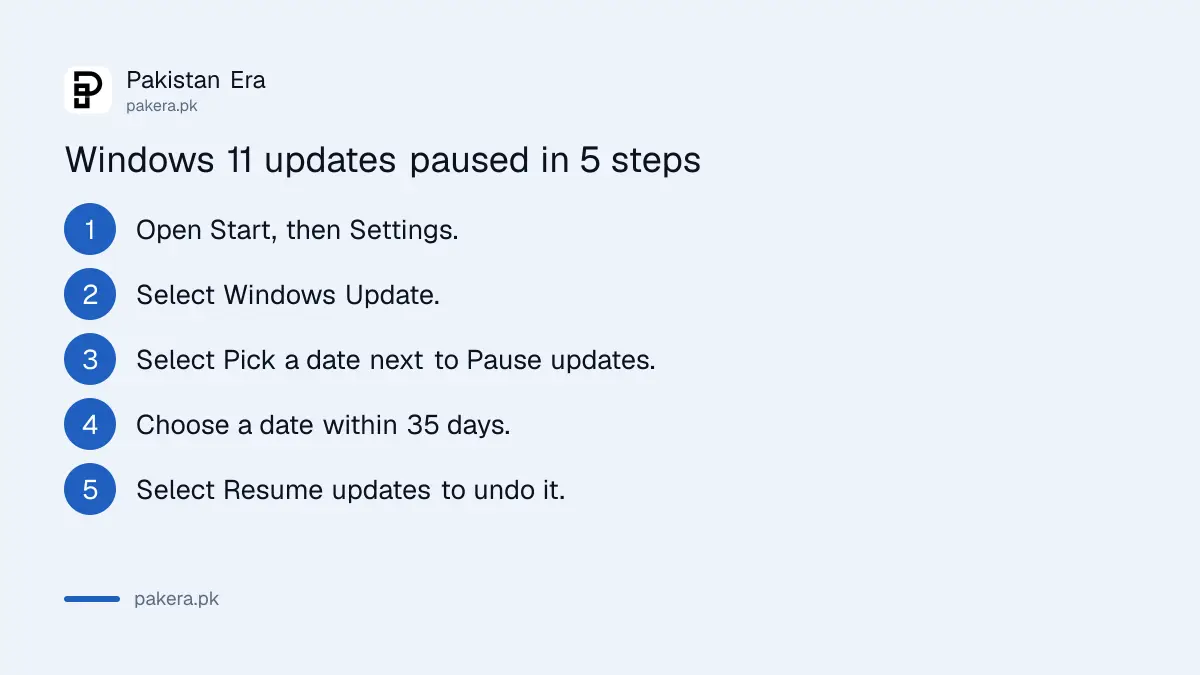
Windows 11 lets you pause updates for up to 35 days. Go to Start, Settings, Windows Update, and select Pick a date next to Pause updates. While paused, Windows does not restart by itself to finish installing anything.
- Click Start and open Settings.
- Select Windows Update in the left menu.
- Next to Pause updates, select Pick a date.
- Choose any date within the next 35 days.
- To undo it, select Resume updates on the same page.
Microsoft notes two side effects. Any update already in progress is cancelled when you pause. And when you resume, Windows may need to download some updates again, so pause before a big download starts, not halfway through.
The 35 day limit does not stack, and then you must update
You can extend a pause, but the new date can be at most 35 days from today, and time already paused is not added on. Microsoft's FAQ says once the pause limit is reached, you must install the latest updates before you can pause again.
This is the trap. Many people pause, forget, and then find Windows installing a month of updates in one go on the day the pause ends, often at the worst moment. Put the end date in your phone calendar. A few days before it, plug the laptop in, connect to proper Wi-Fi and let the updates install on your own terms.
Microsoft is also clear that pausing does not turn off automatic updates. It only delays them.
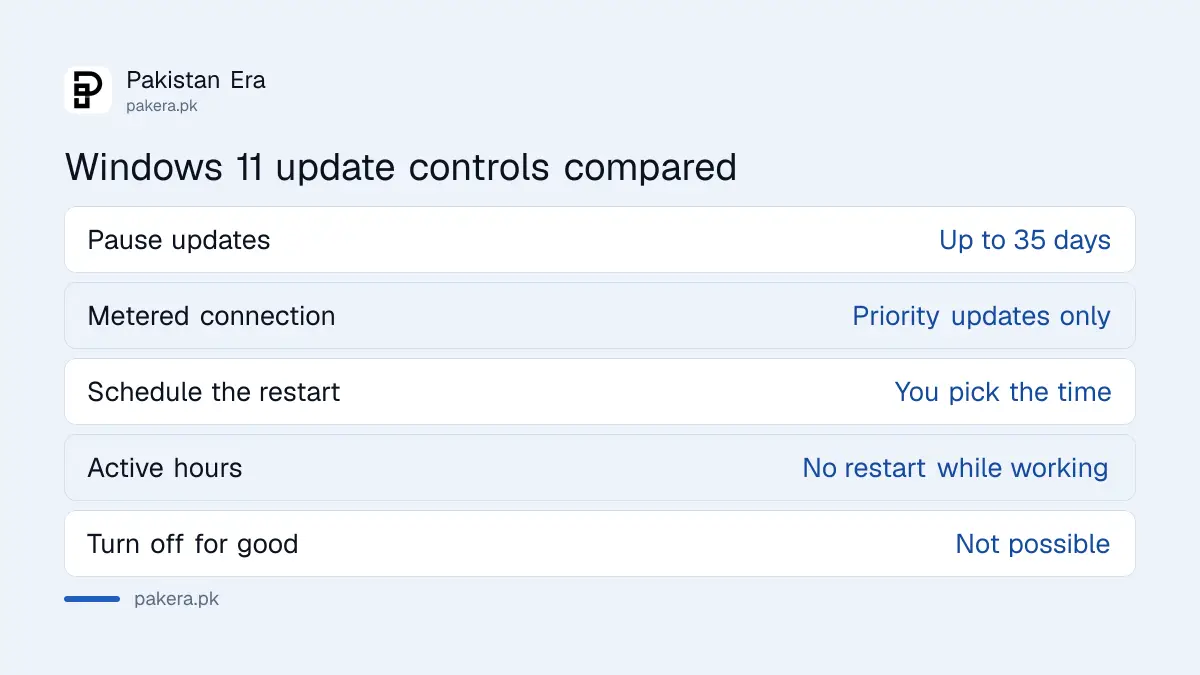
| Option | What it does | How long | Where |
|---|---|---|---|
| Pause updates | Stops downloads and installs | Up to 35 days | Settings, Windows Update |
| Metered connection | Downloads only priority updates | Until you turn it off | Settings, Network and internet |
| Schedule the restart | Picks the restart time | One update at a time | Settings, Windows Update |
| Active hours | Avoids restarts while you work | Ongoing | Settings, Windows Update |
A metered connection stops big downloads on mobile data
Mark your Wi-Fi as metered and Windows Update downloads only priority updates, and some updates will not install automatically. This is the best setting when your laptop runs on a phone hotspot or a capped internet package.
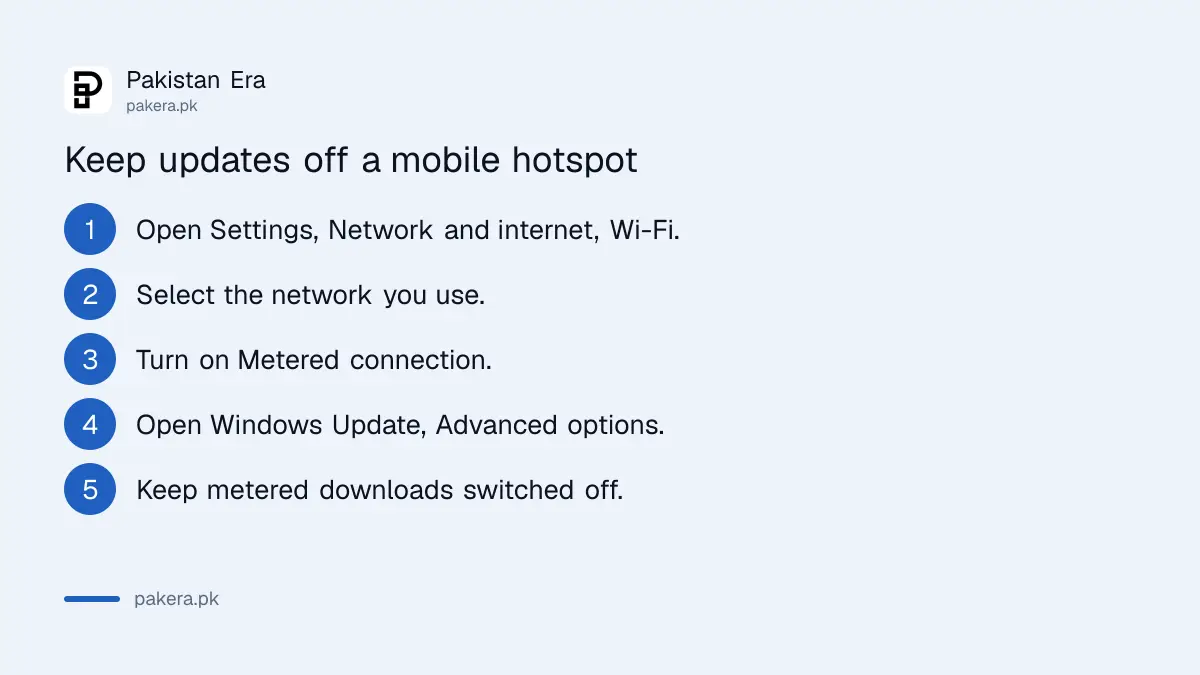
- Open Settings, then Network and internet, then Wi-Fi.
- Select the network you are connected to.
- Turn on Metered connection.
- For a cable connection, do the same under Ethernet.
Then check one more switch. In Settings, Windows Update, Advanced options, make sure Download updates over metered connections is off. If it is on, Windows downloads updates even on a metered network, which defeats the point.
Metered is set per network. Your home Wi-Fi can stay normal while your Jazz or Zong hotspot is metered. If the toggle is greyed out, Microsoft says your organisation may control it, or a data limit is set on that network.
Schedule the restart so an update never cuts your work
When an update is ready, Windows 11 lets you choose the restart time. Go to Start, Settings, Windows Update and select Schedule the restart. Microsoft also lets you set active hours, so automatic restarts happen only when you are not using the PC.
Pick a time when the power is on and the laptop is charging. A restart that dies halfway because the battery ran out during load shedding can leave a PC stuck on a boot screen. If that has already happened, the fixes for Windows Update stuck or failing walk through recovery.
Before a large feature update, it is also worth making a Windows restore point so you can roll back if something breaks.
Do not try to switch updates off for good
Microsoft's FAQ says you cannot stop updates entirely, and that they will eventually need to be installed. Updates carry security fixes. A laptop that has missed months of them is easier to infect, especially if you bank or use JazzCash or Easypaisa on the web.
Websites and YouTube videos offer registry hacks and "update blocker" tools that claim to stop Windows Update forever. We do not recommend them. They can break the update system, and some of these downloads carry malware themselves. Pause plus metered covers almost every real need.
If your worry is space rather than data, freeing room first helps big updates succeed. The Storage Sense steps for Windows 11 clear old update files safely.
Windows 10 users can pause too, but support has ended
On Windows 10, go to Start, Settings, Update and Security, Windows Update, then Pause updates for 7 days or Advanced options to set a resume date. Microsoft says support for Windows 10 ended on 14 October 2025.
That means no more free security updates for most Windows 10 PCs, so pausing them matters less than moving off Windows 10. Check whether your PC can run Windows 11 before you buy a new one.
Common questions
How long can I pause Windows 11 updates?
Up to 35 days at a time. When the pause ends, Microsoft says you must install the latest updates before you can pause again.
Can I turn off Windows 11 updates permanently?
No. Microsoft's FAQ says updates cannot be stopped entirely. You can pause them, use a metered connection and schedule restarts.
How do I stop Windows updates from using my mobile data?
Set the hotspot Wi-Fi as a metered connection in Settings, Network and internet, Wi-Fi. Then make sure Download updates over metered connections is off under Windows Update, Advanced options.
Why is the Metered connection switch greyed out?
Microsoft says it may be set by your organisation, or a data limit may be set on that network. Ask your office IT person if it is a work laptop.
Does pausing updates cancel an update that is downloading?
Yes. Microsoft says updates in progress are cancelled when you pause, and some may need to download again when you resume.
How we verified this
What we checked, where we read it, and what we could not confirm.
On 2 November 2026 we read Microsoft's Manage updates in Windows, Metered connections in Windows and the Windows Update FAQ. The 35 day limit, the menu names and the Windows 10 end of support date come from those pages. We did not test a pause on our own PC, and Microsoft's pages do not give default active hours or update sizes, so we left those out.
About the author

Technology Journalist & Multimedia Producer
Ahmad Ali is a technology journalist and multimedia producer at Pakistan Era, joining the team in October 2026. He covers consumer technology and digital life for Pakistani readers, combining research with hands-on product testing.