How to Run Chrome Safety Check for Passwords, Extensions and Updates in Pakistan
Run Chrome Safety Check in a minute to find leaked passwords, risky extensions and old permissions. Learn the steps and Safe Browsing levels. Check Chrome now.
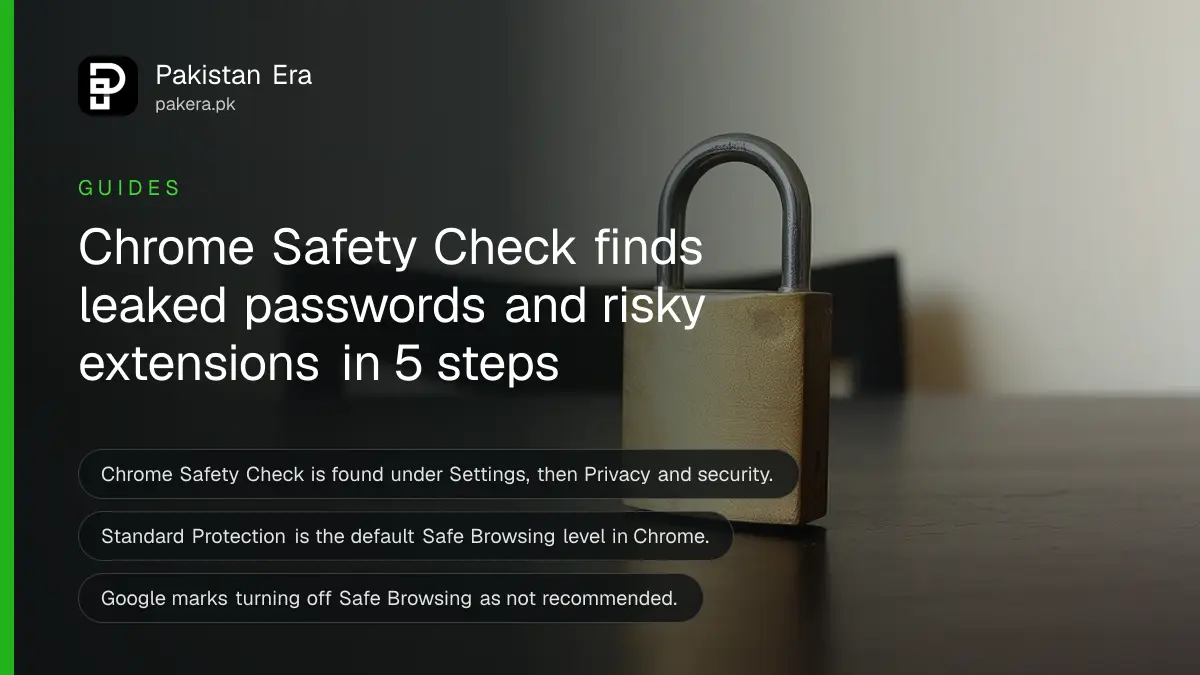
Short answer: In Chrome on a computer, click the three dots, then Settings, then Privacy and security, and under "Safety Check" select Go to Safety Check. Chrome lists weak or leaked passwords, risky extensions, missing updates and old site permissions. Fix each item it shows.
Your browser holds your Gmail, your bank login and probably a saved card. Chrome has a built in check for that, and most people have never pressed the button. It takes less than a minute.
We read Google's Chrome Help page "Manage Chrome safety and security" and its Safe Browsing page on 11 October 2026. We did not run the check on a machine with problems, so we describe what Google's page says it looks for.
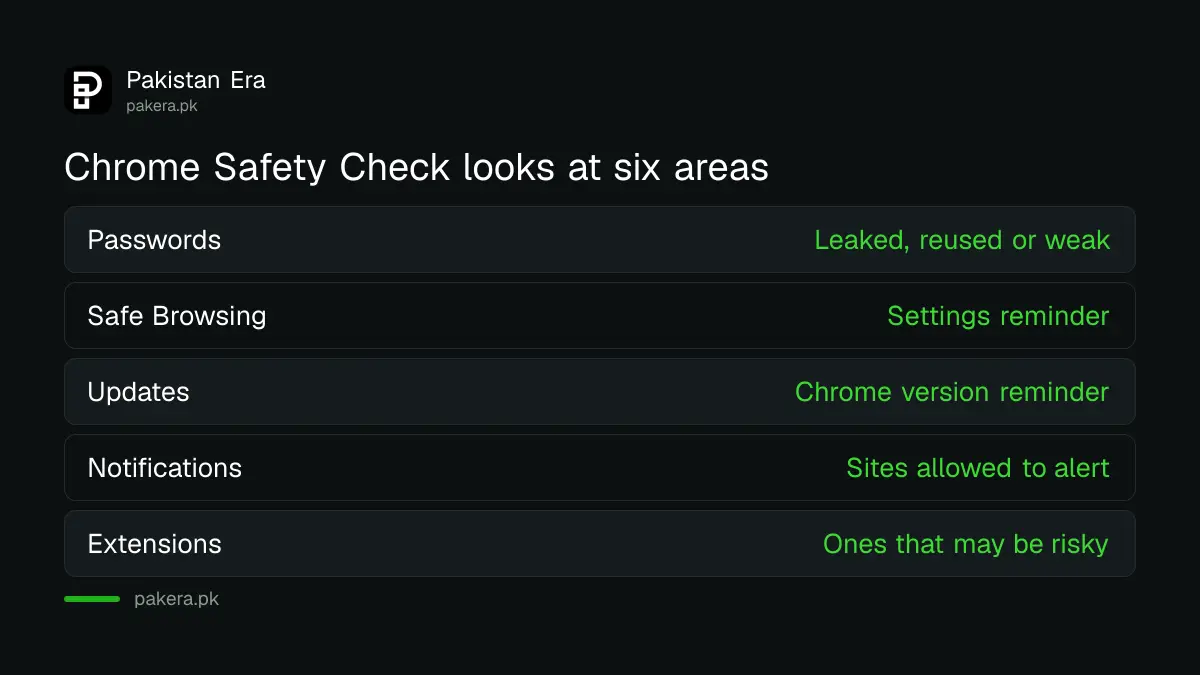
Safety Check looks for seven kinds of problem
Chrome says Safety Check runs automatically to help you find and fix privacy and security problems. On a computer it searches for compromised, reused or weak passwords, Safe Browsing status, Chrome updates, unwanted notifications, unused site permissions, harmful extensions and abusive notifications.
| What Safety Check looks at | What Google says it does |
|---|---|
| Passwords | Warns if a saved login was in a data breach, or is reused or weak |
| Safe Browsing | Reminds you to review your Safe Browsing settings |
| Chrome updates | Reminds you to update the browser |
| Notifications | Reminds you to review sites allowed to send alerts |
| Unused site permissions | Removes permissions from sites you have not used recently |
| Extensions | Warns about extensions that may pose security risks |
Run the check on your computer in five steps
Open Chrome, select More at the top right, then Settings. On the left choose Privacy and security. Under "Safety Check" select Go to Safety Check. If Chrome finds an issue, select it and follow the on screen instructions. Repeat after you fix each one.
- On your computer, open Chrome.
- At the top right, select More, then Settings.
- On the left, select Privacy and security.
- Under "Safety Check", select Go to Safety Check.
- If there are issues, select the item and follow the instructions.
Google adds a tip: when Safety Check takes action on its own, Chrome notifies you of issues that need attention, and these messages show up when you select More.
Change any password that Chrome flags as compromised
If Chrome says a password was involved in a breach, change it on that site first, then anywhere else you used it. Google's page says to change your password at once if you notice unfamiliar activity. Use a different password for every account.
Google also says you can change a password from another site by following the instructions in Chrome. If the flagged login is your Google Account, secure it as well. A Google Account passkey is stronger than any password, and two-step verification stops most account takeovers even when a password leaks.
If you keep passwords in Chrome on your Android phone, moving passwords and passkeys to a password manager is a separate step you can plan after the check.
Pick a Safe Browsing level on purpose
Chrome has three Safe Browsing levels: Enhanced Protection, Standard Protection and No Protection. Standard is the default. Enhanced sends site addresses and page samples to Google for deeper checks. Google calls No Protection not recommended, because it leaves you open to malware and phishing.
| Level | What Google's page says |
|---|---|
| Enhanced Protection | Detects known and potential new dangers and warns about compromised passwords |
| Standard Protection | On by default, protects against sites, downloads and extensions identified as dangerous |
| No Protection | Disables Safe Browsing, not recommended |
To change it, open Chrome, select More, then Settings, then Privacy and security, then Security, and choose your level. Enhanced is a trade: you share more browsing information with Google for earlier warnings. Read the description and decide.
Turn on two more switches in Security settings
Under Privacy and security, then Security, Chrome offers "Always use secure connections" and "Warn you if a password was compromised in a data breach". The first upgrades sites to HTTPS and warns before opening a site that does not support it. The second watches your saved passwords.
- Always use secure connections: you can choose to be warned for insecure public sites, or for public and private sites.
- Warn you if a password was compromised: sits under "Advanced" in the same page.
- Secure DNS: on by default in automatic mode. Google says it is not available if the device is managed or parental controls are on.
Look at your extensions after the check. Extensions run inside your browser, and Chrome warns about risky ones for that reason. If one you do not recognise appears, remove it. This matters most for tools that touch chat sites, as in keeping WhatsApp Web safe from Chrome extensions. On Android, Play Protect and app permissions do a similar job for apps.
Common questions
Where is Safety Check in Chrome?
It is under Settings, then Privacy and security, then "Safety Check", with a Go to Safety Check button.
Does Chrome run Safety Check by itself?
Yes. Google says Chrome runs Safety Check automatically and notifies you when issues need your attention.
What does Safety Check check?
On a computer: passwords, Safe Browsing status, Chrome updates, notifications, unused site permissions, harmful extensions and abusive notifications.
Which Safe Browsing level is the default?
Standard Protection is active by default, according to Google's Safe Browsing page.
Is Enhanced Protection free?
Google's pages we read list no price for it. It is a setting inside Chrome, and you switch it on under Security.
Should I turn Safe Browsing off?
No. Google marks No Protection as not recommended because it leaves you open to malware, phishing and dangerous downloads.
How we verified this
What we checked, where we read it, and what we could not confirm.
Last checked on 11 October 2026 against Google Chrome Help: Manage Chrome safety and security and Safe Browsing protection levels. We read the computer version. Menu names can change with updates.
About the author

Technology Journalist & Multimedia Producer
Ahmad Ali is a technology journalist and multimedia producer at Pakistan Era, joining the team in October 2026. He covers consumer technology and digital life for Pakistani readers, combining research with hands-on product testing.