How to Set Special Holiday Hours on Google Business Profile in Pakistan
Show correct holiday hours on your Pakistan shop Google Business Profile. Follow the Special hours steps, avoid the main hours trap and plan for Google review.
To show holiday hours on your Google Business Profile in Pakistan, open Edit profile, then Hours, and click the edit icon beside Special hours. Pick the date, set the open and close times or mark Closed, and press Save. Google reviews changes before they go live.
A shopper searches for your shop on Eid eve, sees the normal hours, drives across the city, and finds a shut shutter. That costs you a customer and gets you an angry review. Special hours stop that. We read Google's Business Profile help pages on 15 October 2026 and set out the steps, the limits and the traps for shop owners in Pakistan.
Open the Special hours editor from your profile
Go to your Business Profile, select Edit profile, then Hours. In the Business hours section, click the edit icon next to Special hours. You can also edit hours from the Google Maps app by tapping Business, then Edit profile.
If you cannot see an Edit profile button, check that you are signed in with the Google account that manages the profile. That is our advice, not a line from Google's page.
If your profile is not set up yet, start with how a shop appears on Google Maps. And if a listing was blocked, the steps to fix a suspended Google Business Profile come first, because you cannot edit hours on a profile you cannot manage.
Add the date and the new hours
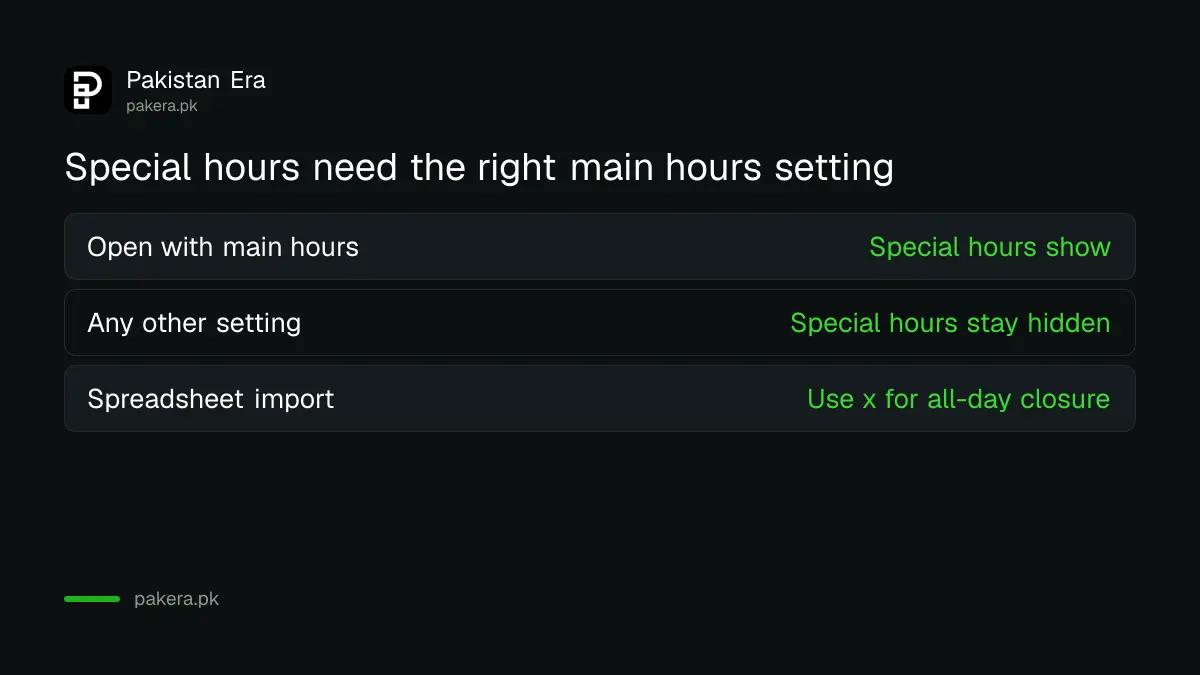
Choose a date. You can accept one that Google suggests, add your own, or edit an existing one. Then uncheck Closed and enter your open and close times, or leave Closed ticked if you are shut all day. Press Save.
To add a second set of times on the same day, such as a break for Friday prayers, use the More menu. If your hours run past midnight, a night shop or a late restaurant, split them into two entries: one ending at midnight and one starting at midnight.
- Open your Business Profile and select Edit profile.
- Select Hours.
- Click the edit icon beside Special hours.
- Choose the date.
- Uncheck Closed and enter times, or leave Closed ticked.
- Press Save.
Check that your main hours are set to open with main hours
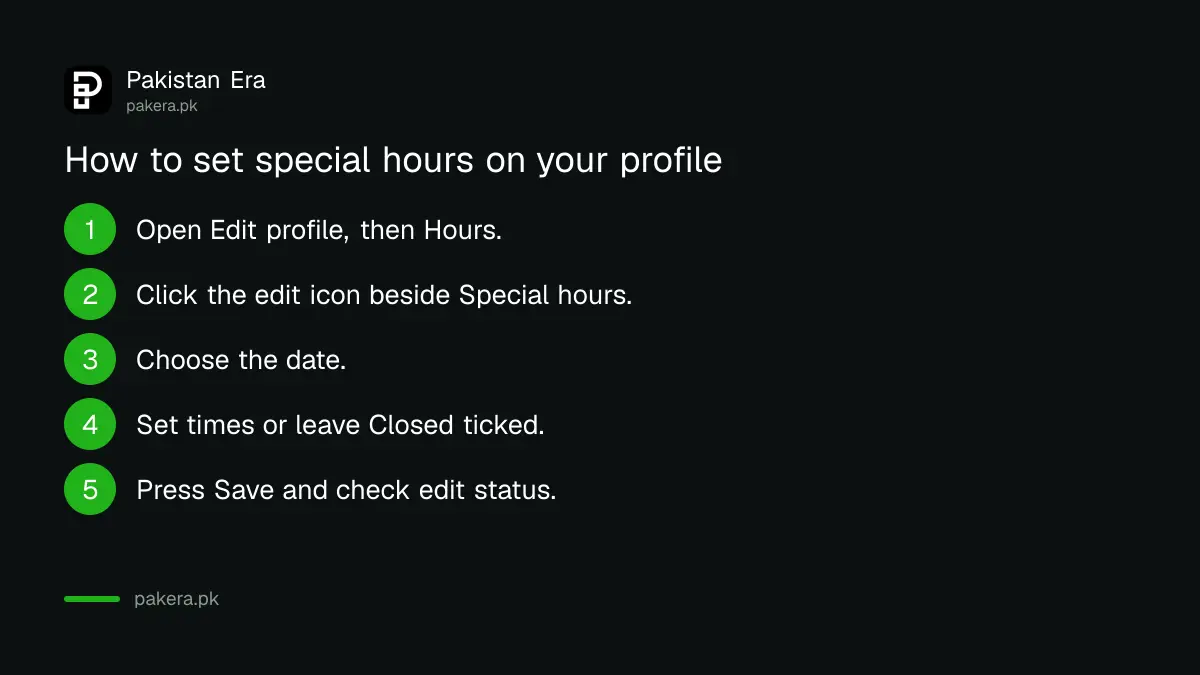
Google says special hours only appear if your business hours are set to "Open with main hours". If you chose another setting, your special hours will be saved but not shown. Check this before you add any date.
This is the quiet trap. A shop owner adds ten holiday dates, sees the success message, and customers still see the old times. The setting was wrong. Open the main hours and confirm the choice.
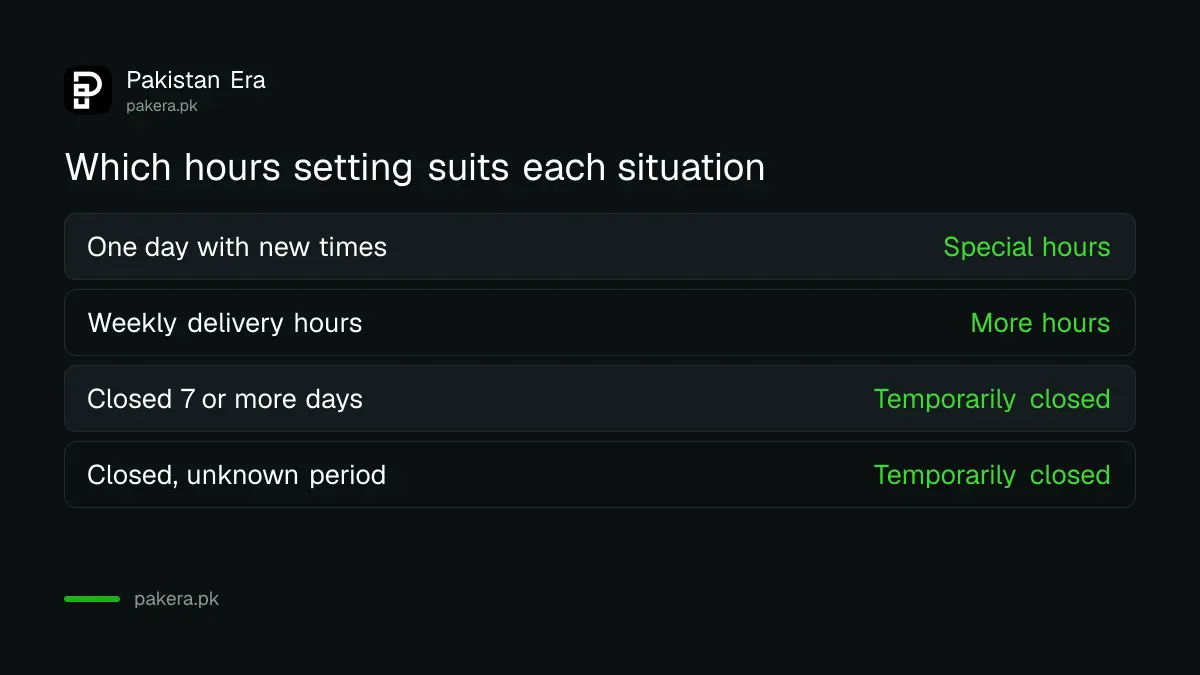
| Situation | Which setting to use |
|---|---|
| One day with different times | Special hours |
| Delivery or senior hours that repeat weekly | More hours |
| Closed for 7 or more days in a row | Mark as temporarily closed |
| Closed for an unknown period | Mark as temporarily closed |
Use the spreadsheet import for many dates
Google lets you enter special dates in a spreadsheet and import it. Use the Special hours column, and put an "x" for an all-day closure. This is handy for chains or malls with many branches, or for a long list of known holidays.
For one shop, typing the dates by hand is quicker. For ten branches, the spreadsheet saves an evening. Keep a copy of the file, because you will use it again next year after changing the dates. Google's page does not give a limit on special hours entries, so we cannot state one.
Wait for Google's review and keep a record
Google says it reviews your changes before they go live on your profile. You can check the edit status in the profile. The page gives no review time, so make changes well before the date, not on the morning of the holiday.
Tell your customers elsewhere too. A WhatsApp status helps, and so does a note on your door. If you run orders on chat, the steps for a WhatsApp Business catalog show where to put a short notice. Replying to customers who ask about timings is easier with a good habit of replying to Google reviews, since a review is often where the confusion shows first.
We did not edit a live profile. Google can change its menus, so follow the labels on your own screen if they differ from our list.
Common questions about special hours
Where do I find Special hours?
Select Edit profile, then Hours, then the edit icon beside Special hours in the Business hours section.
Why are my special hours not showing?
Google says they only appear if your hours are set to Open with main hours. Check that setting first.
How long does Google take to show my changes?
Google says it reviews changes before they go live, but gives no time. Edit early and check the edit status.
What if I will be closed for a week or more?
Mark the business as temporarily closed if it is for 7 or more days in a row, or an unknown time.
Can I set two sets of hours on one day?
Yes. Use the More menu to add another set of hours for the same day.
Can I upload many holiday dates at once?
Yes. Fill the Special hours column in a spreadsheet, using x for all-day closure, and import it.
How we verified this
What we checked, where we read it, and what we could not confirm.
Last checked 15 October 2026. We read Google's Business Profile help pages on editing business hours and on setting special hours on 15 October 2026. The steps, the Open with main hours rule, the spreadsheet import and the 7 day closure rule come from those pages. We did not edit a live profile, and Google gives no review time.
About the author

Technology Journalist & Multimedia Producer
Ahmad Ali is a technology journalist and multimedia producer at Pakistan Era, joining the team in October 2026. He covers consumer technology and digital life for Pakistani readers, combining research with hands-on product testing.