How to Turn Off Connectivity Assist on iPhone So Weak Wi-Fi Does Not Use Your Mobile Data in Pakistan
Turn off Connectivity Assist on iPhone so weak Wi-Fi does not quietly use your mobile data package. Three taps in Settings, Wi-Fi, plus a per-network option.
Short answer: Open Settings, Wi-Fi, scroll to the bottom and switch Connectivity Assist off. Apple says that with it on, your iPhone uses mobile data when Wi-Fi is slow or unusable, so "you might use more cellular data". Apple says it replaces the older Wi-Fi Assist, and you can turn it off for one network only.
You are on home Wi-Fi, the signal is poor, and your package disappears anyway. The phone may be quietly switching to mobile data to keep pages loading. In Pakistan, where packages are small and expire on a date, that quiet switch costs real money.
We read Apple's Connectivity Assist support page on 14 October 2026. We did not measure data use on a Pakistani network, so we cannot say how many megabytes it uses on yours.
Connectivity Assist borrows mobile data when Wi-Fi is weak
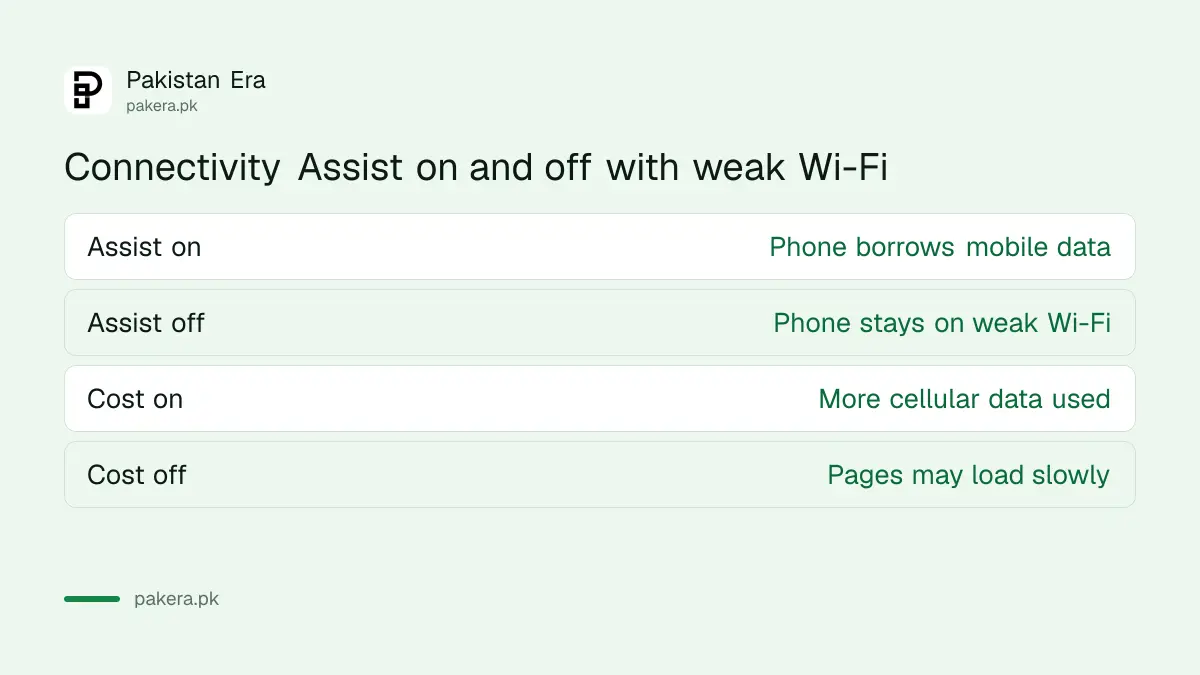
Apple says Connectivity Assist uses cellular data alongside Wi-Fi when Wi-Fi is slow or unusable. It replaces Wi-Fi Assist. If Wi-Fi Assist was on when you updated, Connectivity Assist is on by default. Otherwise, you can turn it on by hand.
The idea is good: a page that would not load now loads. The cost is that you may not notice the switch. Apple's own warning is plain: with it on, you might use more cellular data.
Turn it off in three taps
Apple's steps are: open Settings, tap Wi-Fi, make sure Wi-Fi is on, scroll down and switch Connectivity Assist off. If the switch is not there, update iOS first. Apple says to update to the latest version before you look.
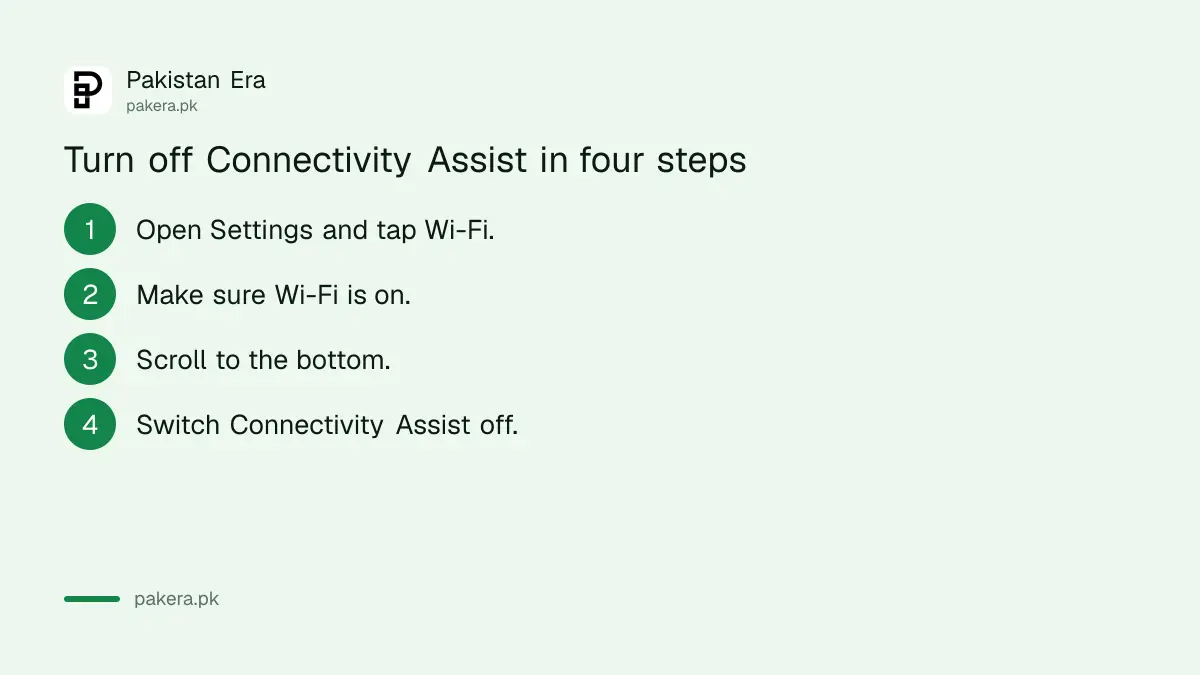
- Open Settings and tap Wi-Fi.
- Make sure Wi-Fi is switched on.
- Scroll to the bottom of the screen.
- Switch Connectivity Assist off.
On older iOS versions the feature is called Wi-Fi Assist, and Apple's older guidance places it in the Cellular or Mobile Data screen. If you cannot find Connectivity Assist, look there. Menu names change between iOS versions.
When Wi-Fi is weak again, your phone will no longer rescue it with mobile data. Pages may stall. That is the trade. For fixing the Wi-Fi itself, see simple router placement tips for faster Wi-Fi.
You can switch it off for one network
Apple says you can turn Connectivity Assist off for a single Wi-Fi network. Its example is a router set-up, such as an ad blocker, that does not work well with a mobile data fallback. Open that network's details in the Wi-Fi list to look for the option.
This is handy at home. Leave the assist on for the office or the bus stand, and off on your home network where you pay by the gigabyte. We did not test the per-network menu on every iOS version, so look for it in the network's information screen.
| Where Connectivity Assist is not used | Source |
|---|---|
| When the iPhone is roaming abroad | Apple |
| In cellular Low Data Mode | Apple |
| With some third-party streaming apps | Apple |
Those are Apple's own exceptions. So if you turn on Low Data Mode, the assist is off anyway. Roaming has its own risks, covered in PTA's rule on package expiry, usage alerts and roaming limits.
A good rule is simple. If you have a large mobile package that you rarely finish, leaving the assist on costs you little. If you have a small package, or you share one with your family, turn it off at home. The setting is yours to choose, and you can change it again in seconds.
One more habit helps. When Wi-Fi looks weak, check the router before you blame the phone. A restart of the router fixes many slow connections, and then the assist has nothing to rescue. Apple's own Wi-Fi advice starts with the router and modem too.
Check how much data it used
Apple says you can check or reset your cellular data usage in Settings. Look at the list of apps under Cellular or Mobile Data. A big number on an app you only use at home is a sign that the assist moved it off Wi-Fi.
Reset the counter on a fixed day, such as the day your package renews. Then you can compare weeks. A simple monthly routine is described in how to save mobile data on Android and iPhone.
You can also add a warning so you hear before the package ends. See how to set a mobile data warning and check app data on iPhone. If you ever run out, call, SMS and data rates without a package shows what the open rate can cost.
Common questions
What is Connectivity Assist on iPhone?
Apple says it uses cellular data alongside Wi-Fi when Wi-Fi is slow or unusable. It replaces Wi-Fi Assist.
Does it use my mobile data package?
Yes. Apple warns that with it on, you might use more cellular data.
How do I turn it off?
Go to Settings, Wi-Fi, scroll to the bottom and switch Connectivity Assist off.
Can I turn it off for one Wi-Fi network only?
Yes. Apple says you can disable it for a single network, such as one that works badly with a data fallback.
Does it work when I am roaming?
No. Apple says it is not used when the iPhone is roaming internationally, in cellular Low Data Mode, or with some streaming apps.
How we verified this
What we checked, where we read it, and what we could not confirm.
Last checked on 14 October 2026, Pakistan time. We read Apple's Connectivity Assist support page. Apple does not name the iOS version in which the name changed. We did not measure data use on a Pakistani network, and we did not confirm the per-network menu on every iOS version.
About the author

Technology Journalist & Multimedia Producer
Ahmad Ali is a technology journalist and multimedia producer at Pakistan Era, joining the team in October 2026. He covers consumer technology and digital life for Pakistani readers, combining research with hands-on product testing.