How to Save Mobile Data on Android and iPhone in Pakistan
Stop your data bundle vanishing early. Turn on Android Data Saver or iPhone Low Data Mode, set WhatsApp, YouTube and Instagram to save data, and check MBs left.
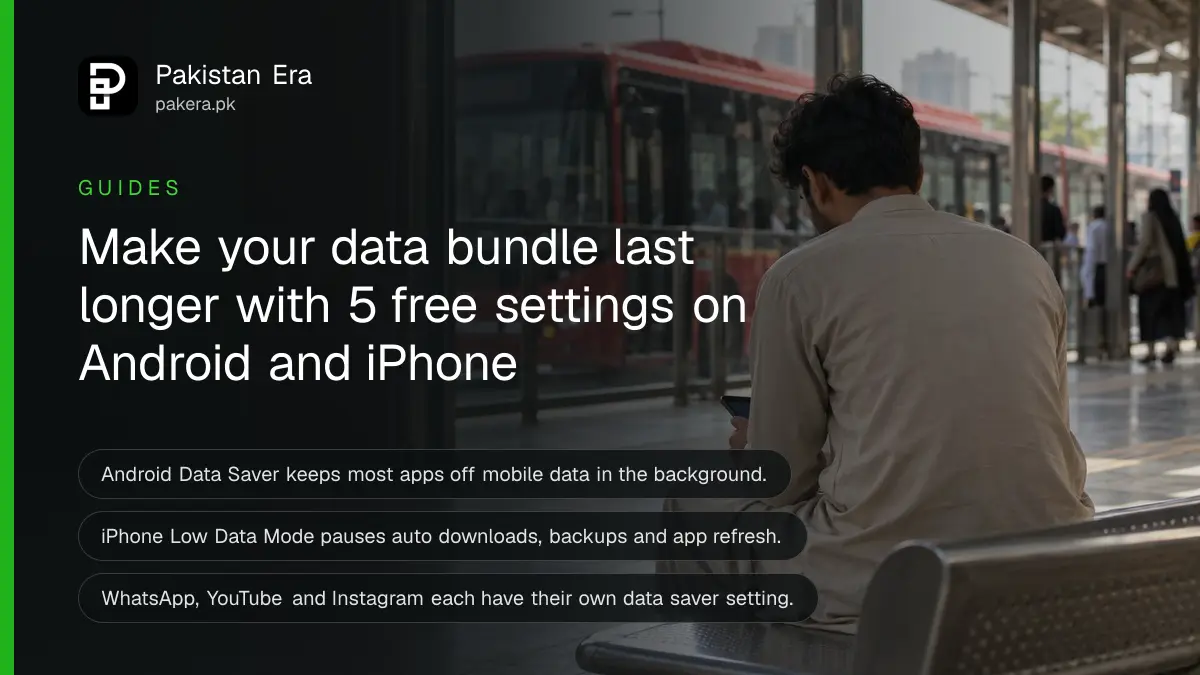
To save mobile data, turn on Data Saver on Android (Settings, Network & internet, Data Saver) or Low Data Mode on iPhone (Settings, Cellular, Cellular Data Options). Then set WhatsApp media to download on Wi-Fi only, switch YouTube and Instagram to their data saver settings, and let app updates wait for Wi-Fi.
A 10 GB monthly bundle can vanish in a week, and most of the time the reader did nothing unusual. We read the official help pages from Google, Apple, WhatsApp, Instagram and YouTube on 7 October 2026 and put the settings that actually cut mobile data use in one place, for Jazz, Zong, Telenor and Ufone users alike.
Five settings cut most of your mobile data use
Most wasted data in Pakistan goes on three things: video quality, WhatsApp media auto-download and background updates. Fixing the phone's own saver mode plus four app settings takes about ten minutes and stops most of the drain.
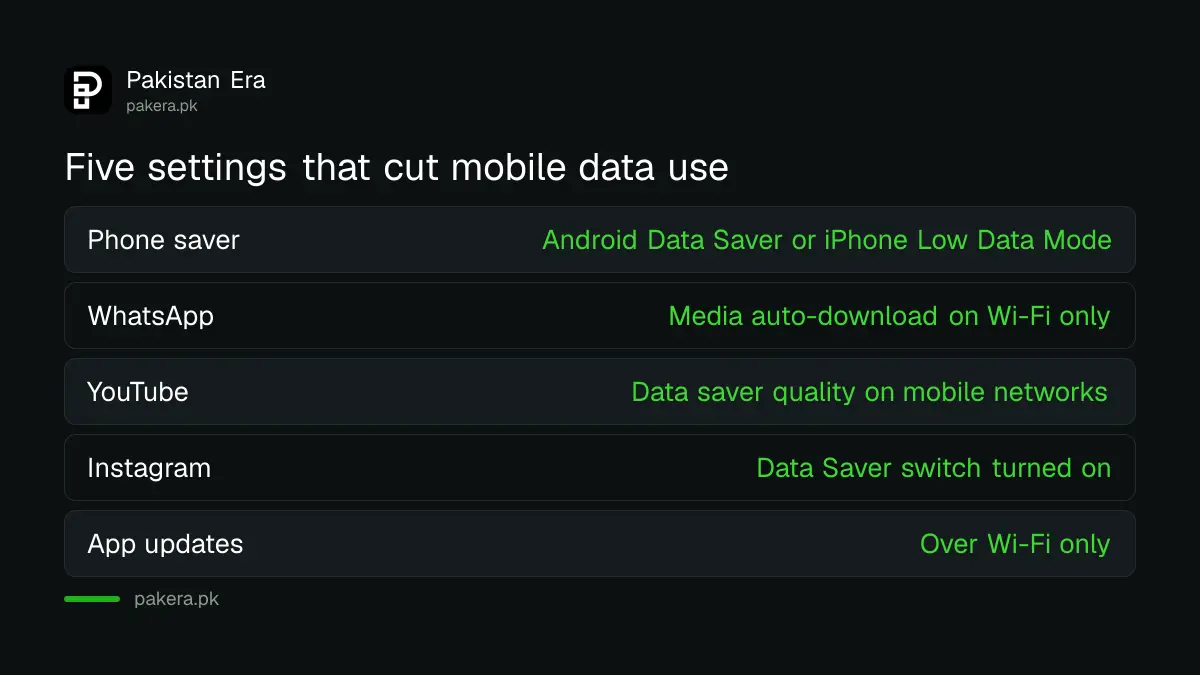
| Setting | Where to find it | What it stops |
|---|---|---|
| Android Data Saver | Settings, Network & internet, Data Saver | Background data for most apps on mobile data |
| iPhone Low Data Mode | Settings, Cellular, Cellular Data Options | Background refresh, auto downloads, iCloud Photos sync |
| WhatsApp media auto-download | Settings, Storage and data | Photos and videos downloading on their own |
| YouTube video quality | Profile picture, Settings, Video quality preferences | High quality video on mobile networks |
| Instagram Data Saver | Profile, Menu, Data usage and media quality | Videos preloading on mobile data |
| App updates | Play Store or App Store settings | Large updates over mobile data |
Menu names differ a little between phone brands. If a path does not match, type "data saver" into the search bar at the top of Settings.
Turn on Data Saver and set a limit on Android
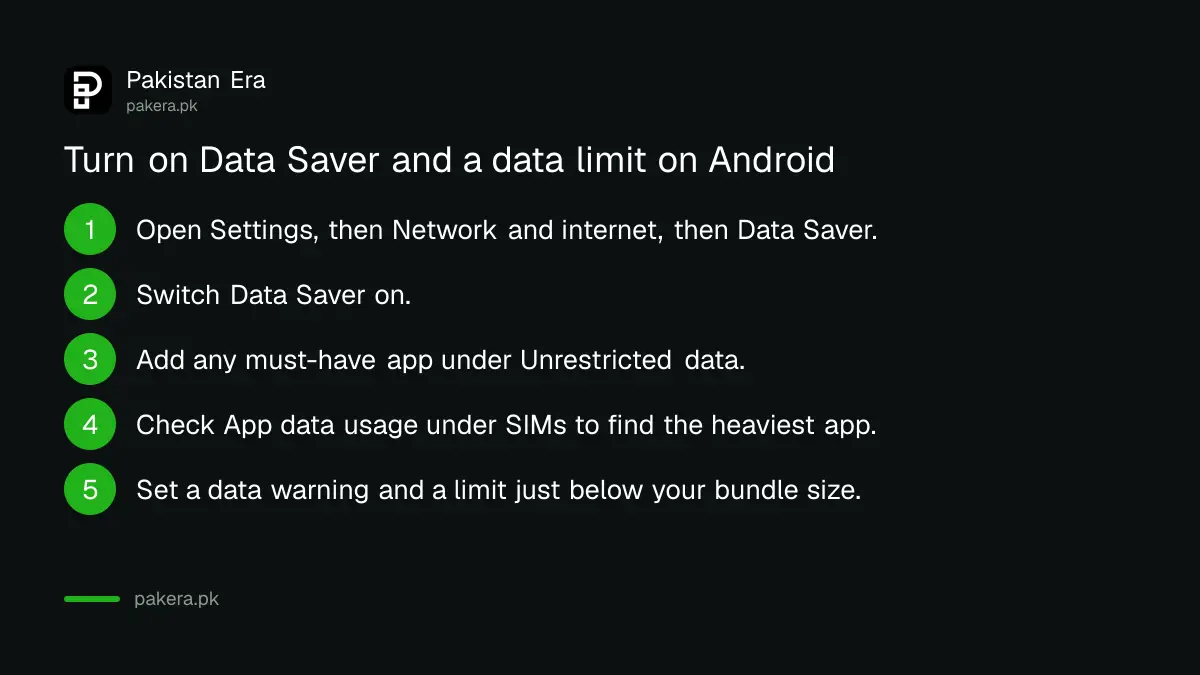
Android's Data Saver lets only the app you are using touch mobile data, while the rest wait for Wi-Fi. You can also set a warning and a hard limit that switches mobile data off once you reach it.
- Open Settings, then Network & internet, then Data Saver, and turn it on.
- If an app you rely on, like a banking app, needs data in the background, go to Data Saver, Unrestricted data and switch that one app on.
- To see which app used the most, go to Settings, Network & internet, SIMs, App data usage. The list sits below the graph.
- Under SIMs, tap Data warning & limit. Turn on Set data warning and enter a figure in MB or GB.
- Turn on Set data limit and enter the size of your bundle. Mobile data switches off when you reach it.
Google warns that your network may count usage differently from the phone. So set the limit a little below your bundle, say 9 GB for a 10 GB package.
Use Low Data Mode and per-app switches on iPhone
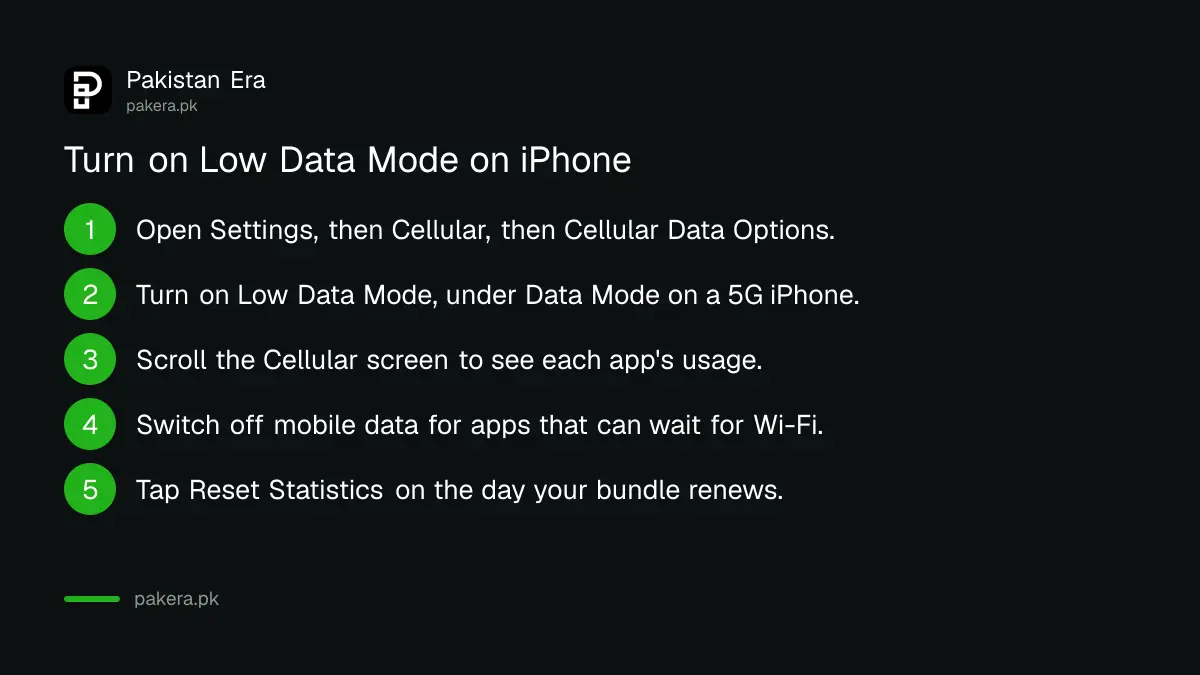
On iPhone, Low Data Mode pauses background refresh, automatic downloads, backups and iCloud Photos sync, and lowers streaming quality. Apple also lets you block mobile data for any single app from the Cellular screen.
- Open Settings, Cellular, Cellular Data Options, and turn on Low Data Mode. On a 5G iPhone, tap Data Mode first, then choose Low Data Mode.
- Scroll down the same Cellular screen to see each app's usage. Turn off the switch next to any app that should only use Wi-Fi.
- Tap Reset Statistics at the bottom on the day your bundle renews, so the counts match your package.
Connectivity Assist also uses mobile data when Wi-Fi is weak. If your bundle shrinks while you are at home, turn it off on the Cellular screen.
WhatsApp, YouTube and Instagram each have a saver setting
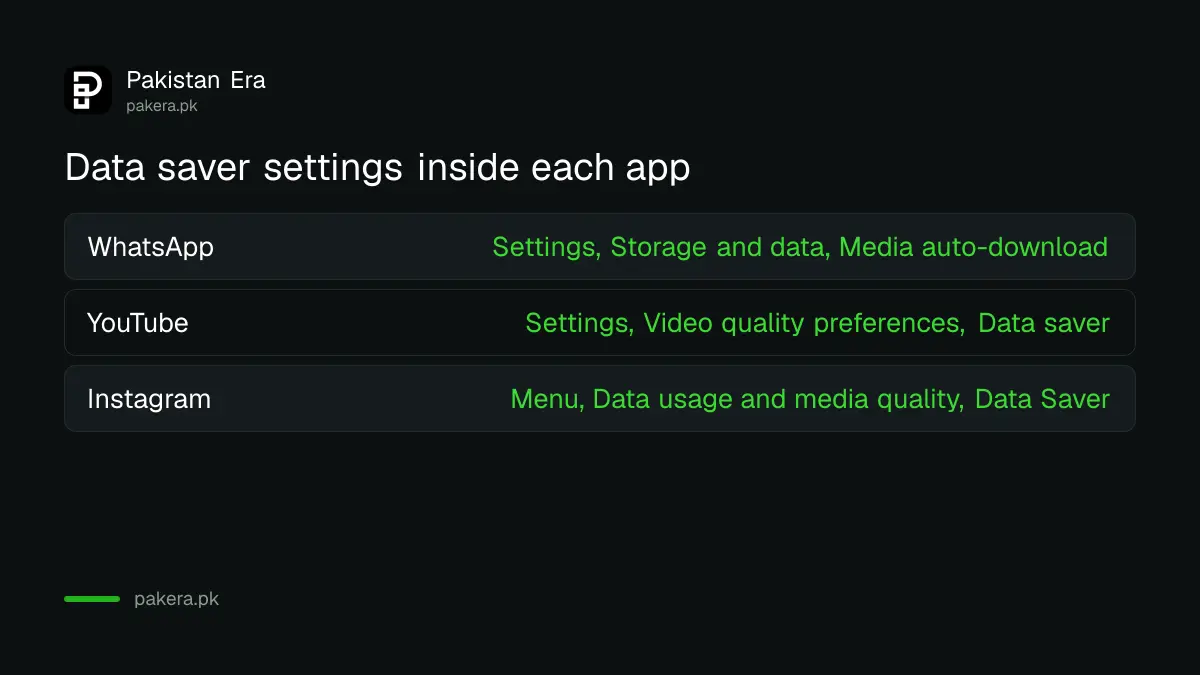
WhatsApp, YouTube and Instagram each hide a data setting that is off by default. Set WhatsApp media to Wi-Fi only, choose Data saver for YouTube on mobile networks, and switch on Instagram's Data Saver toggle.
On Android, tap the three dots, Settings, Storage and data. Under Media auto-download, open When using mobile data and untick videos and documents, or untick everything. On iPhone, go to Settings, Storage and data, and set each media type to Wi-Fi or Never. WhatsApp itself suggests Wi-Fi only for anyone on a limited plan. The same screen has a Use less data for calls switch, and Network usage shows how much WhatsApp has used.
If you mainly use WhatsApp, a bundle of extra WhatsApp data on Jazz, Zong and Telenor can cost less than a general internet top-up.
YouTube
Tap your profile picture, Settings, Video quality preferences, and under mobile networks pick Data saver. YouTube says the picture is lower quality but videos may start faster. Keep Auto for Wi-Fi.
Instagram and TikTok
In Instagram, go to your profile, tap Menu, then Data usage and media quality, and turn on Data Saver. Instagram warns videos may take longer to load on mobile data. TikTok also has a Data Saver switch in its settings menu, but TikTok's help page did not load when we checked, so we cannot give its exact path.
Let app updates and backups wait for Wi-Fi
App updates and photo backups can eat hundreds of MBs without a single tap from you. Set the Play Store to update over Wi-Fi only, and on iPhone turn off Automatic Downloads under App Store cellular data.
On Android, open the Google Play app, tap your profile picture, then Settings, Network preferences, Auto-update apps, and choose Update over Wi-Fi only. On iPhone, open Settings, then App Store (inside Apps on newer iOS), and turn off Automatic Downloads under Cellular Data.
Check remaining MBs and pick the right bundle
The phone's counter is a rough guide. The figure that matters is your network's, so check remaining MBs by code or app, then match your real usage to a package size.
Each operator shows the balance in its own way: remaining Jazz MBs, remaining Zong MBs, remaining Telenor MBs and the Ufone balance and MBs each have their own code. Once you know your monthly total, the free mobile data usage calculator turns hours of video, calls and browsing into GB. That number makes it easier to compare mobile packages and stop paying for a bundle twice your need.
Common questions
Does Data Saver stop WhatsApp messages?
No. Data Saver blocks background data for most apps, so WhatsApp notifications may arrive late until you open the app. Add WhatsApp to Unrestricted data if you need messages at once.
Why does my network show more MBs used than my phone?
Google says the phone and the network measure usage differently. Trust the operator's balance check and set your phone's limit a little below your bundle size.
Does Low Data Mode slow down my iPhone internet?
No. Speed stays the same. Low Data Mode pauses background tasks and lowers streaming quality, so pages you open still load normally.
Which app uses the most mobile data?
Video apps usually lead. Check your own list under App data usage on Android or the Cellular screen on iPhone, because the answer differs for every user.
Do these settings cost anything?
No. Every setting here is free and built into the phone or the app.
How we verified this
What we checked, where we read it, and what we could not confirm.
We last checked these menus on 7 October 2026 by reading each company's own help page. We did not test each phone brand ourselves, so menu names on some Android skins may differ slightly.
- Google Pixel Phone Help, Use less mobile data with Data Saver, and Reduce and manage mobile data usage: Data Saver, App data usage, warning and limit.
- Apple Support, Use Low Data Mode on your iPhone and iPad, and View or change cellular data settings on iPhone.
- WhatsApp Help Center, How to configure auto-download, and About data roaming charges.
- Instagram Help Center, Use less data on Instagram. YouTube Help, Change the quality of your video. Google Play Help, update apps over Wi-Fi only.
About the author

Technology Journalist & Multimedia Producer
Ahmad Ali is a technology journalist and multimedia producer at Pakistan Era, joining the team in October 2026. He covers consumer technology and digital life for Pakistani readers, combining research with hands-on product testing.