How to Turn On Android Theft Protection and Lock Your Phone if It Is Snatched in Pakistan
Switch on Android Theft Detection Lock, Offline Device Lock and Remote Lock in Pakistan. Follow the steps in Settings now, before a thief grabs your phone.
Short answer: Open Settings, tap Google, then All services, then Theft protection. Turn on Theft Detection Lock, Offline Device Lock and Remote Lock. These Android features lock your screen if a thief grabs the phone and runs, or cuts its internet. They need Android 10 or newer and a screen lock.
Phone snatching takes a few seconds. A rider slows down, a hand reaches out, and your unlocked phone is gone with everything on it: chats, bank apps, photos. Blocking the SIM and the IMEI comes later. The first thing that matters is whether the thief can get into the phone while it is still unlocked and in motion.
We read Google's Android Help page "Protect your personal data against theft". We did not test the features on a phone for this article, so the menu names below are Google's wording and may differ slightly by phone brand.
Theft protection is one menu with four locks
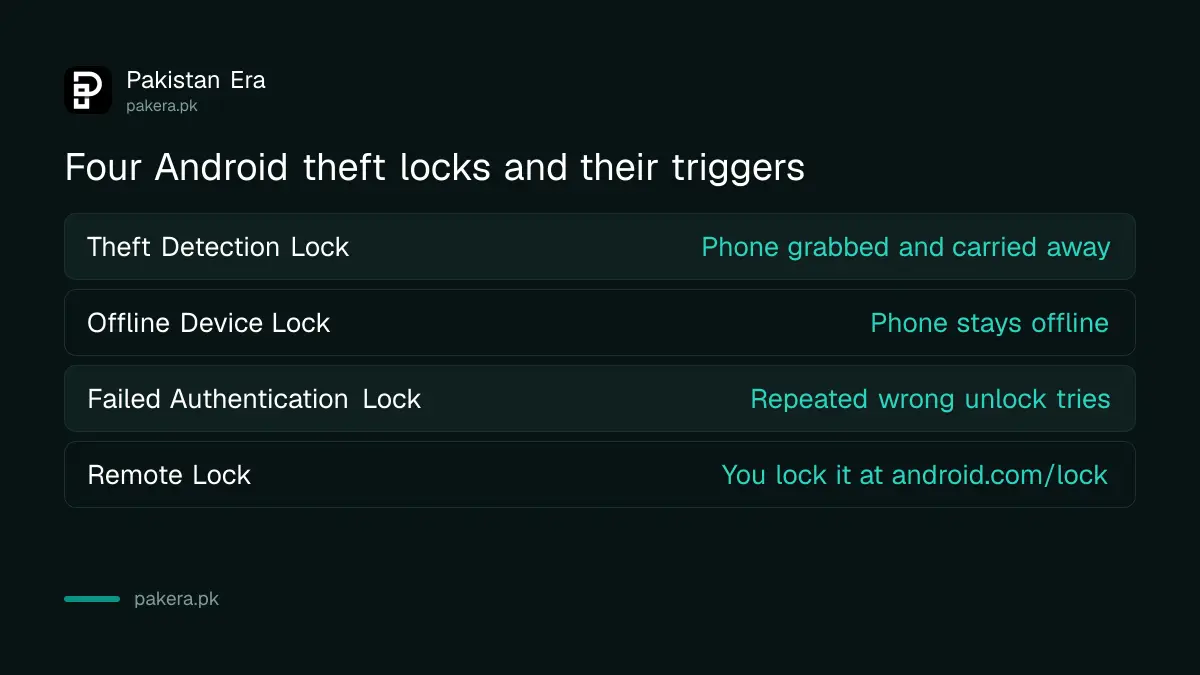
Android's Theft protection menu groups several lock features. Theft Detection Lock reacts to a snatch, Offline Device Lock reacts to lost internet, Failed Authentication Lock reacts to repeated wrong tries, and Remote Lock lets you lock the phone from another device by number.
| Feature | What it does | What it needs |
|---|---|---|
| Theft Detection Lock | Locks the screen if it detects the phone was grabbed and carried away fast | Android 10 or newer, supported phone model, screen lock |
| Offline Device Lock | Locks the screen after the phone stays offline for a short period | Phone unlocked when it loses internet |
| Failed Authentication Lock | Locks the screen after repeated failed unlock attempts | Screen lock set |
| Remote Lock | Locks the phone from android.com/lock with your phone number | Active SIM, verified number, Find Hub on, internet |
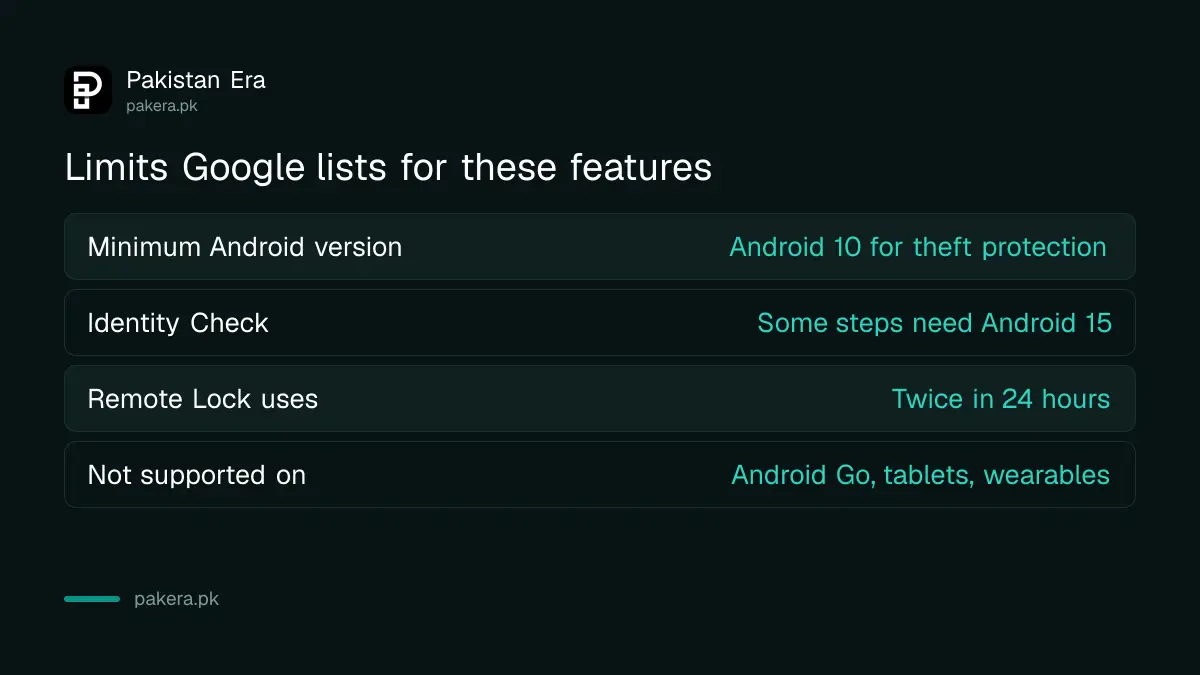
Google says these features are not supported on Android Go phones, tablets and wearables. Support can also vary by phone model. If a toggle is greyed out, your phone does not support that feature.
How to turn on the locks step by step
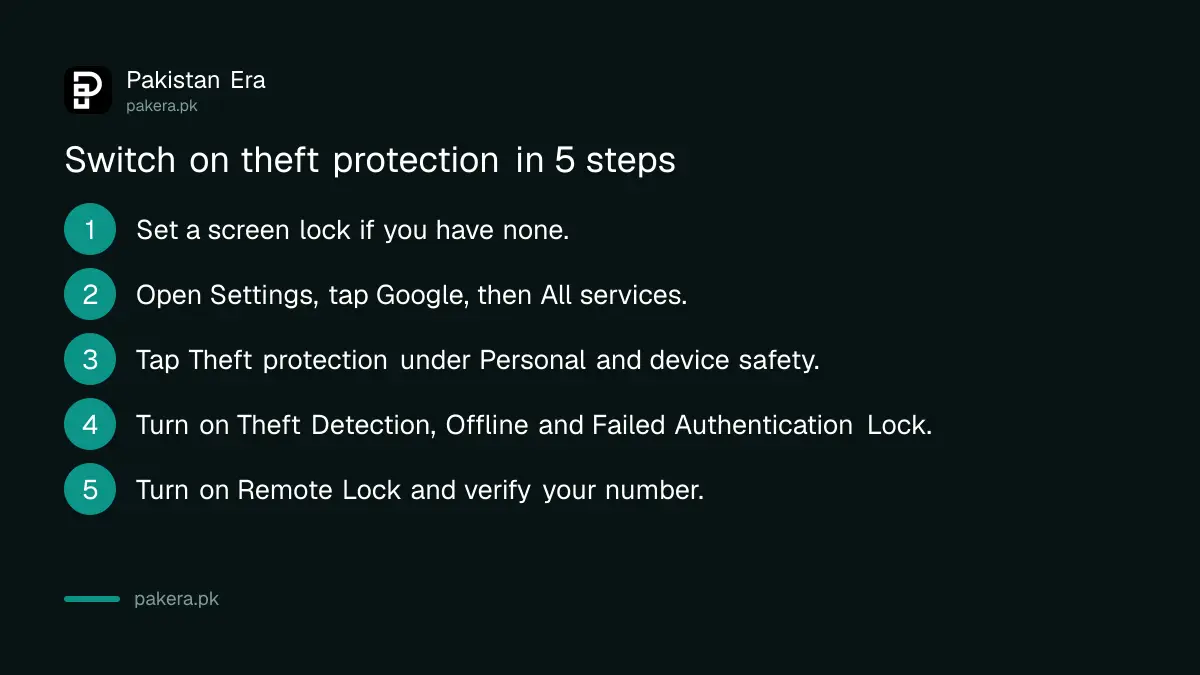
Go to Settings, tap Google, tap All services and find Theft protection under Personal and device safety. Switch on each lock you see. Some may already be on by default, depending on your phone maker.
- Set a screen lock first. Every theft feature needs one.
- Open your phone's Settings app and tap Google.
- Tap All services, then Theft protection under "Personal and device safety".
- Turn on Theft Detection Lock.
- Turn on Offline Device Lock.
- Turn on Failed Authentication Lock.
- Tap Remote Lock and switch it on. If asked, tap Verify number and allow automatic verification of phone numbers.
Google's page notes that if the phone locks while you use it, you can just unlock and carry on. The company says it keeps improving the feature to reduce such interruptions. Theft Detection Lock may also stay quiet when the phone has a stable Wi-Fi or Bluetooth connection, so a snatch while you are on home Wi-Fi may not trigger it.
Remote Lock works from any browser if the phone has a verified number
If your phone is stolen, go to android.com/lock on any device, enter your phone number, pass the reCAPTCHA and request the lock. The screen locks shortly after. This only works if you switched Remote Lock on before the theft.
The phone also needs an active SIM, Find Hub on and an internet connection. If it is offline when you send the request, the screen locks as soon as it comes online. Google says the screen can be locked remotely twice in 24 hours.
You can add an optional security question to Remote Lock. Then a stranger who knows your number cannot lock your phone for fun. Go to Theft protection, Remote Lock, Security question, confirm with your PIN or biometrics, and set the question and answer.
To wipe, secure or erase the phone after locking it, you must sign in to Find Hub. We cover that tool in how to use Find My Device on Android.
Identity Check protects your Google account from a thief who knows your PIN
Identity Check asks for fingerprint or face, not your PIN, when you are away from your trusted places like home or work. It is available only on certain phones, and Google says some steps need Android 15 or newer.
With Identity Check on and the phone away from trusted places, it requires biometrics to see saved passwords and passkeys, change the screen lock, add or remove a Google account, turn off Find Hub, or turn off any theft protection feature. It also protects changes to your Google account password.
The point is simple. A thief who watched you type your PIN still cannot reach your saved passwords or change your Google password without your face or finger. If Theft protection does not list Identity Check, your phone does not support it.
Lock the phone first, then block the SIM and IMEI
After you lock the screen, call your network to block the SIM, then block the phone's IMEI through PTA. Keep the order: lock, SIM, IMEI, then complaint. Locking comes first because it stops access to your apps within minutes.
The steps for the SIM and IMEI are in how to block a lost or stolen phone in Pakistan. If a bank or wallet app was on the phone, tell the bank at once and change the password for your Google account and linked apps.
Do not try to chase a thief. Do not tap links in messages that claim to have found your phone. Scammers can send fake "phone found" texts to get your Google password.
Common questions
Does Theft Detection Lock work on every Android phone?
No. Google says it needs Android 10 or newer and is not supported on Android Go phones, tablets or wearables. If the toggle is greyed out, your phone does not support it.
Where is Theft protection in Settings?
Open Settings, tap Google, tap All services and look under Personal and device safety. Some phone makers also keep the same options in their own security menu.
Can I lock my stolen phone without another phone?
Yes, if Remote Lock was already on. Use android.com/lock in any browser with your phone number. The phone needs an active SIM, a verified number and Find Hub turned on.
Will the phone lock if the thief turns off mobile data?
Offline Device Lock is meant for that case. It locks the screen after the phone stays offline for a short time, but the phone must have been unlocked when it lost internet. Google says it can trigger twice in 24 hours.
Does this replace blocking the IMEI?
No. Locking protects your data. Blocking the SIM and IMEI stops the phone and your number being misused, and you still file a report.
Is Identity Check available in Pakistan?
We could not confirm a country list on Google's page. It says only that Identity Check is on certain devices, so check whether your Theft protection menu lists it.
How we verified this
What we checked, where we read it, and what we could not confirm.
Last checked on 11 October 2026. We read Google's Android Help page Protect your personal data against theft. We did not run the features on a device and we did not find a Pakistan specific availability list. Menu names can change with your phone brand and Android version.
About the author

Technology Journalist & Multimedia Producer
Ahmad Ali is a technology journalist and multimedia producer at Pakistan Era, joining the team in October 2026. He covers consumer technology and digital life for Pakistani readers, combining research with hands-on product testing.