Upload WhatsApp Status Without Losing Quality in Pakistan: Laptop Method, Music Fix and Phone Settings
We tested it: a WhatsApp status posted from WhatsApp Web keeps more quality than one from your phone. See the steps, the music fix and the 90 second limit.
To upload a WhatsApp status without losing so much quality, post it from WhatsApp Web on a laptop or computer instead of from your phone. Add any music first in a video editor such as Instagram's free Edits app, because WhatsApp Web has no music option for status. We tested this method, and the laptop upload kept more of the original quality than the same clip posted from the phone.
Below you will find the laptop method step by step, how to add music before you upload, what the phone app can and cannot do on Android and iPhone, the limits WhatsApp sets on status videos, and why your status looks blurry in the first place.
WhatsApp Web keeps more quality than the phone app for status
In our test, a reel or photo posted to status from WhatsApp Web on a computer looked sharper on viewers' phones than the same file posted from the WhatsApp phone app. The catch is music: WhatsApp Web cannot add songs to a status.
WhatsApp does not explain this difference anywhere we could find. Its own help pages say that HD media is not supported for statuses on any platform, and that status photos and videos may come out lower than the original. So treat the laptop method as our test result, not a promise from WhatsApp. It costs nothing to try.
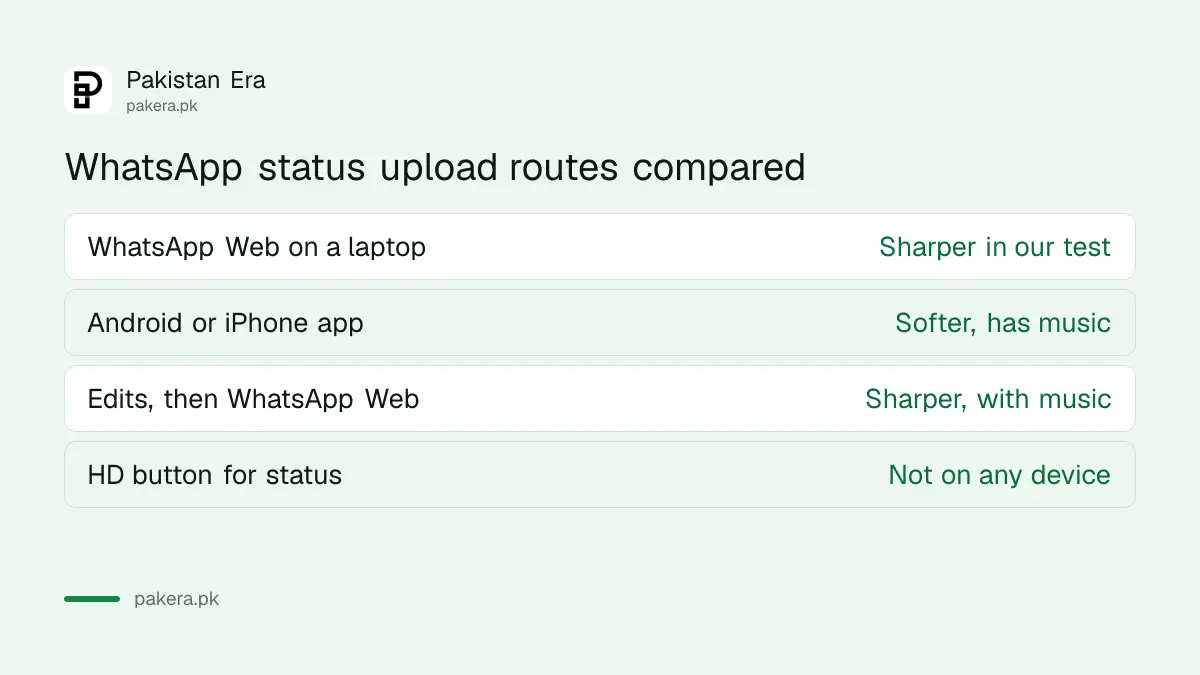
| Upload route | Quality in our test | Music option | HD button for status |
|---|---|---|---|
| WhatsApp Web or desktop on a laptop | Sharper | No | No |
| WhatsApp app on Android | Softer | Yes | No |
| WhatsApp app on iPhone | Softer | Yes | No |
| Edits first, then WhatsApp Web | Sharper, with music | Added in Edits | No |
How to post a high quality status from WhatsApp Web
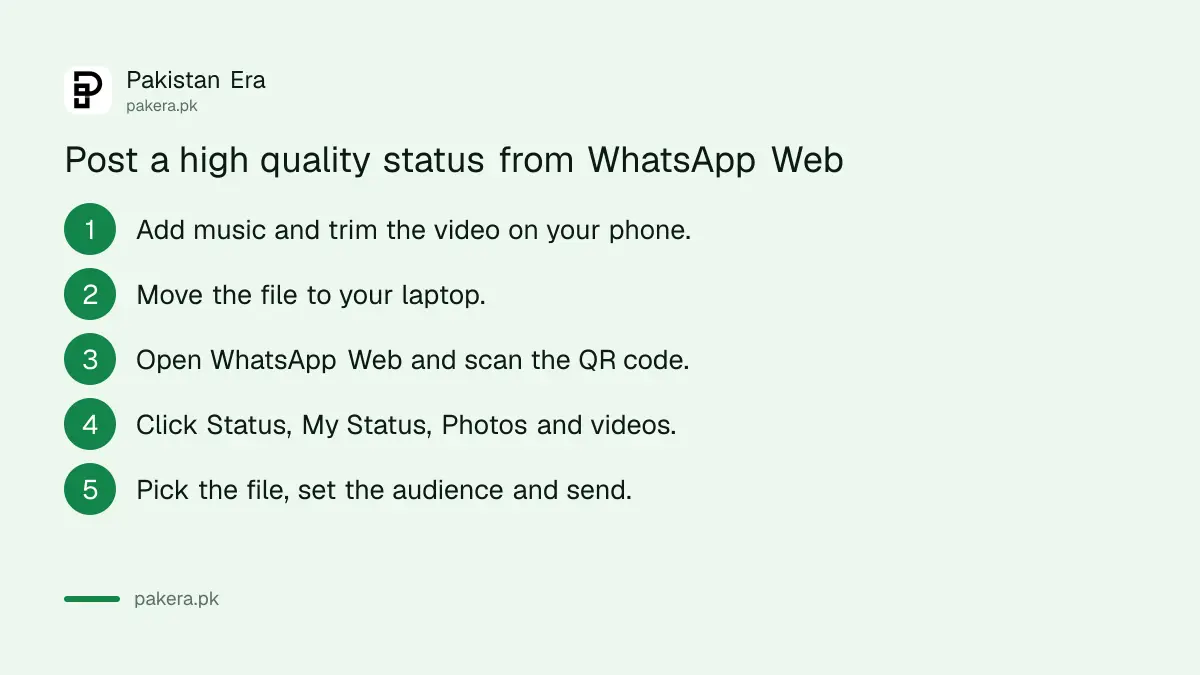
Move the finished video or photo to your computer, open web.whatsapp.com, link your phone, then click the Status icon, choose My Status, then Photos and videos, pick the file and send. The whole job takes about two minutes.
- Finish the video on your phone first, including music, and keep it under 90 seconds.
- Move the file to the laptop. A USB cable or Google Drive works. You can also send the video to a chat as a Document, which WhatsApp allows up to 2 GB, then download it on WhatsApp Web.
- Open WhatsApp Web in a browser, or the WhatsApp desktop app, and scan the QR code with your phone.
- Click the Status icon, then My Status, then Photos and videos.
- Select the file. Add a caption, trim with the slider if needed, and click Status (Contacts) to choose who sees it.
- Click send.
If you have never linked a computer before, the steps to use WhatsApp on your PC and log out safely walk through the QR code. On a shared or office computer, log out afterwards. A forgotten session is how chats leak, and you can always check linked devices and remove unknown ones from your phone.
Add music before uploading, because WhatsApp Web cannot
WhatsApp's help centre states that music on status is not supported on WhatsApp Web. So put the song into the video first, using a video editor on your phone, then upload the finished file from the laptop.
One easy choice is Instagram's Edits app, which is free and listed on both the App Store in Pakistan and Google Play. Instagram's help pages say the Audio tool in Edits lets you search its music library or import your own audio. You set the export quality by tapping the resolution at the top right of your project, where you choose resolution, frame rate and colour. Then tap Next and Download to save the video to your gallery.
One limit matters here. Instagram says licensed music longer than 60 seconds is left out of a downloaded Edits video. Keep the song part to 60 seconds or less, or use your own audio. Any other editor that exports a normal MP4 file also works.
A small oddity: WhatsApp's general web help page for status still shows a music icon in its steps, while its music page says Web does not support it. In our test there was no music option on Web, which matches the music page.
WhatsApp limits status videos to 90 seconds and has no HD for status
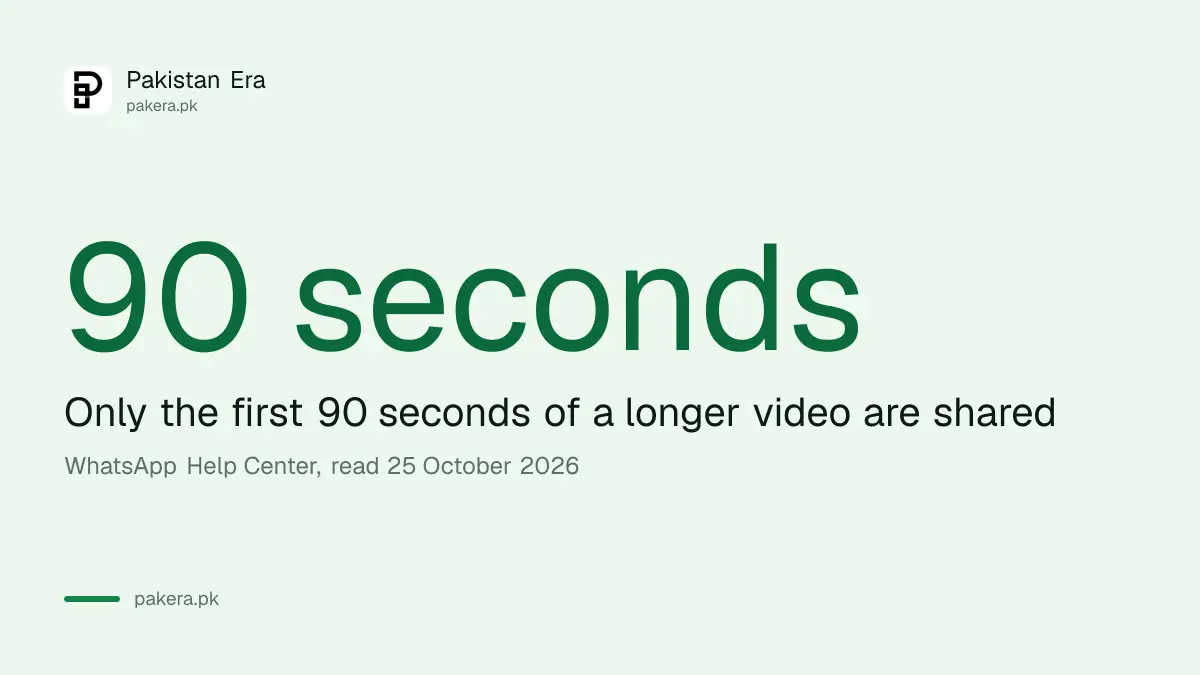
A status video can be up to 90 seconds long. If you upload a longer clip, WhatsApp shares only the first 90 seconds. HD is not available for status on any device, and you need at least 1 GB of free phone storage to post one.
| Rule | What WhatsApp's help centre says |
|---|---|
| Status video length | Up to 90 seconds; only the first 90 seconds of a longer video are shared |
| HD for status | Not supported, also not for profile pictures |
| Status lasts | 24 hours |
| Free storage needed | At least 1 GB |
| Safe video format | MP4 (3GP also listed) |
Formats are not stated the same way on every WhatsApp page. One page says status videos can only be 3GP or MP4, while another lists AVI, FLV, MKV, MOV and MP4 as well. Export as MP4 and you avoid the question.
Why WhatsApp makes your status blurry
WhatsApp compresses photos and videos when they are shared, so a status can look blurry, grainy or pixelated next to the original. A weak connection makes it worse. WhatsApp's own fix list starts with a stronger Wi-Fi or mobile data signal.
WhatsApp also suggests uploading high quality images to start with, because a weak original only gets worse after compression. Switching between Wi-Fi and mobile data, restarting the phone and updating WhatsApp are the other steps on its list. If the phone is nearly full, free up WhatsApp storage on Android before you post.
The phone route on Android and iPhone
On the phone, tap Updates, then Add status, pick the video, edit it and send. The HD quality option you see in chats does not apply to status, so the phone route always uses standard compression, but it is the only way to add WhatsApp's own music.
In a chat, WhatsApp lets you tap the HD icon and choose Standard quality or HD quality before sending a photo or video. Many recent versions also have a Media upload quality choice under Settings, then Storage and data. The help pages we read do not describe that setting, and they say HD is not available for status, so do not expect it to change your status quality.
For the best phone upload, film in good light, trim the clip to 90 seconds before you open WhatsApp, and post on a strong Wi-Fi signal. If only some people should see it, set the audience first; the steps to hide your WhatsApp status from certain contacts work the same for video.
Common questions
Can I upload an HD status on WhatsApp?
Not officially. WhatsApp says HD media is not supported for status. Posting from WhatsApp Web kept more quality in our test.
Why can't I add music to status on WhatsApp Web?
WhatsApp's help centre says music on status is not supported on Web. Add the song in an editor such as Edits first.
How long can a WhatsApp status video be?
Up to 90 seconds. A longer video is cut, and only the first 90 seconds go up.
Is the Edits app free in Pakistan?
Yes. It is listed as free on the App Store in Pakistan and on Google Play.
Does sending a video as a Document keep its quality?
Documents up to 2 GB can be sent in chats, which is a handy way to move the original file to your laptop. Status itself does not accept documents.
Why does my status look fine to me but blurry to others?
WhatsApp compresses status media, and a weak connection on either side makes it worse. A stronger signal usually helps.
How we verified this
What we checked, where we read it, and what we could not confirm.
Last checked 25 October 2026. On that date we read WhatsApp's help pages on creating and sharing a status (Android, iPhone and Web versions), adding music to status, can't create or share status, sending longer videos, sending media and about status. We read Instagram's help pages on downloading a video from Edits, editing in Edits and Edits audio, and checked the Edits listings on the Pakistan App Store and on Google Play. The WhatsApp Web method was tested by our team; the quality difference is our observation and is not documented by WhatsApp. We could not confirm on WhatsApp's help pages what the Media upload quality setting changes.
About the author

Technology Journalist & Multimedia Producer
Ahmad Ali is a technology journalist and multimedia producer at Pakistan Era, joining the team in October 2026. He covers consumer technology and digital life for Pakistani readers, combining research with hands-on product testing.