How to Free Up WhatsApp Storage on Your Android Phone in Pakistan
Free up WhatsApp storage on Android in Pakistan: open Manage storage, use Review and delete media, filter files larger than 5 MB and delete copies. Start now.
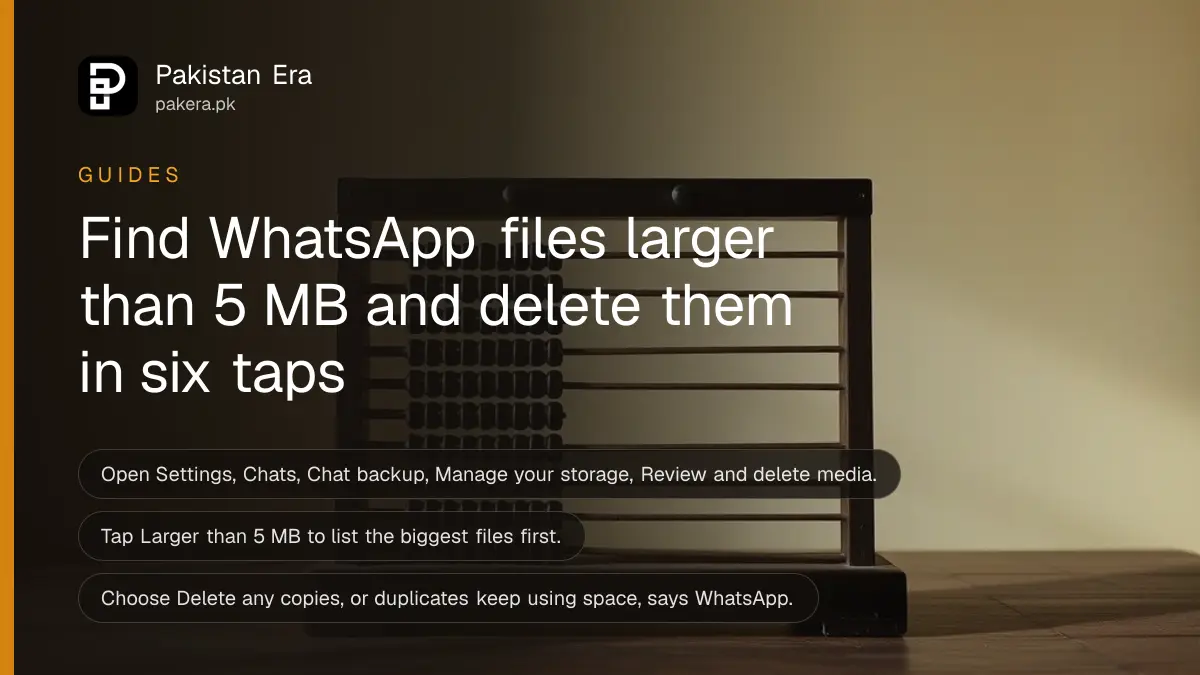
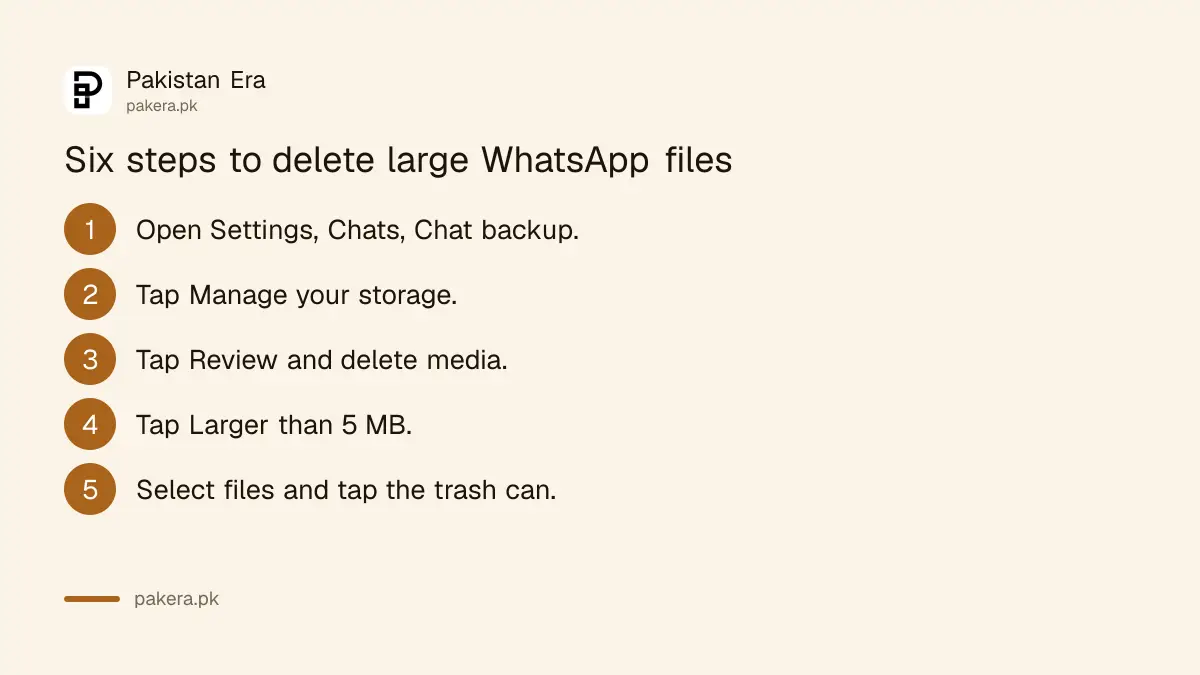
Short answer: In WhatsApp on Android, open Settings, Chats, Chat backup, Manage your storage, tap Review and delete media, then tap Larger than 5 MB to find the biggest files. Select what you do not need and delete it. To see space used on your phone, use Settings, Storage and data, Manage storage.
Your phone says storage is full, and WhatsApp is usually the reason. Good morning images, forwarded videos, voice notes and group memes pile up for years. Most of it is never opened again.
We read WhatsApp's help page on freeing up storage for Android on 14 October 2026. The page we read was cut off after the large-file section, so we cover only the steps we could read. Menu names can shift between app versions.
WhatsApp storage has two parts
WhatsApp's page splits storage into device storage, which is space used on your phone by WhatsApp media and files, and backup storage, which is space used by your backup in WhatsApp cloud storage or your Google account. You can clean either one.
When you delete something, WhatsApp says it is removed from your phone right away but stays in your backup until the next backup. To see the change in backup storage, go to Settings, Chats, Chat backup and tap Back up.
WhatsApp also notes that your backup is stored more efficiently than files on your phone. The two numbers may not match. That is normal and does not hurt backup quality.
See what WhatsApp uses on your phone
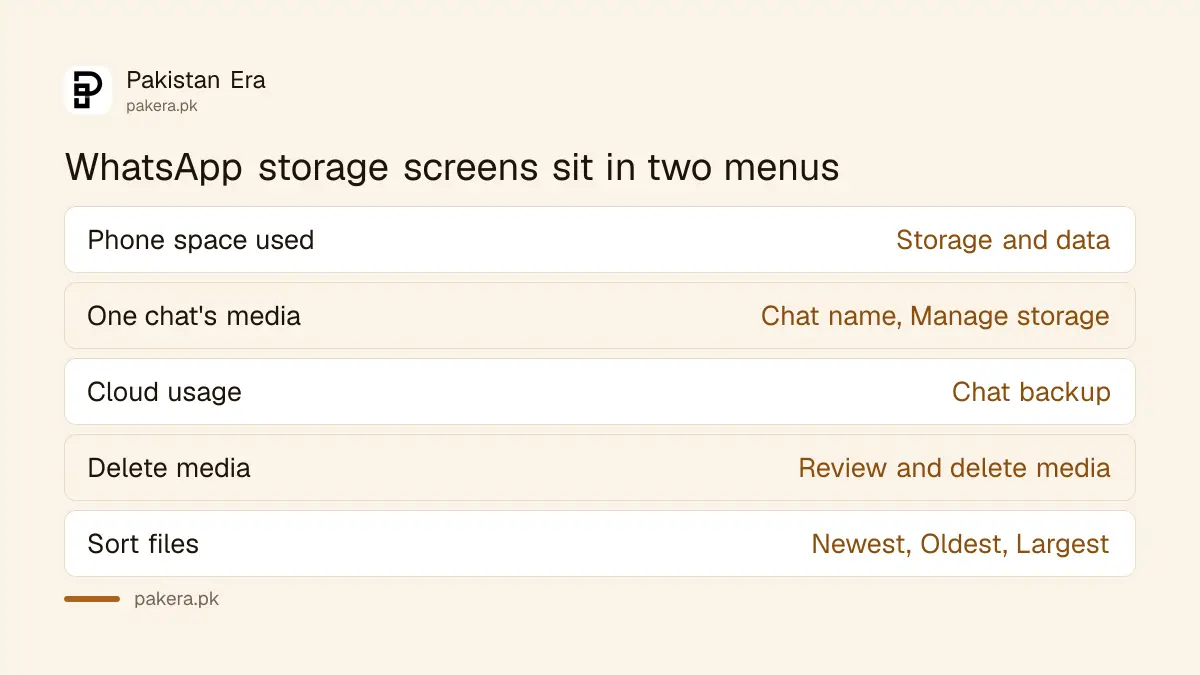
Go to Settings, tap Storage and data, then Manage storage. The space WhatsApp uses on your device appears at the top. You can also open any chat, tap the chat name and tap Manage storage to see that chat's media, sorted from largest to smallest.
Start with the largest chats. A family group that shares videos every day can hold more than the rest of the app combined. Fixing two or three chats often frees more room than a long clean-up.
| What you want to see | Where to go in WhatsApp |
|---|---|
| Total space on your phone | Settings, Storage and data, Manage storage |
| Media in one chat | Open chat, tap its name, Manage storage |
| Cloud usage | Settings, Chats, Chat backup, Manage your storage |
| Review media to delete | Chat backup, Manage your storage, Review and delete media |
Delete large and duplicate files in six taps
Open Settings, Chats, Chat backup, Manage your storage and tap Review and delete media. Under Review and delete items, tap Larger than 5 MB. Select the files you no longer need, tap the trash can and, to remove copies, choose Delete any copies, then tap Delete.
- Go to WhatsApp Settings, then Chats, then Chat backup, then Manage your storage.
- Tap Review and delete media.
- In Review and delete items, tap Larger than 5 MB.
- Tap and hold an item to select it. Tap more items, or Select all.
- Tap the trash can and choose Delete any copies to remove duplicates.
- Tap Delete.
WhatsApp warns that deleted items might still sit in your phone's gallery. If you have several copies of one file, you must delete all copies to free the space. Check your gallery folder too.
Use the filter icon to sort by Newest, Oldest or Largest. Tap an item to open it. The menu has Show in chat, so you can see which chat it came from, and a star option to keep a file you need.
Keep what matters before you delete
Star important files, such as a fee voucher, a degree scan or a client brief, before deleting in bulk. WhatsApp lets you star or unstar an item from the media review screen. Starred items are easier to find and to avoid by mistake.
Saving them elsewhere is safer still. Copy key documents to your computer or to Google Drive. Remember Google Drive shares its 15 GB with Gmail and Photos, so read how to free up Google account storage if that fills up.
Deleting a cloud backup is another matter. If you delete a backup and change phones, the chat history can be lost. Before touching it, see how to back up and restore WhatsApp chats.
If the phone is still full
After WhatsApp, look at the rest of the phone. Photos, videos and app cache take space too. The guide to fixing a full phone on Android and iPhone covers the whole device.
Photos can move to cloud storage so the phone copy can go. See Google Photos backup and free storage. If you need more cloud space, check Google One storage prices in Pakistan for our price note.
A small habit helps. Once a month, open Manage storage, look at the top three chats and clear the largest files. It takes two minutes.
Common questions
Where is WhatsApp Manage storage on Android?
Go to Settings, tap Storage and data, then tap Manage storage. The space WhatsApp uses on your phone shows at the top.
How do I find only large files?
Go to Settings, Chats, Chat backup, Manage your storage, Review and delete media, then tap Larger than 5 MB.
Will deleting here remove my backup copy?
Not at once. WhatsApp says a deleted item stays in your backup until the next backup. Tap Back up to update it.
Why is the storage number different in WhatsApp and my phone?
WhatsApp says backups are stored more efficiently than files on your phone, so totals may not match. It does not affect backup quality.
Do I need to delete duplicates?
Yes, if you want the space. WhatsApp says you must delete all copies of an item. Choose Delete any copies when you delete.
How we verified this
What we checked, where we read it, and what we could not confirm.
Last checked on 14 October 2026, Pakistan time. We read WhatsApp's help page on freeing up storage for Android. The copy we could read stopped after the large-file steps, so we did not cover clearing a chat's media or stopping auto-download. We did not delete files on a live account.
About the author

Technology Journalist & Multimedia Producer
Ahmad Ali is a technology journalist and multimedia producer at Pakistan Era, joining the team in October 2026. He covers consumer technology and digital life for Pakistani readers, combining research with hands-on product testing.