How to Add a Separate User on a Shared Android Phone in Pakistan
Share one Android phone in Pakistan without mixing chats and accounts. Add a user, switch profiles, control calls and delete a profile, with Google's own steps.
Short answer: Open Settings, tap System, then Multiple users. Tap Add user and OK, then name the new user. Each user gets a separate space for apps, accounts and Home screens. Google says some of these steps need Android 14 or newer, and only the device owner can add users.
In many Pakistani homes one phone or tablet is shared. A mother watches recipes, a brother plays games and a child does homework on the same screen. Everyone's chats, search history and accounts then mix together.
Android can give each person a private space. We read Google's help page on adding, switching and deleting users on 13 October 2026. We did not test it on a phone, and some brands hide or rename the setting.
Add a new user on your Android phone
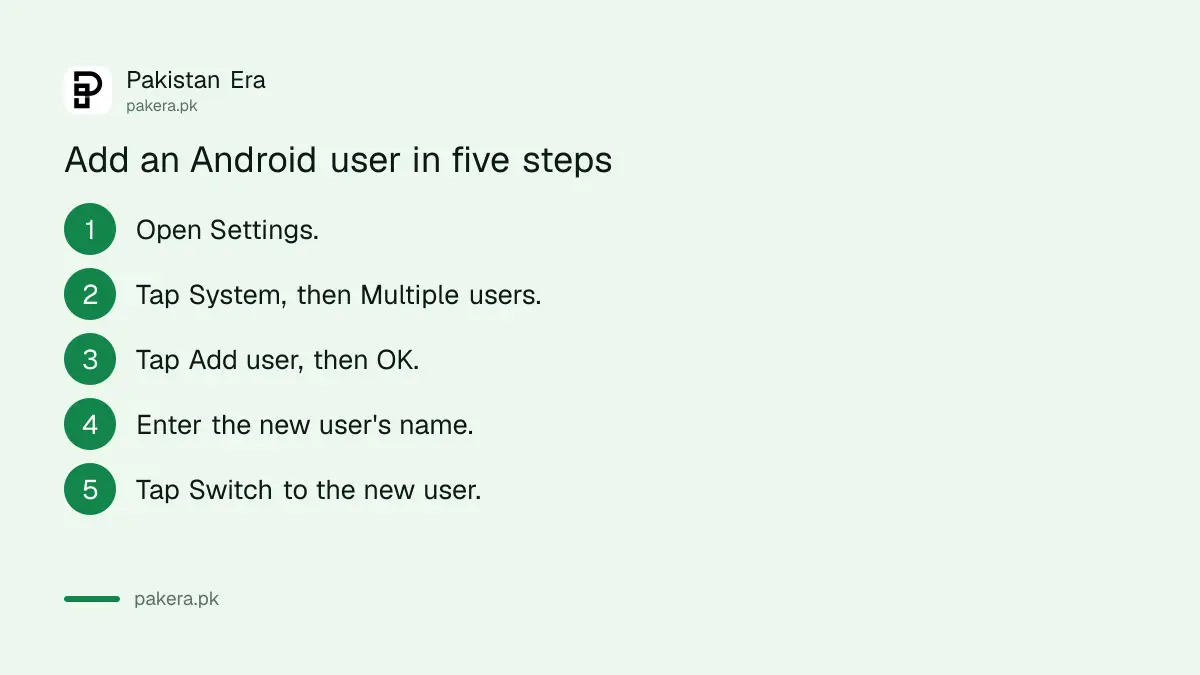
Open Settings, tap System, then Multiple users. Tap Add user, then OK. If you do not see Add user, tap Add user or profile, then User, then OK. If neither appears, Google says your device cannot add users. Then enter a name for the new person.
- Open the Settings app.
- Tap System, then Multiple users.
- Tap Add user, then OK.
- If missing, tap Add user or profile, then User, then OK.
- Enter a name for the new user.
If you cannot find Multiple users, search Settings for "users". Only the device owner can add or update users, says Google.
Set up the new user's own account
After adding the user, tap Switch to the new name. A box asks "Set up user now?". If the person is with you, tap Set up now and unlock the screen to add their Google Account. If they are not there, tap Not now. They can finish setup the next time they switch in.
A separate account matters. Their downloads, photos and passwords stay in their own space. Yours stay in yours. That is the whole point.
Do not sign in to your own bank or wallet app inside another person's profile. Keep those only in your own space.
Switch between users quickly
Swipe down from the top of the Home screen. On a phone, swipe down from the top again. Tap the user icon, then tap the user you want. On Android Go, tap Switch user on the Home screen and pick another user.
| Profile type | Best for |
|---|---|
| User | A family member who may use the device a lot |
| Guest | Someone using the device for a short time |
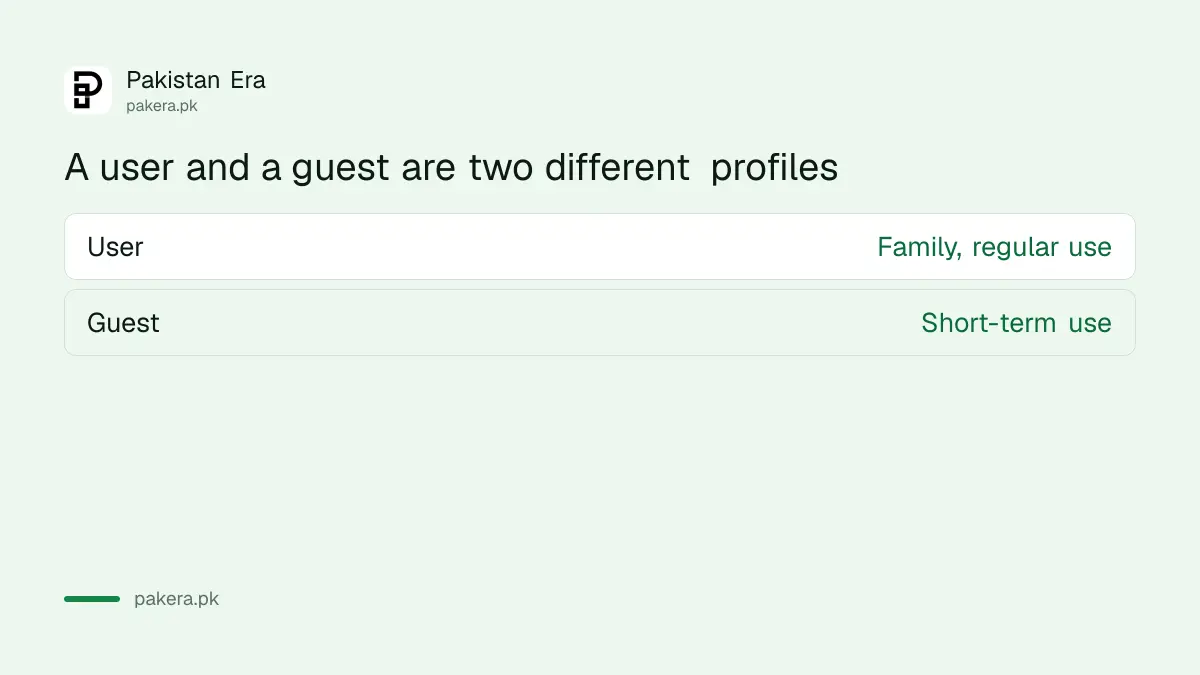
Google defines a user as someone who is not the device owner but may use it often, such as family. A guest profile is for short use. Both get their own space.
Control calls and SMS for other users
As the owner, open Settings, System, Multiple users, tap the user's name and tap Turn on phone calls. This lets you pick which profiles can make calls and send SMS texts. If you want a child to play games only, leave this off.
For a child, add a limit on top. Our steps to set a screen time limit with Family Link work with a supervised account. To keep an adult site away, see how to block adult websites in Chrome.
You can also change your own profile name and picture. Tap Multiple users, tap your name, and edit it.
Delete a user you no longer need
If you are the primary user, open Settings, System, Multiple users, tap the user's name and choose Delete user, then Delete. Google warns that you cannot undo this. Copy any photos or files the person wants before you delete the profile.
If you are not the primary user, you can remove yourself. Open Multiple users, tap More, and tap Delete your name from this device. The phone then switches back to the owner's profile.
Before you sell or give a phone away, erase it properly. The page on how to erase your phone before selling it covers every profile on the device.
Check your Android version first, because Google says some steps need Android 14 or newer. Open Settings and look under About phone. If your phone is older and the option is missing, a separate account in each app may be the only choice. Updating the phone may add the feature.
A shared tablet at home is the best fit. Give each child a profile and keep the parent profile for yourself. Nobody then opens another person's messages by mistake.
Common questions
Where is Multiple users on Android?
Open Settings, then System, then Multiple users. If you cannot find it, search Settings for "users".
Who can add a user?
Google says you must be the device owner to add or update users.
What if there is no Add user button?
Try Add user or profile. Google says that if neither option appears, your device cannot add users.
Which Android version do I need?
Google says some of the steps work only on Android 14 and up.
Is a guest the same as a user?
No. A guest profile is for someone using the device for a short time. A user is for someone who may use it a lot, such as a family member.
Can I undo deleting a user?
No. Google says deleting a user cannot be undone.
How we verified this
What we checked, where we read it, and what we could not confirm.
Last checked on 13 October 2026, Pakistan time. We read Google's help page on deleting, switching and adding users. We did not test it on a phone. The page does not say how to start a guest session, so we do not cover that. Some phone brands remove Multiple users.
About the author

Technology Journalist & Multimedia Producer
Ahmad Ali is a technology journalist and multimedia producer at Pakistan Era, joining the team in October 2026. He covers consumer technology and digital life for Pakistani readers, combining research with hands-on product testing.