How to Set a Daily Screen Time Limit on Your Child's Android Phone With Family Link in Pakistan
Set a daily screen time limit on a child Android phone with Google Family Link in Pakistan: the steps, bonus time and what stays open when time is up.
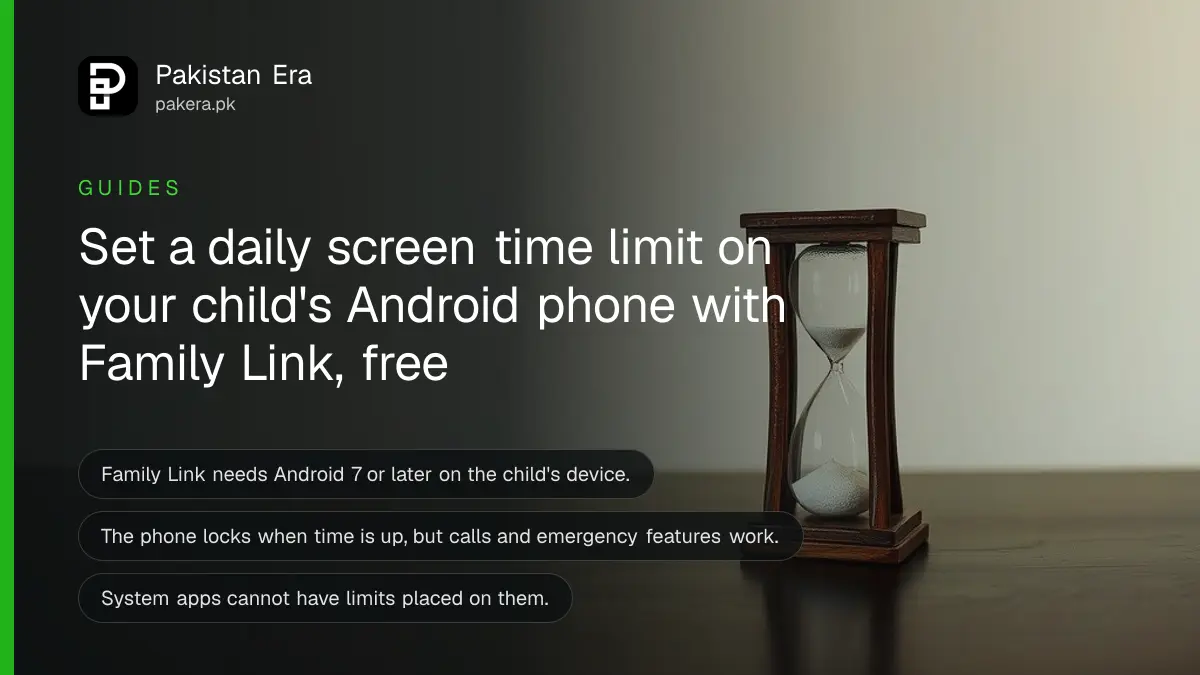
Short answer: In the Family Link app on your phone, select your child, tap Screen Time, switch on Daily limit and set the hours for each day in the Weekly schedule. When the time is used, the child's Android phone locks. Calls and emergency features still work. You can give Bonus time without changing the limit.
Phones are a big part of school life in Pakistan, and many parents cannot tell how long a child really spends on games and videos. Fighting about it every evening does not help.
Google Family Link is a free app for this. We read Google's Family Link pages on 13 October 2026. This guide covers the daily limit only. For the whole phone setup, see the page on parental controls on a child phone.
Family Link works on the child's Android phone
You install Family Link on your own phone and link the child's account. Google says the daily limit needs the child's device to run Android 7 or later. Family Link is meant for children under 13, or the age set for your country. Older children manage their own account.
Google describes Family Link as a tool to set screen time limits, downtime schedules, app approvals and location sharing. We cover only screen time here.
You need your own Google Account and your child's Google Account that is set up as supervised. If the child has no account yet, create it through Family Link so that supervision is on from the start.
Set the daily limit in a few steps
The daily limit is set from the parent's Family Link app. You can choose a different limit for each day, for example more time on Sunday. Make the limit realistic so that your child does not simply argue every day.
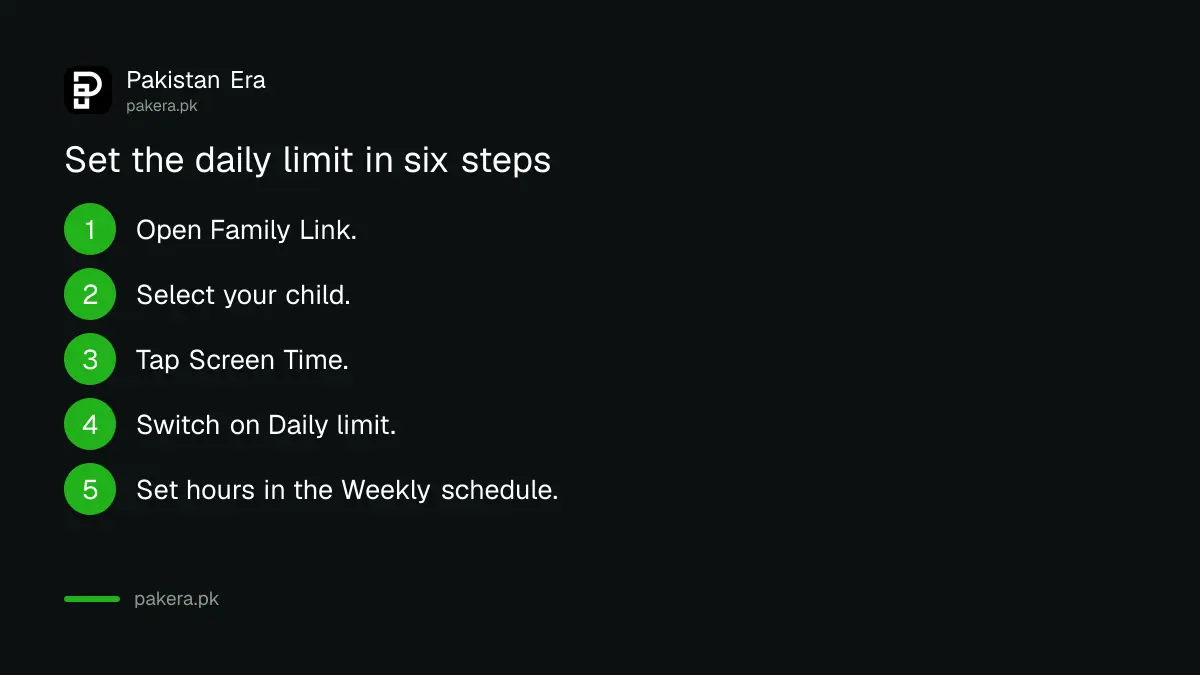
- Open the Family Link app on your phone.
- Select your child.
- Tap Screen Time.
- Switch on Daily limit.
- Set the hours using the Weekly schedule.
- Save the schedule.
The phone locks, but some things stay open
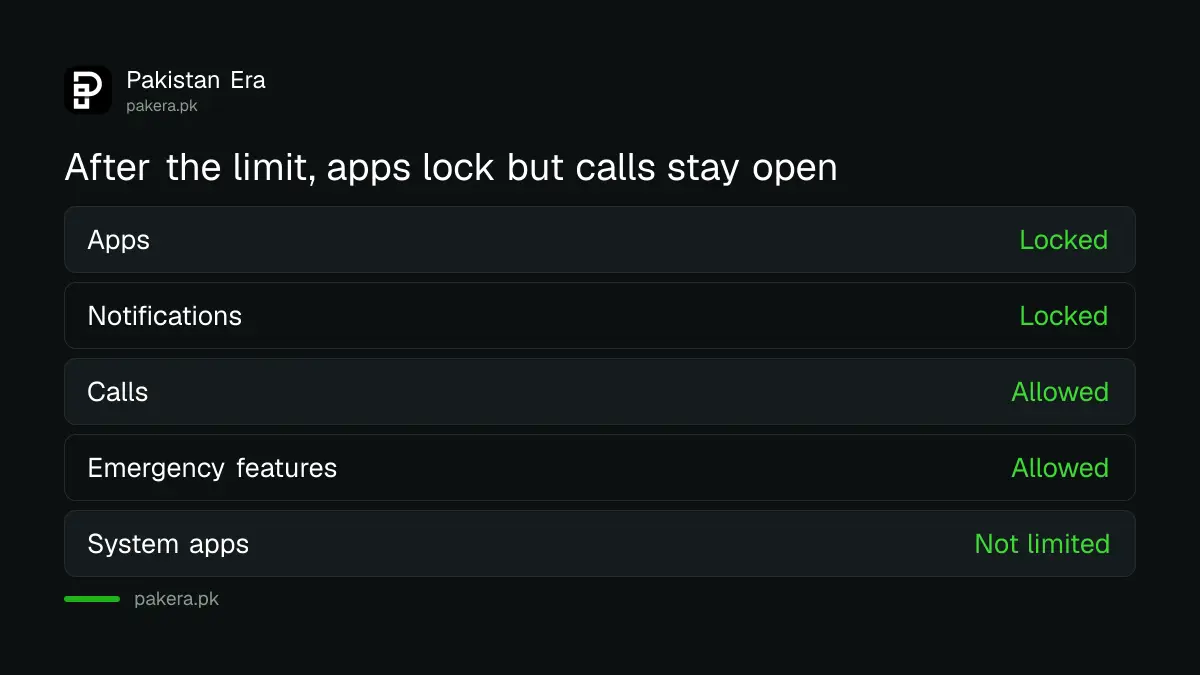
When the daily time is finished, Google says the device locks. The child cannot use notifications or apps. The child can still answer calls and use emergency features on an Android phone. This matters in Pakistan, where a parent may need to reach a child on the way home.
| After the limit is reached | What happens |
|---|---|
| Apps and notifications | Locked |
| Answering calls | Still possible |
| Emergency features | Still possible |
| System apps | Cannot be limited |
| Device clock change | You must turn the limit off first |
Give bonus time without changing the limit
Bonus time lets you add minutes for one day. It is useful for a family trip, a school project or a holiday. The normal daily limit stays as it was, so you do not need to reset it afterwards.
Open the child's Screen Time page in Family Link and add the bonus. Decide on the rules with your child first. A child who knows why the limit exists, and how to earn more time, argues less.
Google also notes that you must turn off screen time limits before a child can change the device clock. This stops the simple trick of moving the clock back.
A good first limit for a school day is about two hours, with more on weekends. That figure is only our suggestion, not a Google rule. Watch for a week, then adjust. If your child uses the phone for homework, leave room for study and use downtime for sleep hours.
Tell your child the limit is a family rule, one that applies to adults too and not a punishment. Explain that the phone will lock, and that calls to you will still work. Children accept limits better when they know the rules before the first lock.
Combine the limit with other safety steps
A time limit does not decide what a child sees. Add content filters and app approval as well. Family Link also controls Chrome. Learn how to block adult sites in the guide that follows, and keep talking with your child about what to do if something upsets them.
For other apps, set up TikTok Family Pairing, Instagram teen account supervision or WhatsApp parental controls where your child uses them. Family Link does not replace those app settings.
Common questions
Is Google Family Link free?
Yes, the Family Link app is free on Google Play and the App Store. We did not see any charge on Google's Family Link page.
What Android version does the screen time limit need?
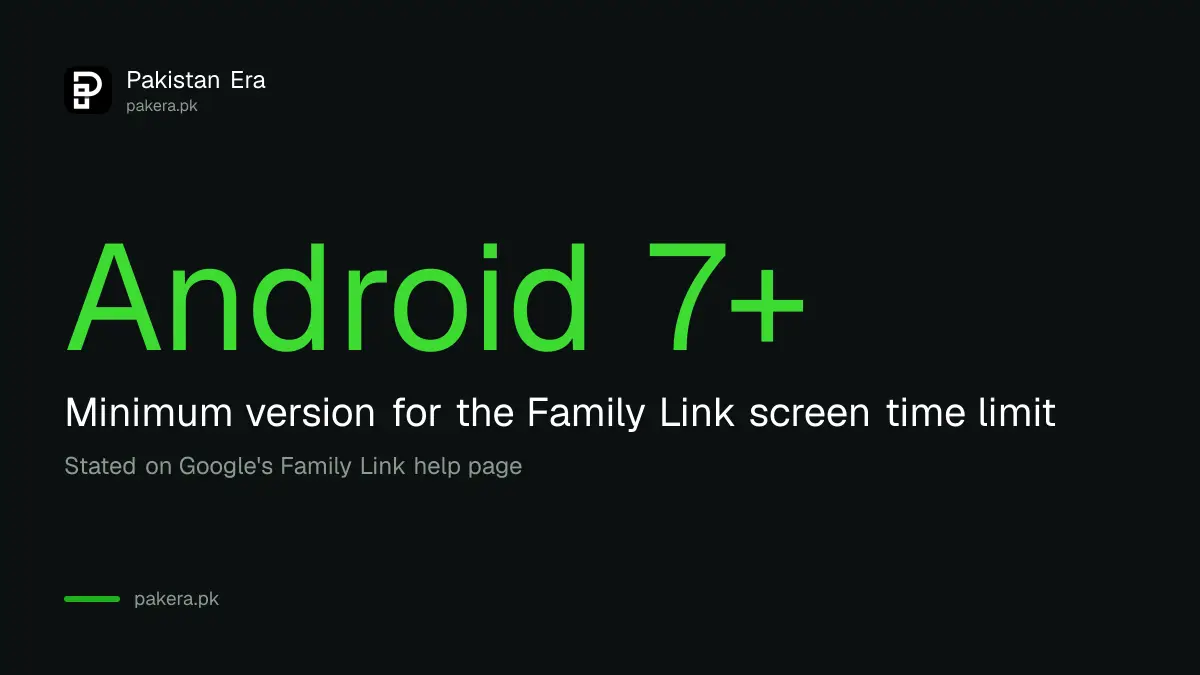
Google's help page says the feature requires Android 7 or later on the child's device.
Can my child still call me when the limit is over?
Yes. Google says the child can still answer calls and use emergency features on an Android phone.
Can I give extra time for one day?
Yes. Use Bonus time. It adds time without changing the daily limit.
Can I set a different limit for weekends?
Yes. You can set different limits for each day of the week in the Weekly schedule.
Can I limit system apps?
No. Google says system apps cannot have limits placed on them.
How we verified this
What we checked, where we read it, and what we could not confirm.
Last checked on 13 October 2026, Pakistan time. We read Google's Family Link overview and its screen time limits help page. Neither page lists Pakistan separately, and we did not test the app on a child account. Exact menu names may change with app updates.
About the author

Technology Journalist & Multimedia Producer
Ahmad Ali is a technology journalist and multimedia producer at Pakistan Era, joining the team in October 2026. He covers consumer technology and digital life for Pakistani readers, combining research with hands-on product testing.