Google Sheets AI Function in Pakistan: 8 =AI Formula Examples for Shops and Offices, and Who Can Use It
The Google Sheets AI function, =AI(prompt, range), sorts orders, sums up feedback and drafts replies. Copy 8 formulas, see the limits and who can use it.
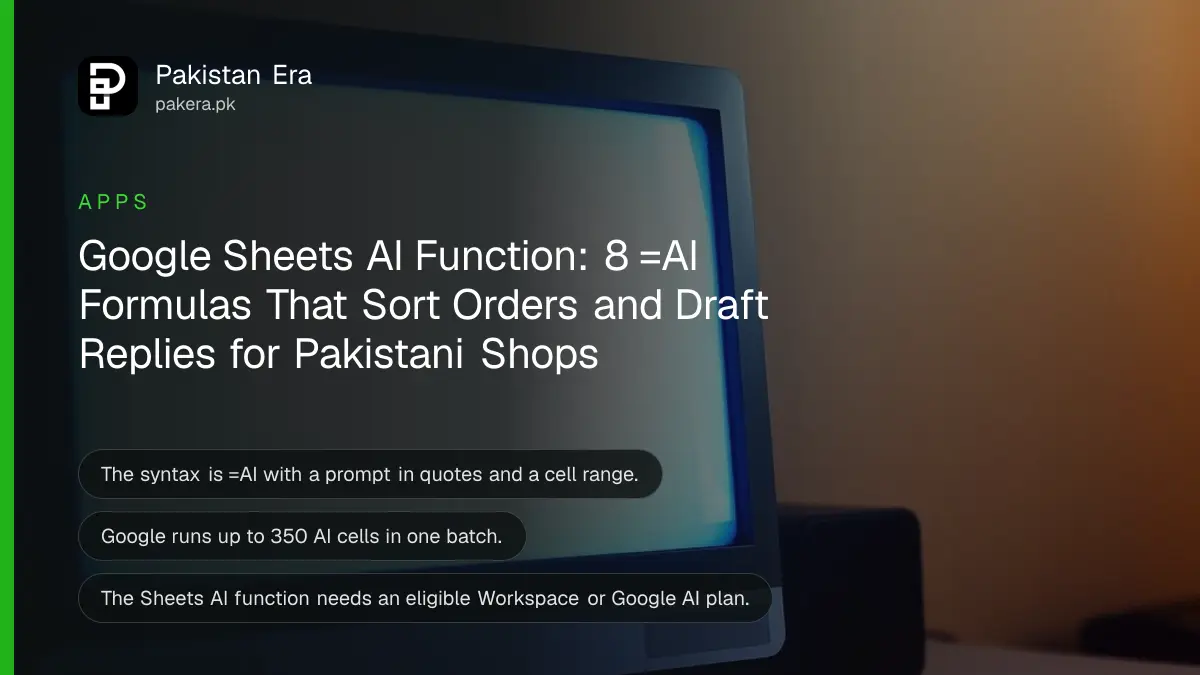
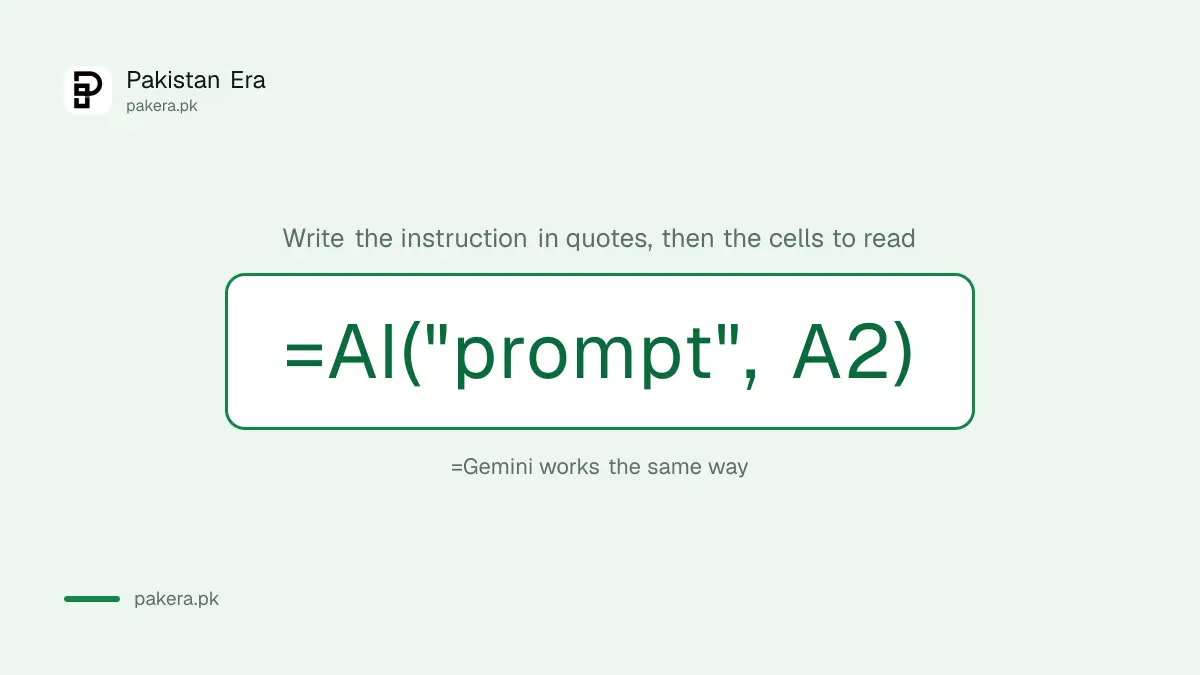
The AI function in Google Sheets is written =AI("your instruction", A2): it reads the cells you point at and writes text back, such as a summary, a category or a reply. Google says it needs an eligible Google Workspace or Google AI plan, and its own plans page lists Sheets help under Google AI Pro and Ultra, not AI Plus. Below are ready formulas for Pakistani shops and offices, the limits that catch people, and what to do when Sheets says the AI function is not available.
We read Google's Sheets help page on the AI function and Google's AI plans page on 28 October 2026. Every example below follows the patterns Google itself publishes.
The formula is =AI, a prompt and a cell range
Google's syntax is AI("prompt", [range]). The prompt tells Gemini what to do, and the optional range points at the data. You can also type =Gemini instead of =AI. The answer is always text, written into the cell.
Think of it as a junior assistant who reads one row at a time. Put the instruction in quotes, point it at the cells in that row, and drag the formula down the column. A shopkeeper with 300 WhatsApp orders in a sheet can tag each one as new, repeat or complaint in a few minutes.
Eight formulas a Pakistani business can copy today
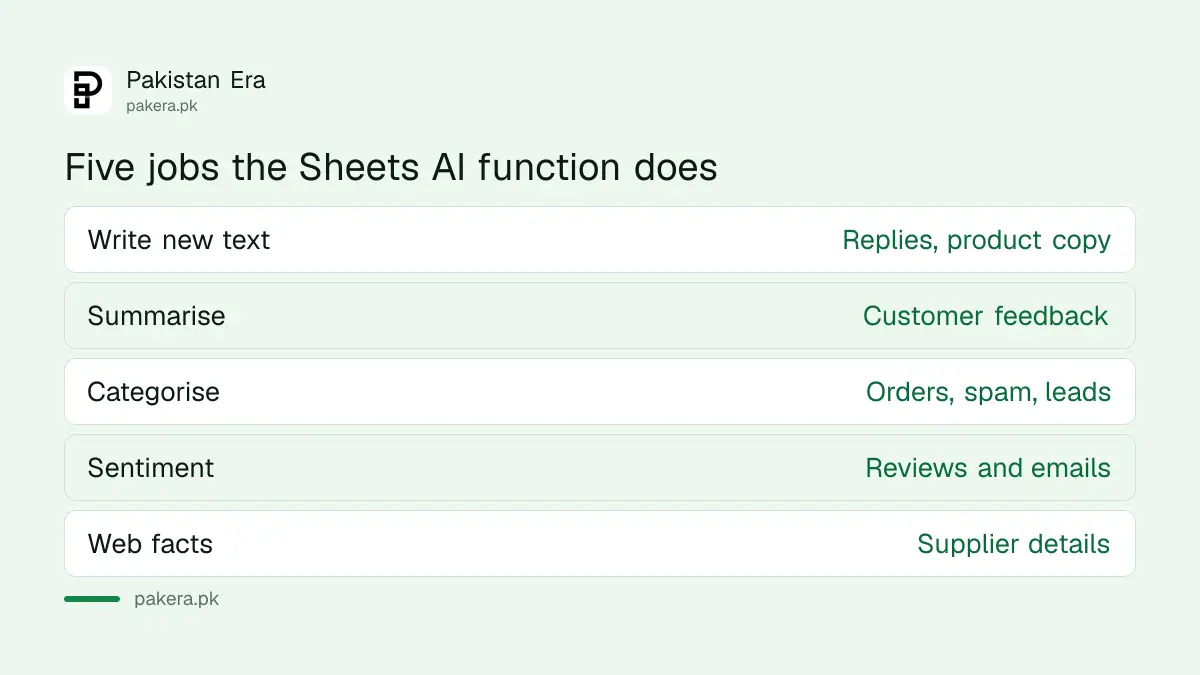
Google groups the uses into five jobs: write new text, summarise, categorise, judge sentiment and pull current facts from the web. Each formula below follows that pattern, with column letters you can change to match your own sheet.
| Job | Formula | Use it for |
|---|---|---|
| Categorise orders | =AI("Classify this order message as new order, repeat order or complaint", B2) | Orders copied from WhatsApp |
| Summarise feedback | =AI("Write a one sentence summary of this customer's feedback", C2:E2) | Google Form responses |
| Sentiment | =AI("Classify this review as positive, negative or neutral", D2) | Google reviews or marketplace reviews pasted in |
| Draft a reply | =AI("Write a polite two line reply to this complaint offering a call back", D2) | Complaint logs |
| Product copy | =AI("Write a 25 word product description from these details", A2:C2) | Online store listings |
| Spam filter | =AI("Classify this enquiry as spam or genuine", B2) | Website contact form leads |
| Job keywords | =AI("List five keywords for this job title from the duties", A2:C2) | Hiring ads |
| Web facts | =AI("What is the official website of this company", A2) | Supplier lists |
Keep prompts short and exact. "Classify as A, B or C" gives a column you can filter. "Tell me about this order" gives a paragraph you cannot. For replies to real customers, read each one before it goes out, as you would with ChatGPT replies for shopkeepers.
Run it in five steps
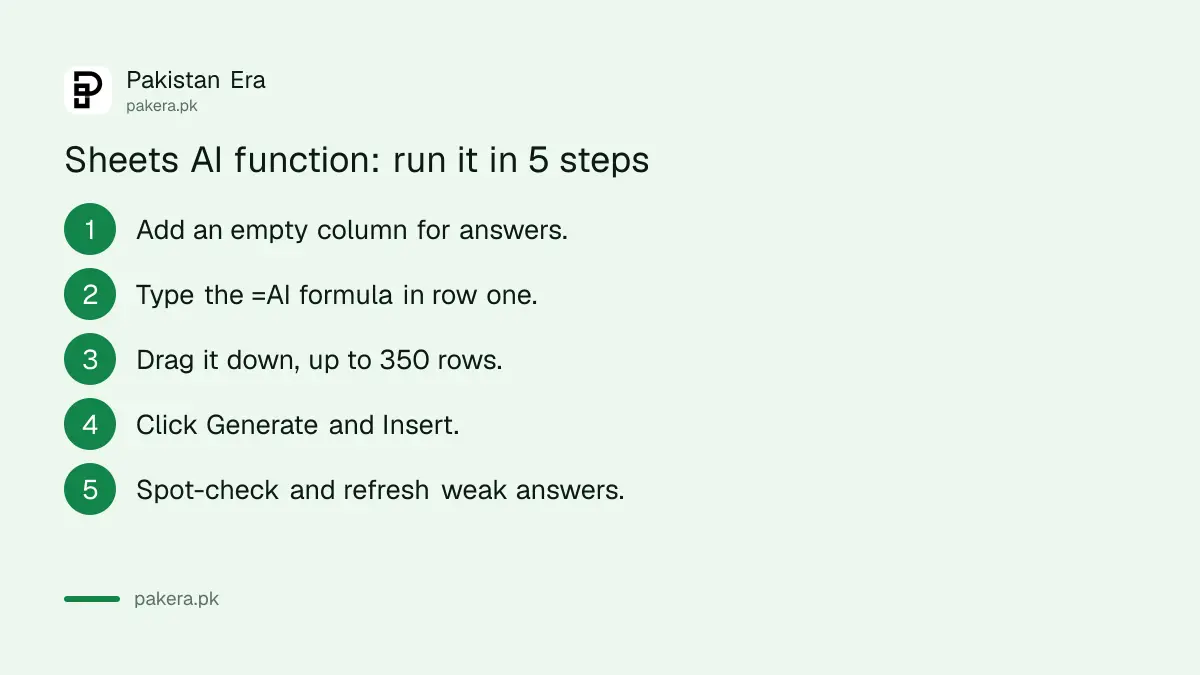
Type the formula in a cell, or use Insert, then Function, then AI. Select the cells that hold the formula and click Generate and Insert. Google says Refresh and Insert regenerates the answer, and a Sources option shows the web pages used.
- Open your sheet in Google Sheets and add a new empty column for the answers.
- Type the =AI formula in the first row of that column, pointing at that row's data.
- Drag the formula down to the rows you need, up to 350 at a time.
- Select those cells and click Generate and Insert.
- Spot-check ten answers, then click Refresh and Insert on any that look wrong.
Work on a copy of the sheet the first time. Google says you cannot undo or redo an AI function, only regenerate it, so a mistake in a live stock sheet is annoying to unpick.
Six limits catch most first-time users
Google says the AI function returns text only, cannot see your whole sheet or other Drive files, cannot sit inside another formula such as IF, handles 350 cells per batch, and has short and long-term usage limits. Hitting the long-term limit can mean a 24-hour wait.
- Text only. No charts, images or numbers you can sum without cleaning.
- It only sees the range you give it. Paste the data into the sheet first.
- No nesting. =IF(AI(...)) will not work, so put the AI answer in its own column.
- 350 cells per batch. Run a 1,000 row sheet in three goes.
- Usage limits. A long-term limit can lock it for 24 hours.
- Some Drive sources fail. Files opened through Box, Dropbox or Egnyte do not work.
Never paste CNIC numbers, bank details or customers' phone numbers into a prompt column. The function sends that data to Gemini, and the people in your sheet did not agree to that.
Who can use it, and the fix for "AI function not available"
Google says the AI function needs an eligible Google Workspace or Google AI plan, or the Workspace Experiments tester programme. Google's plans page lists help in Docs and Sheets under Google AI Pro and Ultra. The not-available message usually means plan, admin or language settings.
In Pakistan, Google AI Pro was PKR 5,600 a month when we last read Google's Pakistan price, as set out in Google One prices in Pakistan. Business users on Google Workspace should ask their admin whether Gemini features are switched on for the domain.
If you see "AI function not available", check three things in order: that your account has an eligible plan, that your admin has not switched Gemini off, and that your Google account language is one Google supports for Workspace with Gemini. An English account language is the safe choice.
Common questions
Is the Google Sheets AI function free?
No, not on a basic free account as far as Google's pages show. It needs an eligible Workspace or Google AI plan, such as Google AI Pro.
What is the difference between =AI and =Gemini in Sheets?
None. Google says both names call the same built-in function.
Can the Sheets AI function read my whole spreadsheet?
No. It only reads the range you give it in the formula.
How many rows can the AI function do at once?
Google says the first 350 selected cells with AI functions are generated in one batch.
Can I use the AI function inside an IF formula?
No. Google says embedding AI calls inside other formulas is not supported.
How we verified this
What we checked, where we read it, and what we could not confirm.
We read Google's AI function in Google Sheets help page and the Google AI plans page on 28 October 2026. The help page does not name which Workspace editions or Google AI plans qualify, and Google's plans page showed our connection another country's prices, so the PKR 5,600 figure is from our reading of Google's Pakistan page on 28 September 2026. The eight formulas are our adaptations of Google's published examples, and we have not run them on a paid account for this article.
About the author

Founder and Editor
Umer Kureshi founded Pakistan Era in July 2024 and runs it as administrator, SEO lead and writer, overseeing website operations, search growth, content strategy and coverage of technology and current affairs.