Hide Online Status on Instagram, Messenger and Facebook in Pakistan: Turn Off Active Status in Each App
Hide your online status in Pakistan: turn off Active Status on Instagram, Messenger and Facebook one by one. Exact steps, and what the switch does not hide.
To hide when you are online, turn Active Status off in each app separately. On Instagram: Settings, Messages and story replies, Show Activity Status, off. On Messenger: Menu, Settings, Active status, turn off Show when you're active. On Facebook on a computer: Messenger icon, three dots, Turn off active status. Meta says turning it off in one app does not hide you in another, so do all three.
The green dot and the "Active 5m ago" line are what people mean by online status. Below are the exact steps for each app, what changes when you switch it off, and the trade-off Instagram makes you accept.
Hide your online status on Instagram
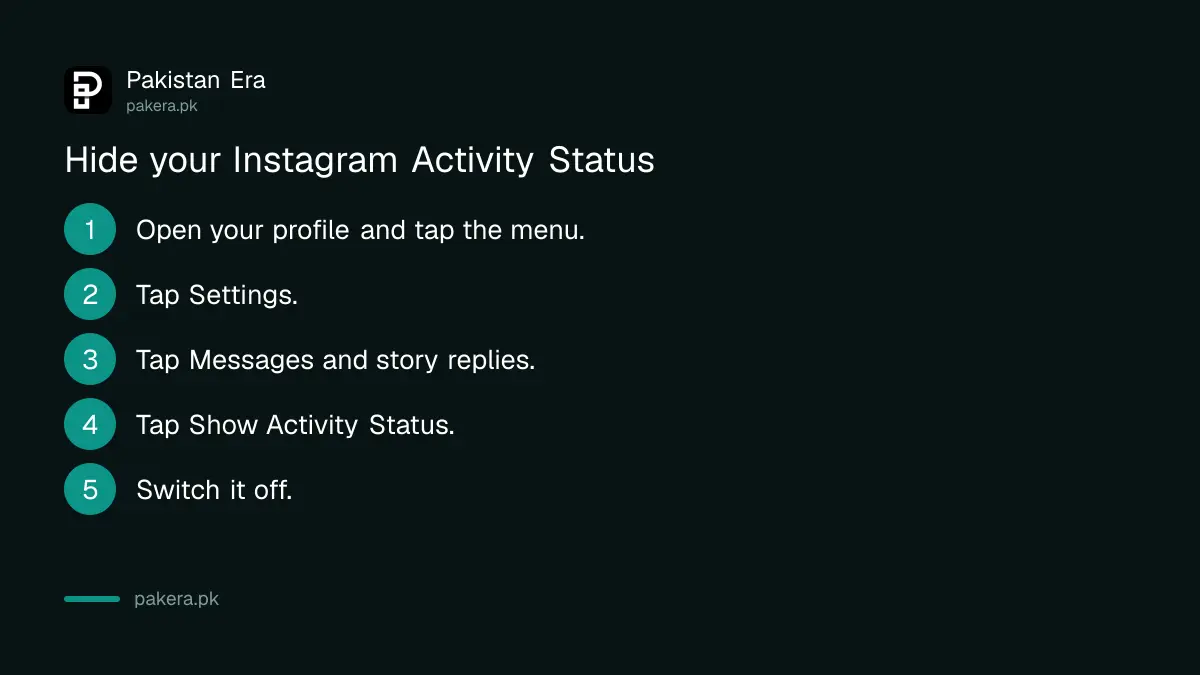
On Instagram, open Settings, tap Messages and story replies under How others can interact with you, then tap Show Activity Status and switch it off. People you follow and people you message will stop seeing the green dot and your last active time.
- Go to your profile and tap the menu icon at the top right.
- Tap Settings.
- Under How others can interact with you, tap Messages and story replies.
- Tap Show Activity Status.
- Switch Show Activity Status off.
With it on, Instagram shows a green dot or a time stamp next to your profile picture in messages. That tells people you are online now or when you last were. With it off, that line goes.
There is a trade-off. Once your Activity Status is off, you cannot see anyone else's either. Instagram says you will not see when people who follow you, or people you message, are active or recently active. It is a two-way switch.
Have more than one Instagram account? The setting is per account. Switch to each account and turn it off there too.
Hide your active status on Messenger
In the Messenger app, open the menu, tap Settings, tap Active status, and turn off Show when you're active. Messenger asks how long to pause it for; choose a time and tap Pause. On messenger.com, use Preferences instead.
On a phone
- Open Messenger and tap the menu (three lines).
- Tap Settings.
- Tap Active status.
- Turn off Show when you're active.
- Choose how long to pause it, then tap Pause.
On messenger.com
- Click your profile picture at the bottom left.
- Click Preferences.
- Click Active status and use the switch to turn it off.
- Click Save.
Note the pause. If you choose a set time, your status comes back on by itself when it ends. If you want it off for good, check the setting again later.
Hide your active status on Facebook
On Facebook on a computer, click the Messenger icon at the top right, click the three dots at the top of the chat list, and choose Turn off active status. In the classic layout, the same option sits under the gear icon in the chat sidebar.
- Log in to facebook.com.
- Click the Messenger icon at the top right.
- Click the three dots at the top right of the chat list.
- Click Turn off active status and confirm.
Meta's own note matters here. Turning Active Status off changes it only where you change it. If you use Facebook or Messenger on another device, you may still show as active there. So repeat it on the phone app, the laptop and any tablet.
One switch per app, and what each one hides
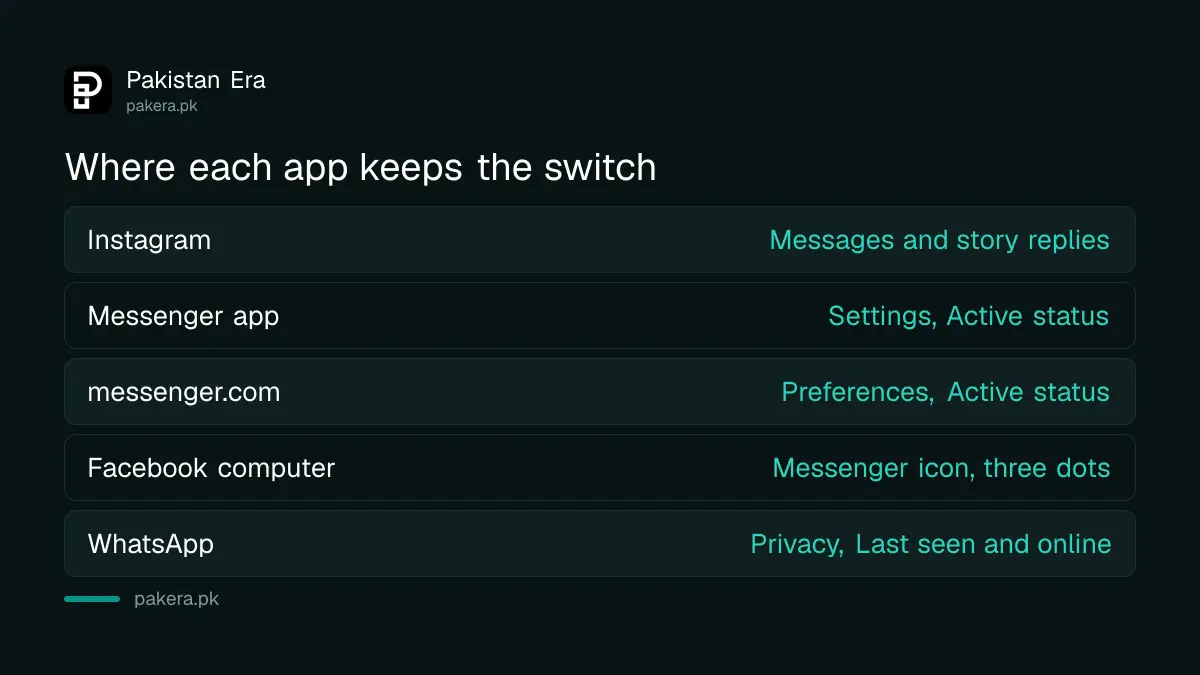
Instagram, Messenger and Facebook each keep their own setting. Turn it off in all three to stop showing as online across Meta apps. WhatsApp is separate again, with its own Last seen and online setting.
| App | Where the switch is | What turning it off does |
|---|---|---|
| Settings, Messages and story replies, Show Activity Status | Hides your green dot and last active time; you lose others' too | |
| Messenger app | Menu, Settings, Active status | Pauses your active status for the time you choose |
| messenger.com | Profile picture, Preferences, Active status | Hides your status on that browser |
| Facebook computer | Messenger icon, three dots, Turn off active status | Hides your status on Facebook chat |
| Settings, Privacy, Last seen and online | Separate setting, not linked to Meta apps above |
For WhatsApp, the steps are in hiding WhatsApp last seen and online, and the blue ticks are a separate switch again, covered in turning off WhatsApp read receipts.
What active status does not hide
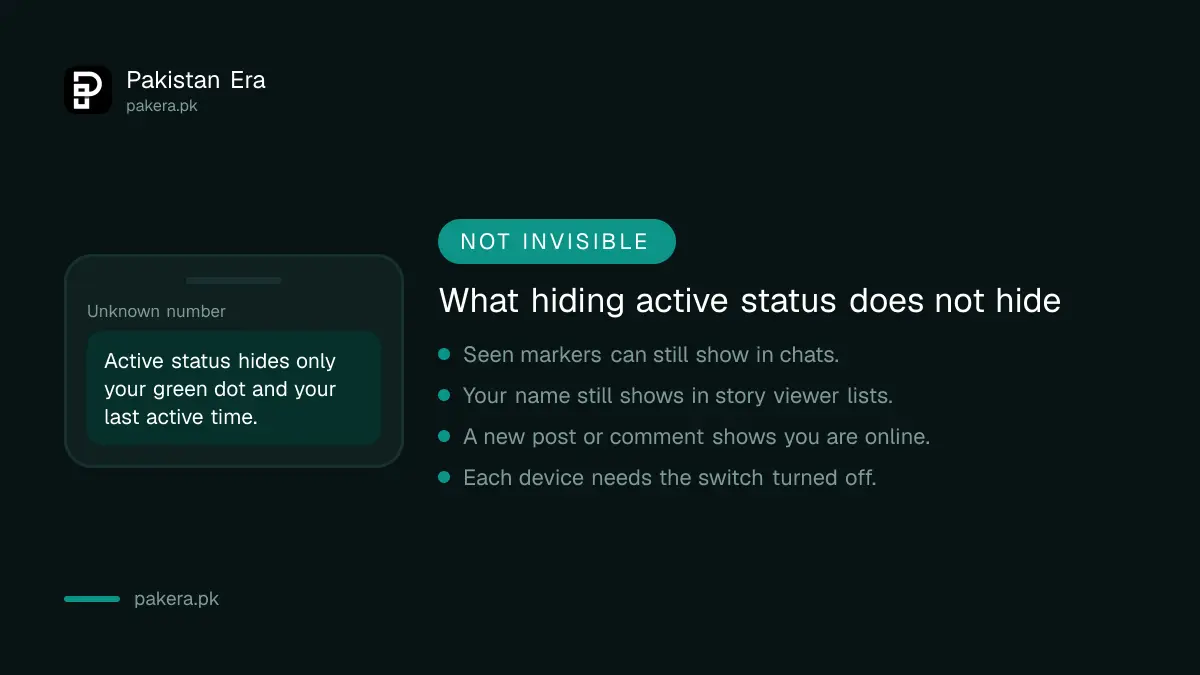
Hiding active status hides only the green dot and the last active time. People can still see that you read a message, that you viewed their story, and any public post or comment you make. It is a small privacy step, not invisibility.
- Seen in chats. Messenger and Instagram can still show that you saw a message.
- Story views. Viewing someone's story still puts your name in their viewer list.
- Posts and comments. A new post, like or comment still shows people you are using the app.
- Your followers. To control who sees your posts at all, make the account private, as set out in making an Instagram account private.
If you are hiding your status because someone is bothering you, a stronger step is to restrict or block that person. On Facebook, run the privacy checkup too, which is explained in the Facebook privacy checkup.
Common questions about hiding online status
If I hide my active status on Messenger, am I hidden on Facebook?
Not always. Meta says you may still appear active in the Facebook app if your status is on there. Turn it off in both.
Can I see others online if I turn off my Instagram Activity Status?
No. Instagram says that with your Activity Status off, you cannot see the Activity Status of other accounts either.
Does hiding active status stop people seeing I read their message?
No. Active status covers only the green dot and last active time. Seen markers in chats are separate.
Why did my Messenger active status turn back on?
On the phone app, Messenger pauses active status for the time you choose. When that time ends, it can come back on. Check the setting again and pick a longer pause.
Is the setting the same for all my Instagram accounts?
No. Each Instagram account has its own Activity Status. Switch accounts and turn it off in each one.
How we verified this
What we checked and where we read it.
Last checked 15 November 2026. Steps come from Meta's help centres: Turn your Instagram Activity Status on or off, Turn your active status on or off on Messenger (Android and computer versions) and Turn your Active Status on or off on Facebook. The Facebook page served to us in Urdu and gives computer steps only; the WhatsApp path is from our separate WhatsApp guide.
About the author

Technology Journalist & Multimedia Producer
Ahmad Ali is a technology journalist and multimedia producer at Pakistan Era, joining the team in October 2026. He covers consumer technology and digital life for Pakistani readers, combining research with hands-on product testing.